从 PDF 在 Zapier
PDF4me 从 PDF 是一个 Zapier 执行此操作,即可拉取所有可点击项 URL 出自 PDF链接注释层,以及每个链接出现的页码。可用于在交付前审核链接,并建立参考。 URL 数据库,或者无需手动打开文件即可向断链检测器提供数据。
相关博客文章
目前尚无关于此功能的博客文章——敬请期待。
在此期间,您可以浏览 PDF4me 博客,查看适用于各平台的教程和工作流程。
访问博客 →
此操作的作用
PDF4me 从 PDF 检索所有可点击项 URL 并将链接目标嵌入其中 PDF 文档,在您的 Zapier 工作流程。使用页面定位功能扫描整个文档或特定页面,并将提取的内容提供给系统。 URLs 进入 Google Sheets 用于链接审核,Airtable 用于 URL 数据库、断链检查器、SEO审核、合规性扫描、内容迁移注册表,或 CRM 系统用 Dropbox 上传、Gmail 附件、表单提交或任何 Zap 触发器触发的自动提取来取代手动 Adobe Acrobat 链接检查。
验证您的身份 API 要求
要访问 PDF4me 网站 API 通过 Zapier所有操作都必须经过身份验证。点击 连接新帐户 第一次粘贴你的 PDF4me API 关键在于,后续的 Zap 会自动重用该连接。
您不容错过的重要事实
阅读 PDF 注释层,而不仅仅是可见文本
该操作从中提取链接 PDF的结构化超链接注释,即读者点击时激活的可点击链接。 PDF 查看器。捕获 https URLsmailto: 地址、内部锚点和 tel: 电话链接。
页面范围定向,仅扫描重要内容
使用页面来定位特定页面(例如,
2 仅限第 2 页)或范围。保存 API 处理大型文档需要时间,并且当链接集中在已知部分(参考文献、脚注、附录)时,可以产生更清晰的输出。本国的 PDFs 仅扫描 PDFs 需要 OCR 第一的
扫描或拍摄 PDFs 缺少超链接注释层。对于扫描的源文档,请运行 OCR 首先,使用“按表达式提取文本”功能。 URL 使用正则表达式模式作为替代路径。
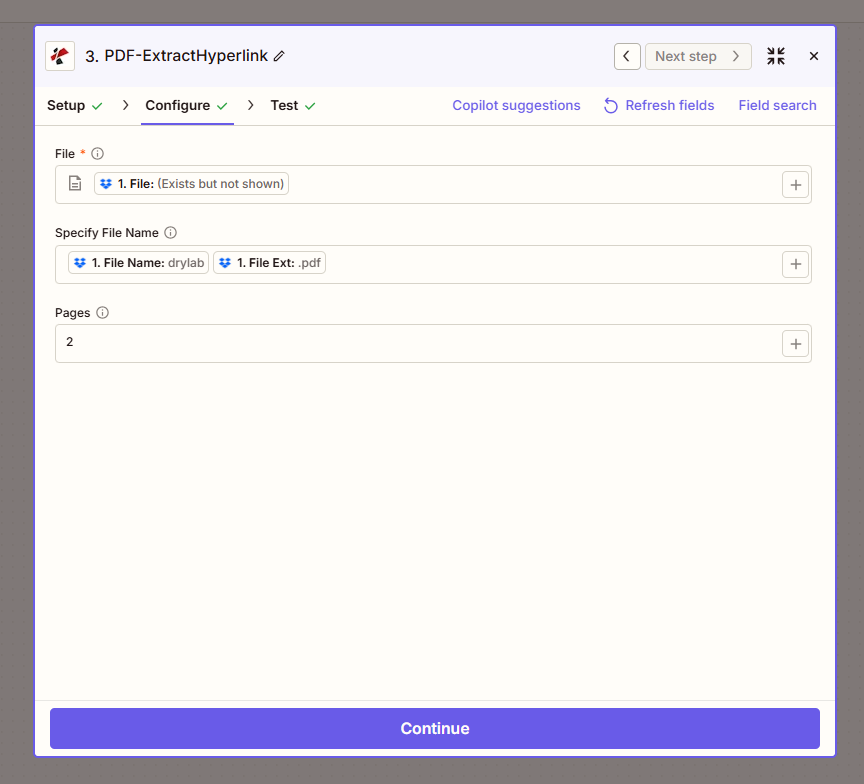
绘制地图 PDF 文件(可选地缩小范围至特定页面),然后运行,提取出的文件。 URLs 输出包中已包含可供下游映射的文件。
参数
必需的: 文件字段必须映射到 PDF 来源。指定文件名和页码是可选的,用于识别来源或缩小扫描范围。
| 范围 | 必需的 | 它的作用 | 例子 |
|---|---|---|---|
| File | Required | Input PDF from a previous Zap step. Map the file output of Dropbox, Google Drive, Gmail attachment, form trigger, or HTTP webhook. | 1. File: (Exists but not shown) |
| Specify File Name | Optional | Output file name identifier. Typically mapped from prior step (1. File Name + 1. File Ext). Used for audit reference in the response. | 1. File Name: drylab + 1. File Ext: .pdf |
| Pages | Optional | Page(s) to scan for hyperlinks. Use a single number (e.g. 2), comma-separated pages (1,2,3), ranges (1-10), or leave blank to scan all pages. | 2 |
我应该使用哪个 Pages 值?
(空白的)完整文档将页面留空以扫描每一页,最适合短篇文档或全面审核。
2单页一个特定的页面,当你知道链接集中在某个已知页面上时非常有用(例如,第 12 页上的参考文献)。
1,5,10特定页面以逗号分隔。目标为多个不连续的页面、封面、参考文献、附录。
1-10页面范围带连字符的范围。扫描某个部分(章节、参考文献),而无需扫描整个文档。
输出字段
| 场地 | 类型 | 它包含什么 |
|---|---|---|
Links / Hyperlinks | Array / Object | List of extracted URLs with page numbers and position metadata. Each entry contains the URL and where it was found in the document. |
File | String | Source file identifier echoed back for audit and tracking: useful when processing many PDFs through the same Zap. |
如何设置从中提取超链接 PDF 在 Zapier?
- 在 Zapier, 点击 + 添加新操作并选择 PDF4me。
- 选择 从 PDF 作为行动事件。
- 连接您的 PDF4me 帐户或粘贴您的 API 出现提示时按下按键。
- 地图 文件 到上一步的二进制输出:Dropbox 新建文件、Google Drive 新建文件、Gmail 附件或 webhook 有效负载。
- (可选) 指定文件名 通过映射
File Name + File Ext从上一步(用于跟踪哪些 PDF 这 URLs (来自)。 - 放 页 将扫描范围缩小到特定页面(例如,
2),逗号分隔的页面(1,5,10),范围(1-10或者留空以扫描所有页面。 - 使用示例测试该步骤。 PDF 并验证提取的内容 URLs 输出结果看起来正确。
- 绘制提取的地图 URLs 后续操作:Google 表格(每行 URL), Airtable(链接数据库),Webhook Zapier (断链检查),或 Slack(审计警报)。
- 打开 Zap。每个新 PDF 您的触发器将自动扫描并显示其 URLs 已送达目的地。
工作流程示例
工作流程示例Common Zapier workflow patterns using Extract Hyperlinks from PDF.
交付前链接审核 → 阻止敏感内部 URLs
- 当有新的面向客户的页面时,会触发一个 Google 云端硬盘文件夹。 PDF 已上传以供审核。
- PDF4me 提取超链接功能会扫描整个文档并返回所有超链接。 URLs。
- A Zapier 过滤器会检查内部域名(intranet.company.com、internal-crm.com、dev.example.com)。如果发现此类域名,工作流将停止,Slack 会通知文档作者。
- 如果只有外部 URLs 检测到 PDF 通过审核并上传到客户共享的 Dropbox 文件夹。
- Airtable 日志记录文档名称、链接数量和审核结果,用于合规性报告。防止内部信息意外泄露。 URLs 在面向客户的材料中。
出版 → 参考 URL 数据库 → 断链审核
- 当上传新的手稿、白皮书或研究报告以供发布时,Dropbox 触发器会触发。
- PDF4me 提取超链接的目标是参考文献部分(对于一篇典型的论文,页数为 25-30 页)。
- 提取的每个 URL 已添加到 Airtable“参考”中 URLs以文档标题、页码和原始文件为基础 URL。
- 一个每晚定时执行的 Zap 会遍历 Airtable 记录并运行 HTTP 针对每个的 HEAD 请求 URL 检查状态。404 错误、重定向或超时会在“失效链接”视图中标记出来。
- 面向作者的 Google 表格摘要会突出显示引用错误的文档,帮助编辑在最终出版前修复引用。
营销手册审核 → UTM/跟踪 URL 确认
- 一份新的营销手册或单页宣传册 PDF 已上传至 SharePoint 活动启动前的文件夹。
- PDF4me 提取超链接功能会扫描整个系统。 PDF 返回所有包含页面引用的链接。
- A Zapier 筛选或代码步骤验证每个 URL 包含活动的 UTM 参数(utm_source、utm_medium、utm_campaign):任何缺少 UTM 的链接都会被标记。
- Google 表格日志记录了宣传册及其提取内容。 URLs以及它们的UTM状态。市场部门会在产品发布前审核并修复缺失的跟踪参数。
- 一切 URLs 通过 UTM 验证后,Slack 消息会确认宣传册已准备好发布,并触发营销活动工作流程中的下一步。
常见问题解答
相关操作
在 PDF 中创建超链接
反向操作,即向文本中添加新的可点击超链接。 PDF提取并验证后,用于插入更正或更新后的内容。 URLs 添加到文档中。
从PDF中删除超链接
从 A 中删除超链接 PDF适用于合规性、编辑或打印等场景,在这些场景中不应保留可点击的链接。
通过表达式提取文本
提炼 URLs 扫描件 PDFs (后 OCR或者使用正则表达式提取任何基于模式的内容,另一种方法是 PDFs 没有原生超链接注释。