更新行 Excel 在 Zapier
PDF4me 更新行 Excel 是一个 Zapier 该操作会根据现有电子表格行进行修改。 JSON 数组,将属性名称与列标题匹配。用于同步 CRM 记录、刷新库存数量或使报告与数据库保持一致,所有这些都不会破坏电子表格的公式或布局。
验证您的身份 API 要求
要访问 PDF4me 网站 API 通过 Zapier每个请求都必须包含正确的身份验证凭据。身份验证可确保通信安全,并验证您作为授权用户的身份,从而实现与您的系统之间的无缝集成。 Zapier 工作流程和 PDF4me强大的 Excel 数据更新服务。
您不容错过的重要事实
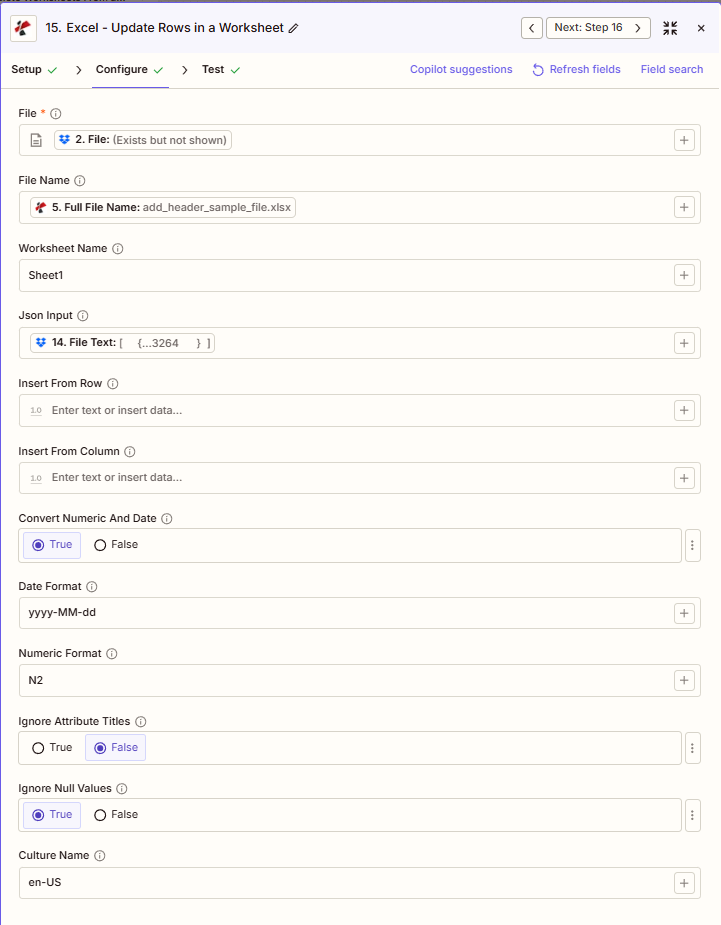
[{"Name":"John","Age":31}]数组中的每个对象都会更新一行;属性名称会与您的需求进行匹配。 Excel 列标题。2 (跳过标题行)。要改为追加行,请使用 添加行。:::提示:映射文件和 JSON 输入来自之前的步骤
使用 + 旁边的按钮 文件 和 文件名 根据之前的 Zap 步骤进行映射。映射 JSON 输入 从一个输出步骤 JSON 数组(例如, API 响应(从解析 CSV 文件中提取文本)。 Excel 文件必须提供完整内容,不能仅提供“存在但未显示”的引用。
:::
Update Rows 如何将我的 JSON 数据与我的数据匹配? Excel 列?
更新行会读取工作表的标题行,并将每个属性名称与工作表中的每个属性名称进行匹配。 JSON 输入 将数组设置为同名列标题。 忽略属性标题 到 True 用于不区分大小写的匹配,当源系统的字段名称不完全匹配时非常有用。 Excel的外壳(例如,一个 CRM 使用导出 customerName 反对 Excel 标题 Customer Name)。
更新行和添加行有什么区别?
更新行 覆盖已存在行中的数据,从指定位置开始。 从行插入 和 从列插入它从不创建新行。如果你的 JSON 数组中起始位置以下的记录数多于现有行数,请使用 添加行 改为追加,或者将这两个操作合并到一个 Zap 中:更新现有 ID 的行,添加新 ID 的行。
主要特点
- 就地更新修改现有单元格;Json 输入必须是 JSON 大批
- 标头匹配属性名称匹配 Excel 列标题
- 从行插入/从列插入:从 1 开始的起始位置(例如,第 2 行跳过标题行)
- 转换数值和日期:True = 将字符串转换为 Excel 数字/日期
- 日期格式/数字格式启用转换时应用格式
- 忽略空值:True = 跳过空值;False = 更新为空
- 忽略属性标题:当为真时,不区分大小写的标头匹配
参数
更新行操作的完整参数列表。参数名称与……匹配 Zapier 配置 UI。
- 地图 文件 (Excel) 和 文件名 上一步
- 地图 JSON 输入 (JSON 来自数组 API(解析 CSV 或其他步骤)
- 放 工作表名称 (默认 Sheet1)
- 放 从行插入 和 从列插入 (从 1 开始计数;通常为 2,数据行用 1 表示)
- 配置 转换数值和日期, 日期格式, 数字格式, 忽略空值
必需的: 文件和 JSON 输入。Json 输入必须是…… JSON 将单个对象包装在数组中 [...]。
| 范围 | 必需的 | 它的作用 | 例子 |
|---|---|---|---|
| File | Required | Excel file content, mapped from a previous step. Must provide full binary content, not a reference labeled Exists but not shown. | 2. File from Step 2 |
| File Name | Conditional | Excel filename with .xlsx or .xls extension. | add_header_sample_file.xlsx |
| Worksheet Name | Conditional | Target worksheet name. Defaults to Sheet1 when left blank. | Sheet1 |
| Json Input | Required | JSON array where each object updates one row. Property names are matched against Excel column headers. | [{"Name":"John","Age":31}] |
| Insert From Row | Conditional | 1-based first row to update. Use 2 to skip the header row. | 2 |
| Insert From Column | Conditional | 1-based column offset used for header matching. | 1 |
| Convert Numeric And Date | Conditional | When True, converts JSON string values into native Excel numbers and dates. | True |
| Date Format | Conditional | Excel date format applied when Convert Numeric And Date is True. | yyyy-MM-dd |
| Numeric Format | Conditional | Excel numeric format applied when Convert Numeric And Date is True. | N2 |
| Ignore Attribute Titles | Conditional | When True, matches JSON property names to column headers case-insensitively. | False |
| Ignore Null Values | Conditional | When True, null values in Json Input are skipped instead of clearing the cell. | True |
| Culture Name | Conditional | Locale used to interpret dates and numbers during conversion. | en-US |
更新行操作返回什么结果?
这 PDF4me 更新行 Excel 操作返回修改后的值 Excel 文件将用于后续的 Zap 步骤。输出格式为: 所有共同点 PDF4me Excel 返回文件操作 在 Zapier。
| 场地 | 类型 | 它包含什么 |
|---|---|---|
Job Id | String | Unique identifier for the Zapier job execution. |
File Url | URL | API endpoint to download the updated Excel file. Map this to the next step’s file input. |
Alternate File Url | URL | Alternate download URL with the filename embedded in the path. |
File Name | String | Base filename without extension. |
File Extension | String | File extension of the output file. |
Full File Name | String | Complete filename with extension. |
Document Id | String | Unique identifier for the processed document. |
File Size | Number | Size of the output file in bytes. |
- JSON
- Zap Integration
例子 JSON 输出 (URL(仅显示格式,链接无效):
{
"Job Id": "969f2da3-f10a-49bf-b084-6fc4759991ec",
"File Url": "api.pdf4me.com/Zapier/GetDocument?d=...",
"Alternate File Url": "api.pdf4me.com/Zapier/GetAltDocument/.../add_header_sample_file.xlsx",
"File Name": "add_header_sample_file",
"Full File Name": "add_header_sample_file.xlsx",
"File Extension": ".xlsx",
"Document Id": "...",
"File Size": 212764
}
使用 + 绘制地图 文件 URL 或者 备用文件网址 下一步,通过云端硬盘、Dropbox、电子邮件或其他方式。 PDF4me Excel 行动。
典型配置
实用技巧
始终设置 从行插入 到 2 如果工作表的第一行有标题行,则标题行将被覆盖;否则,标题本身将被覆盖。
使用 忽略空值 = 真 当你 JSON 源仅发送已更改的字段,因此不相关的单元格不会被清空。
用少量水进行测试。 JSON 首先使用数组(1-2 个对象)确认标题匹配,然后再针对完整数据集运行。
速查表
- 仅使用现有行 添加行 添加新条目。
- JSON 输入始终是一个数组,请将单个对象包装在内。
[...]。 - 除非另有说明,否则标头匹配区分大小写。 忽略属性标题 属实。
- 放 转换数值和日期 设置为 True 可保持数字和日期为原生格式,而不是文本格式。
- 地图上的完整文件内容 文件绝不会是“存在但未显示”的引用。
场景示例
这 PDF4me 更新行 Excel 行动 Zapier 提供针对实际数据同步需求而设计的综合场景模板:
- Database Sync
- API Data Refresh
- CRM Data Update
- Inventory Refresh
自动化数据库到Excel 同步场景
保留你的 Excel 报告与数据库更改自动同步:
完整场景步骤:
- 扳机计划触发器每 4 小时运行一次以刷新数据
- 查询数据库: 执行 SQL 查询以获取自上次同步以来的更新记录
- 格式 JSON: 转变 SQL 结果 JSON 数组格式,并带有正确的属性名称
- 得到 Excel 报告从 Google 云端硬盘获取主报告模板
- 更新行:映射文件、文件名、Json 输入(来自步骤 3);设置工作表名称、从第 2 行插入、转换数值和日期 = True、忽略空值 = True、日期格式 = MM/dd/yyyy、数值格式 = $#,##0.00
- 上传结果: 地图 文件 URL 输出到 Google 云端硬盘,替换旧版本
- 电子邮件团队向团队发送数据刷新完成通知
- 日志同步记录同步时间戳和同步日志中的记录数
这样做能达到什么目的:
- 将数据库记录同步到 Excel 按计划自动
- 消除数据库和报表之间的手动数据录入。
- 保持 Excel 与当前数据库状态一致的报告
- 蜜饯 Excel 更新数据时的公式和格式
自动化 API 到Excel 数据刷新场景
保持 Excel 自动更新外部 API 数据的仪表盘:
完整场景步骤:
- 扳机:每小时定期进行数据刷新。
- 称呼 REST API: 执行 HTTP 访问外部分析服务
- 解析响应: 提炼 JSON 来自数组 API 响应机构
- 转换数据应用业务逻辑计算和转换
- 得到 Excel 仪表板从 Dropbox 获取实时仪表板
- 更新行:映射文件、文件名、Json 输入(API 数据);设置 Insert From Row = 2,Convert Numeric And Date = True,Culture Name = en-US
- 上传结果: 地图 文件 URL 从输出到 Dropbox
这样做能达到什么目的:
- 刷新 Excel 按周期更新的包含 API 数据的仪表板
- 在熟悉的环境中提供近乎实时的可视性。 Excel 格式
- 自动格式化 API 响应中的数字和日期
- 在更新数据的同时,保留仪表板结构、公式和图表。
自动化 CRM 到Excel 更新方案
同步 Excel 自动生成包含 CRM 商机更新的报告:
完整场景步骤:
- 扳机Webhook 接收 CRM 机会更新活动
- 获取机会详情: 询问 CRM 完整机会记录
- 寻找 Excel 排: 搜索 Excel 用于匹配商机 ID 行
- 创造 JSON 更新: 建造 JSON 包含已更新字段的对象
- 得到 Excel 报告:检索商机跟踪 Excel 来自 Google 云端硬盘
- 更新行: 映射文件、文件名、Json 输入;设置忽略属性标题 = True,数值格式 = $#,##0.00
- 上传结果: 地图 文件 URL 从输出到 Google 云端硬盘
- 电子邮件销售经理发送商机更新通知
这样做能达到什么目的:
- 保持商机记录的更新 Excel 自动地 CRM 变化
- 对齐 Excel 报告 CRM 无需手动复制粘贴
- 灵活的头部匹配手柄 CRM 字段名称变体
- 减少手动 CRM 到Excel 数据录入
自动库存水平更新方案
保持 Excel 与实时库存水平同步的库存清单:
完整场景步骤:
- 扳机仓库管理系统的库存更新事件
- 获取最新库存信息查询库存数据库以获取当前库存水平
- 格式化库存 JSON转换为包含 SKU 和数量的 JSON 数组
- 获取库存 Excel:检索主库存 Excel 从 SharePoint
- 更新行: 映射文件、文件名、Json 输入;设置插入起始行 = 2,忽略空值 = True,数值格式 = 0
- 上传结果: 地图 文件 URL 从输出到 SharePoint
- 触发警报检查库存是否不足,如有需要发送提醒。
这样做能达到什么目的:
- 更新 SKU 库存水平 Excel 来自仓库系统
- 提供当前库存可见性 Excel 格式
- 减少人工库存数据录入和核对
- 利用最新数据支持主动库存管理
行业应用案例及应用
- Sales & Marketing
- Finance & Accounting
- Human Resources
- Operations & Supply Chain
- CRM商机更新:在 Excel 中修改商机行,添加最新状态、金额和结束日期。
- 广告系列效果刷新更新广告系列指标行,包括当前的展示次数、点击次数和转化次数。
- 潜在客户评分更新:从营销自动化系统中刷新 Excel 跟踪表中的潜在客户评分数据
- 客户数据库同步更新客户记录行,包含最新的联系信息和购买历史记录
- 销售预测更新使用更新后的管道数据和中标概率修改预测行
- 交易更新修改交易行,更正金额、日期或账户代码
- 账户余额刷新:根据会计系统中的当前余额更新账户余额行
- 预算跟踪更新修改预算与实际支出模板中的实际支出行
- 费用报告更新更新费用行,包括审批状态和报销金额。
- 发票状态更新从计费系统中刷新包含付款状态和日期的发票行
- 员工记录更新修改员工信息,包括晋升、薪资变动和部门调动。
- 出勤情况更新更新考勤记录,包括更正后的上下班打卡时间和休假使用情况。
- 性能评分更新:使用更新后的评分和目标进度刷新评分行
- 福利登记更新修改包含计划选择和受抚养人变更的注册行
- 培训状态更新更新培训完成记录,包括日期和认证状态
- 库存水平更新:根据仓库的实时数量更新修改库存水平行
- 订单状态更新:刷新订单行,显示当前的订单履行和发货状态
- 生产进展:使用实际产量、停机时间和质量指标更新生产运行行
- 供应商动态更新供应商信息,包括联系信息、交货时间和价格。
- 设备状态更新:刷新设备行,包含维护日期和运行状态