去除水印 Excel 在 Zapier
去除水印 Excel 是一个 Zapier 采取行动 PDF4me 该功能无需手动编辑即可从电子表格工作表中删除形状,包括水印、图表或图像。可在文档获得批准、重新命名或准备交付给客户后触发。该操作会返回清理后的文件。 Excel 文件用于 Zap 的下一步。
此操作的作用
PDF4me 去除水印 Excel 通过形状 ID 定位特定水印进行精确删除,或在水印 ID 为空时移除所选工作表中的所有形状。此功能可用于移除“草稿”标记、消除机密标签、在与新客户共享前清理品牌版本,或准备用于发布的文档。
验证您的身份 API 要求
要访问 PDF4me 网站 API 通过 Zapier每个请求都必须包含正确的身份验证凭据。身份验证可确保通信安全,并验证您作为授权用户的身份,从而实现与您的系统之间的无缝集成。 Zapier 工作流程和 PDF4me的 Excel 水印去除服务。
您不容错过的重要事实
参数
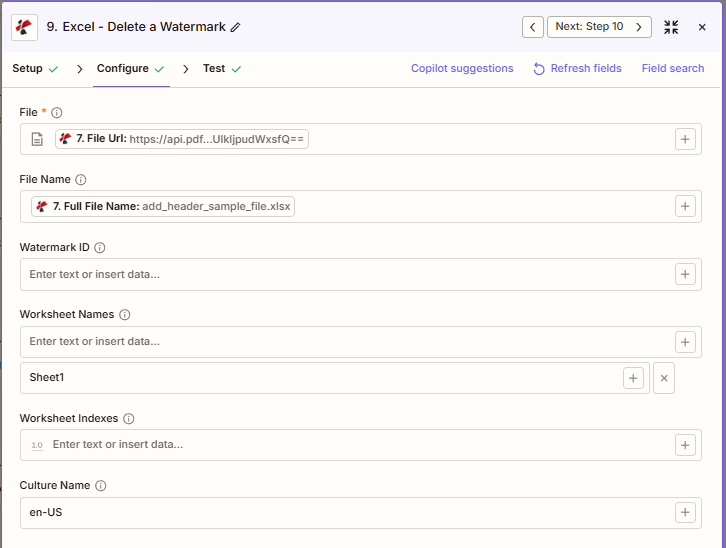
移除水印操作的完整参数列表。参数名称与以下内容一致: Zapier 配置 UI。
必需 Zapier UI: 仅需填写“文件”字段。“文件名”、“水印 ID”、“工作表名称”、“工作表索引”和“区域性名称”均为可选;仅当您有意移除所有形状时,才可将“水印 ID”留空。
| 范围 | 必需的 | 它的作用 | 例子 |
|---|---|---|---|
| File | Required | Excel file content, mapped from a previous step using full file content, not a reference. | [7. File Url] |
| File Name | Conditional | Filename with .xlsx or .xls extension, used for output naming. | add_header_sample_file.xlsx |
| Watermark ID | Conditional | Case-sensitive shape name to remove. Leave empty to remove ALL shapes, including charts and images, from the targeted worksheets. | DRAFT_Watermark |
| Worksheet Names | Conditional | Target worksheet names, comma-separated. Empty applies to all sheets. | Sheet1 |
| Worksheet Indexes | Conditional | Target worksheet positions, 1-based, comma-separated. Empty applies to all sheets. | 1 |
| Culture Name | Conditional | Locale used for processing. | en-US |
:::提示:从之前的步骤中获取映射文件和文件名
使用 + 旁边的按钮 文件 和 文件名 从之前的 Zap 步骤进行映射。您可以使用 文件 URL 和 完整文件名 来自前 PDF4me Excel 行动。 Excel 文件必须提供完整内容,不能仅提供“存在但未显示”的引用。
:::
:::警告 文件:(存在但未显示)
如果在“文件”字段中看到“文件:(存在但未显示)”并出现错误,请选择提供相应选项的选项。 完整文件内容 另见。 Zapier & Power Automate 尖端 详情请见下文。
:::
输出
这 PDF4me 去除水印 Excel 操作返回修改后的值 Excel 该文件用于后续的 Zap 步骤。输出格式在所有 Zap 步骤中都是通用的。 PDF4me Excel 文件返回操作 Zapier。
| 场地 | 类型 | 它包含什么 |
|---|---|---|
Job Id | String | Unique identifier for the Zapier job execution. |
File Url | URL | API endpoint to download the Excel with watermarks removed. Map this to the next step's file input. |
Alternate File Url | URL | Alternate download URL with the filename in the path. |
File Name | String | Base filename without extension. |
File Extension | String | File extension of the output. |
Full File Name | String | Complete filename with extension. |
Document Id | String | Unique identifier for the processed document. |
File Size | Number | Size of the output file in bytes. |
如何去除水印 Excel 在 Zapier?
- 添加 PDF4me 前往您的 Zap 并选择 去除水印 在 Excel 行动。
- 连接您的 PDF4me 创建一个帐户,或选择现有连接。
- 地图 文件 和 文件名 从上一步开始,使用完整的文件内容。
- 放 水印 ID 输入区分大小写的确切形状名称,或者留空以删除所有形状。
- (可选) 工作表名称 或者 工作表索引 限制受影响的图纸范围。
- (可选) 文化名称 用于本地化处理。
- 测试该步骤,然后进行映射。 文件 URL 或者 备用文件网址 执行 Zap 中的下一个操作。
水印 ID 为空会发生什么?
离开 水印 ID “清空”操作会从目标工作表中移除所有形状,而不仅仅是水印。图表、图像、绘图和文本框以及所有水印形状都会被删除。仅当您确实想要从工作表中移除所有形状时才使用此功能;否则,请务必设置特定的形状名称。
批判的: 当水印 ID 为空时,所选工作表中的所有形状(包括水印、图表、图像、绘图和文本框)都将被移除。请谨慎使用。
典型配置
工作流程示例Common Zapier workflow patterns using Remove Watermark from Excel.
- 当文档被标记为“已批准”时,工作流状态触发器会触发。
- 前一步骤检索带有 DRAFT 水印形状的 Excel 文件。
- PDF4me 删除水印,将水印 ID 设置为与形状名称完全一致的水印运行,并将工作表名称/索引留空以覆盖每个工作表。
- 清洗过的
文件 URL已映射到上传或电子邮件分发步骤。
- 在内容管理触发器中选择了一个模板进行品牌重塑。
- PDF4me 移除水印会根据水印 ID 删除旧的品牌形状,工作表名称仅限于面向公众的工作表。
- 后续报道 PDF4me 添加文本水印步骤会将新的品牌标识应用到清理后的文件上。
- 当工作簿被标记为对外分发时,将触发可交付就绪触发器。
- PDF4me 移除水印功能通过 ID 定位内部标记形状,工作表索引仅限于客户端可见的工作表。
- 经过清理的文件会映射到客户端门户上传步骤,而原始文件则保持不变,用于内部存档。
实用技巧
速查表
| 场地 | 价值 |
|---|---|
| Action | Remove Watermark |
| File | [7. File Url] |
| File Name | add_header_sample_file.xlsx |
| Watermark ID | DRAFT_Watermark |
| Worksheet Names | Sheet1 |
| Culture Name | en-US |
| Output to map forward | File Url or Alternate File Url |
常见问题解答
相关操作
在其他平台上执行相同任务
行业应用案例及应用
- Legal & Professional
- Finance & Accounting
- Sales & Marketing
- Operations
- 草案最终定稿经合作伙伴批准后,从法律文件中移除“草稿”水印。
- 特权审查从非特权证据中移除“律师-客户特权”水印
- 客户交付成果清理在分发给客户之前,移除内部工作成果水印。
- 文件准备在提交法院文件前,清除文件中的“仅供审阅”水印。
- 和解最终确定执行完毕后,移除“保密和解”水印。
- 最终报告清理审批通过后,从财务报告中移除“初步”水印。
- 客户交付成果消毒:对外交付前请移除“仅供内部使用”水印
- 季度末审核批准后,清除预算文件中的“草稿”水印
- 审计文件清理从最终审计计划表中移除“工作底稿”水印
- 解除禁运公开发布后,从收益材料中删除“EMBARGOED”水印
- 提案最终定稿销售总监批准后,移除“草案提案”水印。
- 客户定价清理在交付给客户之前,从价格表中移除内部水印。
- 竞选报告定稿数据验证后清除“初步结果”水印
- 品牌重塑品牌过渡期间移除旧公司水印形状
- 外部分发移除合作伙伴共享报告中的“仅限内部使用”水印
- 生产计划最终确定批准后移除“草稿日程”水印
- 客户仪表盘清理从面向客户的仪表盘中移除内部状态水印
- 质量报告定稿质量控制审核通过后,清除“审核中”水印
- 供应商文档:在供应商分发之前,从规范中移除内部水印
- 模板更新:在年度更新期间清除模板中的旧水印形状