庄稼 PDF 在 Zapier
PDF4me 庄稼 PDF 是一个 Zapier 修剪操作 PDF它可以去除页面边缘或提取特定区域,并提供两种可配置的方法:矩形或边框。使用此功能可以移除扫描仪边距、隔离签名块,或在每次创建新页面时自动标准化页面尺寸。 PDF 已送达您的 Zap。
相关博客文章
目前尚无关于此功能的博客文章——敬请期待。
在此期间,您可以浏览 PDF4me 博客,查看适用于各平台的教程和工作流程。
访问博客 →
此操作的作用
PDF4me 庄稼 PDF 修剪 PDF 页面边缘或提取您页面内的特定区域 Zapier 工作流程采用两种灵活的方法: 使用矩形裁剪 (左下角 X/Y 坐标、宽度、高度)用于精确区域提取,或 使用边界裁剪 (左、右、上、下)用于去除边距。自动去除扫描仪边缘、从合同中分离签名块、提取表单字段、统一文档批次的页面尺寸,或准备 PDFs 打印方面,所有操作均由 Dropbox、Google Drive、Gmail、表单提交或其他任何方式自动触发。 Zapier 扳机。
验证您的身份 API 要求
要访问 PDF4me 网站 API 通过 Zapier所有操作都必须经过身份验证。点击 连接新帐户 第一次粘贴你的 PDF4me API 关键在于,后续的 Zap 会自动重用该连接。
您不容错过的重要事实
两种裁剪模式,根据您的任务选择合适的方法。
使用 长方形 当您知道要保留的确切区域(签名块、表单字段、特定内容区域)时,请使用此功能。 边界 当你知道要从每个边缘(扫描仪输出、页码、装饰性空白)去除多少边距时。
PDF坐标,原点位于左下角,数值以点为单位
PDF 左下角坐标为 (0,0),Y 值向上递增。数值单位为磅,1 英寸 = 72 磅。美式信纸尺寸为 612 × 792 磅;A4 纸尺寸约为 595 × 842 磅。请根据页面尺寸核对数值是否正确。
根据先前的步骤动态绘制作物尺寸图
每个维度字段都支持 Zapier的“+”按钮用于动态映射。从表单输入、Google 表格查找(按文档类型)或 Zapier 格式化程序输出,一个 Zap 程序可以处理多个文档布局,而无需创建多个分支。
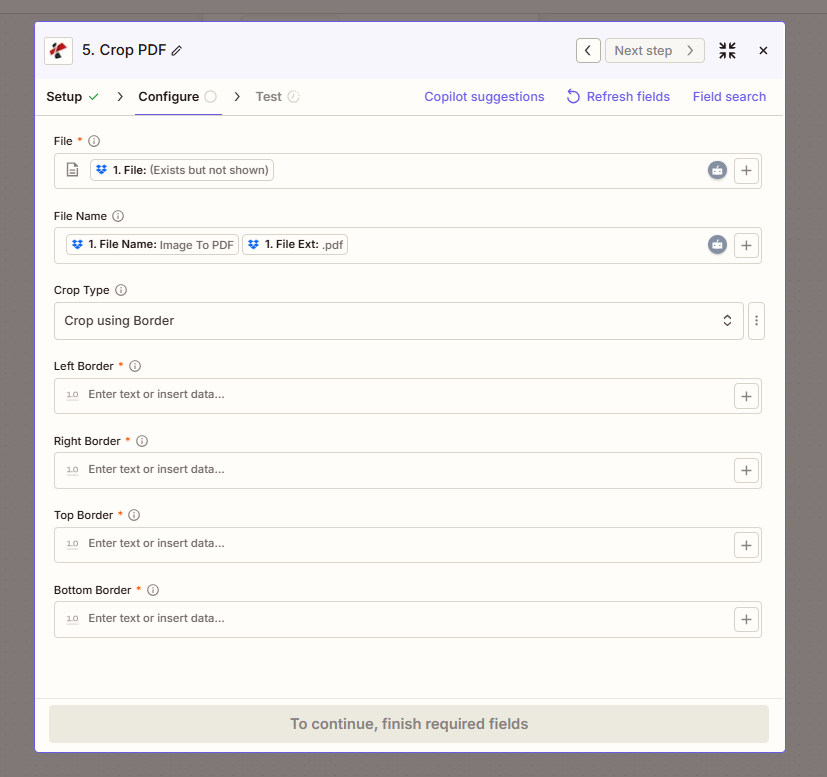
矩形模式,定义左下角加上宽度和高度,以提取特定页面区域。
参数:方法 1:矩形裁剪
通过指定左下角和尺寸来定义裁剪区域。使用此方法可以提取页面上的特定区域(签名块、表单部分、内容矩形)。
| 范围 | 必需的 | 它的作用 | 例子 |
|---|---|---|---|
| File | Required | Input PDF from a previous Zap step. Map the file output of Dropbox, Google Drive, Gmail attachment, form trigger, or HTTP webhook. | 1. File: (Exists but not shown) |
| File Name | Optional | Output file name (filename + extension). Map from prior step or hardcode. PDF4me derives a sensible default if omitted. | 1. File Name + 1. File Ext |
| Crop Type | Required | Select "Crop using Rectangle" from the dropdown to enable Rectangle-mode fields below. | Crop using Rectangle |
| Lower Left X | Required | X-coordinate of the lower-left corner of the crop rectangle (in points). 0 starts at the left edge. | 50 |
| Lower Left Y | Required | Y-coordinate of the lower-left corner of the crop rectangle (in points). 0 starts at the bottom edge. | 100 |
| Width | Required | Width of the crop rectangle in points, extending right from Lower Left X. | 500 |
| Height | Required | Height of the crop rectangle in points, extending up from Lower Left Y. | 600 |
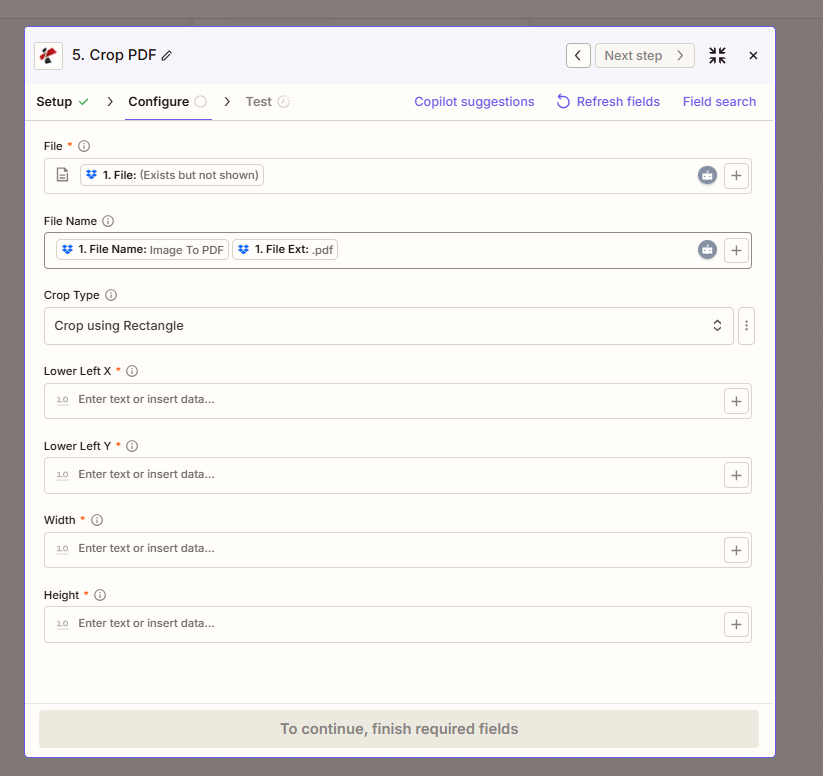
边框模式,指定从每个边缘修剪多少,以去除边距或扫描仪输出边缘。
参数:方法 2:使用边界裁剪
通过指定从每个边缘修剪多少来移除页边距。使用此方法可以清理扫描仪边缘、移除页码或均匀地去除装饰性空白。
| 范围 | 必需的 | 它的作用 | 例子 |
|---|---|---|---|
| File | Required | Input PDF from a previous Zap step. | 1. File: (Exists but not shown) |
| File Name | Optional | Output file name. PDF4me derives a default if omitted. | 1. File Name + 1. File Ext |
| Crop Type | Required | Select "Crop using Border" from the dropdown. | Crop using Border |
| Left Border | Required | Amount to trim from the left edge in points. | 10 |
| Right Border | Required | Amount to trim from the right edge in points. | 10 |
| Top Border | Required | Amount to trim from the top edge in points. | 15 |
| Bottom Border | Required | Amount to trim from the bottom edge in points. | 15 |
矩形裁剪还是边框裁剪:我应该使用哪种裁剪模式?
使用矩形裁剪提取特定区域最适合用于隔离签名块、表单字段、内容矩形或任何预先确定的区域。提供左下角坐标以及宽度和高度。输出结果 PDF 每页仅包含此矩形区域。
使用边界裁剪从每个边缘修剪边距最适合去除扫描仪输出边缘、页码、页眉/页脚或多余的装饰性空白。请指定要从四个边缘分别修剪多少。输出结果 PDF 保留中心内容区域。
输出字段
| 场地 | 类型 | 它包含什么 |
|---|---|---|
File Content | Binary | Cropped PDF ready for download, email, or further processing in the next Zap step. |
File Url | String | Direct URL to access the cropped PDF: useful for sharing or downstream HTTP processing. |
File Name | String | Output filename without extension. |
Full File Name | String | Complete output filename with .pdf extension. |
如何设置裁剪 PDF 在 Zapier?
- 在 Zapier, 点击 + 添加新操作并选择 PDF4me。
- 选择 庄稼 PDF 作为行动事件。
- 连接您的 PDF4me 帐户或粘贴您的 API 出现提示时按下按键。
- 地图 文件 到上一步的二进制输出:Dropbox 新建文件、Google Drive 新建文件、Gmail 附件或表单触发器。
- 选择 作物类型 从下拉菜单中: 使用矩形裁剪 用于区域提取或 使用边界裁剪 用于去除边际误差。
- 矩形模式:输入 左下角 X, 左下角 Y, 宽度, 和 高度 以点数表示(1 英寸 = 72 点)。
- 对于边框模式:输入 左边界, 右边界, 顶部边框, 底部边框 以积分表示。
- (可选) 文件名 通过映射前一步骤中的文件名+扩展名。
- 使用示例测试该步骤。 PDF 并确认裁剪后的输出结果是否正确。
- 打开 Zap。每个新 PDF 触发后的图像将自动裁剪,输出结果即可上传、通过电子邮件发送或进行进一步处理。
工作流程示例
工作流程示例Common Zapier workflow patterns using Crop PDF.
扫描仪输出 → 修剪边距 → OCR-准备存档
- 网络扫描器保存 PDFs 由于扫描仪平台和倾斜校正导致边缘不均匀,文件被保存到 Dropbox 手表文件夹中。
- Zapier 每个新文件都会触发。 PDF4me 庄稼 PDF 使用 Crop Type = Crop using Border 运行,从每条边上移除 15 个点。
- 清洗过的 PDF 文件已上传至 Google 云端硬盘的存档文件夹,文件名格式为: {date}_{document_id}.pdf。
- 后续的 Zap(或连锁步骤)运行 OCR 在清洁后 PDF, OCR 没有扫描仪边缘伪影,精度显著提高。
- Airtable 日志会记录文档 ID、扫描日期和 OCR 记录保留审计跟踪的状态。
已签署合同 → 提取签名区域 → 合规档案
- DocuSign 或 Adobe Sign 通过 webhook 发送已签署的合同 Zapier。
- PDF4me 庄稼 PDF 运行时,裁剪类型 = 使用矩形裁剪,配置左下角 X/Y 和宽度/高度与页面上已知的签名块位置相匹配。
- 裁剪 PDF (仅限签名区域)已保存到合规性存档中 SharePoint 以合同ID作为文件名。
- 发送给合规官的电子邮件通知会附上裁剪后的签名区域以及合同参考信息。
- 裁剪后的签名图片和原始完整合同均已链接。 Salesforce 用于端到端审计。
混合格式报告 → 标准化页面大小 → 打印队列
- 各个团队提交的报告页面尺寸不同,页边距也不一致,这给打印准备工作带来了困难。
- 每份新报告都会触发一个 Google 云端硬盘文件夹触发器。 PDFGoogle Sheets 查找步骤检索报告类别的目标作物尺寸。
- PDF4me 庄稼 PDF 使用从 Sheets 查找中动态映射的左下角 X/Y 和宽度/高度来运行,将每个报告标准化到相同的内容区域。
- 标准化 PDF 通过 webhook 发送到按需打印服务队列,确保所有报告的输出一致。
- 每周汇总电子邮件会列出所有已处理的报告、类别和打印作业 ID,供设施团队报告使用。
常见问题解答
相关操作
给 PDF 添加边距
反向操作,即在周围添加空格。 PDF 内容。裁剪后用于标准化页面尺寸或准备印刷装订。
从 PDF 文件中提取页面
配合裁剪功能,首先从文档中分离出特定页面,然后将这些页面裁剪到一个区域,这是一个两步流程,用于精确提取。
扁平化 PDF
裁剪后将表单字段和注释展平为静态内容,用于存档或合规性要求。 PDFs。