创建条形码 Zapier
此操作的作用
PDF4me创建条形码 生成独立条形码或 QR 从任何文本或动态 Zap 数据中生成代码图像并将其返回。 Base64编码文件。可从六种格式中选择。 QR Code, Data Matrix, Code128, Aztec, HanXin, 和 PDF417并自动对订单号、产品 URL、跟踪 ID 或任何字母数字数据进行编码。无来源 PDF 是必需的;条形码是从零开始生成的,可以直接导入存储设备、电子邮件或下游系统。 PDF 嵌入步骤。
相关博客文章
目前尚无关于此功能的博客文章——敬请期待。
在此期间,您可以浏览 PDF4me 博客,查看适用于各平台的教程和工作流程。
访问博客 →
验证您的身份 API 要求
每一个 PDF4me 行动 Zapier 需要有效 联系创建或选择一个可以容纳您的 PDF4me API 关键在于让 Zap 能够安全地验证条形码生成请求。
您不容错过的重要事实
两个字段均为必填项
条形码类型和文本均为必填项。条形码类型决定编码标准,文本包含要编码的实际数据。如果其中任何一项留空,操作将失败且不产生任何输出。
输出结果为 Base64不是文件 URL
文件内容输出字段包含 Base64编码图像数据,而不是 URL要获取可下载的文件,请传递以下信息: Base64 在下一个 Zap 步骤中,将值直接导入到存储操作(例如 Google 云端硬盘上传文件、Dropbox 上传文件或类似操作)中。
从先前步骤中映射动态数据
文本字段支持 Zapier字段映射。点击“+”图标,选择上一步的任何输出、Shopify 的订单 ID、Google Sheets 的行值或 HubSpot 的联系人字段,即可自动为每个记录生成唯一的条形码。
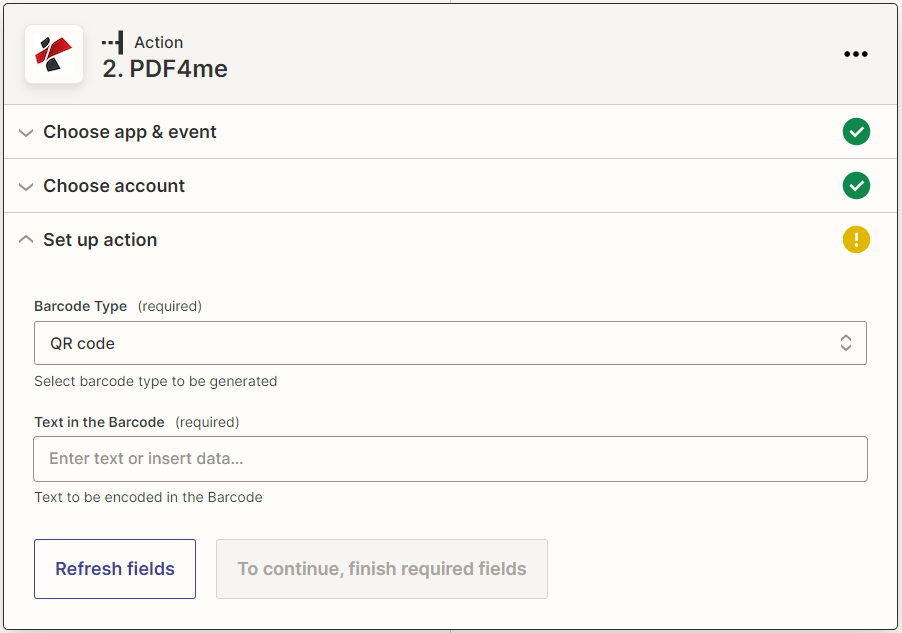
条形码类型选择编码格式;文本映射自任何先前的步骤、订单 ID 等。 URLSKU 或任何字母数字值。
参数
必需的: 要生成条形码,必须同时提供条形码类型和文本。
| 范围 | 必需的 | 它的作用 | 例子 |
|---|---|---|---|
| Barcode Type | Yes | Format of the barcode to generate. Options: QR Code, Data Matrix, Code128, Aztec, HanXin, PDF417: plus 150+ additional types. | QR Code |
| Text | Yes | Data to encode into the barcode. Map a dynamic value from a prior Zap step: order number, URL, SKU, asset ID, or any alphanumeric string. | ORDER-2024-00123 |
输出字段
| 场地 | 描述 |
|---|---|
| 文件内容 | Base64将编码后的条形码图像传递到 Google 云端硬盘、Dropbox、Gmail 或任何其他存储/电子邮件平台。 |
快速设置
- 添加 PDF4me → 创建条形码 前往你的 Zap。
- 选择 帐户 (或点击) 连接新帐户 并输入您的 API 钥匙)。
- 选择 条形码类型 从下拉菜单中选择:例如, QR Code 链接 Code128 用于库存标签。
- 地图 文本 到您要编码的动态字段:例如,
{{Order Number}}来自 Shopify。 - 添加后续步骤:保存 文件内容 到 Google 云端硬盘把它连接到 Gmail 消息,或将其传递给 添加条形码或 QR Code 到 PDF 用于嵌入。
工作流程示例
工作流程示例Common Zapier patterns using PDF4me Create Barcode.
电子商务订单跟踪 QR codes
- Shopify触发器会在新订单生成时触发。
- PDF4me 创建条码运行,并将条码类型设置为 QR Code 以及根据订单号映射的文本。
- Gmail 附加了 Base64 条形码图像将添加到订单确认邮件中。
- Google 云端硬盘会将条形码图像保存到 /Order Barcodes/ 文件夹中以作记录。
库存产品标签生成
- 在 Google Sheets 中添加新行(产品登记)会触发 Zap。
- PDF4me 创建条形码会将 SKU 值编码成条形码。 Code128 条形码。
- PDF4me 添加条形码或 QR Code 到 PDF 将其嵌入标签模板 PDF。
- Dropbox 会保存已标记的文件。 PDF 发给仓库团队的 /产品标签/。
活动门票 QR 代码分发
- Eventbrite 上的新注册会触发 Zap。
- PDF4me 创建条形码会生成一个 QR Code 根据参会者 ID 和活动名称。
- PDF4me 填写 PDF 表单嵌入了 QR 将代码添加到工单模板中。
- Gmail 会通过电子邮件发送已完成的工单。 PDF 自动发送给参会者。
常见问题解答
相关模块
添加条形码或 QR Code 到 PDF
将条形码嵌入到现有文档的特定页面上。 PDF 具有精确的对齐和边距控制。
从图像中读取条形码
从图像文件中解码条形码值,并将结果用于您的…… Zapier 工作流程。
按条形码拆分
拆分多页 PDFs 条形码分隔符页面,是创建条形码的逻辑对应物。