更新 Word 文档中的目录 Power Automate
PDF4me 更新目录 是一个 Power Automate 此操作可扫描 Word 文档的标题,并自动生成或刷新其目录。无需打开 Word,即可在文档进入工作流程后立即为其添加专业、可点击的导航,适用于技术手册、学术论文或长篇报告。
此操作的作用
PDF4me 更新目录 读取 Word 文档中配置范围内的标题 1 到标题 6 样式,然后更新现有的目录字段或在文档开头创建一个新的目录字段,并可控制超链接、制表符前导符、字母大小写和区域设置。
相关博客文章
目前尚无关于此功能的博客文章——敬请期待。
在此期间,您可以浏览 PDF4me 博客,查看适用于各平台的教程和工作流程。
访问博客 →
验证您的身份 API 要求
要访问 PDF4me 网站 API 通过 Power Automate每个请求都必须包含一个有效的 API 关键在于身份验证,它可以验证您的身份,并使连接器能够从您的流程访问 PDF4me 的 Word TOC 服务。
您不容错过的重要事实
更新现有目录或创建新目录。
该操作首先扫描是否存在目录字段。如果不存在,则会在文档开头插入一个标题为“目录”的新字段。
三个字段被归类为高级参数
“隐藏制表符前导符”、“使用大写字母”和“区域名称”位于连接器的“高级参数”切换开关后面,而不是在主窗体上。
标题级别支持范围和多个范围
使用“1-3”表示范围,“1”表示单个级别,或者使用“1-2,4-6”将不相邻的范围合并到一个目录中。
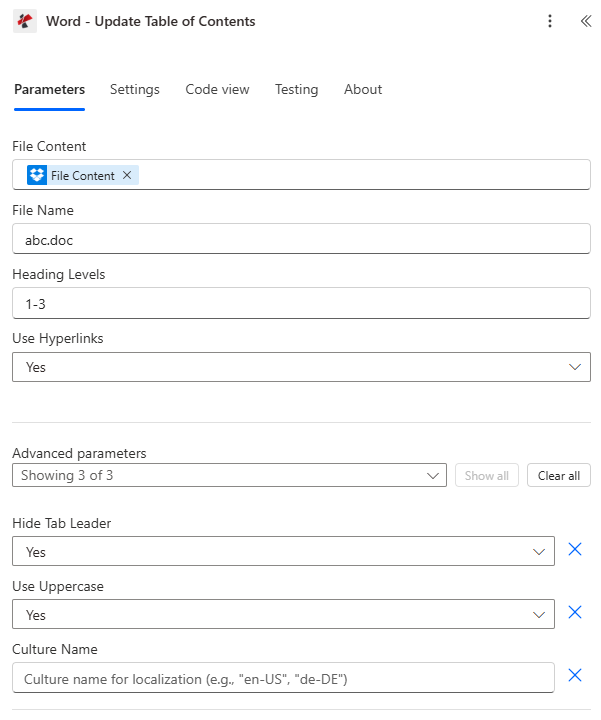
“文件内容”、“文件名”、“标题级别”和“使用超链接”位于主表单上;“隐藏制表符前导符”、“使用大写字母”和“区域名称”是高级参数。
参数
必需的: 文件内容和文件名必须始终提供。标题级别和使用超链接具有默认设置,“隐藏制表符前导符”、“使用大写字母”和“区域名称”是可选的高级参数。
| 范围 | 必需的 | 它的作用 | 例子 |
|---|---|---|---|
| File Content | Required | Base64 content of the source Word file, typically mapped from a prior action like SharePoint or OneDrive Get File Content. Must be a valid .docx or .doc document. | [File Content from Get File] |
| File Name | Required | Name of the Word file including its extension, used for processing and output naming; the output filename matches the input. | document.docx |
| Heading Levels | Optional | Range of Word heading styles to include, for example "1-3" for levels 1 through 3, "1" for a single level, or "1-2,4-6" for combined ranges. Defaults to "1-3". | 1-3 |
| Use Hyperlinks | Optional | Yes makes TOC entries clickable links to their headings; No renders plain text entries. Defaults to Yes. | Yes |
| Hide Tab Leader | Optional | Advanced parameter. Yes removes the dotted line between entry text and page numbers; No keeps it. Defaults to Yes. | Yes |
| Use Uppercase | Optional | Advanced parameter. Yes renders all TOC entries in uppercase; No preserves the heading's original case. Defaults to Yes. | Yes |
| Culture Name | Optional | Advanced parameter. Locale code such as en-US or de-DE for document processing and metadata; leave blank for no culture-specific handling. | en-US |
更新目录会返回什么?
| 场地 | 类型 | 它包含什么 |
|---|---|---|
document | Base64 | Word document with the Table of Contents updated or newly created. |
Success | Boolean | true when the update completed, false if the request failed validation or processing. |
Error Message | String | Description of what went wrong, null when Success is true. |
Errors | Array | Detailed error entries, empty when Success is true. |
{
  "document": "[Base64 Word Content with Updated Table of Contents]",
  "Success": true,
  "ErrorMessage": null,
  "Errors": []
}
常见错误信息
| 错误信息 | 原因 | 解决方案 |
|---|---|---|
Request is empty | Request object is null. | Provide a valid request object. |
Document is empty | Document object is null. | Provide a valid Word document. |
Error loading document from bytes | Invalid or corrupted Word document. | Verify the input document is a valid Word file (.docx). |
No headings found in document | Document has no heading styles applied. | Apply Heading 1 through Heading 6 styles to the sections that should appear in the TOC. |
Invalid heading levels specified | Heading Levels contains an invalid format. | Use a valid format such as "1-3", "1", or "1-2,4-6". |
Invalid culture name provided | Culture Name is not a recognized locale. | Use a valid culture code such as en-US or fr-FR. |
如何在设置中更新目录 Power Automate?
- 添加 PDF4me → 更新目录 致你 Power Automate 流动。
- 地图 文件内容 和 文件名 源自之前的操作,例如 SharePoint 或者 OneDrive 获取文件内容。
- 放 标题级别 包含的标题样式范围,以及 使用超链接 控制条目是否可点击。
- 打开 高级参数 如果文档需要非默认的制表符前导符、字母大小写或其他特定格式 文化名称 当地的。
- 运行流程。 PDF4me 更新或创建目录,并将 Word 文档返回。
document。
我应该使用哪个标题级别范围?
使用 1-3这是大多数商业文档和报告的默认设置,因为它能捕获章节和子章节标题,而不会包含更小的子子标题。使用 更宽的范围,例如“1-6” 适用于需要可浏览的复杂法律或技术文档,尤其是那些嵌套层级较深的文档。使用 组合范围,例如“1-2,4-6” 当文档的 3 级标题是装饰性的或重复的,应该跳过,但仍然要保留其下方的更深层次的结构时。
典型配置
工作流程示例Common Power Automate flow patterns using Update Table of Contents.
自动技术手册索引
- 当技术手册上传到某个平台时,就会触发一个流程。 SharePoint “手册”库。
- 获取文件功能检索已上传的 Word 文档。
- 更新目录时,标题级别设置为“1-4”,使用超链接设置为“是”。
- 索引手册已保存回图书馆,读者可以随时在各章节之间跳转。
学术论文格式标准
- 研究论文提交流程收到一份新的稿件。
- 更新目录时,标题级别设置为“1-3”,隐藏制表符前导符为“是”,使用大写字母为“是”,以符合部门的格式标准。
- 标准化试卷将送交评审委员会进行评估。
本地化文档分发
- 国际文件流为区域办事处准备了一份翻译后的 Word 文件。
- 更新目录时,会将“区域名称”设置为目标区域,例如“de-DE”,以及标准的“标题级别”和“使用超链接”设置。
- 本地化、可浏览的文档已分发给区域团队。
实用技巧
Apply real Word heading styles before running the action
The TOC is built from Word's Heading 1 through Heading 6 styles, not from bold text or larger font sizes. A document with no styled headings returns a "no headings found" error.
Open Advanced parameters to reach three of the seven fields
Hide Tab Leader, Use Uppercase, and Culture Name are not on the connector's main form. Expand Advanced parameters in the designer to set them.
Test the Heading Levels format on one document first
A malformed range like "1,3" instead of "1-3" or "1,3-4" returns an invalid heading levels error. Confirm the format on a sample file before wiring it into a production flow.
Re-run on documents with an existing TOC to refresh page numbers
The action detects and updates an existing TOC field rather than duplicating one, so it is safe to re-run after content changes shift page numbers.
Match Culture Name to the document's actual language
An unrecognized or mismatched culture code returns an invalid culture name error; use standard codes like en-US or fr-FR rather than a free-text language name.
速查表
| 场地 | 价值 |
|---|---|
| Action | Update Table of Contents |
| File Content / File Name | Mapped from a prior action, .docx or .doc |
| Heading Levels | "1-3" default, or "1", or "1-2,4-6" |
| Use Hyperlinks | Yes (default) or No |
| Advanced: Hide Tab Leader | Yes (default) or No |
| Advanced: Use Uppercase | Yes (default) or No |
| Advanced: Culture Name | e.g. en-US, de-DE, blank for none |
| No headings found | Apply Word Heading 1-6 styles first |
| Output | document (Base64 Word), Success, Error Message, Errors |
常见问题
行业应用案例及应用
- Legal Industry
- Education
- Healthcare
- Finance & Banking
- Manufacturing
法律行业应用案例
- 合同导航为复杂的多章节合同生成详细的目录
- 法律简报为冗长的法庭文件创建易于浏览的结构
- 合规手册指数监管要求和程序
- 案例文件整理证据摘要和法律论证
教育应用案例
- 教科书索引为教育材料创建一份全面的目录
- 研究论文提交前规范学术文档结构
- 课程资料整理课程内容和参考资料
- 论文文档:研究生和博士生工作的结构
医疗保健应用案例
- 医学手册:索引临床程序和方案
- 研究文档整理临床研究材料
- 培训材料构建医疗保健教育内容
- 合规指南快速应对监管要求
金融与银行业应用案例
- 财务报告为复杂报表创建易于浏览的结构
- 政策手册:索引银行程序和规章
- 审计文档整理合规和审计材料
- 投资指南构建金融教育内容
制造业应用案例
- 技术手册创建设备文档的详细目录
- 质量程序指数制造工艺和标准
- 安全指南整理工作场所安全信息
- 培训材料:构建技术教育内容
相关操作
更新页眉页脚
与目录一起,对 Word 文档中其余页面元素进行配套的格式设置操作。
合并文档
将多个 Word 文件合并成一个文档,然后生成包含合并内容的单个目录。
提取元数据
读取 Word 文档的标题、作者和其他属性,与目录一起用于对已完成的文档进行编目。
在其他平台上执行相同任务
Make更新目录
相同的TOC生成模块 Make 适用于与 Dropbox 和 Google Drive 模块配合使用的各种场景。
n8n更新目录
对于自托管或云端,使用相同的 TOC 生成节点 n8n 工作流程。
Zapier更新目录
同样的操作 Zapier将其连接到 Zap 中已有的 Google Drive 或 Dropbox 触发器。
PDF4me API更新目录
直接调用相同的目录生成端点 REST 用于外部自定义集成 Power Automate。