合并 Word 文档 Power Automate
此操作的作用
PDF4me合并文档 合并多个 Word 文件(DOCX/DOC)合并成您文档中的一个单一文档。 Power Automate 流量。控制流量。 合并顺序与排序位置选择样式处理方式(KeepSourceFormatting、UseDestinationStyles、KeepDifferentStyles),并设置 OOXML 合规级别。从以下位置提取文档 SharePoint, OneDrive无论是通过 Dropbox 还是电子邮件,输出结果都是一个干净的、单一的文件。 DOCX 可供分销或进一步加工。
相关博客文章
目前尚无关于此功能的博客文章——敬请期待。
在此期间,您可以浏览 PDF4me 博客,查看适用于各平台的教程和工作流程。
访问博客 →
验证您的身份 API 要求
每一个 PDF4me 行动 Power Automate 需要有效 联系输入您的 PDF4me API 首次添加操作时,该操作会在所有后续操作中自动重用。 PDF4me 同一流程中的操作。
您不容错过的重要事实
SortPosition 控制合并顺序
数组中的每个文档都需要一个 SortPosition 值。文档按升序合并,位置 0 成为基准文档。您可以使用任何编号方案(0、1、2 或 10、20、30)。从循环中提取文件时,动态分配。 SortPosition 使用迭代索引,因此无论从存储中检索文件的方式如何,顺序始终是确定的。
FormatMode 决定如何协调风格
KeepSourceFormatting (默认)保留每个文档自身的样式。 UseDestinationStyles 将第一个文档的样式应用于所有合并的内容,最适合想要统一外观的情况。 KeepDifferentStyles 保留不同的样式,仅合并相同的样式。对于具有固定模板的品牌报告,请使用 UseDestinationStyles 以模板为位置 0。
DocContent 必须是二进制文件,而不是 URL 或路径
这 DocContent 每个文档的字段都期望接收 Word 文件的原始二进制内容,而不是…… SharePoint URL 或文件路径。使用 Power Automate 首先对每个文档执行“获取文件内容”操作,然后将其输出正文映射到 DocContent。 为了 SharePoint使用路径获取文件内容直接返回二进制文件,无需额外的编码步骤。
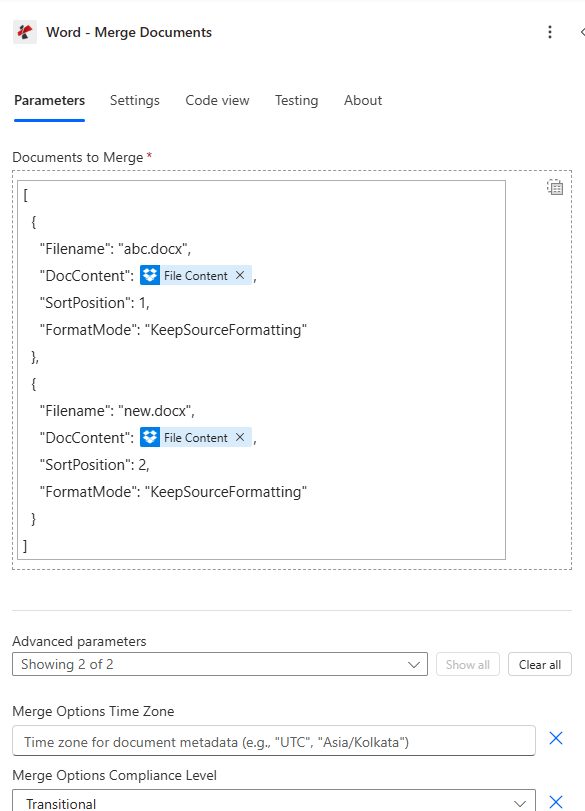
构建 Documents 数组,每个文件对应一个条目。映射 DocContent 来自“获取文件内容”步骤,而不是 URL。 SortPosition 0 为基础文档;其他文档按顺序附加。
参数
必需的: 文档数组,至少包含一个条目。每个条目需要文件名, DocContent (二进制文件),以及 SortPosition。 FormatMode 合并选项是可选的。
| 范围 | 必需的 | 它的作用 | 例子 |
|---|---|---|---|
| Documents | Yes | Array of document objects to merge. Each object requires Filename, DocContent, and SortPosition. The array must contain at least one entry. Documents merge in ascending SortPosition order. | [{Filename, DocContent, SortPosition}] |
| Documents[].Filename | Yes | Filename of the document including extension. Must be .docx or .doc. Used for format detection and document identification during merge. | chapter1.docx |
| Documents[].DocContent | Yes | Raw binary content of the Word file. Map from the output body of a SharePoint Get File Content or OneDrive Get File Content action. Do not pass a URL, path, or filename string here. | File Content body |
| Documents[].SortPosition | Yes | Integer determining merge order. The document with the lowest SortPosition becomes the base document. All others are appended in ascending order. Use any integers: 0, 1, 2 or 10, 20, 30 are both valid. | 0 |
| Documents[].FormatMode | No | How styles are handled for this document during merge. Options: KeepSourceFormatting (default: preserves document's own styles), UseDestinationStyles (adopts base document styles), KeepDifferentStyles (retains distinct styles only). | UseDestinationStyles |
| Merge Options Time Zone | No | Timezone identifier added to the merged document metadata. Use standard identifiers like UTC, Asia/Kolkata, or America/New_York. Default: none. | UTC |
| Merge Options Compliance Level | No | OOXML compliance standard for the output document. Options: ECMA (ECMA-376 2006), Transitional (ISO 29500 Transitional, default and recommended), Strict (ISO 29500 Strict). Use Transitional for broadest Microsoft 365 compatibility. | Transitional |
输出字段
| 场地 | 类型 | 它包含什么 |
|---|---|---|
document | Binary | The merged Word document as a binary. Map into SharePoint Create File, Send Email attachment, or a Convert Word to PDF action. |
Success | Boolean | true if the merge completed without errors. Use in a Condition step to branch on failure and send an error notification. |
Error Message | String | Human-readable error description if Success is false. Null when successful. Include in failure notification emails. |
Errors | Array | Array of detailed error objects when Success is false. Each entry has Code and Message fields for debugging. |
常见错误信息
| 错误信息 | 原因 | 使固定 |
|---|---|---|
| No documents to merge | Documents array is null or empty | Pass at least one document object in the Documents array with Filename, DocContent, and SortPosition. |
| Error loading document from bytes | Invalid or corrupted Word file in DocContent | Verify DocContent comes from a Get File Content action returning a valid .docx binary: not a URL or path. |
| Unknown FormatMode, defaulting to KeepSourceFormatting | Invalid FormatMode value | Use only: KeepSourceFormatting, KeepDifferentStyles, or UseDestinationStyles. |
| Error merging documents | General exception during merge | Check that all documents are valid Word files (.docx). Review the Errors array for details. |
快速设置
- 在你的 Power Automate 流程,点击 + 添加操作 并搜索 PDF4me 单词。
- 选择 合并文档。
- 请输入您的 PDF4me API 在连接对话框中输入(或选择现有连接)。
- 对于每个要合并的文档,添加一个 SharePoint 获取文件内容 或者 OneDrive 获取文件内容 执行此步骤之上的操作。
- 在 文件 数组,每个文件添加一个条目。设置 文件名 (和
.docx), DocContent (来自“获取文件内容”步骤的二进制文件),以及 SortPosition (0 代表基础文件,1、2……代表后续文件)。 - 放 FormatMode: 使用
UseDestinationStyles如果基础文档(位置 0)是您的品牌模板。 - 放 合并期权合规级别 到
Transitional为了获得最广泛的兼容性。 - 电线 文档 输出到 SharePoint 创建文件 或者 发送电子邮件 操作。添加一个 健康)状况 在 成功 通过错误通知处理故障。
工作流程示例
工作流程示例Common Power Automate flow patterns using Merge Documents.
报告章节已批准 → 按顺序合并 → 通过电子邮件发送汇总报告
- A SharePoint 当报告的所有部分在状态列中都被标记为“已批准”时,项目更改将触发流程。
- 获取文件内容的四个步骤从报告库中检索封面(位置 0)、执行摘要(1)、正文(2)和附录(3)。
- 合并文档 将所有四种方式结合起来 SortPosition 订购 FormatMode 设置为 UseDestinationStyles封面模板的样式在整个页面中统一应用。
- 成功条件将失败情况路由到 Teams 通知,发送给报告所有者。
- 发送电子邮件时会将合并后的文件作为附件发送。 DOCX 向管理层邮件列表汇报。 SharePoint 创建文件会将其归档到已发布报告库中。
合同条款定稿 → 合并 → 转换为 PDF → 提交执行
- 审批触发器被触发 Power Automate 当合同审批流程中的法律审核步骤完成后。
- 获取文件内容步骤从法律库中检索合同标题(0)、条款和条件(1)、具体条款(2)和签名页(3)。
- 合并文档 汇编完整的合同。 FormatMode 是 KeepSourceFormatting 合规级别为严格,符合法律文件标准。
- A PDF4me 将 Word 转换为 PDF 操作会生成合并合同的可打印 PDF 文件。
- 发送电子邮件会将编号的最终合同发送给交易对手。 SharePoint 档案馆 DOCX 和 PDF 在“已执行合同”文件夹中。
提案章节数量不定 → 循环 → 收集 → 合并 → 发送给客户
- 当提案准备就绪时,手动触发器会启动。 SharePoint 获取文件功能检索所有文件 DOCX 该交易的“提案章节”文件夹中的章节。
- “Apply to Each”循环遍历文件列表。每次迭代都会运行“获取文件内容”函数,并将一个文档对象(文件名、二进制文件、迭代索引)附加到列表中。 SortPosition)到数组变量。
- 循环结束后, 合并文档 接收完整的数组。 FormatMode 是 UseDestinationStyles文件夹中的第一个文件(位置 0)始终是品牌封面模板。
- 合并后的 DOCX 上传至客户交付物 SharePoint 库。发送电子邮件会将文件连同个性化的封面信息一起发送给客户联系人。
常见问题解答
相关操作
合并多个 PDFs
组合多个 PDF 将多个文件合并到一个文档中。 PDF 当源文档已存在时,此操作的等效操作 PDF 格式。
将 Word 转换为 PDF 形式
合并后的常见下一步是转换组装好的文件。 DOCX 转换为可打印、不可编辑的格式 PDF 用于分发或存档的形式。
添加页码 PDF
合并后转换 DOCX 到 PDF,印制专业页码,非常适合需要“第 X 页,共 Y 页”页脚的报告、合同和手册。