解锁 Excel 文件 Power Automate
PDF4me 解锁 Excel 是一个 Power Automate 此操作可移除工作簿最多三个独立层面的密码保护:文件加密、工作簿结构和工作表内容。可用于打开、编辑或重新保护工作簿。 Excel 无需在桌面应用程序中手动输入密码即可下载文件。
此操作的作用
PDF4me 解锁 Excel 该工具将文件密码、工作簿密码和工作表密码作为独立输入,并仅移除文件实际存在的保护层。请仅填写您知道的密码,工作表目标和区域设置均为可选的高级参数。
相关博客文章
目前尚无关于此功能的博客文章——敬请期待。
在此期间,您可以浏览 PDF4me 博客,查看适用于各平台的教程和工作流程。
访问博客 →
我如何验证我的身份 Power Automate 流动?
每一个 PDF4me 行动 Power Automate 需要有效的连接。创建或选择一个包含您数据的连接。 PDF4me API 关键在于流程能够进行身份验证 Excel 安全解锁请求。
您不容错过的重要事实
三个独立的密码层
文件密码会移除打开文件加密,工作簿密码会移除结构保护,工作表密码会移除工作表级内容保护。请仅提供文件实际使用的密码。
工作表目标定位基于 1。
高级参数显示“显示 3/3”:工作表名称、工作表索引(从 1 开始,因此 1 代表第一个工作表)和区域性名称。将工作表字段留空即可解锁所有工作表。
密码错误会导致整个运行失败。
如果提供的任何密码与其所在层不匹配,则 Success 返回 false,并附带一条 ErrorMessage,指出是哪个层失败了。不会返回任何部分解锁信息。
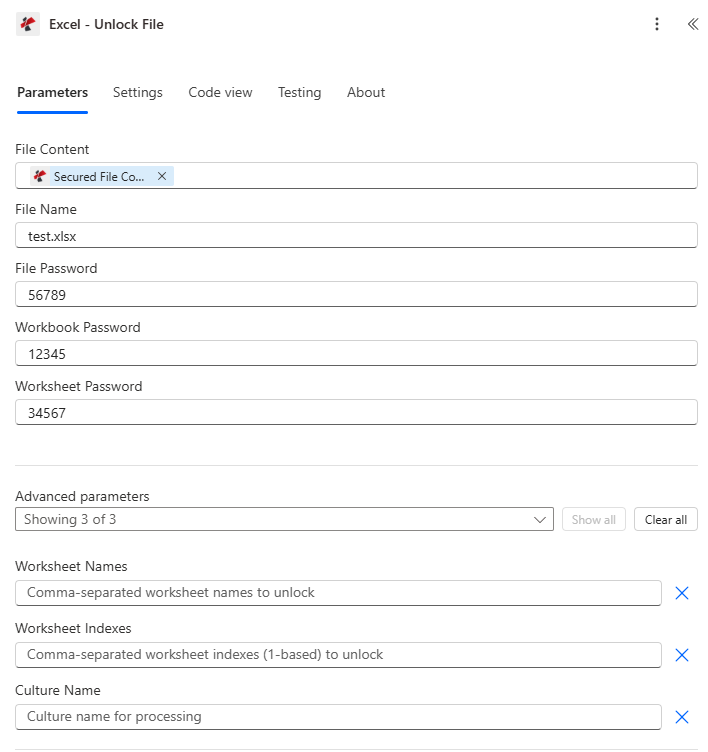
映射文件内容,设置文件名,然后仅填写文件实际使用的文件密码、工作簿密码或工作表密码图层。
参数
必需的: 文件内容必须始终提供。文件名和所有三个密码字段均为可选,仅需要与文件实际保护层匹配的密码。工作表名称、工作表索引和区域性名称是条件性高级参数。
| 范围 | 必需的 | 它的作用 | 例子 |
|---|---|---|---|
| File Content | Required | Base64 content of the source Excel workbook, mapped from SharePoint, OneDrive, or another prior action. | [File Content from Get file content] |
| File Name | Optional | Excel filename including extension (.xlsx or .xls), used for processing and output identification. | test.xlsx |
| File Password | Conditional | Removes the encryption password required to open the file. Only needed if the file is open-password protected. | 56789 |
| Workbook Password | Conditional | Removes workbook structure protection that blocks adding, deleting, or renaming sheets. Only needed if the workbook is structure-protected. | 12345 |
| Worksheet Password | Conditional | Removes worksheet-level protection that blocks editing cells or objects on a sheet. Only needed if the worksheet is protected. | 34567 |
| Worksheet Names | Conditional | Advanced parameter. Comma-separated worksheet names to unlock. Leave empty along with Worksheet Indexes to unlock every sheet. | Sheet1,Summary |
| Worksheet Indexes | Conditional | Advanced parameter. Comma-separated 1-based worksheet indexes to unlock (1 = first sheet). Combines with Worksheet Names if both are set. | 1,2,3 |
| Culture Name | Conditional | Advanced parameter. Culture/locale code for processing, for example en-US or de-DE. Blank uses the default culture. | en-US |
输出字段
| 场地 | 类型 | 它包含什么 |
|---|---|---|
document | Base64 | The Excel workbook with the requested protection layers removed. |
Success | Boolean | true if the action completed, false if it failed. |
ErrorMessage | String | Error description naming the failed password layer, null when Success is true. |
Errors | Array | Detailed error objects, empty when Success is true. |
常见错误信息是什么意思?
| 错误信息 | 原因 | 解决方案 |
|---|---|---|
| Request is empty | The request object is null. | Provide a valid request object. |
| Document is empty | File Content is null or empty. | Provide a valid Excel document in File Content. |
| The workbook is password-protected. Please provide File Password to open the file. | The file is encrypted but no File Password was provided. | Provide the correct File Password. |
| Could not open the workbook with File Password: incorrect password | The provided File Password does not match. | Verify and provide the correct File Password. |
| Workbook is protected. Please provide Workbook Password. | The workbook has structure protection but no valid password. | Provide the correct Workbook Password. |
| Worksheet '{name}' is protected. Please provide a valid password. | The named worksheet has content protection but no valid password. | Provide the correct Worksheet Password. |
| Invalid worksheet selection | A worksheet name or index does not exist in the workbook. | Use existing worksheet names or valid 1-based indexes. |
| Available worksheets in workbook (X total) | Informational message shown when worksheet selection fails. | Use worksheet indexes from 1 to X. |
如何设置解锁 Excel 在 Power Automate?
- 添加 PDF4me → Excel - 解锁文件 致你 Power Automate 流动。
- 地图 文件内容 来自之前的操作(SharePoint, OneDrive(或获取文件内容)并设置 文件名。
- 充满 文件密码 如果该文件需要密码才能打开。
- 充满 工作簿密码 如果工作表添加/删除/重命名操作被阻止,并且 工作表密码 如果特定工作表上的单元格编辑功能被阻止。
- 扩张 高级参数 针对特定目标 工作表名称 或者 工作表索引 (从 1 开始),或者将两者都留空以解锁所有工作表。运行流程,解锁后的工作簿将返回。 文档。
典型配置
工作流程示例Common Power Automate flow patterns using Unlock Excel.
受保护的模板更新周期
- 计划触发器会在每个季度模板更新周期开始时运行。
- 获取文件内容会检索受密码保护的文件。 Excel 库中的模板。
- 解锁 Excel 使用已知的文件密码和工作簿密码移除保护。
- “更新行”或类似操作会修改未锁定的模板,然后进行安全设置。 Excel 在重新分配之前重新应用保护。
受保护的数据同步
- 每晚都会按计划检索受密码保护的主数据工作簿。
- 解锁 Excel 移除工作簿的文件密码保护。
- 更新行和添加行会刷新连接数据库中的数据。
- 安全的 Excel 在文件保存之前,重新应用相同的密码。 SharePoint。
选择性访问工作表
- 当经理请求对特定工作表的编辑权限时,流程就会触发。
- 获取文件内容会检索一个包含多个独立保护的工作表的工作簿。
- 解锁 Excel 仅针对通过工作表名称请求的工作表,使用工作表密码移除内容保护,而其他工作表保持锁定状态。
- 部分解锁的文件将通过电子邮件发送给提出请求的经理。
实用技巧
Only fill the passwords you need
File Password, Workbook Password, and Worksheet Password are all independent and optional. A file protected only at the worksheet level needs just Worksheet Password.
Worksheet indexes are 1-based here
Unlike some other PDF4me Excel actions that use 0-based indexes, Worksheet Indexes on this action starts at 1 for the first sheet. Double-check which convention the connected action expects.
A wrong password fails the whole run
There is no partial unlock. If any password you supplied does not match its layer, Success returns false and no document is produced.
Re-lock with Secure Excel after editing
If the workflow needs to preserve protection, pair this action with Secure Excel at the end of the flow to reapply passwords after edits are complete.
Store passwords in a secure vault, not the flow
Reference File Password, Workbook Password, and Worksheet Password from Azure Key Vault or a secure connector variable rather than hardcoding them in the flow definition.
速查表
| 场地 | 价值 |
|---|---|
| Action | Excel - Unlock File |
| Required fields | File Content |
| Password layers | File Password, Workbook Password, Worksheet Password (each optional/conditional) |
| Advanced parameters | 3 total: Worksheet Names, Worksheet Indexes (1-based), Culture Name |
| Output | document (Base64 workbook) + Success + ErrorMessage + Errors |
常见问题
行业应用案例及应用
- Finance & Accounting
- Legal & Professional Services
- Human Resources
- Healthcare & Medical
- Sales & Marketing
- Operations & Manufacturing
- 期末结算:解锁财务报告,以便在结账前进行最终调整
- 模板更新取消会计模板更新的保护
- 审计准备解锁文件以供审计人员访问和审查
- 数据集成解锁受保护的文件以实现自动数据同步
- 文档编辑解锁客户文档以进行授权修改
- 模板维护取消对法律模板更新的保护
- 案件档案更新解锁案件档案以获取更多信息
- 档案处理:在长期存档前删除密码
- 模板更新解锁年度政策更新的人力资源模板
- 数据处理取消对薪资数据集成的保护
- 记录修改解锁员工记录以进行授权更新
- 福利管理:解锁福利团队编辑的登记文件
- 记录更新:解锁患者记录,允许授权的医务人员进行编辑
- 模板维护取消对医疗表格模板的保护
- 数据集成解锁受保护的文件以进行 EMR 系统同步
- 研究途径:解锁研究数据,供授权分析师访问
- 价格表更新解锁季度更新的价格文件
- 模板编辑取消对提案模板修改的保护
- 数据刷新解锁销售报告以进行 CRM 数据集成
- 竞选最新动态解锁活动跟踪文件以进行指标更新
- 标准操作程序更新:解锁修订的标准操作程序
- 库存管理取消对自动库存更新的保护
- 质量文档解锁用于标准更新的优质模板
- 生产数据解锁生产计划,以便规划团队进行编辑
相关操作
在其他平台上执行相同任务
Make解锁 Excel
相同的 Excel 密码移除模块 Make 场景。
n8n解锁 Excel
相同的 Excel 用于密码移除的节点 n8n 工作流程,自托管或云端。
Zapier解锁 Excel
相同的 Excel 密码移除步骤 Zapier连接到 Zap 的文件存储触发器。
PDF4me API解锁 Excel
直接通过以下方式调用相同的密码删除端点 REST 对于外部的自定义集成 Power Automate。