添加文字水印 Excel 在 Power Automate
PDF4me 添加文字水印 Excel 是一个 Power Automate 执行此操作,在文件上盖上“机密”、“草稿”或任何自定义文本标签。 Excel 将工作表作为 WordArt 对象使用。可用于标记敏感财务数据、标记预算草稿或向导出的报告添加版权声明,并可完全控制大小、颜色、旋转和位置。
此操作的作用
PDF4me - 添加文字水印 Excel 直接在纸张上盖印可自定义的文本标签——例如“机密”、“草稿”、“已批准”、版权声明或任何其他文字。 Excel 将工作表作为 WordArt 对象进行编辑。您可以控制文本、预设大小(50 磅、150 磅)、颜色、字体、粗体/斜体样式、透明度、旋转角度以及九种网格位置之一。可应用于所有工作表,或按名称或索引指定特定工作表。此操作可在任何工作表内运行。 Power Automate 云流并返回水印 Excel 二进制文件已准备好保存 SharePoint, OneDriveDropbox 或电子邮件。
我如何验证我的身份 Power Automate 流动?
每一个 PDF4me 行动 Power Automate 需要一个 联系 容纳你的 API 键。首次添加操作时,创建或选择一个键。
您不容错过的重要事实
水印以艺术字形状的形式嵌入到工作表绘图图层中。与此不同的是,它在工作表视图和打印输出中均可见。 Excel仅在打印时显示的原生页眉/页脚文本。
将工作表选择器留空,即可为整个工作簿添加水印。指定工作表名称或从 0 开始的索引,即可仅针对特定工作表添加水印——这在工作簿中混合了公开汇总表和受限数据表时非常有用。
一次操作应用一种水印样式。要在不同纸张上添加不同的文本水印,请连续执行两次或多次“添加文本水印”操作。 Excel 按顺序执行操作,每个操作针对不同的工作表,然后保存最终文件。
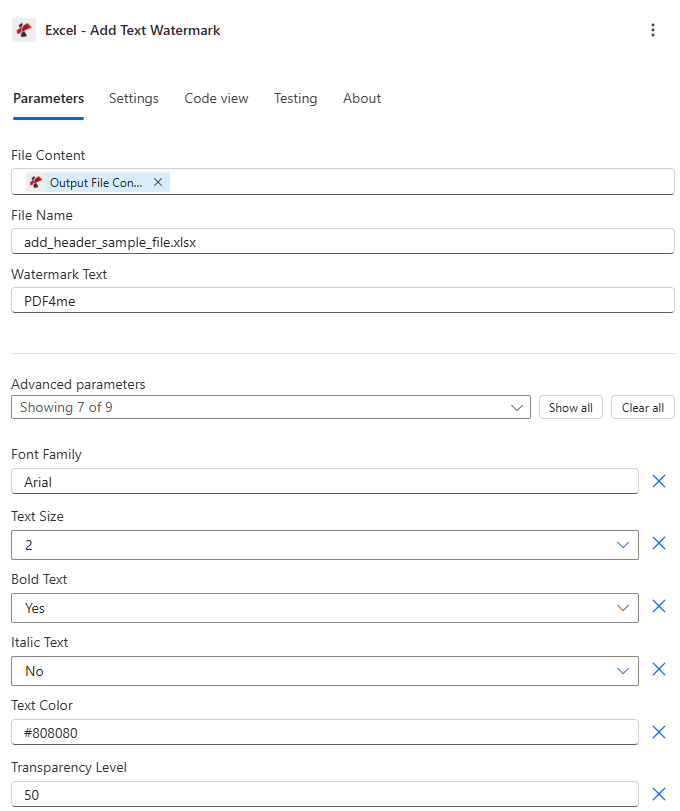
地图 文件内容 从您的存储步骤中,输入 水印文字并选择尺寸、颜色和位置。
参数
必需的: 文件内容, 文件名, 和 水印文字所有其他参数都有合理的默认值。工作表索引使用 基于 0 的 编号(索引 0 = 第一页)。
| 范围 | 必需的 | 它的作用 | 例子 |
|---|---|---|---|
| File Content | Required | Binary content of the Excel file. Map from a Get file content action in SharePoint, OneDrive, Dropbox, or any storage connector. Must be a valid .xlsx or .xls workbook. | SharePoint → File Content |
| File Name | Required | Filename including extension (.xlsx or .xls). Used to identify the document being processed. Supports dynamic values from prior flow steps. | report.xlsx |
| Watermark Text | Required | Text to display on each worksheet as a WordArt object. Any alphanumeric string or symbol. Examples: CONFIDENTIAL, DRAFT, © 2025 Acme Corp. | CONFIDENTIAL |
| Text Size | Optional | Size preset: 1 = 50 pt (Small), 2 = 75 pt (Medium), 3 = 100 pt (Large, default), 4 = 150 pt (Extra Large). Values outside 1-4 fall back to 100 pt. | 3 |
| Text Color | Optional | Hex code (#FF0000) or named color (Red, Blue, Gray, Black). Defaults to Black. Invalid values fall back to black. | #CC0000 |
| Font Family | Optional | Font name for the watermark WordArt. Common choices: Arial, Calibri, Times New Roman. Defaults to Arial. Unknown fonts may use the system default. | Arial |
| Is Bold | Optional | Set to true to apply bold weight to the watermark text. Improves readability over busy worksheets. Defaults to false. | true |
| Is Italic | Optional | Set to true to apply italic style. Useful for softer "Draft" labels. Defaults to false. | false |
| Transparency | Optional | Opacity from 0 (fully solid) to 100 (invisible). Set 40-60 for subtle watermarks that do not obscure cell data. Defaults to 0. | 50 |
| Rotation Angle | Optional | Angle in degrees. Positive = clockwise, negative = counter-clockwise. Range: -360 to 360. Use: 45 for the classic diagonal watermark. | -45 |
| Position | Optional | 0-8 grid code. Top row: 0 = Top-Left, 1 = Top-Center, 2 = Top-Right. Middle: 3 = Mid-Left, 4 = Center (default), 5 = Mid-Right. Bottom: 6, 7, 8. | 4 |
| Selected Worksheet Names | Conditional | Array of case-sensitive sheet names to watermark. Leave empty to apply to all sheets. Combined with Selected Worksheet Indexes. | ["Sheet1","Summary"] |
| Selected Worksheet Indexes | Conditional | 0-based array of sheet positions to watermark. Index 0 = first sheet. Leave empty to apply to all sheets. | [0, 2] |
输出字段
| 场地 | 类型 | 它包含什么 |
|---|---|---|
document | Base64 | The Excel workbook with the text watermark applied to each targeted worksheet. |
Success | Boolean | true if the action completed, false if it failed. |
ErrorMessage | String | Error description, null when Success is true. |
Errors | Array | Detailed error objects, empty when Success is true. |
如何在设置中添加文字水印 Power Automate?
- 在你的流程中,点击 + 新步骤 → 搜索 PDF4me → 选择 添加文字水印 Excel。
- 连接 使用您的 PDF4me API 密钥(或选择现有连接)。
- 地图 文件内容 从您的存储步骤(SharePoint 获取文件内容, OneDrive 获取文件内容(或 Dropbox 的同类产品)。
- 放 文件名 到
.xlsx文件名(动态或静态)。 - 进入 水印文字 例如
CONFIDENTIAL,DRAFT, 或者© 2025 Acme Corp。 - 调整 文本大小, 文本颜色, 透明度, 旋转角度, 和 位置 与您的品牌形象相符。
- (可选)填充 选定的工作表名称 或者 选定工作表索引 仅针对特定表格。
- 添加一个 创建文件 或者 更新文件 此步骤之后的操作和映射 文档 将输出内容保存为文件内容。
工作流程示例
流程示例Common Power Automate scenarios that use Add Text Watermark to Excel for security marking, draft management, and compliance.
- 计划流程会在月末运行,届时会有新的报告提交到系统中。 SharePoint 图书馆。
- 获取文件内容 检索 Excel 工作簿。
- 添加文字水印 Excel 印章“机密” - 字号 4,颜色 #CC0000,旋转 -45,透明度 40,所有纸张。
- 创建文件 将带有水印的副本保存到受限位置。 SharePoint 文件夹。
- A Outlook 步骤仅通过电子邮件向授权收件人发送下载链接。
- 预算电子表格通过 Power Apps 表单提交审核。
- 该流程会添加一个灰色斜体“DRAFT”水印(透明度 60,旋转 -45),并向审阅者发送电子邮件。
- 获得批准后,第二个流程分支运行 添加文字水印 Excel 再次以绿色显示“已批准”(颜色 #008000,透明度 40)。
- 已批准的文件会覆盖草稿。 SharePoint 并触发 Teams 通知。
- 自动化流程将每月分析数据从数据库导出到 Excel。
- 添加文字水印 Excel 在“数据”和“图表”工作表的右下角(位置 8)以小字(1 号字体)印上“© 2025 Acme Corp - 仅供内部使用”字样。
- 选定的工作表名称 设置为 ["数据","图表"],以便封面保持干净。
- 带有水印的工作簿上传至客户端 SharePoint 通过门户网站发送链接。 Outlook。
实用技巧
速查表
| 场地 | 价值 |
|---|---|
| Action | Excel - Add Text Watermark |
| Required fields | File Content, File Name, Watermark Text |
| Style fields | Text Size (1-4), Text Color, Font Family, Is Bold, Is Italic, Transparency, Rotation Angle, Position (0-8 grid) |
| Targeting fields | Selected Worksheet Names, Selected Worksheet Indexes (0-based, combine not replace) |
| Output | document (Base64 workbook) + Success + ErrorMessage + Errors |