添加文本页眉页脚 Excel 在 Power Automate
PDF4me 添加文本页眉页脚 Excel 是一个 Power Automate 此操作可将自定义文本添加到工作簿的页眉和页脚的六个区域(页眉和页脚的左侧、中间和右侧)。您可以使用它为报表添加标题、将页脚标记为机密,或在不打开工作簿的情况下添加生成日期。 Excel 手动操作。
此操作的作用
PDF4me 添加文本页眉页脚 Excel 将文本写入现有工作簿中的六个独立区域之一:左侧页眉、居中页眉、右侧页眉、左侧页脚、居中页脚和右侧页脚。留空则跳过该区域。高级参数可对每个区域进行样式设置,例如文本颜色,但这些样式仅在匹配区域包含文本后才会生效。
相关博客文章
目前尚无关于此功能的博客文章——敬请期待。
在此期间,您可以浏览 PDF4me 博客,查看适用于各平台的教程和工作流程。
访问博客 →
我如何验证我的身份 Power Automate 流动?
每一个 PDF4me 行动 Power Automate 需要有效的连接。创建或选择一个包含您数据的连接。 PDF4me API 关键在于流程能够进行身份验证 Excel 安全地请求页眉/页脚。
您不容错过的重要事实
六个独立区域,而非一个水印场
页眉左侧文字、页眉居中文字、页眉右侧文字、页脚左侧文字、页脚居中文字和页脚右侧文字均为可选。只需填写所需区域,空白区域保持原样即可。
高级参数样式特定区域
已确认的示例是“左侧页眉 - 颜色”。该面板共列出了 15 个用于按区域设置格式的高级参数,并且样式设置只有在其匹配的“文本”区域具有值时才会生效。
仅文件内容和文件名是必填项。
每个页眉/页脚文本区域和每个高级样式参数都是可选的。即使所有六个区域都留空,操作仍然可以成功运行,只是返回的工作簿内容保持不变。
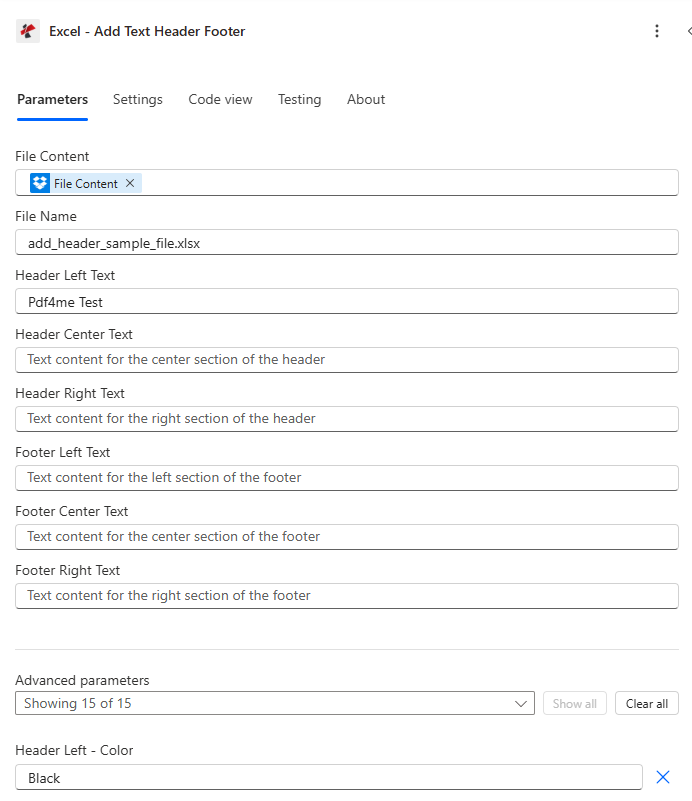
映射文件内容和文件名,填写所需的任何页眉/页脚文本区域,然后展开高级参数以设置每个区域的样式。
参数
必需的: 文件内容和文件名必须始终提供。所有六个页眉/页脚文本区域均为可选,只需填写所需的区域即可。高级样式参数是条件性的,仅当其对应的文本区域有值时才会生效。
| 范围 | 必需的 | 它的作用 | 例子 |
|---|---|---|---|
| File Content | Required | Base64 content of the source Excel workbook, mapped from SharePoint, OneDrive, or another prior action. | [File Content from Get file content] |
| File Name | Required | Excel filename including extension (.xlsx or .xls), used for processing and output identification. | add_header_sample_file.xlsx |
| Header Left Text | Optional | Text placed in the left section of the header. Leave blank to skip this zone. | Pdf4me Test |
| Header Center Text | Optional | Text placed in the center section of the header. | Confidential Report |
| Header Right Text | Optional | Text placed in the right section of the header. | Page 1 |
| Footer Left Text | Optional | Text placed in the left section of the footer. | Internal Use Only |
| Footer Center Text | Optional | Text placed in the center section of the footer. | Generated 2026-07-06 |
| Footer Right Text | Optional | Text placed in the right section of the footer. | Confidential |
| Header Left - Color | Conditional | Font color for the Header Left Text zone, hex or color name. Only takes effect if Header Left Text has a value. One of 15 advanced parameters in the connector panel, expand Advanced parameters in the designer for the remaining per-zone style controls. | Black |
输出字段
| 场地 | 类型 | 它包含什么 |
|---|---|---|
document | Base64 | The Excel workbook with the configured header/footer text applied. |
Success | Boolean | true if the action completed, false if it failed. |
ErrorMessage | String | Error description, null when Success is true. |
Errors | Array | Detailed error objects, empty when Success is true. |
常见错误信息是什么意思?
| 错误信息 | 原因 | 解决方案 |
|---|---|---|
| Request is empty | The request object is null. | Provide a valid request object. |
| Document is empty | File Content is null or empty. | Map a valid Excel document into File Content. |
| Invalid file format | The mapped file is not a valid Excel document. | Confirm the source file is a genuine .xlsx or .xls workbook. |
| Invalid color format | A color parameter has an invalid hex code or color name. | Use a valid hex format such as #FF0000 or a standard color name. |
如何在设置中添加文本页眉页脚? Power Automate?
- 添加 PDF4me → Excel - 添加文本页眉页脚 致你 Power Automate 流动。
- 地图 文件内容 和 文件名 来自之前的操作(SharePoint, OneDrive,或者获取文件内容)。
- 填写任意一项 左侧标题文本, 标题居中文本, 或者 标题右侧文本 您需要的标题区域。
- 填写任意一项 页脚左侧文本, 页脚居中文本, 或者 页脚右侧文本 您需要的页脚区域。
- 扩张 高级参数 例如,如何设置填充区域的样式。 左侧标题 - 颜色运行流程后,品牌工作簿将返回。 文档。
典型配置
工作流程示例Common Power Automate flow patterns using Add Text Header Footer.
月度报告标题盖章
- 每月报告生成日期会触发一个定时事件。
- 获取文件内容从中检索已完成的报告工作簿。 SharePoint。
- 添加文本页眉页脚,将页眉居中文本设置为报表标题,将页脚左侧文本设置为生成备注。
- 品牌化的工作簿已上传回报告文档库。
保密标记
- 当敏感时,瞬间流量会流动。 Excel 文件已上传至受限文件夹。
- 获取文件内容会从该文件夹中检索工作簿。
- 添加文本页眉页脚,将页脚居中文本设置为保密声明。
- 标记后的工作簿将保存回同一个受限库。
客户交付成果品牌
- 当项目管理连接器中将交付物标记为“最终”时,就会触发一个流程。
- 获取文件内容以检索最终结果 Excel 可交付的。
- 添加文本页眉页脚,将页眉左侧文本设置为公司名称,页脚右侧文本设置为 formatDateTime 表达式。
- 品牌化文件将通过电子邮件发送给客户相关人员。
实用技巧
Leave a zone blank to skip it
You do not need to fill all six text zones. An empty Header Right Text or Footer Left Text simply leaves that section unchanged.
Styling only applies to filled zones
Setting Header Left - Color has no visible effect unless Header Left Text also has a value. Fill the text first, then style it.
File Name needs the extension
Always include .xlsx or .xls in File Name. Omitting the extension can prevent the output from opening correctly in Excel.
Use expressions for auto-updating footers
Map Power Automate's formatDateTime() expression into a footer Text field for a footer that always shows the current date without manual edits.
Branch on Success before continuing
Add a Condition on Success after this action so a failed run does not pass an unbranded or unchanged workbook further down the flow.
速查表
| 场地 | 价值 |
|---|---|
| Action | Excel - Add Text Header Footer |
| Required fields | File Content, File Name |
| Header zones | Header Left Text, Header Center Text, Header Right Text (each optional) |
| Footer zones | Footer Left Text, Footer Center Text, Footer Right Text (each optional) |
| Advanced parameters | 15 total, confirmed example Header Left - Color (conditional on matching text zone) |
| Output | document (Base64 workbook) + Success + ErrorMessage + Errors |
常见问题
行业应用案例及应用
- Finance & Accounting
- Sales & Marketing
- Human Resources
- Operations & Manufacturing
- 财务报表添加包含公司名称和报告期的表头
- 预算报告在预算文件中插入保密声明页脚
- 审计文件:在抬头中应用审计日期和版本信息
- 费用报告在页脚添加提交日期和审批状态
- 销售报告添加报告标题页眉和生成日期页脚
- 价格表在价目表上插入保密价格标题。
- 客户数据在页脚应用数据保护声明
- 市场分析向分析报告添加品牌标题
- 工资报表在薪资单据上插入保密声明页眉
- 员工记录在人事档案中添加日期和版本页脚
- 福利登记应用开放注册期标题
- 绩效考核插入审查期和保密声明
- 库存报告添加仓库位置和日期标题
- 生产报告插入班次信息和日期页脚
- 质量报告在标题中应用质量标准参考
- 供应链数据在页脚添加供应商保密声明
相关操作
添加图片页眉页脚
在页眉/页脚区域添加徽标或图像,而不是纯文本。
移除页眉页脚
在重新应用新品牌标识之前,先从工作簿中删除现有的页眉/页脚内容。
添加文字水印
将斜向水印文字叠加在纸张正文上,而不是页眉/页脚边距上。
在其他平台上执行相同任务
Make添加文本页眉页脚
相同的 Excel 文本品牌模块 Make 场景。
n8n添加文本页眉页脚
相同的 Excel 用于文本品牌节点的节点 n8n 工作流程,将其连接到自托管或云平台 n8n 实例。
Zapier添加文本页眉页脚
相同的 Excel 文本品牌推广步骤 Zapier将其连接到 Zap 中已有的文件存储触发器。
PDF4me API添加文本页眉页脚
直接调用相同的页眉/页脚文本端点 REST 对于外部的自定义集成 Power Automate。