添加行 Excel 在 Power Automate: JSON 到 Excel 和 PDF4me
PDF4me Excel - 添加行 是一个 Power Automate 插入操作 JSON 对象或数组作为新行添加到 Excel 工作簿,既可以采用基于表格的模式(自动匹配表头),也可以采用基于坐标的模式(精确定位单元格)。可用于写入数据库查询结果、表单提交内容,或 API 直接回复 Excel 报告。
此操作的作用
PDF4me Excel - 添加行 写 JSON 将行数据插入现有工作簿,如果设置了表名,则属性与表头匹配;如果表名留空,则插入到精确的坐标位置。“转换数值和日期”、“日期格式模式”、“数值格式模式”和“区域性名称”控制插入值的输入和格式。
相关博客文章
目前尚无关于此功能的博客文章——敬请期待。
在此期间,您可以浏览 PDF4me 博客,查看适用于各平台的教程和工作流程。
访问博客 →
我如何验证我的身份 Power Automate 流动?
每一个 PDF4me 行动 Power Automate 需要有效的连接。创建或选择一个包含您数据的连接。 PDF4me API 关键在于流程能够进行身份验证 Excel 安全地执行行插入请求。
您不容错过的重要事实
表名是模式开关
如果“表名”非空,则会启用基于表格的插入操作,并匹配表头和 Excel 行号作为插入位置。如果将其留空,则会启用基于坐标的插入操作,使用“从行插入”和“从列插入”功能。在一次调用中混合使用这两种参数集会返回错误。
数据字段已标记 JSON 行数据
接受单个 JSON 对象用于插入一行数据,对象数组用于一次调用插入多行数据。属性名称用于在表格模式下进行表头匹配。
类型转换需要启用该开关
日期格式模式、数字格式模式和区域性名称仅在启用“转换数字和日期”时生效。如果禁用此选项,所有值都将以纯文本形式写入。
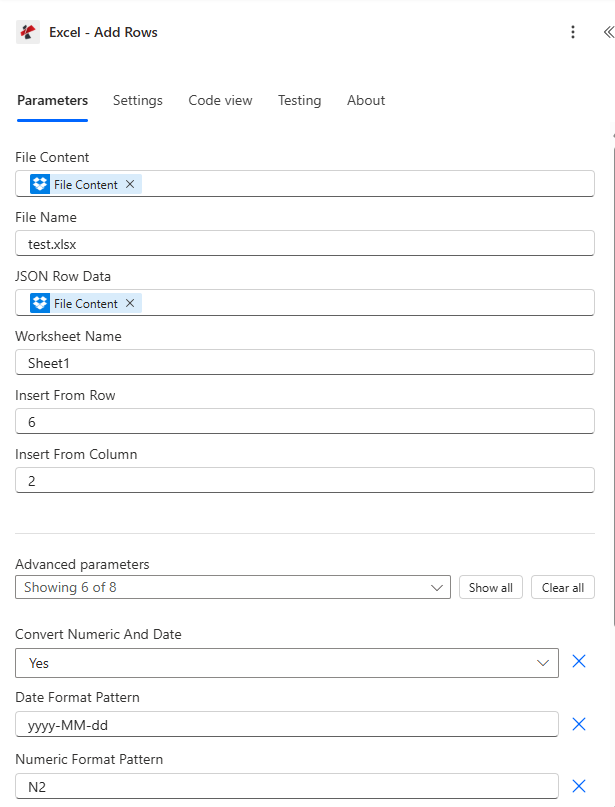
映射文件内容和文件名,设置 JSON 行数据,选择表名或从行/列插入,然后展开高级参数进行类型转换和格式化。
参数
必需的: 必须始终提供文件内容、文件名和 JSON 行数据。表名和 Excel 行号仅适用于基于表的插入操作。“从行插入”和“从列插入”仅适用于基于坐标的插入操作,如果同时设置了表名,则这些选项将被拒绝。
| 范围 | 必需的 | 它的作用 | 例子 |
|---|---|---|---|
| File Content | Required | Base64 content of the source Excel workbook, mapped from SharePoint, OneDrive, or another prior action. | [File Content from Get File] |
| File Name | Required | Excel filename including extension (.xlsx or .xls), used for processing and output identification. | data.xlsx |
| JSON Row Data | Required | JSON object or array of objects to insert. Each object becomes one row, property names match table headers in table mode. | [{"Name":"John","Age":30}] |
| Worksheet Name | Optional | Name of the worksheet to insert into. Defaults to Sheet1 if left blank. | Sheet1 |
| Table Name | Optional | Name of an Excel table for table-based insertion. Leave empty to use coordinate-based insertion instead. | SalesTable |
| Excel Row Number | Conditional | 1-based position within the table, table mode only. Ignored in coordinate mode. | 5 |
| Insert From Row | Conditional | 1-based worksheet row where insertion starts, coordinate mode only. Errors if Table Name is also set. | 10 |
| Insert From Column | Conditional | 1-based worksheet column where insertion starts, coordinate mode only. Errors if Table Name is also set. | 3 |
| Convert Numeric And Date | Optional | Enables automatic conversion of JSON numbers to Excel numeric values and date-like strings to Excel dates. Default true. | true |
| Date Format Pattern | Optional | Excel date format applied when Convert Numeric And Date is enabled. Default yyyy-MM-dd. | MM/dd/yyyy |
| Numeric Format Pattern | Optional | Excel numeric format applied when Convert Numeric And Date is enabled. Default N2. | #,##0.00 |
| Ignore Null Values | Optional | Skips inserting a value for any JSON property that is null when enabled. Default false, which inserts nulls as empty cells. | false |
| Ignore Attribute Titles | Optional | Makes JSON property name matching case-insensitive against table headers when enabled. Default false. | true |
| Culture Name | Optional | Culture code used to parse incoming date and number strings before conversion. Default en-US. | en-US |
输出字段
| 场地 | 类型 | 它包含什么 |
|---|---|---|
document | Base64 | The Excel workbook with the new rows inserted. |
Success | Boolean | true if insertion completed, false if the action failed. |
ErrorMessage | String | Error description, null when Success is true. |
Errors | Array | Detailed error objects with Code and Message, empty when Success is true. |
常见错误信息是什么意思?
| 错误信息 | 原因 | 解决方案 |
|---|---|---|
| JSON input is required | JSON Row Data is null or empty. | Provide a valid JSON object or array. |
| Invalid JSON structure | Malformed JSON syntax. | Fix the JSON formatting before mapping it in. |
| Worksheet not found | The named worksheet does not exist in the workbook. | Use an existing worksheet name or leave it blank for the first sheet. |
| Table not found | The named table does not exist, table mode only. | Use an existing Excel table name. |
| ExcelRowNumber must be greater than 0 | Excel Row Number is less than 1 in table mode. | Set Excel Row Number to 1 or higher. |
| InsertFromRow and InsertFromColumn are ignored when TableName is specified | Coordinate parameters were set alongside Table Name. | Clear Table Name for coordinate mode, or clear the coordinate fields for table mode. |
| No valid data found in JSON input | JSON Row Data was an empty array or had no parseable objects. | Provide at least one valid object in the JSON payload. |
如何在设置中添加行 Power Automate?
- 添加 PDF4me → Excel - 添加行 致你 Power Automate 流动。
- 地图 文件内容 和 文件名 来自之前的操作(SharePoint, OneDrive(或数据库连接器)。
- 放 JSON 行数据 添加到您的对象或对象数组中。
- 放 表名 对于基于表格的插入,或者留空并设置 从行插入 / 从列插入 用于基于坐标的插入。
- 扩张 高级参数 以便能够 转换数值和日期 并设置格式。运行流程后,更新后的工作簿将返回如下内容 文档。
典型配置
工作流程示例Common Power Automate flow patterns using Add Rows.
每日销售数据导入(表格模式)
- 计划触发器会运行 SQL 查询来获取当天的销售记录。
- 结果被转换为与销售表列标题相匹配的 JSON 数组。
- Get File 工具检索表名为“DailySales”的销售报告模板。
- 添加行操作会插入一个数组,并启用“转换数值和日期”功能,同时为货币设置数值格式模式。
- 更新后的报告将通过电子邮件发送给销售经理。
表单响应日志记录(坐标模式)
- 提交 Microsoft Forms 表单会触发该流程。
- 该场景会根据提交的答案构建一个 JSON 对象。
- 获取文件功能检索响应日志工作簿。
- 使用“从行插入”和“从列插入”在下一个空行插入行,表名留空。
- 更新后的日志已保存。 SharePoint。
CRM商机导出
- 每周触发一次查询,以寻找新的机会。 CRM 连接器。
- 记录被转换为具有灵活字段名称的 JSON 数组。
- 添加行插入到“商机”表中,并启用“忽略属性标题”功能,以实现不区分大小写的标题匹配。
- 生成报告后,将分发给销售团队。
实用技巧
Never set Table Name and Insert From Row together
The two parameter sets belong to different insertion modes. Setting both returns an error, clear one set before running.
JSON Row Data accepts a single object or an array
A bare object inserts one row, an array inserts one row per object. Choose the shape that matches how many rows you are writing.
Excel Row Number is 1-based within the table
Row 1 in table mode is the first data row after the header, not the header itself. Set it accordingly when targeting a specific position.
Culture Name affects parsing, not just display
Set Culture Name to match how your source data formats dates and decimals (for example de-DE for comma decimals), otherwise conversion can misread values.
Ignore Attribute Titles solves case-mismatch headaches
If your JSON property names differ in case from the Excel table headers, enable Ignore Attribute Titles instead of renaming every header or every JSON key.
速查表
| 场地 | 价值 |
|---|---|
| Action | Excel - Add Rows |
| Mode switch | Table Name set = table mode, empty = coordinate mode |
| JSON Row Data shape | Single object or array of objects |
| Default worksheet | Sheet1 |
| Type conversion toggle | Convert Numeric And Date = true (default) |
| Default date/numeric format | yyyy-MM-dd / N2 |
| Default culture | en-US |
| Output | document (Base64 workbook) + Success + ErrorMessage + Errors |
常见问题
行业应用案例及应用
- Sales & Marketing
- Finance & Accounting
- Human Resources
- Operations & Manufacturing
- 销售渠道报告将 CRM 商机数据导入 Excel 销售流程图
- 线索跟踪将表单中的新线索添加到 Excel 跟踪表中
- 营销活动分析从分析 API 获取营销活动结果
- 客户名单将数据库中的客户数据导出到 Excel 客户列表
- 交易日志将每日财务交易录入Excel账簿
- 费用报告将员工费用报销信息添加到 Excel 费用报表中
- 预算跟踪将实际支出数据填入预算与实际支出对比模板中
- 发票生成将发票行项目插入 Excel 发票模板
- 员工记录将新员工信息添加到Excel员工数据库中
- 考勤跟踪将每日考勤数据插入Excel时间表
- 薪资处理将工时数据填入 Excel 工资模板
- 性能数据:将评价分数和指标添加到 Excel 绩效跟踪器中
- 库存更新将库存水平变化插入 Excel 库存表中
- 生产日志将生产运行数据添加到 Excel 生产日志中
- 质量指标将质量控制结果录入 Excel 质量控制报告
- 维护记录将设备维护数据插入 Excel 服务日志
相关操作
更新行
就地修改现有行,当工作表中已存在数据时,请使用此功能而不是“添加行”。
删除行
从工作表中删除过时的行,与“添加行”功能配合使用,可实现完整的行生命周期管理。
解析 CSV
转换 CSV 导出到 JSON 首先,然后将结果直接输入到“添加行”函数中。
在其他平台上执行相同任务
Make添加行
相同的 JSON-到-Excel 用于插入模块 Make 场景。
n8n添加行
相同的 JSON-到-Excel 用于插入节点的节点 n8n 工作流程,将其连接到自托管或云平台 n8n 实例。
Zapier添加行
相同的 JSON-到-Excel 插入步骤 Zapier将其连接到 Zap 中已有的数据库或表单触发器。
PDF4me API添加行
直接通过以下方式调用相同的行插入端点 REST 对于外部的自定义集成 Power Automate。