添加页码 PDF 在 Power Automate
此操作的作用
PDF4me添加页码 PDF 在专业页码上盖章 PDF 文档直接放在您的设备中 Power Automate 流程。选择 格式 (第 X 页,Y 页中的第 X 页,仅数字,Y 页中的第 X 页),控制 水平和垂直位置, 放 字体大小、粗体和斜体并且可以选择跳过封面页的第一页,所有操作均无需打开 Acrobat。适用于 SharePoint, OneDrive以及任何 Microsoft 365 文件来源。
相关博客文章
目前尚无关于此功能的博客文章——敬请期待。
在此期间,您可以浏览 PDF4me 博客,查看适用于各平台的教程和工作流程。
访问博客 →
验证您的身份 API 要求
每一个 PDF4me 行动 Power Automate 需要有效 联系输入您的 PDF4me API 首次添加操作时,该操作会在所有后续操作中自动重用。 PDF4me 同一流程中的操作。
您不容错过的重要事实
页面格式控制数字的显示方式
“页面格式”字段允许您在以下格式之间进行选择: 第 X 页 (例如“第 3 页”) X (裸数字) X 的 Y (例如“10分之3”),以及 第 X 页,共 Y 页对于面向客户的报告和法律文件,“第 X 页,共 Y 页”是最常用的格式。如果省略,则默认为“第 X 页”。
跳过首页会移除封面页的页码。
放 跳过首页:是 页码从第 2 页开始,封面或标题页不编号。这是报告、提案和手册的标准格式。页码顺序仍然反映实际页数,因此如果采用“第 X 页/共 Y 页”的格式,则第二页将显示“第 2 页,共 10 页”。
边距以毫米为单位,从对齐边缘算起。
水平边距和垂直边距以毫米为单位,将数字与选定的对齐边缘偏移一定距离。对于底部居中定位(最常见的页脚位置),请将垂直对齐方式设置为“底部”,水平对齐方式设置为“居中”,并将垂直边距设置为 10,使数字距离底部边缘 10 毫米。调整设置,直到数字不会遮挡任何现有的页脚内容。
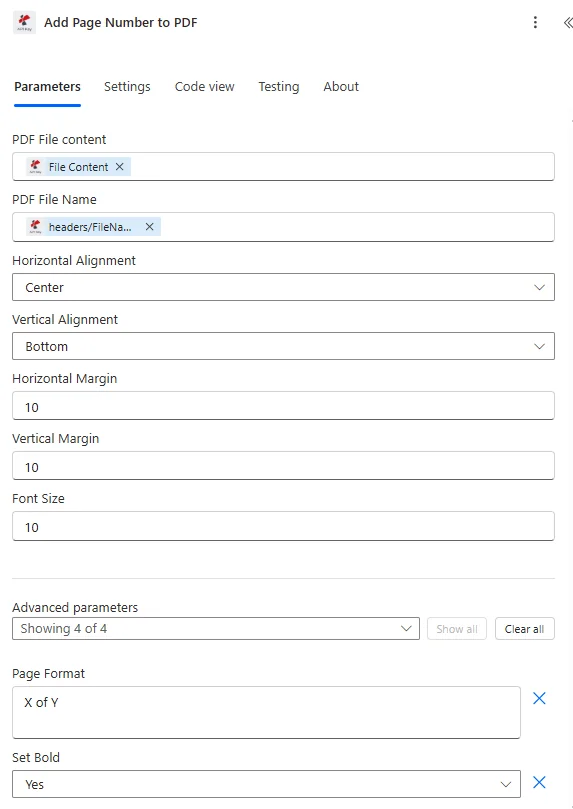
地图 PDF 文件内容和 PDF 文件名来自 SharePoint 或者 OneDrive 步骤一:在保存流程之前,设置页面格式、对齐方式、字体大小,并跳过首页。
参数
必需的: PDF 文件内容, PDF 文件名、水平对齐方式、垂直对齐方式和字体大小。如果省略,页面格式默认为“第 X 页”。页边距默认为 0,粗体/斜体默认为 false。
| 范围 | 必需的 | 它的作用 | 例子 |
|---|---|---|---|
| PDF File Content | Yes | Binary content of the source PDF. Map from SharePoint Get File Content, OneDrive Get File Content, or an email attachment step. Must be a valid PDF binary. | File Content from SharePoint |
| PDF File Name | Yes | Filename of the PDF including .pdf extension. Used for output naming. Map dynamically from the source step or enter a static name. | Report.pdf |
| Page Format | No | Style of the page number stamp. Options: Page X (default), X, X of Y, Page X of Y. For professional documents use "Page X of Y" : it shows both position and total length. | Page X of Y |
| Horizontal Alignment | Yes | Left-right position of the number on the page. Options: Left, Center, Right. Most footers use Center. | Center |
| Vertical Alignment | Yes | Top-bottom position of the number. Options: Top, Bottom, Middle. Standard footers use Bottom. | Bottom |
| Horizontal Margin | No | Distance from the horizontal alignment edge in millimeters. Default 0. For left or right alignment, use 15: 20 mm to keep the number inside the printable area. | 10 |
| Vertical Margin | No | Distance from the vertical alignment edge in millimeters. Default 0. For bottom-center positioning, set to 10 to place the number 10 mm from the page bottom. | 10 |
| Font Size | Yes | Font size of the page number text in points. Standard range 8-12 points. Use 9-10 for legal documents and 11-12 for reports distributed in print. | 10 |
| Set Bold | No | Apply bold weight to the page number. True = bold, False = regular (default). Bold improves visibility on printed documents. | true |
| Set Italic | No | Apply italic style to the page number. True = italic, False = regular (default). Both Bold and Italic can be true at the same time. | false |
| Skip First Page | No | When true, the first page receives no page number: standard for documents with a cover page. The sequence still reflects the true page count. Default false. | true |
输出字段
| 场地 | 类型 | 它包含什么 |
|---|---|---|
File Content | Binary | The complete PDF with page numbers stamped at the specified position, format, and font style. Map into SharePoint Create File, Send Email attachment, or OneDrive Create File. |
File Name | String | Output filename of the numbered PDF. Map into the file name field of your upload or email action. |
快速设置
- 在你的 Power Automate 流程,点击 + 添加操作 并搜索 PDF4me。
- 选择 添加页码 PDF。
- 请输入您的 PDF4me API 在连接对话框中输入(或选择现有连接)。
- 地图 PDF 文件内容 从二进制文件到 SharePoint, OneDrive或通过电子邮件步骤。
- 地图 PDF 文件名 文件名包括
.pdf扩大。 - 放 页面格式: 使用
Page X of Y用于报告、合同和提案。 - 放 水平对齐 和 垂直对齐:
Center+Bottom这是标准的页脚位置。 - 进入 字体大小 (建议 10:12)并可选择启用 设置粗体。
- 放 跳过第一页 到
true如果文件有封面页。 - 放 垂直边距 到
10底部偏移量为 10 毫米。保存并测试流量。
工作流程示例
工作流程示例Common Power Automate flow patterns using Add Page Number to PDF.
月度报告生成 → 添加页码 → 通过电子邮件发送给利益相关者
- 每月第一天会触发预定事件。
- SharePoint 检索已汇总的月度报告 PDF 来自报表库。
- 添加页码 PDF 在底部中心盖上“第 X 页,共 Y 页”的印章,字体为 10 磅粗体,并将“跳过首页”设置为 true(不包括封面页)。
- 编号 PDF 保存回“分布式报表” SharePoint 文件夹。
- 发送一封包含编号的电子邮件 PDF 附件会在上午 9 点站会之前自动分发给管理层邮件组。
政策更新 → 合并章节 → 添加页码 → 发布到内网
- A SharePoint 当政策文件在审批列中被标记为“最终”时,项目变更将触发流程。
- 获取文件内容以检索所有策略部分 PDF来自政策章节库。
- A PDF4me 合并 PDFs 行动将所有章节合并成一本完整的手册。
- 添加页码 PDF 在右下角添加“第 X 页,共 Y 页”,字体为 12 号粗体。跳过首页将不包含标题页。
- SharePoint 创建文件会将完成的编号手册发布到员工门户库中,覆盖之前的版本。
合同最终确定 → 添加页码 → 通过电子邮件发送执行文件 → 存档
- 当合同在法律审核工作流程中获得批准时,审批触发器就会触发。
- SharePoint 检索已批准的合同 PDF 摘自《法律评论》图书馆。
- 添加页码 PDF 右下角盖有“第 X 页,共 Y 页”的印章,字体为 9 号粗体,这是已签署法律文件的标准格式。“跳过首页”的说法是错误的,因为合同没有封面。
- 发送一封附有编号合同的电子邮件,即可将合同发送给交易对手,以便通过 DocuSign 或人工签名执行。
- SharePoint 创建文件会将编号版本归档到已执行合同库中,文件名中包含合同参考编号。
常见问题解答
相关操作
添加文字图章 PDF
在草稿上盖上“草稿”、“机密”或任何自定义文字。 PDF 页面,结合页码,实现完全品牌化的文档输出。
合并多个 PDFs
组合多个 PDF在添加页码之前,将所有内容合并到一个文档中,这对于政策手册、报告包和多章节合同至关重要。
添加 HTML 页眉页脚 PDF
添加全部 HTML 带有自定义内容的页眉和页脚,当文档需要在页眉中显示公司名称、日期或文档 ID 时,可与页码一起使用。