添加附件 PDF 在 Power Automate
PDF4me 添加附件 PDF 此操作允许将文件附件直接嵌入到 PDF 通过文件 Power Automate 工作流程。这项强大的功能允许您通过在工作流程中附加支持文件、补充材料和相关内容来创建全面的文档包。 PDFs,并可通过自定义定位和显示文本来增强文档组织性 Microsoft 365 自动化。
相关博客文章
目前尚无关于此功能的博客文章——敬请期待。
在此期间,您可以浏览 PDF4me 博客,查看适用于各平台的教程和工作流程。
访问博客 →
验证您的身份 API 要求
要访问 PDF4me 网站 API 通过 Power Automate每个请求都必须包含正确的身份验证凭据。身份验证可确保通信安全,并验证您作为授权用户的身份,从而实现与您的系统之间的无缝集成。 Power Automate 流量和 PDF4me强大的 PDF 附件服务。
主要特点
- 文件嵌入直接在邮件中附加文件 PDF 完整软件包所需的文件
- 自定义定位控制页面上附件图标的大小和位置
- 显示文本配置添加附件的描述性文字
- 多种附件类型支持多种文件类型 PDF 附件
- 工作流集成用于文档组装和分发过程
参数
“添加附件”功能的完整参数列表 PDF 操作。配置这些参数以控制附件嵌入。
| 范围 | 必需的 | 它的作用 | 例子 |
|---|---|---|---|
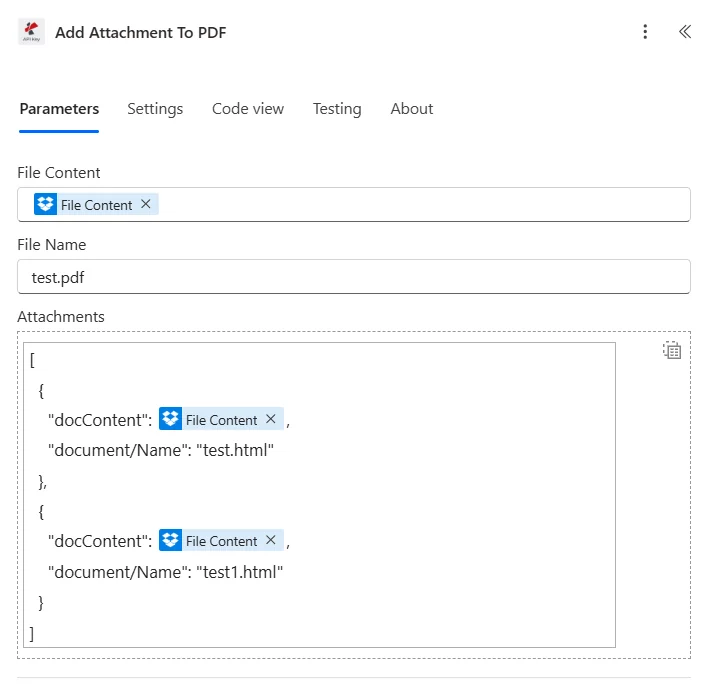
| File Content | Required | Content of the PDF to add the attachments to. Map it from the file content returned by a previous action, such as SharePoint or OneDrive Get file content. | @{body('Get_file_content')?['$content']} |
| File Name | Required | Name of the PDF to add the attachments to, including its extension (for example `invoice.pdf`). Map it from the file name returned by a previous action. | invoice.pdf |
| Attachments | Required | Files to attach. Add an item for each file, or switch to input entire array to map a list. | your value |
| Attachment File Content | Conditional | Content of the file to attach. Shown when Attachments is set. | @{body('Get_file_content')?['$content']} |
| Attachment File Name | Conditional | Name of the file to attach, including its extension (for example `data.xlsx`). Shown when Attachments is set. | data.xlsx |
输出
这 PDF4me 添加附件 PDF 操作返回全面的输出数据,以实现无缝连接。 Power Automate 流量整合:
- Table
- JSON
- Flow Integration
表格视图
以结构化表格格式呈现的响应数据:
| 场地 | 类型 | 它包含什么 |
|---|---|---|
| File Content | File content | Content of the PDF with the attachments. Map it into the next action, for example the File Content field of SharePoint or OneDrive Create file. |
| File Name | Text | File name of the PDF with the attachments, as returned by PDF4me. Use it as the file name when saving the file. |
| Page Count | Text | Page count reported by PDF4me for the processed document. Returned as text; wrap it in int() to use it as a number. |
JSON 响应格式
{
  "File Content": "[Binary Content of PDF with Attachment]"
}
Power Automate 流量使用情况
使用 PDF 后续行动中需附加相关条件:
- 电子邮件分发: 发送 PDF 通过嵌入式附件 Outlook
- SharePoint 上传将综合文档包保存到库中
- OneDrive 存储: 店铺 PDFs 附件已整理到文件夹中
- 团队共享将完整的文档包发布到 Teams 频道
- 归档存储将所有相关文件保存在单个文件中 PDF 用于存档
- 客户交付向客户提供完整的文件包
工作流程示例
这 PDF4me 添加附件 PDF 行动 Power Automate 提供专为实际业务场景设计的全面工作流程模板:
- Report Packages
- Proposal Packages
- Contract Packages
- Compliance Packages
自动化报表包创建工作流程
通过自动附加支持文档,改进您的报告流程:
完整工作流程步骤:
- 扳机月度报告生成完成 - 计划触发器
- 生成报告创建主报表 PDF 来自 BI 工具或 Excel
- 获取支持文件从中检索相关的 Excel 电子表格 SharePoint
- 添加附件 1将原始数据 Excel 文件嵌入到报告中 PDF
- 获取图表从 OneDrive 获取补充图表图像
- 添加附件 2将可视化文件嵌入到报告中
- 电子邮件分发向利益相关者发送完整报告包
- 归档包:存储综合报告 SharePoint 图书馆
商业优势:
- 每月自动生成 25 份以上的完整报告包
- 确保所有辅助材料随主报告一同送达
- 减少90%的电子邮件附件管理
- 维护单个文件中的文档关系以便归档。
自动化提案组装工作流程
通过自动附加支持文件,简化提案创建流程:
完整工作流程步骤:
- 扳机销售机会进入“提案”阶段 Dynamics 365
- 生成提案创建主要提案 PDF 从模板
- 获取产品规格获取产品规格 PDFs 来自图书馆
- 添加附件将产品规格嵌入提案中 PDF
- 获取案例研究获取相关案例研究文件
- 添加参考文献嵌入案例研究和客户评价
- 获取价格获取详细定价电子表格
- 添加价格表将定价详情作为附件嵌入。
商业优势:
- 每季度自动生成 50 多个提案包。
- 确保提案内容全面,并附所有支持材料。
- 将提案准备时间从 2 小时缩短至 15 分钟
- 配合完整文档,胜率提升 35%。
自动化合同文件打包工作流程
利用自动化附件组装优化您的合同分发:
完整工作流程步骤:
- 扳机合同已在法律审查流程中获得批准
- 获得主合同获取已批准的合同 PDF
- 获取展品从以下位置获取所有合同附件 SharePoint
- 添加展品将每份展品作为附件嵌入合同中。
- 获取日程安排获取付款和交货时间表
- 添加日程安排将进度表嵌入合同包中
- 获取条款获取标准条款和条件文件
- 添加条款:包含嵌入式条款和条件附件的完整包装
商业优势:
- 每月75份以上合同,包含所有必需附件。
- 确保交付过程中不会遗漏任何展品或日程安排。
- 减少80%的合同执行错误
- 维护完整的合同文件包,以确保符合法律规定。
自动化合规文件包工作流程
通过自动附加支持性文件来增强您的合规操作:
完整工作流程步骤:
- 扳机合规审查期结束 - 季度触发
- 生成摘要创建合规性摘要 PDF 报告
- 获取审计日志从数据库中检索审计跟踪 Excel 文件
- 添加日志将审计日志作为附件嵌入摘要中。
- 获取证据获取佐证文件
- 添加证据将所有证据文件嵌入到软件包中
- 获取认证获取合规证书
- 添加证书:包含嵌入式认证的完整软件包
商业优势:
- 每季度自动组装 10 多个合规包。
- 确保包含所有必需的证明文件
- 减少70%的审计准备时间
- 维护完整的合规文档记录
行业应用案例及应用
- Legal & Professional Services
- Finance & Banking
- Healthcare & Medical
- Education & Training
法律及专业服务用例
- 合同包将附件、时间表和附录嵌入合同中
- 案件档案请附上证据文件和佐证材料
- 法律意见嵌入参考文献和案例法引证
- 客户交付成果将所有相关文件打包,以便交付给客户。
金融与银行业应用案例
- 贷款方案将相关财务文件附在贷款协议中
- 审计报告嵌入审计跟踪和佐证
- 投资报告将详细分析电子表格附加到摘要中
- 合规文件将所有必需文件打包,以便提交监管部门。
医疗保健应用案例
- 患者记录将实验室结果和影像报告附在记录中
- 研究文档将支持数据文件嵌入研究论文中
- 保险索赔请将所有证明文件附在索赔表格上。
- 治疗方案嵌入协议和参考资料
教育与培训应用案例
- 课程套餐将补充材料附在课程文件中
- 研究论文嵌入数据集和支持性分析
- 认证文件整理所有必需的佐证材料
- 学生记录将成绩单和证书附在作品集中