转变 Visio 在 Power Automate
PDF4me 转变 Visio 操作可实现专业的图表转换 Power Automate 微软的自动化转型 Visio 文件到 PDF, PNG, SVG以及其他通用格式。这项全面的转换服务可实现无缝的图表共享、网页发布和跨平台兼容,从而转换 Visio将依赖型工作流程转化为可访问的文档自动化 Microsoft 365 生态系统。
验证您的身份 API 要求
要访问 PDF4me 网站 API 通过 Power Automate每个请求都必须包含正确的身份验证凭据。身份验证可确保通信安全,并验证您作为授权用户的身份,从而实现与您的系统之间的无缝集成。 Power Automate 流量和 PDF4me强大的文档处理服务。
主要特点
- 多种输出格式: 转变 Visio 到 PDF, PNG, SVG, JPG以及其他格式
- Visio 兼容性支持 .vsd、.vsdx、.vsdm 文件 Visio 文件格式
- 质量保持转换过程中保持图表质量和布局
- 自动化处理: 转变 Visio 工作流程中自动生成图表
- 流量积分在后续操作中使用转换后的文件 Power Automate 行动
参数
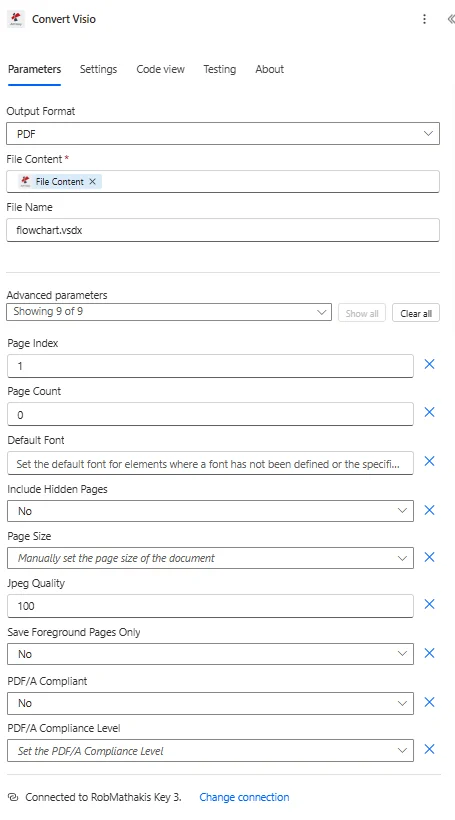
Convert 函数的完整参数列表 Visio 操作。配置这些参数以控制图表转换。
| 范围 | 必需的 | 它的作用 | 例子 |
|---|---|---|---|
| Output Format | Optional | Format to convert the Visio file to. After you choose it, the fields for that format are loaded into the action card. Options: PDF, BMP, GIF, PNG, JPG, SVG, TIFF, HTML, VSDX. Defaults to `PDF`. | PDF |
| Page Index | Conditional | Page of the drawing to start converting from. Defaults to `1`. Shown when Output Format is BMP or Output Format is GIF or Output Format is HTML or Output Format is JPG or Output Format is PDF or Output Format is PNG or Output Format is SVG or Output Format is TIFF. | 1 |
| Page Count | Conditional | Set the number of pages to convert. Defaults to `0`. Shown when Output Format is HTML or Output Format is PDF or Output Format is TIFF. | 0 |
| Default Font | Optional | Set the default font for elements where a font has not been defined or the specified font is unavailable. | your value |
| Include Hidden Pages | Conditional | Set whether hidden pages should be converted, false by default. Defaults to `No`. Shown when Output Format is HTML or Output Format is PDF or Output Format is TIFF. | No |
| Page Size | Conditional | Manually set the page size of the document. Options: Inherit, A1, A2, A3, A4, A5, B4, B5, Envelope, Executive, Legal, Letter, Tabloid. Shown when Output Format is BMP or Output Format is GIF or Output Format is HTML or Output Format is JPG or Output Format is PDF or Output Format is PNG or Output Format is SVG or Output Format is TIFF. | Inherit |
| Jpeg Quality | Conditional | Quality of JPEG images in the result, from 0 (lowest) to 100 (highest). Defaults to `100`. Shown when Output Format is JPG or Output Format is PDF. | 100 |
| Save Foreground Pages Only | Conditional | If Yes, only the foreground pages are converted; background pages are left out. Defaults to `No`. Shown when Output Format is HTML or Output Format is PDF or Output Format is TIFF. | No |
| PDF/A Compliant | Conditional | Set whether the PDF document should be PDF/A compliant. Defaults to `No`. Shown when Output Format is PDF. | No |
| PDF/A Compliance Level | Conditional | PDF/A conformance level to use when PDF/A Compliant is Yes. Options: Pdf15, PdfA1a, PdfA1b. Shown when Output Format is PDF. | Pdf15 |
| File Content | Required | Content of the Visio file to convert. Map it from the file content returned by a previous action, such as SharePoint or OneDrive Get file content. | @{body('Get_file_content')?['$content']} |
| File Name | Optional | Name of the Visio file to convert, including its extension (for example `diagram.vsdx`). Map it from the file name returned by a previous action. | diagram.vsdx |
| Brightness | Conditional | Set image brightness. Shown when Output Format is BMP or Output Format is GIF or Output Format is JPG or Output Format is PNG or Output Format is TIFF. | 0 |
| Contrast | Conditional | Set image contrast. Shown when Output Format is BMP or Output Format is GIF or Output Format is JPG or Output Format is PNG or Output Format is TIFF. | 0 |
| Color Mode | Conditional | Set image colour mode. Options: None, Grayscale, BlackAndWhite. Defaults to `None`. Shown when Output Format is BMP or Output Format is GIF or Output Format is JPG or Output Format is PNG or Output Format is TIFF. | None |
| Compositing Quality | Conditional | Specify the quality level to use during compositing. Options: Invalid, Default, HighSpeed, HighQuality, GammaCorrected, AssumeLinear. Defaults to `Default`. Shown when Output Format is BMP or Output Format is GIF or Output Format is JPG or Output Format is PNG or Output Format is TIFF. | Default |
| Interpolation Mode | Conditional | Specify the algorithm that is used when images are scaled or rotated. Options: Invalid, Default, Low, High, Bilinear, Bicubic, NearestNeighbor, HighQualityBilinear, HighQualityBicubic. Defaults to `Default`. Shown when Output Format is BMP or Output Format is GIF or Output Format is JPG or Output Format is PNG or Output Format is TIFF. | Default |
| Pixel Offset Mode | Conditional | Set a value specifying how pixels are offset during conversion. Options: Invalid, Default, HighSpeed, HighQuality, None, Half. Defaults to `Default`. Shown when Output Format is BMP or Output Format is GIF or Output Format is JPG or Output Format is PNG or Output Format is TIFF. | Default |
| Resolution | Conditional | Set image resolution in dots per inch. The default value is 96. Defaults to `96`. Shown when Output Format is BMP or Output Format is GIF or Output Format is JPG or Output Format is PNG or Output Format is TIFF. | 96 |
| Scale | Conditional | Set image zoom factor. Defaults to `1.0`. Shown when Output Format is BMP or Output Format is GIF or Output Format is JPG or Output Format is PNG or Output Format is TIFF. | 1.0 |
| Smoothing Mode | Conditional | Specify whether smoothing (antialiasing) is applied to lines, curves and the edges of filled areas. Options: Invalid, Default, HighSpeed, HighQuality, None, AntiAlias. Defaults to `Default`. Shown when Output Format is BMP or Output Format is GIF or Output Format is JPG or Output Format is PNG or Output Format is TIFF. | Default |
| Compression | Conditional | Set the compression type. Options: None, Rle, Ccitt3, Ccitt4, Lzw. Defaults to `None`. Shown when Output Format is TIFF. | None |
| Save Toolbar | Conditional | Set whether to include the toolbar, default value is false. Defaults to `No`. Shown when Output Format is HTML. | No |
| Auto Fit | Conditional | If Yes, the diagram is fitted to the width of the page. Defaults to `No`. Shown when Output Format is VSDX. | No |
输出
这 PDF4me 转变 Visio 操作返回全面的输出数据,以实现无缝连接。 Power Automate 流量整合:
- Table
- JSON
- Flow Integration
表格视图
以结构化表格格式呈现的响应数据:
| 场地 | 类型 | 它包含什么 |
|---|---|---|
| File Content | File content | Content of the converted file, in the chosen output format. Map it into the next action, for example the File Content field of SharePoint or OneDrive Create file. |
| File Name | Text | File name of the converted file, as returned by PDF4me. Use it as the file name when saving the file. |
| Page Count | Text | Page count reported by PDF4me for the processed document. Returned as text; wrap it in int() to use it as a number. |
JSON 响应格式
操作返回的字段(以动态内容中显示的方式呈现):
{
"File Content": "[Binary File Data]",
"File Name": "flowchart.pdf"
}
Power Automate 流量使用情况
使用转换 Visio 后续操作中的文件:
- 电子邮件分发将转换后的图表附加到 Outlook 电子邮件
- SharePoint 出版上传 PDF 图表到文档库
- 团队协作在 Teams 频道中分享转换后的图表
- 网络发布: 使用 PNG/SVG 网站或门户网站上的图表
- 文档嵌入将图表插入 Word 文档/PowerPoint 文件
- 归档存储将转换后的图表存储在 OneDrive 或 Azure 中。
工作流程示例
这 PDF4me 转变 Visio 行动 Power Automate 提供专为实际业务场景设计的全面工作流程模板:
- Process Documentation
- Web Publishing
- Client Deliverables
- Compliance Archival
自动化流程图 PDF 转换工作流程
利用自动化技术改造您的流程文档 Visio 到 PDF 利益相关者分配的转换:
完整工作流程步骤:
- 扳机已保存更新后的流程图 SharePoint Visio 图书馆
- 得到 Visio获取最新信息 Visio 文档库中的流程图
- 转换为 PDF: 转换 Visio 通用图表 PDF 格式
- 添加元数据:将版本号和审批状态应用于 PDF
- 保存PDF商店已转换 PDF 流程文档库
- 电子邮件团队: 发送 PDF 通过图表向利益相关者展示 Outlook
- 更新注册表: 日志 PDF 流程文档登记册中的版本
- 档案:移至上一个 PDF 版本归档文件夹
商业优势:
- 每月自动分发 100 多个流程文档的图表
- 允许利益相关者无需访问即可访问 Visio 许可证要求
- 通过自动转换,图表共享时间缩短 90%。
- 使用自动化方式维护版本控制 PDF 档案
自动化图表网页发布工作流程
利用自动化简化您的企业内部网 Visio 到 SVG 用于网页发布的转换:
完整工作流程步骤:
- 扳机新的组织结构图已上传至 Visio 图书馆
- 得到 Visio获取组织结构图 Visio 文件来自 SharePoint
- 转换为 SVG转换为适用于网页的可缩放矢量图形
- 优化压缩 SVG 为了加快网页加载速度
- 上传发布 SVG 到内网 Web 服务器或 Azure Blob
- 更新页面刷新内网页面,添加新的图表链接
- 通知通知沟通团队组织结构图已更新
- 追踪:在内容管理系统中记录发布活动
商业优势:
- 每月自动向内网发布 50 多张图表。
- 在所有设备上启用响应式图表查看功能 SVG
- 通过自动化将网站发布工作量减少 85%。
- 无需手动更新即可维护最新的组织结构图
自动化客户图交付工作流程
利用自动化优化您的客户交付 Visio 到 PDF 转换为专业演示文稿:
完整工作流程步骤:
- 扳机项目图纸已最终定稿并批准,保存在项目文件夹中。
- 得到 Visio从以下位置检索已批准的技术图纸 SharePoint
- 转换为 PDF: 转换 Visio 对客户友好 PDF 格式
- 添加品牌标识应用公司水印和页脚 PDF
- 压缩: 优化 PDF 电子邮件发送尺寸
- 电子邮件客户端发送专业人员 PDF 向客户提供图表
- 保存副本门店已发货 PDF 在客户交付物文件夹中
- 更新 CRM:日志图表交付 Dynamics 365 项目记录
商业优势:
- 每月自动向客户提供 200 多张技术图纸。
- 消除 Visio 客户端查看的软件要求
- 通过品牌化提升专业形象 PDF 输出
- 保留完整的交付审计跟踪记录 CRM 系统
自动化图表合规性归档工作流程
利用自动化技术增强您的合规运营 Visio 到 PDF 转换为长期存档格式:
完整工作流程步骤:
- 扳机:每月定期存档合规性图表
- 得到 Visio 文件:检索所有合规性 Visio 图库中的图表
- 环路转换对于每个 Visio 文件,转换为 PDF/A 格式
- 添加元数据应用保留策略和合规标签
- 档案: 店铺 PDF/合规性档案库中的图表
- 指数创建已存档图表的可搜索索引
- 生成报告创建归档完成报告
- 通知:通知合规团队归档成功
商业优势:
- 每年自动存档 500 多张合规性图表
- 确保图表长期保存 PDF/A 格式
- 通过自动化合规归档满足监管要求
- 支持通过可搜索的图表索引进行审计检索
行业应用案例及应用
- IT & Technology
- Project Management
- Business Process
- Engineering & Design
IT与技术应用案例
- 系统架构将IT图表转换为PDF格式以进行文档编制。
- 网络图以通用格式共享网络拓扑
- 流程图在企业内部网上发布工作流程图
- 技术规格向客户提供技术图纸
项目管理用例
- 项目计划将项目图表转换为可共享的PDF文件
- 甘特图将 Visio 时间线转换为通用格式
- 资源地图分享资源分配图
- 里程碑跟踪发布项目状态图
业务流程用例
- 流程图将 BPM 图转换为利益相关者审查格式
- 工作流程文档以PDF格式分享流程图
- 合规性图表:存档监管流程图
- 培训材料创建基于图表的培训文档
工程与设计应用案例
- CAD图纸将技术图纸转换为 PDF
- 平面图:普遍共享建筑图纸
- 电路原理图以PDF格式分发接线图
- 工艺流程图将流程图转换为文档格式