添加图像页眉或页脚 Excel 在 n8n
添加图片页眉/页脚 是一个 PDF4me Excel 操作 n8n 此功能可将徽标或品牌图像插入到 .xlsx 工作簿的页眉或页脚中,位置可选左侧、中间或右侧,并且可以应用于单个工作表或所有工作表。无需打开文件即可将一致的企业品牌应用于生成的报告。 Excel。
此节点的功能
PDF4me Excel添加图片页眉/页脚 该功能接受一个源工作簿和一个单独的图像输入,然后将图像放置在页面页眉或页脚的指定水平位置,并可配置页面边距。“目标工作表”功能会将图像应用到指定的工作表(按名称),或者在工作簿留空时应用到整个工作簿。
相关博客文章
目前尚无关于此功能的博客文章——敬请期待。
在此期间,您可以浏览 PDF4me 博客,查看适用于各平台的教程和工作流程。
访问博客 →
验证您的身份 API 要求
每一个 PDF4me 节点 n8n 需要有效 用于连接的凭证创建或选择一个包含您的 PDF4me API 关键在于确保工作流程能够安全地验证品牌授权请求。
您不容错过的重要事实
两个独立的输入:工作簿和图像
Excel 文件输入法和图像输入法是独立配置的,各自有自己的二进制数据属性名称,因此徽标可以来自与工作簿本身不同的上游节点。
一个切换开关可以选择显示页眉或页脚,不能同时显示两者。
“应用于页眉或页脚”操作每次运行会将图像放置在一个位置。如果要在页眉中放置徽标,在页脚中放置不同的标记,则需要执行两次节点操作。
边距默认值 Excel标准尺寸为 1.9 厘米
上、下、左、右边距的默认值均为 1.9 厘米,与……一致 Excel的页面边距是默认的,因此大多数工作簿根本不需要更改边距。
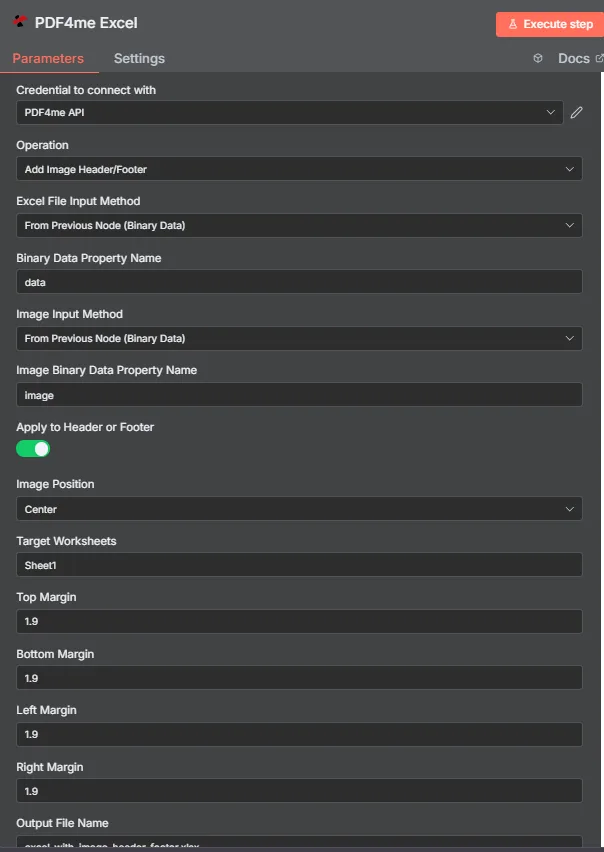
PDF4me Excel 在“添加图像页眉/页脚参数”面板中 n8n
添加图片页眉/页脚需要哪些参数?
必需的: 手术, Excel 文件输入方式、图像输入方式、同时兼容这两种方式的输入字段以及输出文件名。应用于页眉或页脚、图像位置、目标工作表以及四个边距字段均提供可用的默认值。
| 范围 | 必需的 | 它的作用 | 例子 |
|---|---|---|---|
| Operation | Required | Selects the PDF4me Excel action to run. Choose Add Image Header/Footer. | Add Image Header/Footer |
| Excel File Input Method | Required | How the workbook reaches the node. From Previous Node (Binary Data) reads it from an upstream item; the dropdown also offers base64 and file URL alternatives. | From Previous Node (Binary Data) |
| Binary Data Property Name | Conditional | Name of the binary property on the incoming n8n item holding the .xlsx workbook. Applies when the input method is binary data. Defaults to data. | data |
| Image Input Method | Required | How the image reaches the node, chosen independently of the workbook input. Supports Binary Data, Base64 String, or URL. | From Previous Node (Binary Data) |
| Image Binary Data Property Name | Conditional | Name of the binary property on the incoming n8n item holding the image file. Applies when Image Input Method is binary data. | image |
| Apply to Header or Footer | Optional | Toggle that places the image in the header when on, or the footer when off. Default true (header). | true |
| Image Position | Optional | Horizontal placement of the image. Left, Center, or Right. Default Center. | Center |
| Target Worksheets | Optional | Comma-separated worksheet names to apply the image to. Leave blank to apply it to every worksheet. | Sheet1 |
| Top Margin | Optional | Top page margin in centimeters. Default 1.9. | 1.9 |
| Bottom Margin | Optional | Bottom page margin in centimeters. Default 1.9. | 1.9 |
| Left Margin | Optional | Left page margin in centimeters. Default 1.9. | 1.9 |
| Right Margin | Optional | Right page margin in centimeters. Default 1.9. | 1.9 |
| Output File Name | Required | Filename for the branded workbook the node returns. Include the .xlsx extension. | excel_with_image_header_footer.xlsx |
输出字段
一次成功的运行返回一个 n8n 携带物品 JSON 元数据加上品牌工作簿作为二进制数据。
| 场地 | 类型 | 它包含什么 |
|---|---|---|
success | Boolean | True when the image was applied successfully. Use it to route error-handling branches. |
fileName | String | Filename of the branded workbook, matching Output File Name. |
fileSize | Number | Size of the returned workbook in bytes. |
originalFileName | String | The filename of the input workbook, echoed back for tracking. |
isHeader | Boolean | True when the image was placed in the header, false when placed in the footer. |
position | String | Horizontal alignment applied to the image: Left, Center, or Right. |
worksheetNames | Array | Worksheet names the image was applied to. |
topMargin | Number | Top page margin in centimeters, matching the Top Margin input. |
bottomMargin | Number | Bottom page margin in centimeters, matching the Bottom Margin input. |
leftMargin | Number | Left page margin in centimeters, matching the Left Margin input. |
rightMargin | Number | Right page margin in centimeters, matching the Right Margin input. |
message | String | Human-readable result message for the operation. |
Binary (data) | Binary | The branded .xlsx workbook. Pass into Write Binary File, Email, or a cloud-storage upload. |
N8N 行动反应
- JSON
- Schema
- Binary
JSON 回复格式
[
  {
    "fileName": "excel_with_image_header_footer.xlsx",
    "fileSize": 221849,
    "success": true,
    "originalFileName": "myExcelFile.xlsx",
    "isHeader": true,
    "position": "Center",
    "worksheetNames": ["Sheet1"],
    "topMargin": 1.9,
    "bottomMargin": 1.9,
    "leftMargin": 1.9,
    "rightMargin": 1.9,
    "message": "Image header/footer added to Excel file successfully"
  }
]
架构视图
1 item
fileName: T excel_with_image_header_footer.xlsx
fileSize: # 221849
success: true
originalFileName: T myExcelFile.xlsx
isHeader: true
position: T Center
worksheetNames: [] Array
  [0]: T Sheet1
topMargin: # 1.9
bottomMargin: # 1.9
leftMargin: # 1.9
rightMargin: # 1.9
message: T Image header/footer added to Excel file successfully
类型指示器: T = String, # = Number, [] = Array。
二进制数据视图
data
File Name: excel_with_image_header_footer.xlsx
File Extension: xlsx
Mime Type: application/vnd.openxmlformats-officedocument.spreadsheetml.sheet
File Size: 221.8 kB
二进制数据访问: 找到工作簿 $binary.data.data可供下载、通过电子邮件发送或存储。
如何在网页上设置添加图片页眉/页脚? n8n?
- 添加 PDF4me Excel 将节点添加到您的工作流程并设置 手术 到 添加图片页眉/页脚。
- 在 用于连接的凭证请选择您的 PDF4me API 或使用您的凭证创建一个凭证 API 钥匙。
- 放 Excel 文件输入法 和 二进制数据属性名称 针对源工作簿。
- 放 图像输入法 和 图像二进制数据属性名称 用于徽标或图片。
- 转变 应用于页眉或页脚 开启时显示页眉图片,关闭时显示页脚图片。
- 放 图像位置 到 左边, 中心, 或者 正确的。
- 放 目标工作表或者留空以将图像应用于所有位置,并根据需要调整边距。
- 放 输出文件名 以……结尾
.xlsx执行该节点,并将品牌工作簿路由下去。
典型配置
工作流程示例Common n8n workflow patterns using Add Image Header/Footer for Excel.
每份生成的报告上都会显示公司徽标
- 日程触发器会生成每周数据工作簿。
- 添加图像页眉/页脚,将公司徽标插入页眉或页脚,并将图像位置设置为右侧。
- 这份带有品牌标识的报告将通过电子邮件发送给利益相关者。
客户联合品牌标识应用于交付成果
- 工作流程会提取客户的徽标。 URL 一个 CRM 记录。
- 图像输入法设置为 URL 因此,徽标直接从该记录加载。
- 工作簿的页眉部分会印有客户的品牌标识。
页脚处的批准印章
- 当经理在内部工具中签字确认后,审批 webhook 就会触发。
- 添加图像页眉/页脚,同时关闭“应用于页眉或页脚”选项,将审批图形放置在页脚中。
- 盖章的工作簿已存档。 SharePoint。
仅对摘要表进行品牌宣传
- 多工作表工作簿包含原始数据标签页和一个汇总表。
- 目标工作表设置为汇总,因此原始数据选项卡保持无品牌标识。
- 品牌汇总表导出到 PDF 供分发。
实用技巧
Header and footer need separate runs
Apply to Header or Footer only picks one location per execution. Add a second node for the other placement.
Image and workbook inputs are independent
Image Input Method does not have to match Excel File Input Method. A logo can come from a public URL while the workbook comes from binary data.
Target Worksheets is comma-separated
List multiple sheet names like Sheet1,Summary to brand several sheets at once, or leave it blank for the whole workbook.
Margins are in centimeters, not inches
The 1.9 default matches Excel's standard margin in centimeters. Adjust with that unit in mind when nudging image placement.
Output File Name needs the .xlsx extension
Omitting it can leave downstream nodes unable to detect the format when writing or emailing the file.
Use a transparent PNG for a cleaner look
A transparent-background logo blends into the page better than a solid rectangle, especially over shaded header rows.
速查表
| 场地 | 价值 |
|---|---|
| Operation | Add Image Header/Footer |
| Excel File Input Method | From Previous Node (Binary Data) |
| Binary Data Property Name | data |
| Image Input Method | From Previous Node (Binary Data) |
| Image Binary Data Property Name | image |
| Apply to Header or Footer | on (header) |
| Image Position | Center |
| Target Worksheets | Sheet1 (blank for all) |
| Top / Bottom / Left / Right Margin | 1.9 cm each |
| Output File Name | excel_with_image_header_footer.xlsx |
| Credentials | PDF4me API credential |
常见问题
相关操作
添加文本页眉/页脚
用文字代替图形,例如页码、日期或公司名称。
移除页眉/页脚
在应用新图像之前,清除现有的页眉或页脚部分。
添加文字水印 Excel
一种不同的品牌推广方式,将文字印在纸张正页而不是页边距上。
在其他平台上执行相同任务
在页眉/页脚中添加图像 Make
与 a 相同的品牌引擎 Make 模块,连接到 Make 场景。
在页眉/页脚中添加图像 Zapier
从数千个 SaaS 应用和 Webhook 中触发相同的徽标插入。
在页眉/页脚中添加图像 Power Automate
Microsoft 365 与……流动 SharePoint, Outlook以及团队连接。