调整图像大小 n8n
调整图像大小 是一个 PDF4me 节点操作 n8n 它可以按原始尺寸的百分比或精确到像素宽度和高度缩放图像,并可通过开关启用/禁用保持宽高比。可用于生成缩略图、将用户上传的图片标准化为房屋大小,或在存储前缩小过大的照片。
此节点的功能
PDF4me调整图像大小 从二进制数据中获取图像, Base64 String或者 URL 并返回一个缩放后的副本。 调整大小类型 字段决定方法: 百分比 按原图比例缩放,适用于混合尺寸的输入; 具体的 为固定布局槽位设定精确的像素宽度和高度。由于该节点对每个传入项只运行一次,因此一个配置好的节点即可使用相同的设置调整整批数据的大小。
相关博客文章
目前尚无关于此功能的博客文章——敬请期待。
在此期间,您可以浏览 PDF4me 博客,查看适用于各平台的教程和工作流程。
访问博客 →
验证您的身份 API 要求
每一个 PDF4me 节点 n8n 需要有效 用于连接的凭证创建或选择一个可以容纳您的 PDF4me API 关键在于确保工作流程能够安全地验证调整大小请求。
您不容错过的重要事实
调整大小类型决定显示哪些字段
选择“百分比”会显示“调整大小百分比”。选择“具体数值”会显示“宽度”和“高度”。您无需同时填写这两组数值。
保持宽高比可防止图像失真。
除非您特意需要非比例尺寸,否则请保持此开关开启。关闭此开关后,如果宽度和高度不匹配,图片将被拉伸。
放大并不能创造细节
超过 100% 的百分比会增加像素尺寸,但不会提高清晰度。务必从可用的最高分辨率源开始。
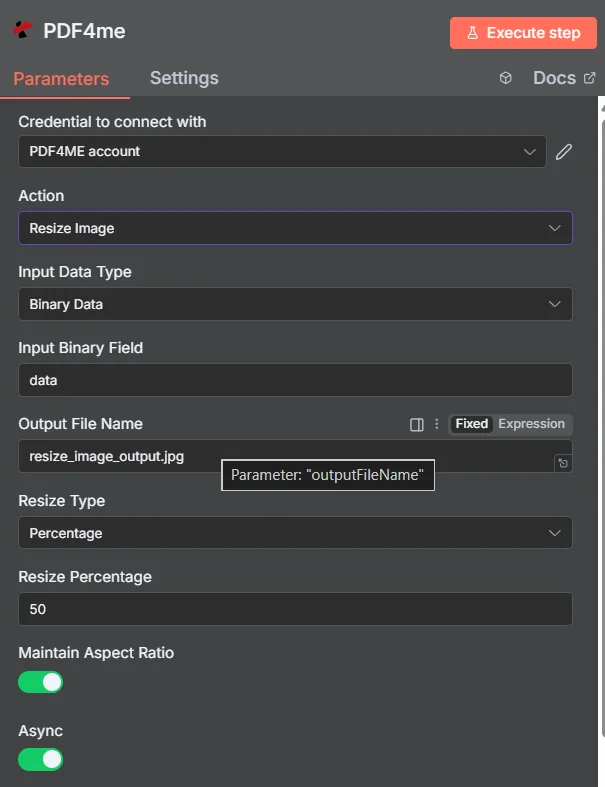
PDF4me 在“调整图像大小”参数面板中 n8n以百分比模式显示
百分比调整还是特定值调整:应该使用哪种调整大小方式?
这两种模式解决的是不同的问题,选错模式是导致输出大小意外的最常见原因。
| 调整大小类型 | 您填写的字段 | 最佳匹配 |
|---|---|---|
| Percentage | Resize Percentage, for example 50 to halve or 200 to double | Mixed-size inputs that should all shrink or grow by the same proportion, keeping their relative differences |
| Specific | Width and Height in pixels | A fixed layout slot, thumbnail grid, or platform that demands exact dimensions regardless of the source size |
调整图像大小需要哪些参数?
必需的: 操作、输入数据类型、与该输入类型匹配的字段、输出文件名、调整大小类型以及调整大小类型所显示的维度字段。 Async 二进制数据输出名称带有默认的工作值。
| 范围 | 必需的 | 它的作用 | 例子 |
|---|---|---|---|
| Action | Required | Selects the PDF4me node action to run. Choose Resize Image. | Resize Image |
| Input Data Type | Required | Format of the source image input. Choose Binary Data (from a previous node), Base64 String, or URL. | Binary Data |
| Input Binary Field | Conditional | Name of the binary property on the incoming n8n item that holds the image. Required when Input Data Type is Binary Data. Defaults to data. | data |
| Base64 Image Content | Conditional | Base64-encoded content of the source image. Required when Input Data Type is Base64 String. | /9j/4AAQSkZJRgAB... |
| Image URL | Conditional | Publicly reachable HTTPS URL to the source image. Required when Input Data Type is URL. | https://example.com/photo.jpg |
| Output File Name | Required | Filename for the resized image. Include the extension matching the output format. | resize_image_output.jpg |
| Resize Type | Required | Scaling method. Percentage scales relative to the original size, Specific targets exact pixel dimensions. Your choice decides which fields appear next. | Percentage |
| Resize Percentage | Conditional | Scaling percentage relative to the original. Below 100 reduces, above 100 enlarges. Required when Resize Type is Percentage. | 50 |
| Width | Conditional | Target width in pixels. Required when Resize Type is Specific. | 800 |
| Height | Conditional | Target height in pixels. Required when Resize Type is Specific. | 600 |
| Maintain Aspect Ratio | Optional | Toggle that preserves the original proportions so the image is not stretched. Leave enabled unless you need forced dimensions. | true |
| Async | Optional | Toggle that runs the resize in the background instead of holding the workflow execution open. Useful for large images or long batches. | true |
| Binary Data Output Name | Optional | Name of the binary property the output item exposes. Defaults to data. | data |
输出字段
一次成功的运行返回一个 n8n 包含调整大小后的图像及其尺寸报告的项目。
| 场地 | 类型 | 它包含什么 |
|---|---|---|
Binary (data) | Binary | The resized image, under Binary Data Output Name (default data). |
fileName | String | Generated filename, matching Output File Name. |
mimeType | String | MIME type of the output image, for example image/jpeg or image/png. |
fileSize | Number | Size of the resized image in bytes. |
originalDimensions | String | Width and height of the source image in pixels, for example 1920x1080. |
newDimensions | String | Width and height after resizing, for example 960x540. Compare it against your target to confirm aspect ratio behaviour. |
success | Boolean | True when the resize completed, false on failure. Use it to branch error handling. |
message | String | Human-readable status message, carrying success confirmation or error detail. |
如何在设置中调整图像大小 n8n?
- 添加 PDF4me 致你 n8n 工作流程并选择 调整图像大小 行动。
- 在 用于连接的凭证请选择您的 PDF4me 凭证或点击 创建新凭证 并粘贴你的 API 钥匙。
- 放 输入数据类型 到 二进制数据 (默认), Base64 String, 或者 URL 并提供匹配的源图像字段。
- 放 调整大小类型 到 百分比 并填写 调整大小百分比或者 具体的 并填写 宽度 和 高度。
- 离开 保持宽高比 启用以避免拉伸,并启用 Async 适用于大型图像或大批量处理。
- 放 输出文件名执行该节点并检查
newDimensions在输出结果上进行确认。
典型配置
工作流程示例Common n8n workflow patterns using Resize Image.
产品上传的缩略图
- 新的产品图片已上传至云端存储。
- 调整图像大小以特定模式运行,尺寸为缩略图网格尺寸。
- 缩略图会与原图一起显示。
缩小用户上传的超大文件
- webhook 会接收通过表单提交的照片。
- 调整图像大小以百分比模式运行,按比例缩小图像。
- 存储较小的文件,从而控制存储空间和带宽。
批量归一化图像库
- “循环遍历项目”节点会遍历一个包含大小不一图像的现有文件夹。
- “调整图像大小”功能对每个项目应用一致的设置, Async 已启用。
- 最终,无需任何人打开编辑器,库文件就会变得统一。
调整大小并压缩以适应网络。
- 编辑图片是从内容管理系统中提取的。
- 调整图像大小首先会将其缩小到显示宽度。
- 压缩图像后,会在发布前进一步减小文件大小。
实用技巧
Resize before you compress, not after
Reducing dimensions first means the compressor has less data to work on, which usually gives a better result than compressing a full-size image.
Leave Maintain Aspect Ratio on by default
Turning it off only makes sense when a target slot genuinely demands non-proportional dimensions. Otherwise it silently stretches faces and logos.
Use Percentage for mixed-size inputs
When sources vary, a fixed pixel target crops or pads inconsistently. A percentage keeps every image in proportion to where it started.
Read newDimensions rather than assuming
The output reports both original and new dimensions, which is the fastest way to confirm aspect ratio handling did what you expected.
Match the Output File Name extension to the format
Naming a PNG output with a .jpg extension confuses downstream nodes and any application that opens the file by extension.
Enable Async for large batches
Long-running batches are exactly where a synchronous call risks timing out, and Async keeps the execution from being held open.
速查表
| 场地 | 价值 |
|---|---|
| Action | Resize Image |
| Input Data Type | Binary Data |
| Input Binary Field | data |
| Output File Name | resize_image_output.jpg |
| Resize Type | Percentage |
| Resize Percentage | 50 |
| Width / Height (Specific mode) | 800 / 600 |
| Maintain Aspect Ratio | true |
| Async | true |
| Binary Data Output Name | data |
常见问题
相关操作
压缩图像
尺寸合适后,自然而然的下一步就是进一步减小文件大小。
裁剪图像
当您需要不同的宽高比而不是同一帧的缩小版本时,请使用此功能。
转换图像格式
调整文件大小后,如果目标平台需要特定格式的文件,则需要更改文件格式。
获取图像元数据
当调整大小的决定取决于原始图像的大小时,请先读取源图像的尺寸。
在其他平台上执行相同任务
调整图像大小 Make
与以下情况相同的调整大小引擎 Make 模块,连接到 Make 场景。
调整图像大小 Zapier
从数千个 SaaS 应用和 Webhook 中触发图像大小调整。
调整图像大小 Power Automate
Microsoft 365 与……流动 SharePoint, OutlookTeams 和 Dataverse 集成。
调整图像大小 REST API
原始 PDF4me 用于自定义后端代码或 Postman 测试的端点。