添加文字图章 PDF 在 n8n
添加文字图章 PDF 是一个 n8n 节点 PDF4me 在文本上叠加自定义文本(机密、草稿、已批准或任何自定义字符串) PDF 页面可精确控制对齐方式、字体、颜色、不透明度和旋转角度。可用于保密标记、审批印章、草稿标签或自动文档品牌化,无需手动编辑。
此节点的功能
PDF4me:添加文字图章 PDF 将文本字符串渲染到每个目标页面的指定水平和垂直位置,并可控制字体大小、字体颜色、不透明度、旋转角度、边距以及背景/前景图层。接受源文件。 PDF 通过二进制数据, Base64 字符串,或 URL非常适合用于保密标签、草稿标记、批准印章、版权声明和斜角水印风格的品牌标识。
相关博客文章
目前尚无关于此功能的博客文章——敬请期待。
在此期间,您可以浏览 PDF4me 博客,查看适用于各平台的教程和工作流程。
访问博客 →
验证您的身份 API 要求
每一个 PDF4me 节点 n8n 需要有效 用于连接的凭证创建或选择一个可以容纳您的 PDF4me API 关键在于确保工作流程能够安全地验证盖章请求。
您不容错过的重要事实
真正需要填写的字段只有 6 个。
底层 PDF4me API 只需要 PDF 输入、输出文件名、文本、页数、水平对齐方式和垂直对齐方式。字体、颜色、不透明度、旋转角度、边距、背景和异步处理均有可用的默认值。
后台控件堆叠,而非可见性
Background true 会将水印渲染在现有页面内容的后面(水印效果很微妙);Background false(默认值)会将其渲染在顶部,非常适合用于可见的保密或批准标记。
旋转加调整不透明度,即可制作经典的斜角水印。
将旋转角度设置为 45,将不透明度降低到 30-50 左右,并启用背景,即可获得草稿和机密副本上使用的传统倾斜、半透明水印外观。
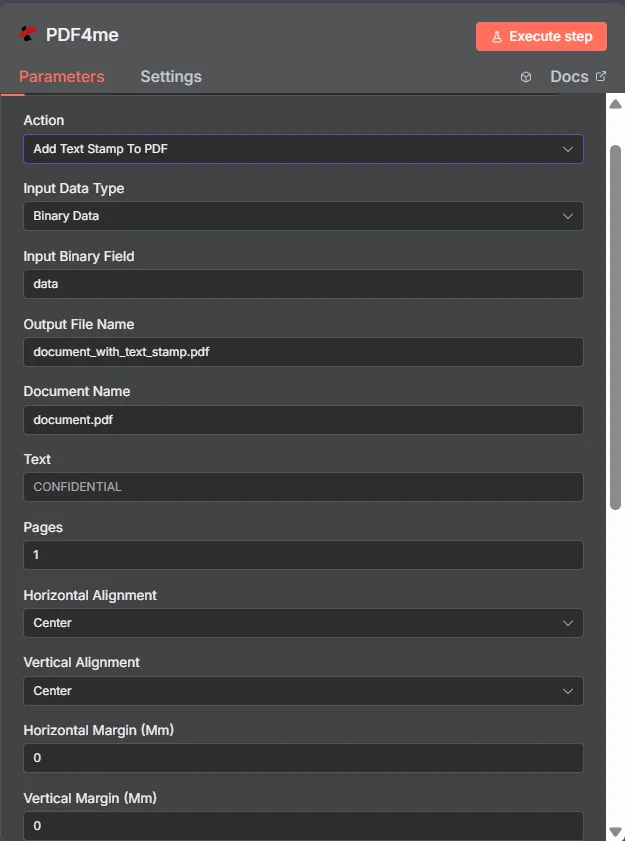
PDF4me 添加文字图章 PDF 节点参数面板 n8n
添加文本戳记需要哪些参数? PDF 需要?
必需的: 输入数据类型、输出文件名、文本、页数、水平对齐方式和垂直对齐方式。条件字段(输入二进制字段、Base64 文档内容、文件 URL)仅在选择其父级输入数据类型时才会显示。其他所有选项,包括文档名称、边距、不透明度、字体、旋转角度、背景、异步处理和二进制数据输出名称,均为可选,并具有默认值。
| 范围 | 必需的 | 它的作用 | 例子 |
|---|---|---|---|
| Input Data Type | Required | Format of the source PDF input. Choose Binary Data (from a previous node), Base64 String, or URL. | Binary Data |
| Input Binary Field | Conditional | Name of the binary property on the incoming n8n item that holds the PDF. Required when Input Data Type is Binary Data. Defaults to data. | data |
| Base64 Document Content | Conditional | Base64-encoded PDF content. Required when Input Data Type is Base64 String. | JVBERi0xLjQK... |
| File URL | Conditional | Publicly reachable HTTPS URL to the source PDF. Required when Input Data Type is URL. | https://example.com/sample.pdf |
| Output File Name | Required | Filename for the stamped PDF output. Must include the .pdf extension. | document_with_text_stamp.pdf |
| Document Name | Optional | Reference label for the source PDF, used for tracking only, not sent to the stamping engine. | document.pdf |
| Text | Required | The text string to stamp onto the page, such as a confidentiality label, draft marker, or custom watermark text. | CONFIDENTIAL |
| Pages | Required | Pages to stamp. Accepts a single page, a range, a mixed list, or an open range. All pages if left as "all". | 1 or 2-5 or 1,3,7-10 |
| Horizontal Alignment | Required | Horizontal position of the stamp on the page: Left, Center, or Right. | Center |
| Vertical Alignment | Required | Vertical position of the stamp on the page: Top, Center, or Bottom. | Center |
| Horizontal Margin (Mm) | Optional | Horizontal margin in millimeters, applied from the aligned edge. Default 0. | 0 |
| Vertical Margin (Mm) | Optional | Vertical margin in millimeters, applied from the aligned edge. Default 0. | 0 |
| Opacity | Optional | Stamp transparency from 0 (invisible) to 100 (fully opaque). Default full opacity. | 50 |
| Font Size | Optional | Font size in points, typically between 8 and 72. | 24 |
| Font Color | Optional | Stamp text color as a hex code. | #FF0000 |
| Rotation | Optional | Rotation angle in degrees. 0 is horizontal, 45 is diagonal, 90 is vertical. | 45 |
| Background | Optional | Places the stamp behind existing page content when true, or on top (foreground) when false. Default false. | false |
| Async Processing | Optional | Processes large PDFs in the background when enabled, improving reliability for high-page-count documents. | false |
| Binary Data Output Name | Optional | Name of the binary property the output item exposes. Default is data. | data |
高级选项
自定义配置文件(可选)
A JSON类似于预定义参数块,用于专门的冲压配置,例如
{ "fontFamily": "Arial", "fontSize": 24, "fontColor": "#FF0000" }叠加在上面的各个字段之上。输出字段
一次成功的运行返回一个 n8n 携带物品 JSON 元数据和带戳记的二进制文件 PDF。
| 场地 | 类型 | 它包含什么 |
|---|---|---|
success | Boolean | True when the stamp was applied successfully. Use to route error-handling branches. |
fileName | String | Generated filename, matching Output File Name. |
mimeType | String | MIME type of the output, always application/pdf. |
fileSize | Number | Size of the stamped PDF in bytes. |
pageCount | Number | Number of pages processed with the text stamp. |
Binary (data) | Binary | The stamped PDF under Binary Data Output Name (default data). Pass into Write Binary File, Email, or any cloud-storage upload. |
如何设置添加文本图章 PDF 在 n8n?
- 添加 PDF4me 致你 n8n 工作流程并选择 添加文字图章 PDF 行动。
- 在 用于连接的凭证请选择您的 PDF4me 凭证或点击 创建新凭证 并粘贴你的 API 钥匙。
- 放 输入数据类型 到 二进制数据 (默认), Base64 细绳, 或者 URL 并提供匹配的来源 PDF 场地。
- 放 输出文件名 (必须以……结尾)
.pdf)并且可选 文档名称 用于跟踪。 - 进入 文本 (例如。
CONFIDENTIAL), 页 瞄准目标,并且 水平对齐 / 垂直对齐。 - 可选择进行调校 水平边距, 垂直边距, 不透明度, 字体大小, 字体颜色, 旋转, 和 背景。
- 使能够 异步处理 如有需要,可处理大型文档。执行节点并路由盖章。 PDF 进入下一步。
典型配置
工作流程示例Common n8n workflow patterns using Add Text Stamp to PDF.
对外分享前请加盖“机密”印章
- 当新文件进入“传出文档”文件夹时,Google 云端硬盘触发器就会触发。
- PDF4me 添加文字图章 PDF 文本设置为“机密”,水平对齐方式为居中,垂直对齐方式为顶部,字体颜色为红色。
- 盖章 PDF 已上传至“已审核”文件夹,并通过电子邮件发送给收件人。
生成的报告上带有斜角“DRAFT”水印
- 计划触发器会生成每周报告。 PDF 通过 PDF4me 生成文档。
- PDF4me 添加文字图章 PDF 使用文本 DRAFT、旋转 45、不透明度 30、背景为 true 运行,可获得微妙的对角水印。
- 带有水印的草稿会在最终批准前发布到 Slack 审核频道。
签字后在特定页面上盖上“已批准”印章
- 当经理在内部工具中将文档标记为已批准时,审批 webhook 就会触发。
- PDF4me 添加文字图章 PDF 运行文本为“已批准”,页面设置为仅签名页,垂直对齐方式为底部。
- 最终版 PDF 已存档 SharePoint 文件名中包含批准日期。
从托管的 PDF URL 进行批量盖章
- “循环遍历项目”节点遍历文档列表。 URL从数据库导出。
- PDF4me 添加文字图章 PDF 使用输入数据类型运行 URL, 文件 URL 每个项目单独设置,启用异步处理以提高可靠性。
- 每个加盖印章的输出都会以源记录 ID 作为文件名写入云存储。
实用技巧
Only 6 fields are required
Input, Output File Name, Text, Pages, Horizontal Alignment, and Vertical Alignment. Do not feel obligated to set every optional field.
Use Background true for subtle watermarks
Combine Background true with a lower Opacity (30-50) so the stamp does not obscure page content underneath.
Pages accepts open ranges
Use 2- to stamp from page 2 to the end, useful for skipping a cover page while stamping the rest.
Font Color must be a valid hex code
Values like #FF0000 work; unrecognized color names or malformed hex strings fail the request.
Enable Async Processing for large PDFs
Large or high-page-count documents benefit from asynchronous processing so the workflow execution does not time out.
Document Name is reference-only
It labels the source file for tracking; it does not affect stamping behavior or the output filename.
速查表
| 场地 | 价值 |
|---|---|
| Action | Add Text Stamp To PDF |
| Input Data Type | Binary Data |
| Input Binary Field | data |
| Output File Name | document_with_text_stamp.pdf |
| Text | CONFIDENTIAL |
| Pages | 1 (or "all") |
| Horizontal Alignment | Center |
| Vertical Alignment | Center |
| Opacity | 50 (lower for subtle watermark) |
| Rotation | 0 (45 for diagonal watermark) |
| Credentials | PDF4me API credential |
常见问题
相关操作
添加图像印章 PDF
同样的印章引擎,但叠加的是徽标或图像而不是文字,用于品牌信笺抬头或签名图形。
添加 HTML 页眉页脚 PDF
添加重复的页面页眉和页脚 HTML可与一次性文本印章配合使用,实现全页品牌推广。
添加页码 PDF
一种专门用于顺序页码的文本叠加层,通常与同一工作流程中的文本图章一起使用。
在其他平台上执行相同任务
添加文字水印 PDF 在 Make
与以下情况相同的文本盖章引擎 Make 该平台上的模块名为“文本水印”。
添加文字水印 PDF 在 Zapier
可从 6000 多个文本中触发文本戳记 SaaS 应用程序和网络钩子。
添加文字图章 PDF 在 Power Automate
Microsoft 365 与……流动 SharePoint, OutlookTeams 和 Dataverse 集成。
添加文字图章 PDF REST API
原始 PDF4me 用于自定义后端代码或 Postman 测试的端点。