跳到主要内容

在……中创建超链接 PDFMake

PDF4me PDF 创建超链接是 Make 一个可以将特定文本字符串转换为 PDF 变成一个可点击的链接,不包含坐标或 PDF 编辑器。使用它可以将产品名称链接到商店页面,将引用链接到来源,或将政策短语链接到常见问题解答页面,然后将模块串联起来,向一个文档添加多个不同的链接。

本模块的功能

PDF4mePDF 创建超链接 将任何文本字符串转换为 PDF 进入一个可点击的链接 Make 场景:你只需告诉它要查找哪个文本、文本指向哪里以及要搜索哪些页面,模块就会处理其余部分。无需坐标,无需手动标注,无需其他操作。 PDF 编辑器已在桌面上打开。

相关博客文章
目前尚无关于此功能的博客文章——敬请期待。
在此期间,您可以浏览 PDF4me 博客,查看适用于各平台的教程和工作流程。
访问博客

验证您的 API 请求

每一个 PDF4me 模块 Make 需要有效 联系创建或选择一个可以容纳您的 PDF4me API 关键在于让场景能够安全地调用超链接服务。

您不容错过的重要事实

文本搜索定位,无需坐标

最多 PDF 关联 APIs 需要您指定精确的 x/y 坐标。此模块会自动查找文本,您只需输入想要设置为可点击的单词或短语,它就会自动处理定位。

New Text (可选)替换标签

离开 New Text 此处为空,原始搜索文本仍显示为链接标签。填写此标签可替换读者看到的内容,这对于转换原始文本非常有用。 URL 或者将产品代码转换为可读的锚文本。

用于多链节的链式模块

一个模块处理一个文本到URL 配对。要向同一文档添加多个不同的链接,请按顺序连接多个“创建超链接”模块,每个模块接收前一个模块的输出。

该模块写入一个标准 PDF 链接注释的定义见 PDF 32000-1:2008 规范 (第 12.5.6.5 节,链接注释),与文档中记录的注释类型相同 PDF 协会规范指数因此,生成的链接可以在 Acrobat、浏览器和移动设备中正确打开。 PDF 无需任何自定义插件即可查看。
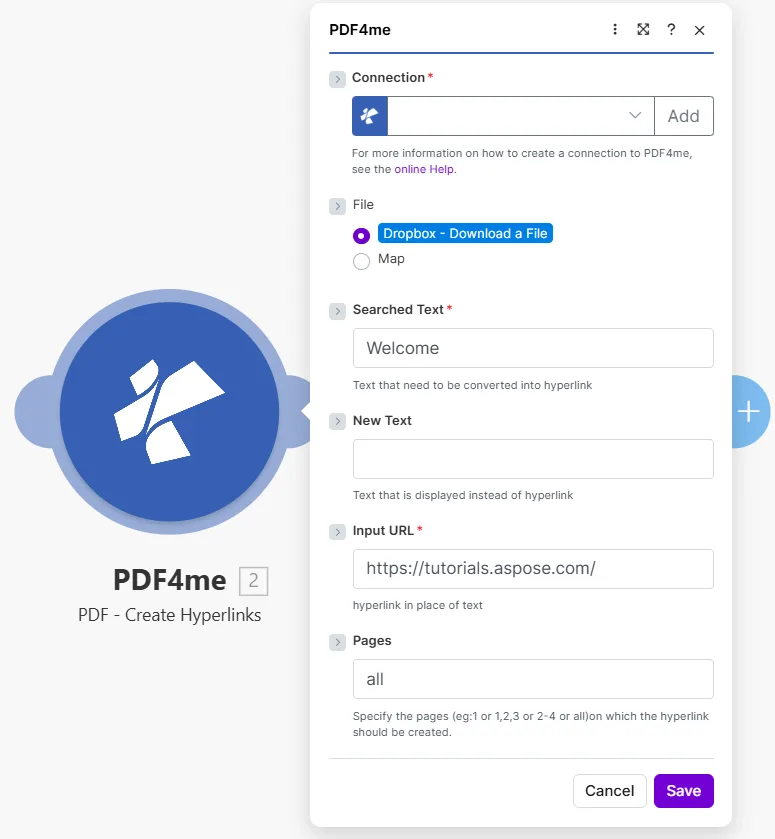
使用 PDF4me 创建 PDF - 创建超链接模块,文件设置为 Dropbox - 下载文件,搜索文本为“欢迎”,新文本为空,输入 URL 为 https://tutorials.aspose.com/,页面设置为“全部”。

请输入要查找的确切文本 Searched Text目的地 Input URL以及要在哪些页面中搜索。 Pages

参数

必需的: ConnectionSearched Text, 和 Input URLNew TextPages 是可选的。

范围必需的它的作用例子
ConnectionRequiredPDF4me API connection used to authenticate hyperlink creation requests.Your PDF4me connection
FileRequiredSource PDF. Choose Dropbox - Download a File for a direct Dropbox trigger, or Map to wire filename and binary data from a prior module.Dropbox - Download a File
Searched TextRequiredThe exact text string in the PDF that will become a clickable hyperlink. The module searches the specified pages for this text and wraps every occurrence in a link annotation.Welcome
New TextOptionalOptional label that replaces what the reader sees over the link. Leave empty to keep the original searched text as the visible link label.Visit our site
Input URLRequiredThe destination URL the hyperlink points to. Readers are taken to this address when they click the linked text.https://tutorials.aspose.com/
PagesOptionalPages to search for the text. Accepts a single number, a comma-separated list (1,3,5), a range (2-4), or the word all. Defaults to all if left empty.all

如何在文本中添加超链接 PDFMake

  1. 添加 PDF4mePDF 创建超链接 针对你的情况。
  2. 选择 Connection (或点击) 添加 用你的 API 钥匙)。
  3. FileDropbox - 下载文件 或者 地图 来自之前的模块。
  4. Searched Text输入您想要设置为可点击的确切文本(例如: Welcome 或产品名称)。
  5. (可选) New Text 如果您希望显示的标签与搜索文本不同。
  6. 将目标地址粘贴到 Input URL
  7. Pages: 类型 all 针对每个页面,或针对特定页面,例如 1,3 或者 2-4
  8. 节省 点击 运行一次输出结果包含 Document NameDocument Data: 这 PDF 已添加超链接。

输出

场地类型它包含什么
Document NameStringFilename of the output PDF with hyperlinks applied.
Document DataBufferBinary content of the PDF with link annotations added. Map this into an upload, email, or further processing module.

何时应该使用“创建超链接”功能?

典型配置Common Make scenario patterns that use PDF - Create Hyperlinks to enrich documents automatically.
将产品链接添加到生成的目录中
  1. 计划任务会从数据库中获取最新的产品列表并生成产品目录。 PDF
  2. 迭代器遍历列表中的每个产品名称。
  3. 创建超链接 每个产品运行一次, Searched Text = 产品名称, Input URL 产品页面 URL
  4. 循环结束后,目录中的每个产品名称都会变成指向其商店页面的有效链接。
  5. 制作完成的互动式产品目录将上传至 Google 云端硬盘,并通过电子邮件发送给销售团队。
使用来源网址丰富报告引用
  1. 月度报告 PDF 由 Google Docs 模板生成。
  2. 数据存储区保存着引文标签及其匹配项的列表。 URLs
  3. 创建超链接 每个引用运行一次,将每个标签转换为可点击的来源链接。
  4. 读者可以点击其中的任何引文。 PDF 在浏览器中打开原始资源。
  5. 增强后的报告存储在 SharePoint 并分发给利益相关者。
将政策文件章节链接到常见问题解答页面
  1. 人力资源部上传了一项新政策 PDF 保存到受监控的 Dropbox 文件夹。
  2. 创建超链接 在所有页面上搜索“更多信息”一词。
  3. 每一次事件都与人力资源部门息息相关。 FAQ 公司内网上的页面。
  4. 第二个链式模块将短语“提交请求”转换为指向工单系统的链接。
  5. 完成 PDF 已保存至人力资源文档库,并通过电子邮件发送给所有员工。

常见问题解答

Does the module require coordinates to place the hyperlink?+
No. You provide the exact text string in Searched Text and the module handles positioning automatically. The PDF4me engine scans each targeted page, finds every occurrence of that string, and wraps it in a URI annotation: no x/y coordinates, bounding boxes, or pixel offsets needed. This approach remains reliable even when the same document is generated from different templates with slightly shifted content, because positioning is always derived fresh from the live text location. It also works correctly after content shifts caused by font changes or added paragraphs.
What does New Text do?+
New Text replaces the visible label that readers see over the clickable link. If the searched text is a raw product code like SKU-4892 and you enter Shop this product in New Text, readers see the friendlier label instead of the code. This is especially useful when the text in your PDF is a reference number or raw URL that is technically correct but not reader-friendly as a link label. Leave New Text empty and the original searched text remains the visible anchor: nothing changes in appearance except that the text becomes clickable. The New Text value does not affect which text the module searches for; Searched Text always controls matching.
What if the same text appears multiple times on a page?+
Every occurrence of the searched text on the targeted pages becomes a clickable link pointing to the same Input URL. For example, if Welcome appears in the header, the body, and a sidebar, all three instances become links in one module run. If you need different occurrences to point to different URLs, replace the text in your source so each instance is unique, or use separate chained modules with slightly different search phrases. Matching is case-sensitive, so Welcome and welcome are treated as distinct strings.
Can I add multiple different hyperlinks to the same PDF?+
Yes, by chaining modules in the same Make scenario. Map the Document Data output of the first Create Hyperlinks module directly into the File input of a second module, each configured with its own Searched Text and Input URL. You can stack as many modules as needed: there is no Make-imposed limit on chaining. For a catalogue with many product names, use an iterator to loop over a data store and pass each name and URL through a single Create Hyperlinks module once per iteration. The result is a fully linked PDF built entirely within Make without opening a PDF editor.
Do the hyperlinks work in all PDF viewers?+
The module creates a standard PDF URI annotation as defined in the PDF specification, supported natively in Adobe Acrobat Reader, Adobe Acrobat, the built-in viewers on Windows (Microsoft Edge), macOS (Preview), iOS, and Android, and all major browsers including Chrome, Firefox, and Safari. When a reader clicks the annotated text, the default browser opens the destination URL. Very old proprietary viewers that pre-date the PDF 1.1 annotation standard may not recognise the annotation, but those are no longer in common use. The annotation is not affected by PDF compression or linearization applied by other modules in the same scenario.

实用技巧

Matching is case-sensitive
Welcome and welcome are treated as different strings. Check the exact capitalization in your source PDF before setting Searched Text.
Every occurrence gets linked, not just the first
If the searched text appears three times on a page, all three become clickable to the same URL in one run. Make each occurrence unique in your source if you need different destinations.
One module, one text-to-URL pair
To add several different links to one document, chain multiple Create Hyperlinks modules, feeding Document Data from one into the File input of the next.
Check page count first for long documents
Use Get Document Information before this module if you only want to target specific pages of a long PDF, so the Pages field lines up with the real page count.
New Text only changes the label, not the search
Searched Text always controls what gets matched. New Text is purely cosmetic, it never affects which occurrences become links.

速查表

场地价值
Searched TextExact text to make clickable
New TextOptional replacement label
Input URLDestination address
Pagesall, a number, 1,3, or 2-4
OutputDocument Name + Document Data

相关操作

在其他平台上执行相同任务

获取帮助