调整图像大小 - 智能缩放器 Make
调整图像大小 是一个 Make 模块 PDF4me 它可以按百分比缩放图像,满足您的需求。您可以利用它缩小店铺产品照片、生成缩略图或自动准备可用于网页的素材,而无需为每个文件打开图像编辑器。
本模块的功能
PDF4me 调整图像大小 提供自动图像大小调整功能 Make 支持基于百分比缩放的场景。它可以在保持图像质量的同时调整图像尺寸,从而实现网页优化和缩略图生成。 响应式设计 准备工作和多设备图像工作流程。
相关博客文章
目前尚无关于此功能的博客文章——敬请期待。
在此期间,您可以浏览 PDF4me 博客,查看适用于各平台的教程和工作流程。
访问博客 →
我如何验证我的身份 Make 设想?
要访问 PDF4me 网站 API 通过 Make每个请求都必须包含一个有效的 联系 握着你的 PDF4me API 密钥。这实现了您与他人之间安全、经过身份验证的通信。 Make 场景和 PDF4me的图像调整大小服务。
您不容错过的重要事实
调整大小百分比上限为 100%。
“百分比”字段必须小于或等于 100。50 会生成一半大小的图像;通过此字段无法将图像放大到超出原始尺寸。
连接是必需的,尽管它很容易被忽略。
每一个 PDF4me 模块需要一个连接来保持您的 API 关键。设置一次即可。 Make 在所有地方重复使用它 PDF4me 场景中的模块。
批量调整大小意味着将此模块包装在迭代器中。
没有专门的批量调整大小模式。循环处理文件夹中的图像。 Make 迭代器,对每个文件运行一次“调整图像大小”操作,每次操作使用相同的百分比设置。
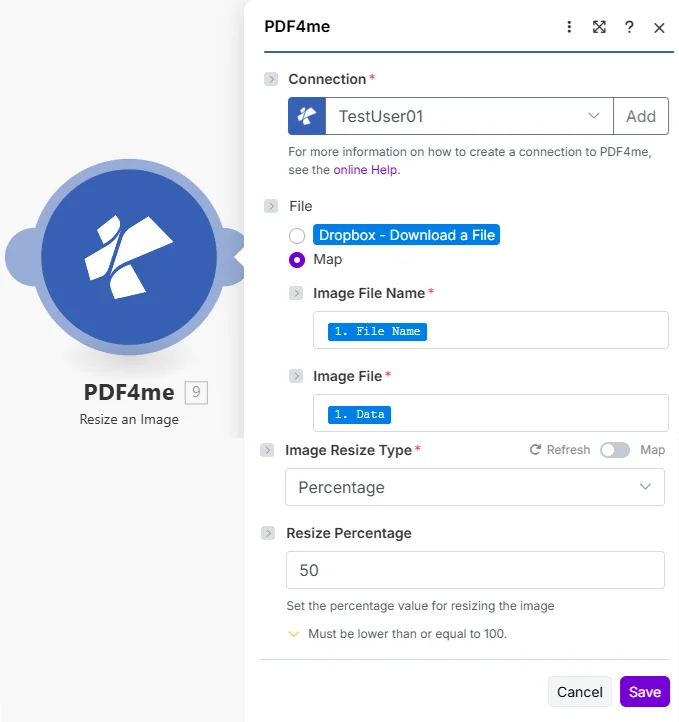
将图像调整大小类型设置为百分比,并输入 1 到 100 之间的调整大小百分比。50 表示将图像缩小一半大小。
调整图像大小需要哪些参数?
必需的: 必须始终提供连接信息、图像文件名、图像文件和图像缩放类型。当图像缩放类型设置为百分比时,必须提供缩放百分比。
| 范围 | 必需的 | 它的作用 | 例子 |
|---|---|---|---|
| Connection | Required | PDF4me API connection. Click Add and paste your API key the first time. Reused automatically across all PDF4me modules in your scenarios. | TestUser01 |
| Image File Name | Required | Filename of the source image. Map from a previous module or set explicitly. | product.jpg |
| Image File | Required | Binary content of the source image. Map from Dropbox, Google Drive, or any previous module that outputs image binary data. | 1. Data |
| Image Resize Type | Required | Resize method. Percentage scales relative to the original size. Specific targets an exact output size (additional dimension fields appear for this mode). | Percentage |
| Resize Percentage | Conditional | Scale value from 1 to 100, required when Image Resize Type is Percentage. 50 produces a half-size image; values above 100 are not accepted. | 50 |
输出
| 场地 | 类型 | 它包含什么 |
|---|---|---|
Temp.Document.Name | String | Base64-encoded resized image document data, ready to upload, embed, or pass to a downstream module. |
典型配置
工作流程示例Common Make scenario patterns using Resize an Image.
产品照片文件夹 → 批量生成缩略图
- 当上传新产品照片时,Dropbox Watch Files 触发器会触发。
- 迭代器会遍历批次中的每个新图像。
- 调整图像大小会将每张照片缩放至 25% 的大小,以生成一个小缩略图。
- Dropbox 上传步骤会将缩略图保存到与原图同属一个缩略图子文件夹的文件夹中。
- 产品目录更新步骤会将缩略图链接到其产品记录。
全分辨率上传 → 网络优化资源
- 当网站上传全分辨率图像时,会触发一个事件。
- 调整图像大小会将图像缩小 50%,以减小尺寸,从而加快页面加载速度。
- 压缩图像步骤可以进一步减小文件大小,而不会造成明显的质量损失。
- 上传到 CDN 步骤一发布优化后的图像。
- 页面记录更新步骤会链接新的资产 URL。
电子邮件附件 → 调整大小后的图片回复
- 当客户发送的照片附件超过大小限制时,电子邮件触发器会触发。
- 调整图像大小会将附件缩小到适合电子邮件显示的较小比例。
- 路由器会检查调整大小后的文件是否满足大小要求。
- 调整尺寸后的图片将转发至支持工单系统。
- 自动回复确认收到邮件,并附上调整大小后的附件。
实用技巧
Resize Percentage above 100 is rejected
The field enforces a maximum of 100. If you need to enlarge an image beyond its original size, this module is not the right tool; look for a dedicated upscale option instead.
There is no dedicated batch mode
Resize an Image processes one file per run. For a folder of images, wrap the module in a Make Iterator so it runs once per file.
Aspect ratio is preserved automatically in Percentage mode
Because Percentage scales both dimensions by the same factor, the output keeps the original aspect ratio. Use Crop an Image afterward if you need a specific fixed aspect ratio, like a square thumbnail.
Image File and Image File Name must match
Map the filename and binary content from the same source file. Mismatched pairs (e.g. a filename from one image mapped alongside binary data from another) will not error cleanly but will produce a mislabeled output.
Very small percentages can make text illegible
A Resize Percentage below 10-15 on images containing text or fine detail (like screenshots or scanned documents) can make that content unreadable. See <a href="https://web.dev/learn/images/" target="_blank" rel="noopener noreferrer">web.dev's guide to image optimization</a> for general sizing guidance. Test the target percentage on a sample before applying it across a full batch.
Output is Base64, not a file path
Temp.Document.Name returns Base64-encoded document data, not a filesystem path. Route it into an Upload or Create a File module to persist it, rather than treating it as a direct link.
速查表
| 场地 | 价值 |
|---|---|
| Module | Resize an Image |
| Connection | PDF4me API key |
| Image Resize Type (relative scale) | Percentage |
| Resize Percentage (half size) | 50 |
| Resize Percentage (thumbnail) | 25 |
| Resize Percentage max | 100 |
| Bulk processing | Wrap in a Make Iterator |
| Output field | Temp.Document.Name (Base64) |
常见问题解答
相关操作
压缩图像
在不改变尺寸的情况下减小文件大小,调整大小后运行以获得最大的网页优化效果。
裁剪图像
调整图像大小后,将其裁剪为特定的固定宽高比,这对于方形缩略图或横幅尺寸非常有用。
转换图像格式
更改文件格式(JPG, PNG, WebP)调整图像大小以符合目标平台的要求。
在其他平台上执行相同任务
n8n调整图像大小
相同的基于百分比的调整大小节点 n8n 工作流程,将其连接到自托管或云平台 n8n 实例而不是 Make。
Power Automate调整图像大小
微软也采用了相同的调整大小操作。 Power Automate 流动,契合 SharePoint 以及 Teams 图像工作流程。
Zapier调整图像大小
相同的调整大小步骤 Zapier将其连接到 Zap 中已有的 Google Drive、Dropbox 或 Shopify 触发器。
PDF4me API调整图像大小
直接调用相同的调整大小操作 REST API 用于在无代码平台之外进行自定义集成。