解锁 Excel 在 Make
本模块的功能
PDF4me解锁 Excel 移除所有密码保护 Excel 在您的工作簿中 Make 该方案返回一个干净且完全可编辑的文件。它处理三个独立的保护层:文件加密(打开密码)、工作簿结构保护(工作表添加/删除/重命名锁定)和工作表内容保护(单元格编辑锁定)。它还具有智能密码回退机制,会按照预设顺序自动尝试每个保护层的不同密码。一个“安全打开密码”即可自动解锁所有三个保护层,因此您无需为每种保护类型管理单独的密码。
相关博客文章
目前尚无关于此功能的博客文章——敬请期待。
在此期间,您可以浏览 PDF4me 博客,查看适用于各平台的教程和工作流程。
访问博客 →
验证您的身份 API 要求
每一个 PDF4me Excel 模块 Make 需要有效 联系创建或选择一个可以容纳您的 PDF4me API 关键在于确保该方案能够安全地验证解锁请求。
您不容错过的重要事实
一个密码即可解锁所有三层。
密码回退机制会逐层向下执行。工作簿保护密码会回退到打开时安全密码;工作表保护密码会再次回退到工作簿保护密码,最后才会回退到打开时安全密码。如果您的文件在所有三个层级都使用相同的密码,则只需填写打开时安全密码,其他层级留空即可。
工作表索引从 1 开始。
模块提示指出“要解锁的工作表索引(从 1 开始),以逗号分隔”。工作簿中的第一个工作表索引为 1,第二个工作表索引为 2,依此类推,而不是从 0 开始。如果同时提供工作表名称和工作表索引,模块将解锁由任一选择器匹配的所有工作表。如果两者都留空,则解锁所有工作表。
解锁要么全有,要么全无,没有部分解锁结果。
如果使用提供的密码无法移除任何保护层,则整个操作将失败并显示明确的错误信息,而不是返回部分解锁的文件。这确保您始终收到完全可编辑的工作簿或明确的失败信号,而不会收到某些区域仍然受到静默保护的文件。
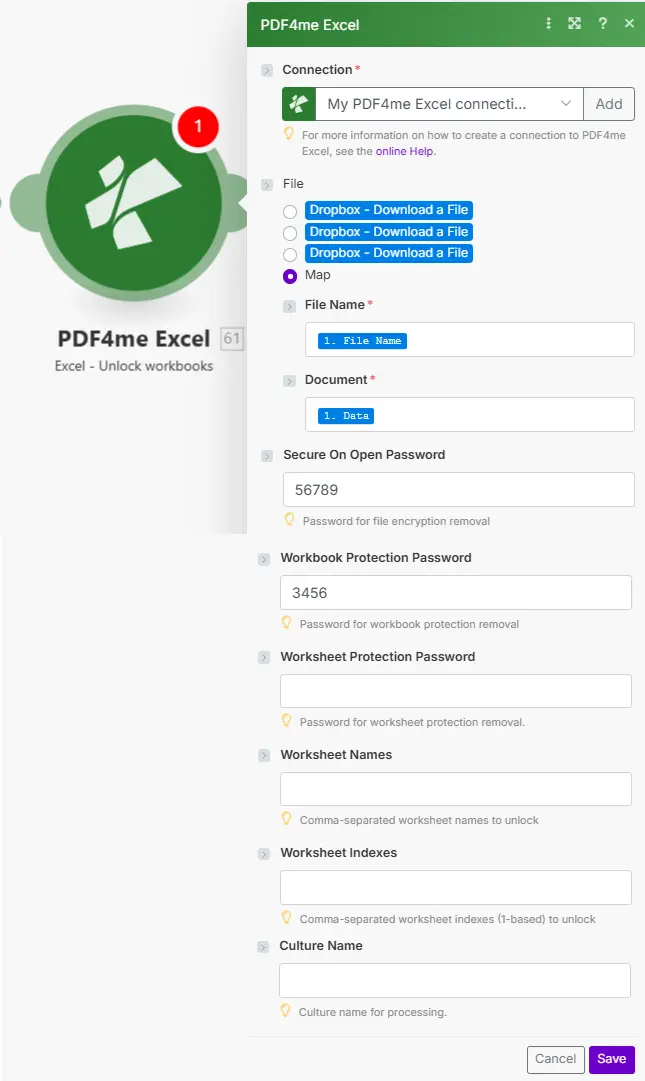
将文件集设置为 Map 传递文件名和 Excel 从任何先前的模块中读取二进制文件。安全打开密码用于解密文件;工作簿和工作表保护密码用于移除结构和内容锁定。
参数
必需的: 必须始终提供连接号、文件名和文档。三个密码字段是可选的,只需提供与文件保护层匹配的密码即可。工作表索引使用 基于 1 的 编号(1 = 第一页)。
| 范围 | 必需的 | 它的作用 | 例子 |
|---|---|---|---|
| Connection | Yes | PDF4me Excel API connection. Click Add and paste your API key if connecting for the first time. | My PDF4me Excel connection |
| File Name | Yes | Filename of the Excel workbook including extension. Map from the prior module's file name output. | budget-2025.xlsx |
| Document | Yes | Binary content of the Excel file. Map from the prior module's data output: typically a cloud storage download step. | 1. Data |
| Secure On Open Password | No | Removes file encryption (Layer 1: password to open). Also used as fallback password for workbook and worksheet protection layers if their own passwords are not set. | Open123! |
| Workbook Protection Password | No | Removes workbook structure protection (Layer 2: sheet add/delete/rename lock). Falls back to Secure On Open Password if left empty. | Struct456 |
| Worksheet Protection Password | No | Removes worksheet content protection (Layer 3: cell/formula editing lock). Falls back to Workbook Protection Password, then Secure On Open Password. | Edit789 |
| Worksheet Names | No | Comma-separated exact names of worksheets to unlock. Case-sensitive. Combined with Worksheet Indexes. Leave empty to unlock all worksheets. | Sheet1,Summary |
| Worksheet Indexes | No | Comma-separated 1-based worksheet positions to unlock. Index 1 = first sheet. Combined with Worksheet Names. Leave empty to unlock all worksheets. | 1,2,3 |
| Culture Name | No | Culture/locale code for text rendering and localization during processing. Leave empty for default. Examples: en-US, de-DE, fr-FR. | en-US |
快速设置
- 添加 PDF4me Excel → 解锁 Excel (列为“解锁工作簿”)到您的 Make 设想。
- 选择 联系 (或点击) 添加 用你的 PDF4me API 钥匙)。
- 放 文件 到 地图 并连接 文件名 和 文档 来自前一个模块(云存储下载, HTTP或任何文件源)。
- 填写 打开密码时的安全 如果工作簿已加密,请添加。 工作簿保护密码 和 工作表保护密码 只有当这些层使用不同的密码时才行。
- (可选) 工作表名称 或者 工作表索引 要指定特定工作表:将两个工作表都留空即可解锁整个工作簿。
- 点击 节省 并运行该场景。输出 文件日期 字段包含完全解锁的内容。 Excel 文件已准备好进行编辑、归档或重新保护。
工作流程示例
工作流程示例Common Make scenario patterns using Unlock Excel.
年度预算模板更新
- 每年1月1日,都会按计划触发一次射击。
- SharePoint 下载受保护的预算模板(打开需要密码,工作簿结构已锁定)。
- 解锁 Excel 如果仅设置了“打开时安全密码”,则备用系统会自动使用相同的密码移除工作簿保护。
- 更新行将新一年的实际值和目标值插入到已解锁的模板中。
- 安全的 Excel 在重新上传之前,使用更新后的年份密码重新保护文件。 SharePoint。
夜间主数据同步到受保护的工作簿
- 每天凌晨2点,都会有一个定时触发器触发。
- SharePoint 下载受保护的主数据工作簿。
- 解锁 Excel 仅针对数据表:工作表名称设置为“产品、定价、库存”。
- 一个 HTTP 该模块从生产数据库中获取更新后的记录。 API。
- 更新行操作会将新数据写入三个未锁定的工作表中。
- 更新后的文件已上传回 SharePoint保持其余受保护的纸张完好无损。
季度批量档案准备
- 每个季度的最后一天都会运行一个预定的触发器。
- Google 云端硬盘列出了所有受保护的内容。 Excel 活动项目文件夹中的文件。
- 迭代器循环遍历每个文件并下载它。
- 解锁 Excel 使用从安全库变量中检索到的密码,移除所有三层保护。
- 完全解锁的文件会被移到冷存储存档文件夹中,这样多年后存档团队访问该文件时就不会有密码管理负担。
常见问题解答
相关模块
合并 Excel 文件
组合多个 Excel 将多个工作簿合并为一个,在解锁多个受保护的文件后,可以将它们合并成一个报告或存档。
合并行
按键列合并未锁定工作簿中的重复行,非常适合在解锁-编辑-重新保护周期后对主数据进行去重。
解析 CSV
转换 CSV 文件结构化 Excel 数据集,与 Unlock 配对 Excel 当您需要使用来自以下位置的数据更新未锁定的工作簿时: CSV 出口。