合并行 Excel 在 Make
合并行 Excel 这是一种去重操作,它将具有相同键列值的行合并为一行,用分号分隔符连接非键列值,并自动删除合并结果中的重复项。您可以使用它按 ID 汇总客户订单、清理数据导出,或按类别聚合产品记录。 Make 无需公式或手册 Excel 工作。有关背景信息 Excel 行操作,请参见 微软 Excel 数据整合指南 和 Open XML SDK。
本模块的功能
PDF4me Excel合并行 合并重复行 Excel 工作表可通过一个或多个关键列进行分组。具有相同关键列值的行将合并为一行,所有其他列的值将使用分号分隔符合并到一个单元格中,并且会自动删除相同的值。您可以使用它按 ID 合并客户订单、对数据导出进行去重,或将产品数据汇总到类别级别,所有操作均无需编写任何公式或打开任何文件。 Excel。
相关博客文章
目前尚无关于此功能的博客文章——敬请期待。
在此期间,您可以浏览 PDF4me 博客,查看适用于各平台的教程和工作流程。
访问博客 →
验证您的身份 API 要求
每一个 PDF4me 模块 Make 需要有效 联系创建或选择一个可以容纳您的 PDF4me API 关键在于确保该方案能够安全地验证行合并请求。
您不容错过的重要事实
关键列控制分组内容。
在“合并键列”中,输入以逗号分隔的字符串,用于标识唯一记录的从 1 开始的列编号,例如“1”表示按 A 列中的 CustomerID 分组,或者“1,2”表示同时按 CustomerID 和 Region 分组。所有键列中具有相同值的行将被合并为一行。所有其他列的值将用“;”连接,并删除重复值。
空合并键列仅删除完全重复项
将“合并键列”留空,则所有列都将成为键的一部分。只有每个单元格都完全相同的行才会被合并,保留第一个完全相同的行,并删除所有后续的完全重复项。这是清理包含完全重复行的数据导出文件的最快方法。
所有索引均基于 1。
工作表编号和合并键列均使用从 1 开始的索引,工作表 1 对应第一个工作表,列 1 对应 A 列,列 2 对应 B 列。请以逗号分隔的字符串形式输入值:工作表编号为“1,2,3”,键列编号为“1,3”。必须至少提供一个工作表编号。
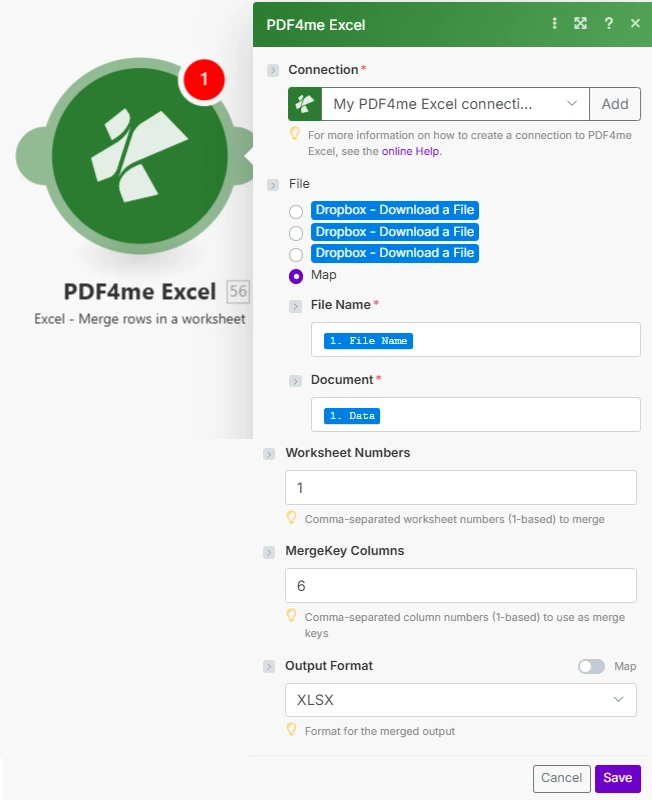
文件名和文档信息来自之前的模块。工作表编号和合并键列使用从 1 开始的索引,并以逗号分隔的字符串形式存储。
参数
必需的: 必须提供连接号、文件名、文档号和工作表号。合并键列和输出格式为可选,将合并键列留空则仅删除完全相同的重复行;输出格式默认为 XLSX。
| 范围 | 必需的 | 它的作用 | 例子 |
|---|---|---|---|
| Connection | Yes | PDF4me API connection. Click Add and paste your API key if connecting for the first time. | Your PDF4me connection |
| File Name | Yes | Excel filename with extension. Map from the prior module's file name output. | orders_export.xlsx |
| Document | Yes | Binary Excel buffer from a cloud storage download (Google Drive, Dropbox, SharePoint), email attachment, or HTTP response. | 1. Data |
| Worksheet Numbers | Yes | Comma-separated 1-based worksheet numbers to process. Worksheet 1 is the first tab. At least one number is required. | 1,2 |
| MergeKey Columns | No | Comma-separated 1-based column numbers used as the grouping key: column 1 is A, column 2 is B. Rows matching on all key columns are merged. Leave empty to remove only exact duplicate rows. | 1,2 |
| Output Format | No | Format for the output file: XLSX (default, modern Excel), XLS (legacy), XLSB (binary, smaller), or CSV (first worksheet only as plain text). | XLSX |
输出
| 场地 | 类型 | 它包含什么 |
|---|---|---|
| document | Buffer | The deduplicated workbook in the selected output format. Pipe directly into a cloud storage upload module, email attachment, or any downstream module that accepts a file buffer. |
如何合并行 Excel 在 Make
- 添加 PDF4me Excel → 合并行 致你 Make 设想。
- 选择 联系 (或点击) 添加 用你的 API 钥匙)。
- 地图 文件名 和 文档 来自之前的云存储下载或电子邮件附件模块。
- 进入 工作表编号 以逗号分隔的从 1 开始的制表符数字字符串(例如:
1或者1,2)。 - 进入 合并键列 作为从 1 开始的列号:例如
1按 A 列分组,或1,2将 A 列和 B 列一起分组。留空则仅删除完全重复项。 - 选择 输出格式 点击 节省。 这 文档 输出结果是去重后的工作簿:将其通过管道传递给上传模块以保存或分发。
何时应该使用合并行? Excel?
Excel中何时应该使用合并行功能?Common Make scenario patterns using Merge Rows in Excel.
按ID合并客户订单
- 定时触发器会下载每日订单导出数据 Excel 从 Google Drive。
- 合并行操作使用工作表编号“1”和合并键列“1”(A 列中的 CustomerID)。
- 每个客户的所有订单行都合并为一行,订单号、产品和数量用分号连接在各自的单元格中。
- 合并后的 XLSX 文件已上传至客户服务部门。 Google Drive 文件夹用于当日审核。
从数据导入中删除完全相同的重复行。
- A Dropbox 当新的数据文件被放入导入文件夹时,监视文件夹功能将被触发。
- 合并行时,合并键列留空,每一列都是一个键,因此只会删除完全相同的行。
- 保留每个重复项的第一次出现;所有后续副本均被丢弃。
- 清理后的文件被移至已处理文件夹,并通过电子邮件通知数据团队已删除重复项。
将产品数据汇总到类别级别
- 每周触发一次下载产品目录的操作。 Excel 从 SharePoint。
- 合并行操作使用合并键列“1,2”(类别和子类别):每个类别中的所有产品 SKU 合并到一行中。
- 输出格式设置为 CSV 直接导入产品数据库。
- 这 CSV 数据上传到数据库导入文件夹,并通过 webhook 通知数据管道开始摄取。
常见问题解答
相关模块
合并 Excel 文件
组合多个 Excel 将多个工作簿合并到一个统一的文件中,合并的级别是文件级而不是行级。
解析 CSV
转换 CSV 文件整理成结构化格式。 Excel 工作簿,在运行行级合并之前很有用。
解锁 Excel
移除密码保护 Excel 处理前的文件,当源文件受密码保护时非常有用。