填充 Excel 在 Make
填充 Excel 是一个 PDF4me 模块 Make 填满 Excel 包含带有实时功能的智能标记占位符的工作簿 JSON 它能自动处理数据,逐行展开数组,并在一次操作中重新计算公式。可用于生成已填写的发票模板、动态报表或数据驱动型报表。 Excel 任何输出 JSON 在您的场景中,无需手动输入数据即可获得数据源。
本模块的功能
PDF4me Excel填充 接受一个 Excel 带有智能标记占位符的模板 JSON 数据有效载荷,并返回一个完全填充的数据。 Excel 在您的工作簿中 Make 场景。数组在 JSON 自动扩展到行,公式插入后会自动重新计算,并且可以通过索引定位特定工作表。最终生成可直接分发的文件。 Excel 报告完全根据您的场景数据生成,无需手动输入。
验证您的身份 API 要求
每一个 PDF4me 模块 Make 需要有效 联系创建或选择一个可以容纳您的 PDF4me API 关键在于该场景能够进行身份验证 Excel 安全地提出人口请求。
您不容错过的重要事实
&=Items.ItemName 需要一个 JSON 名为 项目 包含具有以下特征的对象 物品名称 属性。如果匹配失败,输出中的占位符将不会被替换。运行场景前务必验证键名。55 以文本形式插入 Excel如果下游的 SUM 或其他公式需要将它们视为数字,请设置 Strict。 JSON 字符串到否,因此该模块会将带引号的数字字符串强制转换为数字。 Excel 人口之前的细胞值。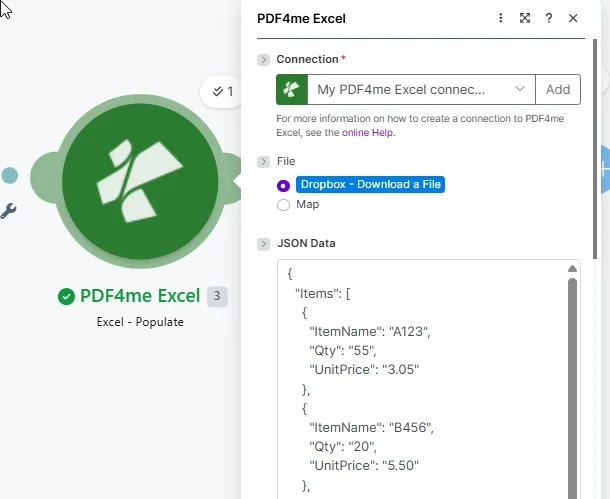
地图 联系, 放 文件 到 Dropbox 或者地图,并传递一个 JSON 有效负载的键与智能标记字段名称匹配 Excel 模板。
参数
必需的: 连接、文件(源)和 JSON 必须提供数据。所有其他字段均为可选。有关智能标记语法参考,请参阅[此处应插入参考文献]。 Aspose Cells WorkbookDesigner 文档有关文化代码,请参阅 Microsoft BCP 47 文化名称参考。
| 范围 | 必需的 | 它的作用 | 例子 |
|---|---|---|---|
| Connection | Required | PDF4me Excel API connection. Click Add and paste your API key if connecting for the first time. | My PDF4me Excel connection |
| File | Required | File source mode. Map supplies the Excel template binary from a prior module output. Dropbox - Download a File pulls directly from Dropbox, reducing the number of modules needed. | Map |
| File Name | Optional | Excel template filename including extension (.xlsx). Map from the prior module file name output or enter a static value. Used to identify the template and name the output file. | invoice-template.xlsx |
| Document | Required | Binary content of the Excel template workbook. Map from a Google Drive download, SharePoint file, email attachment, or HTTP response. Must be the raw file buffer. | 1. Data |
| JSON Data | Required | JSON string whose keys match the Smart Marker placeholders in the Excel template. Arrays expand row by row. Scalar values fill single cells. Pass as a mapped string from a prior module or a static JSON literal. | {"Items":[{"ItemName":"A123","Qty":"55","UnitPrice":"3.05"}]} |
| Strict JSON Strings | No | Yes (default): inserts quoted string values as text in Excel. No: coerces quoted numeric strings to numeric cell values so formulas can operate on them. Empty behaves like Yes. | Yes |
| Culture & Language Settings | No | BCP 47 locale code controlling date and number formatting in the output. Defaults to en-US (MM/DD/YYYY, period decimal). Change to match your data source locale: de-DE, fr-FR, and so on. | en-US |
| Calculate Formulas | No | Yes (default): recalculates all workbook formulas after JSON data is inserted. No: skips recalculation. Enable when the template contains SUM, VLOOKUP, or other formulas that depend on the populated values. | Yes |
| Worksheet Indexes | No | Comma-separated 1-based indexes of worksheets to populate. Enter 1 for the first sheet only, 1,3 for first and third. Leave empty to populate all worksheets in the workbook. | 1 |
| Quote Prefix To Style | No | Yes: converts Excel quote-prefix formatting to visible cell style. No: removes it. Empty (default): preserves existing quote-prefix behavior without conversion. Use Empty unless your template specifically requires style conversion. | Empty |
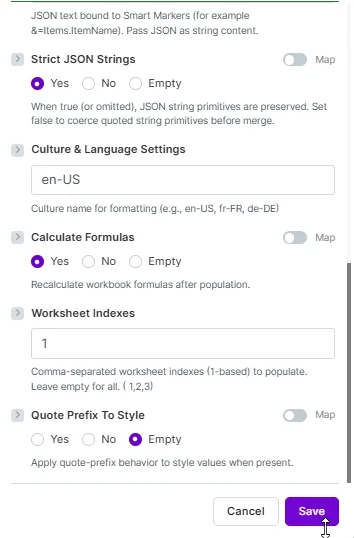
可选设置: 严格的 JSON 字符串, 文化与语言环境, 计算公式, 工作表索引, 和 引用前缀到样式。 放 计算公式:是 因此,工作簿公式会反映已填充的数据。
输出
| 场地 | 类型 | 它包含什么 |
|---|---|---|
| document | Base64 String | The fully populated Excel workbook encoded as Base64. Decode it with a Make Tools module, then pass the binary to a Google Drive upload, email attachment, Dropbox create-file, or HTTP POST to distribute the report. |
| FileName | String | Output filename for the populated workbook, derived from the input template name. Use this as the target filename when saving to cloud storage to preserve the original naming convention. |
| Success | Boolean | True if the template was populated without errors. Add a Make filter on this field before routing the output to avoid processing incomplete results from failed runs. |
快速试用(3分钟内即可完成)
以上截图对应的是两个可直接运行的组合。下载每对文件,并将 XLSX 文件映射到相应位置。 文档 (或使用) Dropbox 文件模式),粘贴 JSON 进入 JSON 数据并运行一次该场景。
用途 模板.xlsx 和 工作表索引 = 2 (Sheet2 包含参数屏幕截图中使用的简单项目标记)。与配套的平面项目配对。 JSON。
模板.xlsx(文档)sheet23-data.json(JSON 数据)- 放 工作表索引 到
2
使用发票单 模板.xlsx 嵌套 &=RootData.Items.* 标记物,结构化参考公式 简易发票 表格,小计+税+总计计算。
模板.xlsx(文档)sheet1-data.json(JSON 数据)- 放 工作表索引 到
1发票单
这是一个三页模板,每页展示不同的数据源。文件中的表格顺序是: 物品、员工、产品。
template-3-sheets.xlsx- 将 Items / Employees / Products 数组合并为一个数组 JSON 对象(见 多页部分)
- 离开 工作表索引 空置以填充所有三个
如何填充一个 Excel 模板 Make
- 打开你的 Excel 使用模板并将智能标记占位符放置在应该显示数据的单元格中:
&=ObjectName.FieldName对于标量值和&=ArrayName.FieldName对于逐行扩展的数组。 - 添加 PDF4me Excel 致你 Make 场景并选择 Excel - 填充。
- 选择或创建 联系 你的 PDF4me API 钥匙。
- 放 文件 到 地图 并连接 文件名 和 文档 一个 Google Drive, SharePoint, 或者 Dropbox 下载模块。或者将文件设置为 Dropbox 下载文件 直接拉取模板。
- 地图 JSON 数据 来自先前的模块,该模块生成 JSON 字符串,或粘贴静态字符串 JSON 务必确保每个键都与模板中相应的智能标记字段名称匹配。
- 放 计算公式 到 是的 如果模板包含依赖于已填充值的公式,请输入 工作表索引 仅针对特定工作表,或留空以全部显示。
- 点击 节省 然后运行。解码 文档 输出并将其路由到云存储上传、电子邮件或其他方式。 API 根据需要。
何时应该使用 Populate Excel 在 Make?
在 Make 中何时应该使用 Populate Excel?Common Make automation patterns using the Populate Excel module.
- webhook 会接收包含客户详细信息和订单明细的新订单有效负载。 JSON 大批。
- 该场景会从某个来源下载一个品牌发票模板。 Google Drive。
- 填充 Excel 地图顺序 JSON 在模板中使用智能标记,每行项目展开一行,并重新计算总计公式。
- 填写完毕的发票将通过电子邮件发送给客户,并上传到客户文件夹中。 SharePoint。
- 每周一次的定时触发器会触发并调用 REST API 获取最新的KPI指标 JSON。
- 该场景会从中提取KPI报告模板。 Dropbox 使用内置的 Dropbox 文件模式。
- 填充 Excel 将指标值插入模板单元格并重新计算趋势公式。
- 完成的报告会发布到 Slack 频道,并保存到按日期命名的存档文件夹中。 Google Drive。
- A CRM 当交易被标记为已完成/已赢单时,webhook 会触发,提供客户和交易数据。 JSON。
- 该场景会从某个来源下载交易概要模板。 SharePoint 仅针对工作表索引 1。
- 填充 Excel 将客户名称、交易金额和产品线项目填写到模板中。
- 已填写的摘要将上传到客户文件夹,并在项目管理工具中为客户团队创建一个任务。