读取条形码 PDF 在 Make
本模块的功能
PDF4me读取条形码 PDF 自动检测并提取任何条形码数据 PDF 在您的文档中 Make 场景包括扫描发票、发货标签、装箱单或电子生成的文档。它会返回一个条形码文本值数组,您可以立即使用这些值来路由文档、在数据库中查找记录、重命名文件或触发任何下游操作。无需手动扫描,也无需其他操作。 OCR 配置,将其指向 PDF 条形码数据已返回,可以立即使用。
相关博客文章(1)
验证您的身份 API 要求
每一个 PDF4me 模块 Make 需要有效 联系创建或选择一个可以容纳您的 PDF4me API 关键在于确保该方案能够安全地验证条形码提取请求。
您不容错过的重要事实
缓冲区和公共 URL 都有效
文件/公共文件 URL 该字段接受从先前模块映射的二进制文件缓冲区(例如云存储下载或电子邮件附件),或者直接输入 HTTPS URL 指向 PDF如果文件是公开的,则无需先下载。
选择全部扫描选项可一次性扫描所有格式。
如果您不确定文档包含哪种条形码类型,请勾选“全选”。模块将扫描所有条形码。 Code128, Code39, DataMatrix, PDF417, 和 QRCode 一次即可完成。如果您知道文件格式,则只需选择该类型即可加快处理速度,这对于大批量文档工作流程非常有用。
输出结果为数组,对于多个条形码,请使用迭代器。
条形码数据返回找到的每个条形码,作为单独的数组条目。如果您只需要第一个条形码,请直接引用条形码数据[1]。如果一个文档可能包含多个条形码,例如装箱单上每个项目一个条形码,请添加一个 Make 此模块之后的迭代器将逐个处理每个值。
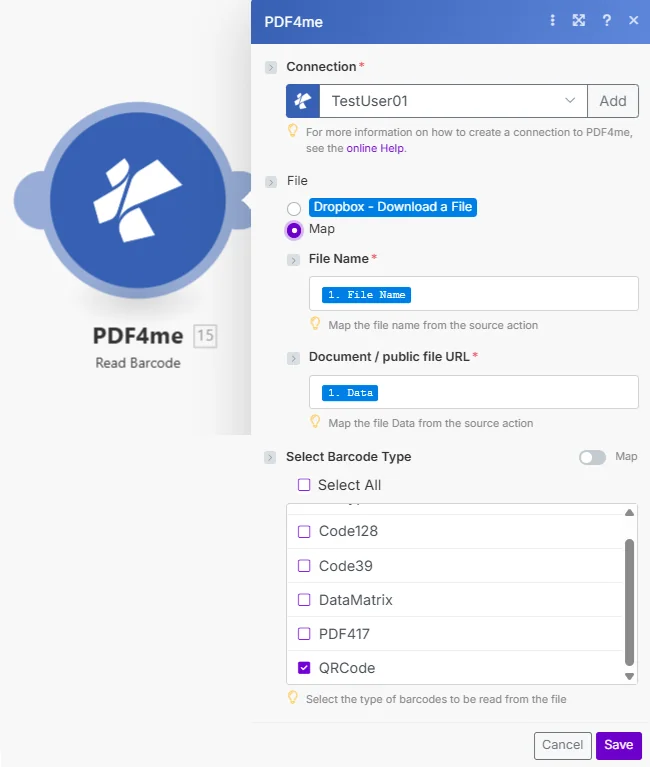
文件已设置为 Map 传递文件名和 PDF 从任何先前的模块中选择。选择条形码类型允许您选择特定格式或一次性扫描所有格式。
参数
必需的: 连接、文件名和文档/公共文件 URL 必须提供所有信息。如果选择“全部选择”,则“条形码类型”默认为所有格式。
| 范围 | 必需的 | 它的作用 | 例子 |
|---|---|---|---|
| Connection | Yes | PDF4me API connection. Click Add and paste your API key if connecting for the first time. | Your PDF4me connection |
| File Name | Yes | Source PDF filename including the .pdf extension. Map from the prior module's file name output. | invoice_scan.pdf |
| Document / public file URL | Yes | Binary PDF buffer from a prior module, or a publicly accessible HTTPS URL to the PDF. Scanned and digital PDFs both work. | 1. Data or https://example.com/doc.pdf |
| Select Barcode Type | Yes | Barcode formats to scan for: Select All, Code128, Code39, DataMatrix, PDF417, or QRCode. Select All scans every format in one pass. | Select All |
快速设置
- 添加 PDF4me → 读取条形码 PDF 致你 Make 设想。
- 选择 联系 (或点击) 添加 用你的 API 钥匙)。
- 放 文件名 和 文件/公共文件 URL 来自上一个模块:云存储下载、电子邮件附件或 HTTP 回复。
- 在下面 选择条形码类型, 打钩 全选 或者选择您的文档使用的特定格式。
- 点击 节省 并运行该场景。 条形码数据 输出包含提取的文本值数组:参考
Barcode Data[1]对于第一个结果,或者添加一个迭代器来遍历所有值。
工作流程示例
工作流程示例Common Make scenario patterns using Read Barcodes from PDF.
按条形码前缀路由扫描文档
- 当有新扫描的文件时,Dropbox 监视文件夹会触发。 PDF 到达。
- 读取条形码 PDF 从文档中提取条形码文本。
- 路由器检查条形码数据[1],如果以“INV-”开头,则进入发票文件夹;以“ORD-”开头,则进入订单文件夹;以“RCP-”开头,则进入收据文件夹。
- 每条路径都会将文件上传到正确的 Google 云端硬盘目标文件夹。
使用条形码值重命名上传的文件
- 当电子邮件监控功能触发时, PDF 发票以附件形式发送。
- 读取条形码 PDF 提取发票号码条形码。
- Google 云端硬盘上传使用条形码数据[1] + ".pdf" 作为文件名,文件会自动存储在其发票号下。
- Slack消息通知财务团队,已提交新的发票。
使用货运标签条形码查找订单详情
- 当货运标签出现时,Webhook 会触发。 PDF 已生成。
- 读取条形码 PDF 从标签中提取跟踪号码条形码。
- 一个 HTTP 模块查询运输情况 API 使用跟踪号码查询配送状态和客户详细信息。
- Gmail 模块会自动向客户发送包含追踪号码的发货通知。
常见问题解答
相关模块
添加条形码 PDF
插入条形码或 QR 位于特定页面上的精确位置的代码 PDF是该阅读器的配套写入模块。
创建条形码
从任何文本生成独立的条形码图像,当您需要将条形码资产嵌入电子邮件、文档或数据库时非常有用。
读取 SwissQR 码
提取完整的瑞士 QR-账单支付数据, IBAN金额、债权人、参考信息、来自 PDF 发票 AP 自动化工作流程。