创建条形码 Make
本模块的功能
PDF4me创建条形码 生成独立条形码或 QR 从任何文本或数据字符串中读取代码并将其返回。 Base64编码图像,无源 PDF无需上传文件。可从六种格式中选择,包括 QR Code, Code128, 和 DataMatrix然后将结果直接嵌入到 HTML 电子邮件, POST 把它变成一个 API或者解码并将其保存为图像文件。与“添加条形码”不同 PDF 该模块会在现有文档上加盖条形码,并独立创建条形码图像,供您在任何场景中使用。
相关博客文章
目前尚无关于此功能的博客文章——敬请期待。
在此期间,您可以浏览 PDF4me 博客,查看适用于各平台的教程和工作流程。
访问博客 →
验证您的身份 API 要求
每一个 PDF4me 模块 Make 需要有效 联系创建或选择一个可以容纳您的 PDF4me API 关键在于确保该方案能够安全地验证条形码生成请求。
您不容错过的重要事实
无来源 PDF 或需要文件输入
此模块仅接受文本,不接受文件、文件名或其他任何内容。 PDF 二进制格式。您提供要编码的数据和格式,模块将返回条形码图像。如果您需要将条形码嵌入到现有条形码中,请使用此模块。 PDF使用“添加条形码”功能 PDF 反而。
输出结果为 Base64不是文件缓冲区
该模块返回一个 Base64文件内容字段中包含 - 编码的图像字符串。您可以将其直接嵌入到 HTML 使用数据 URI 的电子邮件正文(
src="data:image/png;base64,..."),把它交给一个 HTTP 请求、将其存储在数据库记录中,或者解码并将其作为图像文件保存到 Google 云端硬盘或 Dropbox 中。隐藏文本仅适用于 Code 128
模块提示内容如下:“隐藏条形码下方显示的文本。(仅适用于) Code 128)。“ 为了 QR Code, DataMatrix, Aztec, PDF417, 和 HanXin如果该开关不显示任何人类可读的文本行,则无论您将其设置为什么,该开关均无效。
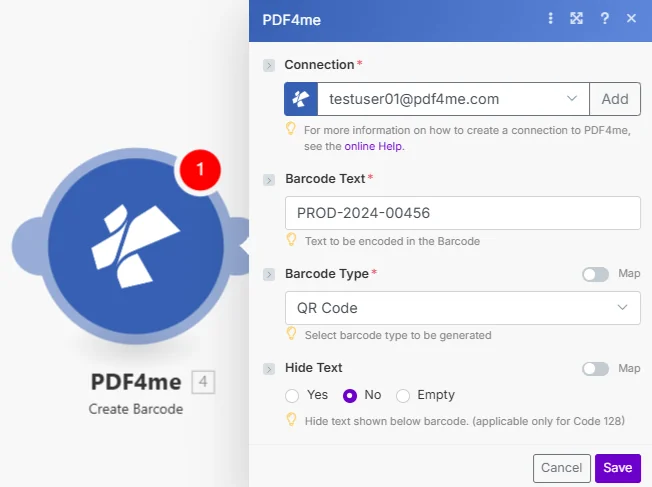
只需输入三个参数:待编码的文本、条形码格式,以及(可选)是否隐藏下方的标签。 Code 128 条形码。
参数
必需的: 连接方式、条形码文本和条形码类型,这三项都必须提供。“隐藏文本”为可选。
| 范围 | 必需的 | 它的作用 | 例子 |
|---|---|---|---|
| Connection | Yes | PDF4me API connection. Click Add and paste your API key if connecting for the first time. | Your PDF4me connection |
| Barcode Text | Yes | The data to encode in the barcode: a URL, product code, order ID, or any alphanumeric string. Hint: "Text to be encoded in the Barcode." | PROD-2024-00456 |
| Barcode Type | Yes | Format of the barcode to generate. Options: QR Code, Data Matrix, Code128, Aztec, PDF417, HanXin. Hint: "Select barcode type to be generated." | QR Code |
| Hide Text | No | Whether to suppress the human-readable text shown below the barcode. Options: Yes, No, Empty. Applies only to Code 128: has no effect on other formats. | No |
快速设置
- 添加 PDF4me -> 创建条形码 致你 Make 设想。
- 选择 联系 (或点击) 添加 用你的 API 钥匙)。
- 输入要编码的文本、URL 或 ID 条形码文本 场地。
- 选择你的 条形码类型 从下拉菜单中: QR Code 用于链接和一般数据, Code128 用于零售和运输标签。
- 保存并运行该方案。输出结果
File Content字段包含一个 Base64已编码的条形码图像,可直接嵌入电子邮件中。 POST 一个 API或者另存为图像文件。
工作流程示例
工作流程示例Common Make scenario patterns using Create Barcode.
嵌入一个 QR 订单确认邮件中的代码
- webhook 会收到来自 Shopify 或 WooCommerce 商店的新订单。
- 创建条码运行,并将条码类型设置为 QR Code 条形码文本映射到订单跟踪 URL。
- Gmail 会发送订单确认邮件。 Base64 条形码嵌入其中 HTML 正文以内嵌图片形式呈现,无需附件。
- 顾客扫描 QR 用户可以直接从收件箱中获取代码来跟踪货物运输情况。
产生 Code128 新库存物品的标签
- 在 Google Sheets 库存登记表中添加新行会触发此场景。
- 创建条码运行,并将条码类型设置为 Code128 条形码文本与表格中的 SKU 对应起来。
- 一个 HTTP 模块 POST是 Base64 条形码图像标签打印服务 API。
- 仓库会自动为新入库商品打印实体条形码标签。
添加一个独特的 QR 在发送活动门票之前,请先将代码添加到活动门票中
- 在 Typeform 或 Eventbrite 上注册新活动会触发此场景。
- 创建条形码会生成一个 QR Code 条形码文本包含唯一的票券验证 ID。
- 这 Base64 图像被解码并插入到票券中 PDF 通过文档生成模块生成模板。
- Gmail 会发送带有可扫描码的个性化电子票。 QR 向与会者发送代码。
常见问题解答
相关模块
添加条形码 PDF
将条形码直接印制到现有条形码上 PDF 定位精度可达毫米级,当条形码需要位于文档内部时,请使用此功能。
创建 SwissQR 账单
生成瑞士付款 QR 发票上的账单部分 PDF,一种专用于瑞士银行工作流程的支付条形码。
生成EPC QR Code 为了 SEPA
创建一个 SEPA 支付 QR 欧洲发票代码,以及输出 Base64 类似于这个模块,但已预先格式化,可用于欧盟银行应用程序扫描。