使用分类的 AI 文档解析器
本指南涵盖的内容
AI文档解析器。分类 允许一个分析器在一次调用中处理多个文档变体。您可以定义一个 分析器 ID然后加一个 每个变体的图表 (客户 ABC、客户 XYZ、通用发票、通用采购订单)。每个模式都包含一个 分类名称,一个 分类提示 用自然语言来说, 文档模式 描述要提取的字段。运行时,AI 会将输入的内容与输入的内容进行匹配。 PDF 针对每个模式的分类提示,选择最佳匹配项,并返回匹配的分类名称和提取的字段。同一个分析器 ID 适用于以下情况: REST API 以及所有支持的自动化平台。
验证您的设置
分类分析器是在以下情况下创建的: PDF4me 开发者控制面板。使用您的帐户登录,然后创建或复制一个 API AI解析器的关键 API 调用引用您在此处构建的分析器的函数。
- 分析器列表(步骤 1, 2):
https://dev.pdf4me.com/dashboard/#/ai-document-parser/ - 分析器详细信息(步骤 3, 4, 5):
https://dev.pdf4me.com/ai-document-parser/?id=<analyzer-guid>
您不容错过的重要事实
步骤 1:在控制面板中打开 AI 文档解析器
- 登录 dev.pdf4me.com。
- 从仪表盘侧边栏点击 AI文档解析器。
- 列表页面显示所有现有的分析器,包含三列: 分析器 ID, 分析器类型 (解析或分类),以及 行动。
- 点击蓝色 + 添加 按下按钮即可启动新的分析器。
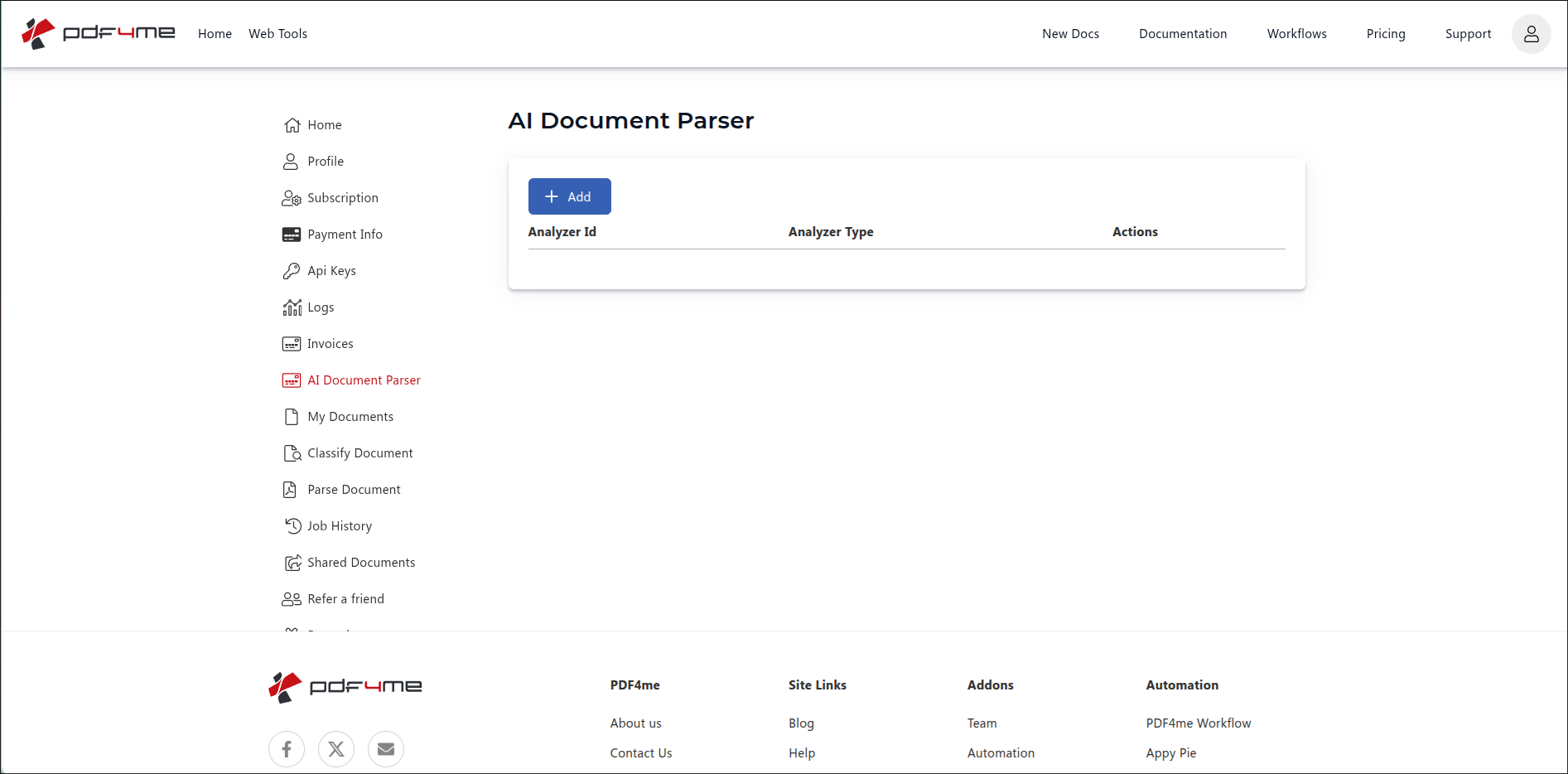
AI文档解析器列表视图。点击“+ 添加”以启动新的分析器。
步骤 2:创建分类分析器
新行出现,包含三个控件:
- 分析器 ID 输入输入任何你能记住的清晰标识符,例如
client_invoices,Vendor Documents, 或者incoming-orders命名格式没有限制。蛇形命名法、驼峰命名法、烤肉串命名法、带空格的普通单词,都适用。以下示例使用client_invoices。 - 分析器类型下拉菜单。 挑选 分类 (本指南)或 解析 (参见) 解析指南)。
- 保存/取消 按钮。“保存”按钮用于创建分析器;“取消”按钮用于放弃该行。
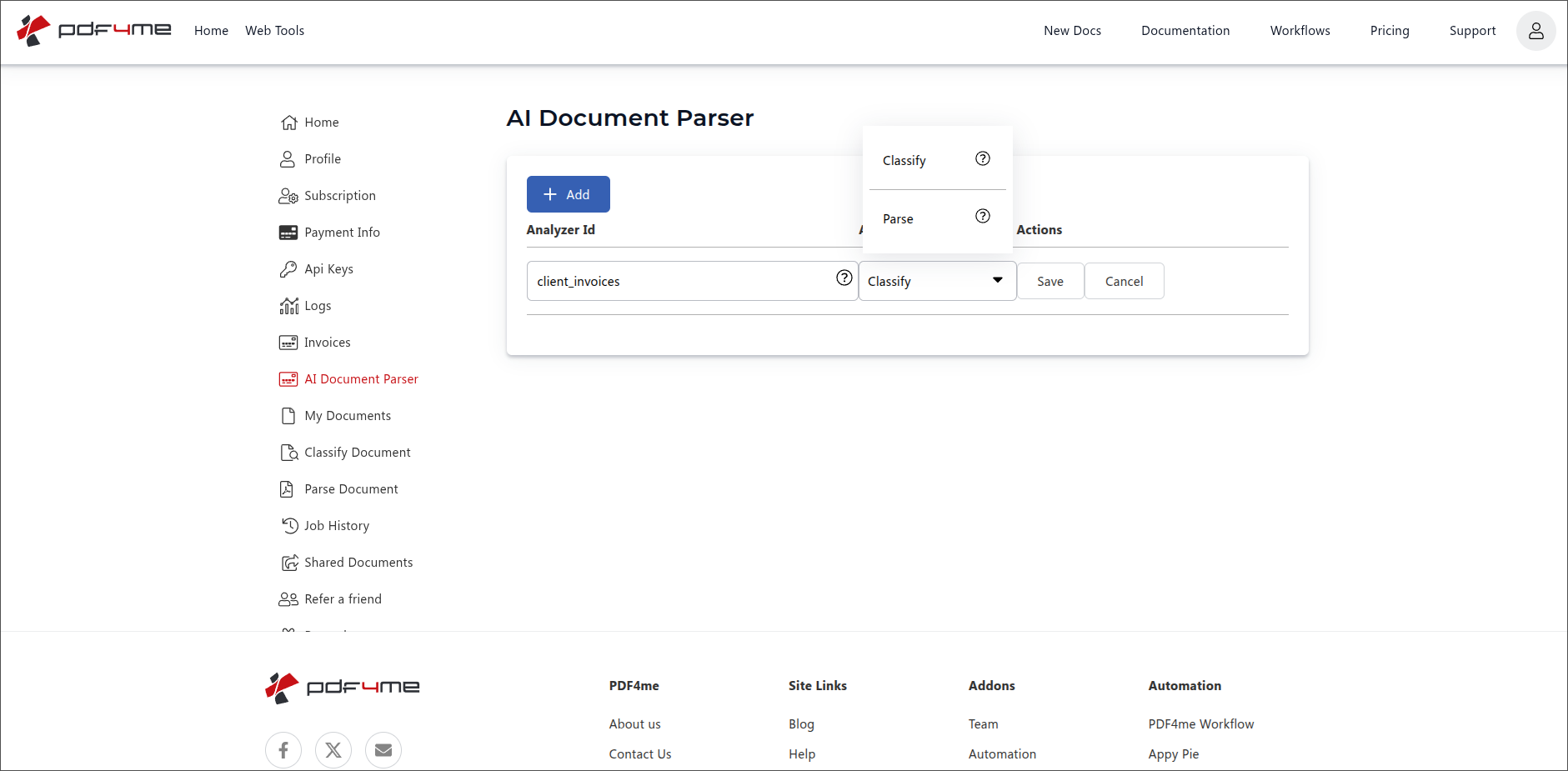
添加行:输入分析器 ID(此处) 客户发票), 挑选 分类然后保存。
步骤 3:打开分析器并添加第一个架构
点击新行即可打开详情页面。URL 格式如下:
https://dev.pdf4me.com/ai-document-parser/?id=<your-analyzer-guid>
首次打开控制面板时,它会为每个分析器生成一个 GUID。将此 URL 添加到书签,以便下次直接跳转到同一个分类分析器。
详情页面显示:
- 分类信息 (左图)显示您在步骤 2 中输入的分析器 ID(此处)。
client_invoices此面板为只读面板。 - 模式 (右)默认为空。每个架构都是一个文档变体。点击 + 点击右上角的按钮添加第一个架构。
- 保存更改 (左上角)会保留您对此页面所做的每次编辑。
- 后退返回到 分析器列表。
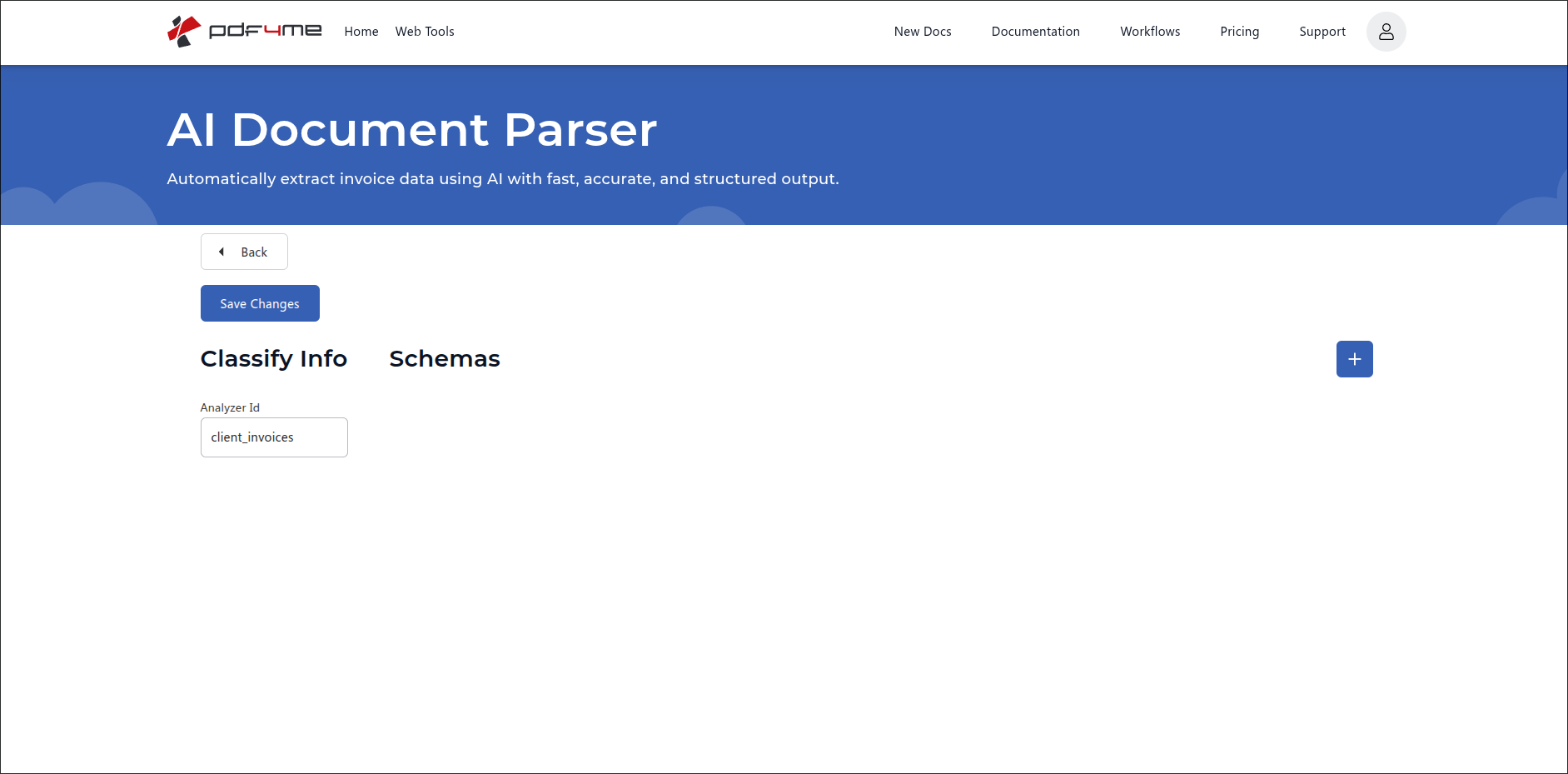
详情页。 分类信息 左侧显示分析器 ID。点击蓝色“+”按钮添加架构。
步骤 4:填写分类名称、提示和文档模式
每个模式都是分析器必须处理的一种文档变体。每个模式都有三个必需的输入项,底部还有一个常用的快速填充行。
模式字段(必填)
| 场地 | 目的 | 例子 |
|---|---|---|
| Classification Name | The label returned by the API when this Schema matches. Use a short, business-friendly name. | Client ABC |
| Classification Prompt | Natural-language description of how to recognise this variant. Mention company name, email, layout cues, distinguishing phrases. This is what the AI uses to route. | The invoice has the company name ABC at the top, followed by the contact email [email protected]. |
| Document Schema | JSON object with a description and a fields array. Each field has fieldName, fieldType, and fieldDescription, plus an optional fieldMethod such as generate for derived values. | { "description": "Extract invoice detail for ABC invoices", "fields": [ ... ] } |
示例模式:客户端 ABC
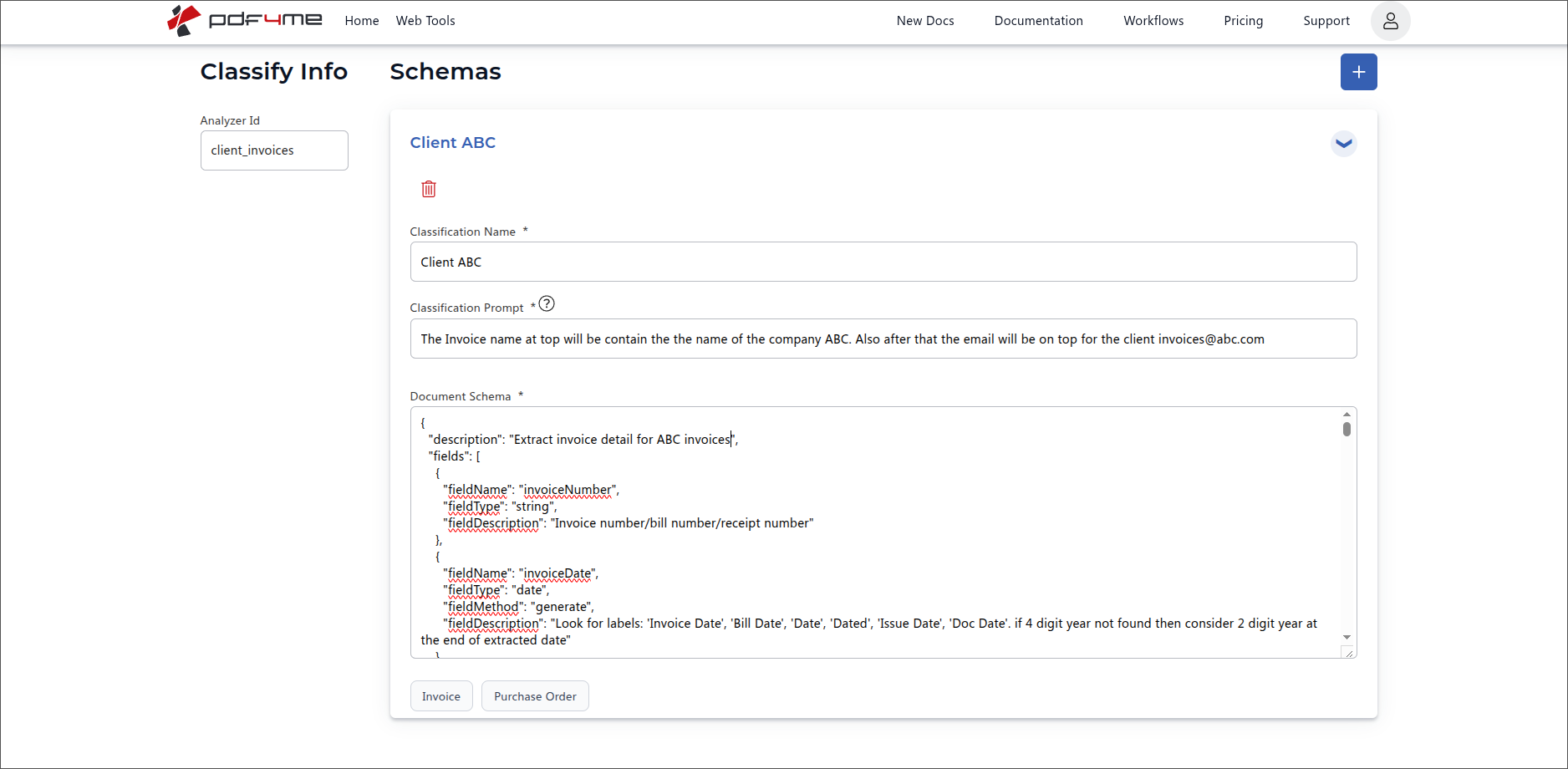
第一个模式。分类名称、分类提示和文档模式共同描述一个文档变体。
{
  "description": "Extract invoice detail for ABC invoices",
  "fields": [
    {
      "fieldName": "invoiceNumber",
      "fieldType": "string",
      "fieldDescription": "Invoice number / bill number / receipt number"
    },
    {
      "fieldName": "invoiceDate",
      "fieldType": "date",
      "fieldMethod": "generate",
      "fieldDescription": "Look for labels: 'Invoice Date', 'Bill Date', 'Date', 'Dated', 'Issue Date', 'Doc Date'. If 4-digit year not found then consider 2-digit year at the end of extracted date."
    }
  ]
}
客户 ABC 的分类提示是引导 AI 找到此模式的自然语言提示:
发票顶部印有公司名称 ABC,下方是联系邮箱。
[email protected]“
步骤 5:添加更多架构并保存更改
点击蓝色 + 再次点击按钮,为下一个变体添加架构。每个新架构都有自己的分类名称、分类提示和文档架构。不同架构的字段可以完全不同。例如,客户 ABC 可能没有客户参考列,而客户 XYZ 则有。
示例二:客户端 XYZ
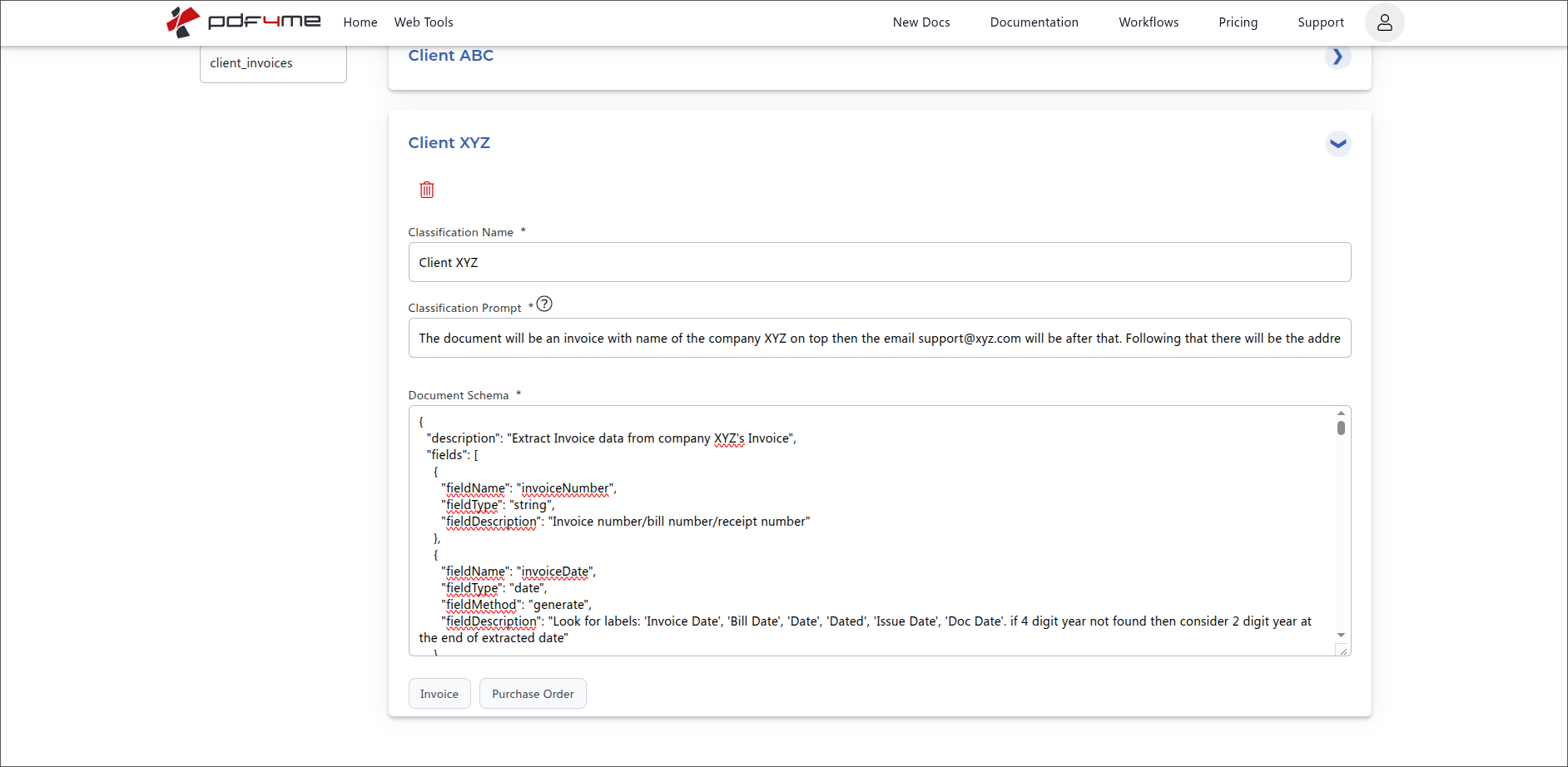
同一分析器的第二个模式。两个模式现在都位于 客户发票。
{
  "description": "Extract Invoice data from company XYZ's Invoice",
  "fields": [
    {
      "fieldName": "invoiceNumber",
      "fieldType": "string",
      "fieldDescription": "Invoice number / bill number / receipt number"
    },
    {
      "fieldName": "invoiceDate",
      "fieldType": "date",
      "fieldMethod": "generate",
      "fieldDescription": "Look for labels: 'Invoice Date', 'Bill Date', 'Date', 'Dated', 'Issue Date', 'Doc Date'. If 4-digit year not found then consider 2-digit year at the end of extracted date."
    }
  ]
}
保存后,架构列表将折叠。
两个模式都导入后,列表中会将每个模式显示为一张可折叠卡片,左侧显示分类名称,右侧有展开箭头。点击卡片即可稍后再次编辑。
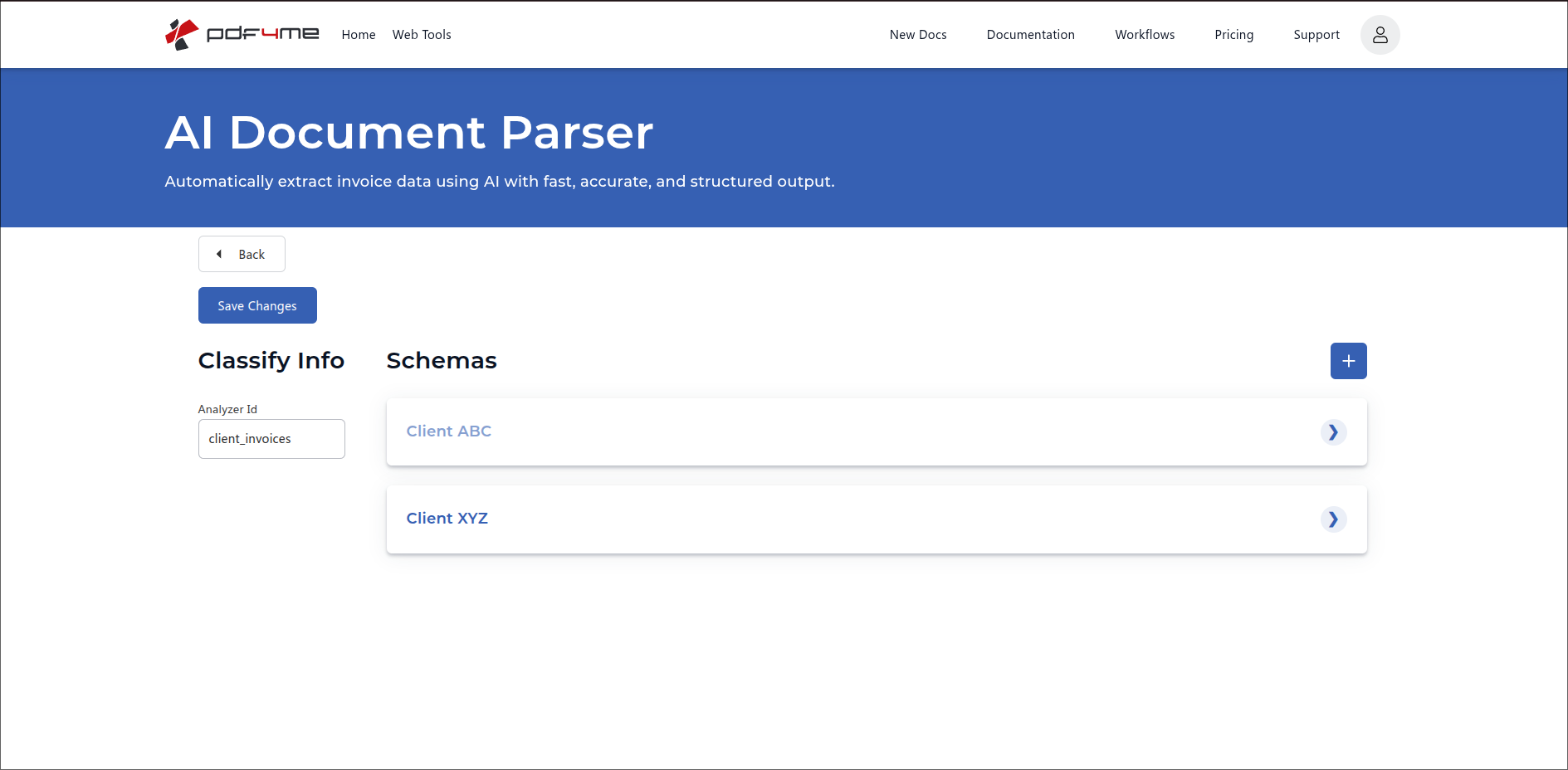
两个方案均已保存。点击任意卡片即可展开编辑;使用“+”号添加更多变体。
点击 保存更改 在左上角启用保存功能,即可保存您添加的每个架构。分析器现已上线,可以接收数据。 PDFs。
文档架构中的字段级选项
| 属性 | 必需的? | 它的作用 |
|---|---|---|
fieldName | Required | The name of the field and how it will appear in the response JSON. |
fieldType | Required | The type of data to extract. One of string, number, date, or table. |
fieldDescription | Required | Natural-language description of what needs to be extracted and where to find it. Include alternate labels and example formats so the AI matches correctly. |
fieldMethod | Optional (default extract) | How the AI fills the value. extract takes the value verbatim from the document. generate tells the AI to derive or normalise it (useful for dates, computed totals, or cleaned-up IDs). Omit for default extract behaviour. |
fields | Required when fieldType is table | Nested array describing the columns of the table. Each entry takes the same attributes as a top-level field (fieldName, fieldType, fieldDescription, fieldMethod). Cannot itself be table. |
包含表字段的模式(嵌套行)
使用 字段类型:"表格" 当模式需要提取重复行(例如发票明细项)时,每个表字段都有其自身的嵌套结构。 字段 描述列的数组。
{
  "description": "Invoice data extractor",
  "fields": [
    {
      "fieldName": "invoiceNumber",
      "fieldType": "string",
      "fieldDescription": "Invoice number / bill number / receipt number"
    },
    {
      "fieldName": "invoiceDate",
      "fieldType": "date",
      "fieldDescription": "Look for labels: 'Invoice Date', 'Bill Date', 'Date', 'Dated', 'Issue Date', 'Doc Date'. If 4 digit year not found then consider 2 digit year at the end of extracted date.",
      "fieldMethod": "generate"
    },
    {
      "fieldName": "lineItems",
      "fieldType": "table",
      "fieldDescription": "All product / service rows from the invoice table. Be careful, sometimes a row can be part of the next item like when description goes over one line, but it's of a single item.",
      "fields": [
        {
          "fieldName": "itemNumber",
          "fieldType": "string",
          "fieldDescription": "Product number, product id number or product code"
        },
        {
          "fieldName": "hsnCode",
          "fieldType": "string",
          "fieldDescription": "HSN / SAC code (4 to 8 digit)"
        }
      ]
    }
  ]
}
快速填充按钮(用作起点)
模式编辑器提供 发票 和 采购订单 文档架构卡底部预设按钮。 将它们作为起点 仅此而已。单击即可填充该文档系列的典型架构,然后调整字段名称、类型、方法和描述,以匹配您正在配置的特定变体。预设只是框架,并非最终形态。
使用分类分析器 API 或自动化呼叫
保存后,同一个分析器 ID 可通过引用在任何平台上运行。您无需在每个平台上重新创建架构。
| 场地 | 来源 | 目的 |
|---|---|---|
AnalyzerId | 您在步骤 2 中输入的字符串(client_invoices) | 分类分析器的稳定标识符。 |
docName | 来源 PDF 文件名 | 用于跟踪和错误消息。 |
docContent | 来源 PDF 编码为 Base64 | 待分类和提取信息的文档。 |
async | false 对于同步, true 用于民意调查 | 控制响应的传递。 |
例子 REST 请求正文:
{
  "docName": "incoming_invoice.pdf",
  "docContent": "BASE64_ENCODED_PDF_CONTENT",
  "AnalyzerId": "client_invoices",
  "async": false
}
响应包含匹配的分类名称以及该模式文档模式中定义的字段。识别为客户端 ABC 的文档返回客户端 ABC 的字段;识别为客户端 XYZ 的文档返回客户端 XYZ 的字段。一次调用,两种决策。
常用工作流程
典型的分类分析器模式How a Classify Analyzer with multiple Schemas runs in production.
- 来自客户 ABC、客户 XYZ 以及其他几家供应商的发票都集中到一个邮箱里。
- Make, Zapier, Power Automate, 或者 n8n 调用 AI 解析器
分析器 ID:client_invoices。 - 响应包含分类名称(客户 ABC、客户 XYZ 等)和提取的字段。
- 切换步骤会将每个结果路由到匹配项。 ERP 使用分类名称记录客户信息;提取的字段直接填充发票记录。
- 新供应商首次发送的发票格式与以往不同。
- 操作开启现有
客户发票在仪表板中点击分析器 +。 - 添加了一个新的架构,其中包含分类名称(供应商名称)、描述布局的分类提示以及重要字段的文档架构。
- 下一个入站 PDF 会自动路由到新的架构。无需重新配置自动化线路。
- 一个分析器可以分析发票、采购订单和贷项通知单。
- 每个模式的分类提示都描述了区分标记(“包含”) 记账到 以及应付总额”与“包含采购订单号和收货地址”相比。
- 每个模式的文档模式提取与该文档类型相关的字段。
- 下游路由根据分类名称进行分支;每个分支都写入匹配的系统。
Classify 的模式最佳实践
- 每个稳定的文档变体对应一个模式。布局截然不同的两个供应商应该使用两个不同的模式,而不是使用一个模式但规则重叠。
- 分类提示就是您的路由规则。请用简洁的英语编写,并包含具体的标记(公司名称、电子邮件、特殊短语、布局提示)。
- 分类名称应简短、易于理解且稳定。下游路由分支将以此为基础。
- 使用“发票”和“采购订单”快速填充按钮作为起点,然后完善每个变体的字段描述。
- 添加
fieldMethod: "generate"对于日期、计算总数或字段,AI 应该规范化值而不是逐字复制。 - 在正式上线之前,务必使用真实样本对每个架构进行测试:例如,ABC 客户的发票应该始终路由到 ABC 客户的架构,而不是 XYZ 客户的架构。
- 点击 保存更改 每次编辑后,未保存的模式会在导航过程中丢失。