跳到主要内容

在 Power Automate 中将多工作表 Excel 工作簿拆分为多个单独文件(4 个操作,工作表数量不限)

· 阅读需 21 分钟
SEO and Content Writer

包含 5 页、50 页或 500 页的工作簿可以拆分成多个单独的工作表。 .xlsx 在一个 Power Automate 流程中处理多个文件。 PDF4me Excel - 分离工作表 返回一个数组,每个工作表包含一个文件; 适用于每个 循环扇出写入到 Dropbox、SharePoint、OneDrive 或 Dataverse。本指南将逐步介绍屏幕截图中所示的运行过程:一个包含 5 个标签页的循环。 Separate.xlsx 在 Dropbox 中变为 Sheet1.xlsx 通过 Sheet5.xlsx 在输出文件夹中。总流程: 4 个操作,无需编写任何代码,端到端运行时间约为 9 秒

流程概览
1. Manual trigger
Manually trigger a flow. Swap for any trigger that produces a workbook.
2. Get file content (path)
Dropbox path: /pdf4metest/excel/separate worksheets/Separate.xlsx
3. Excel - Separate Worksheets
PDF4me action. Splits the 5-sheet workbook into 5 single-sheet XLSXes.
4. Apply to each → Create file
Loop outputDocuments. Each iteration writes one sheet as its own .xlsx to Dropbox.
简短版

手动触发即可启动流程。Dropbox 使用路径获取文件内容 阅读 分离.xlsx (5 张纸,每张纸上都有一份不同的人员记录名册)。 Excel - 单独的工作表 返回一个 输出文档 包含 5 个条目的数组: {fileName: "Sheet1.xlsx", streamFile: "<base64>"} 通过 Sheet5.xlsx。 适用于每个 输出文档每张工作表运行一次(屏幕截图显示了这一点)。 1/5 迭代计数器)和使用 创建文件 将每个 XLSX 文件拖放到 /pdf4metest/excel/单独的工作表/输出浏览输出文件夹,可以看到 5 个拆分后的文件,它们按字母顺序排列。

人们常常忽略的一点是: 适用于每个 并非可选

Excel - 分离工作表返回一个 大批不是单个文件。条目数量取决于源工作簿(2 个工作表 → 2 个条目;50 个工作表 → 50 个条目)。始终将下一步操作放在“应用到每个”语句中。 输出文档采摘 文件内容 从循环外部返回任何有用的信息。在循环内部,动态内容选择器会显示出来。 文件名文件内容 关于当前项目。

它解决了一些常见的现实问题

人们搜索这个问题时使用的措辞出奇地具体。以下是此流程实际回答的查询:

  • 如何自动将包含多个工作表的 Excel 文件拆分成多个单独的文件? 是的,这个流程正是如此。只需将源工作簿拖放到 Dropbox 中,即可自动完成拆分和上传。
  • “Power Automate能否将每个工作表保存为单独的Excel文件?” 是的,通过 PDF4me Connect 操作加上“应用到每个”循环即可。无需 VBA,也无需 Office 脚本。
  • “我必须每张纸写一个操作步骤吗?” 不。“应用到每个”操作可以处理任意数量的工作表。流程主体始终保持不变。
  • “如果练习册有100页怎么办?” 流程相同。循环执行100次。每次迭代大约耗时1秒。
  • 我可以重命名输出文件吗? 是的,请在创建文件之前,使用循环内的“组合”步骤或表达式来构建新名称。请参阅故障排除部分。

你正在构建的

一个包含四个步骤的 Power Automate 流程,可处理任何多工作表。 .xlsx 并将每个工作表写入一个文件到目标文件夹。可重复用于人力资源名册、按地区划分的销售渠道、按月份划分的月度报告,以及任何以单个工作簿中的多个工作表标签形式存在的内容。

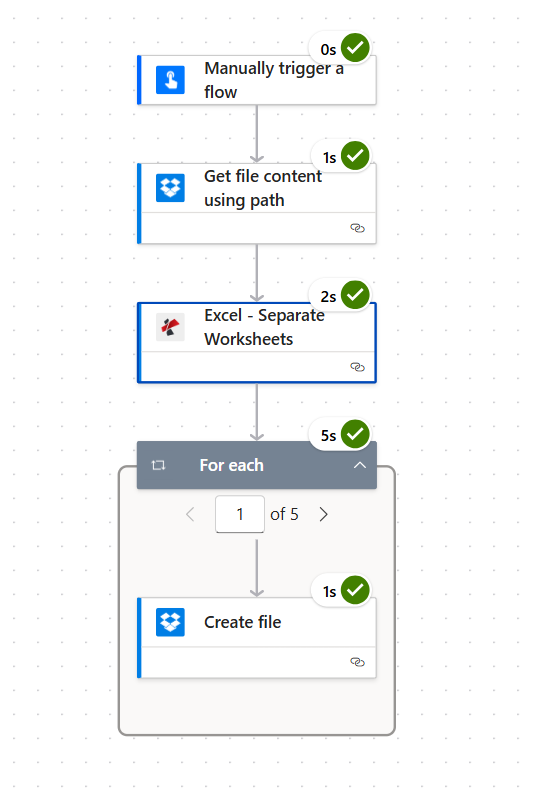
包含四个操作的 Power Automate 流程:手动触发流程、使用路径从 Dropbox 获取文件内容、使用 PDF4me 将 Excel 文件拆分为单独的工作表,然后执行“For each”操作创建文件(显示第 1 次迭代,共 5 次)。“For each”操作的运行时间分别为 0 秒、1 秒、2 秒和 5 秒,“创建文件”操作的运行时间为 1 秒。
完整流程。每个循环运行 5 次(每个输出表运行一次);每次迭代耗时约 1 秒。

你需要什么

  • 动力自动化 在云端设计器中打开一个流程的帐户。 打开 Power Automate
  • PDF4me API密钥获取您的 API 密钥首次放置该动作时,请添加 PDF4me Connect 连接。
  • Dropbox 需要指定源文件夹和输出文件夹。任何存储介质都适用:SharePoint、OneDrive、Dataverse 等都以相同的方式映射。
  • 一个包含多个工作表的 Excel 工作簿下载单独的.xlsx文件 完全按照步骤操作(5 个标签页,人员记录)。

快速参考:各部分功能

outputDocuments
The array the action returns. One entry per sheet. Always loop with Apply to each.
File Name (item)
Sheet name plus .xlsx extension. Pass directly into Create file File Name.
File Content (item)
Binary single-sheet workbook. Pass directly into Create file File Content.
Worksheet Indexes
Optional. Leave empty for all sheets. Comma-separated 1-based to restrict (e.g. 1,3).
Culture & Language
Defaults to en-US. Switch to fr-FR, de-DE, ja-JP, pt-BR for non-US sheet content.
Error Details Item
Itemised failure array. Empty on success; wire into a Condition for retry logic.

查看输入

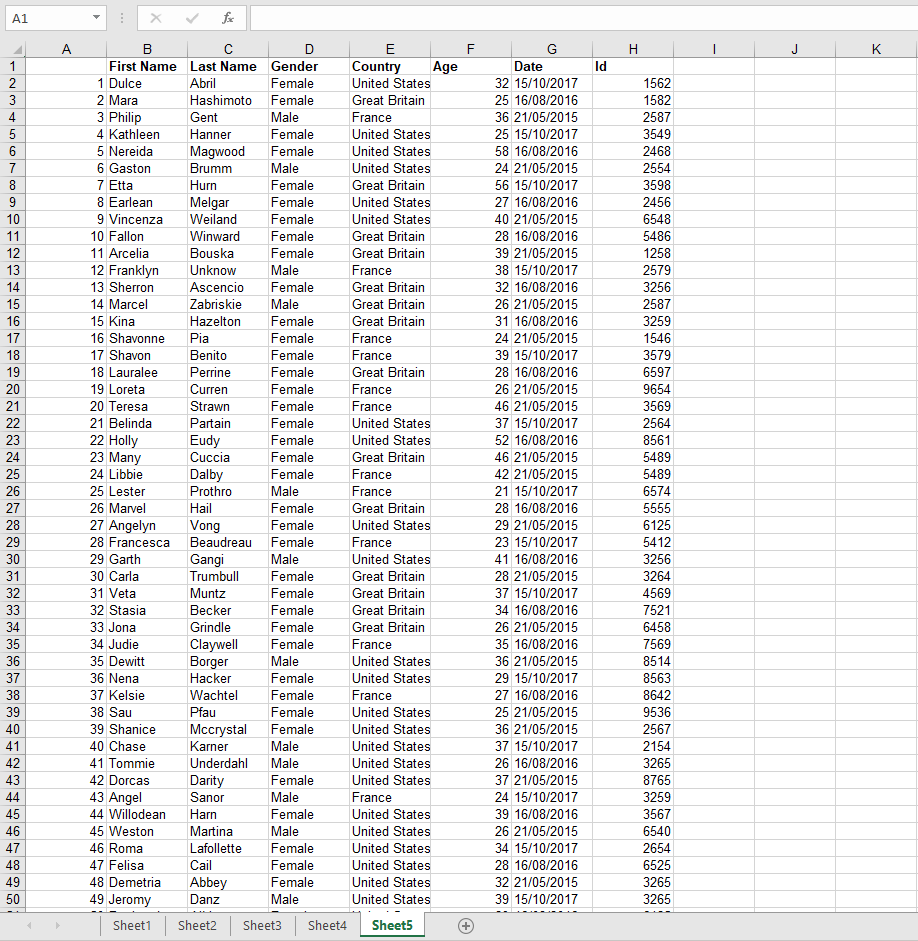
打开 Separate.xlsx 在 Excel 中。它有 5 个工作表标签(Sheet1 至 Sheet5),每个工作表标签都填充了人员记录的行:名字、姓氏、性别、国家、年龄、日期、ID。

在 Excel 中打开一个名为 separate.xlsx 的文件,其中 Sheet5 处于活动状态。列包括:数字、名字、姓氏、性别、国家/地区、年龄、日期和 ID。大约有 50 行记录。底部可见 Sheet1、Sheet2、Sheet3、Sheet4 和 Sheet5 的工作表标签。
源工作簿。底部有五个工作表标签,每个标签包含约 50 行人员记录。
Dropbox 源文件夹 /pdf4metest/excel/separate worksheets 包含 Separate.xlsx。
流程运行前的源文件夹。只有一个工作簿。

构建流程

操作 1:手动触发流程

测试时,手动触发速度最快。生产时,请将其替换为 当创建文件时(Dropbox)创建项目时(SharePoint)当收到新邮件时(Outlook)复发或其他任何触发因素。

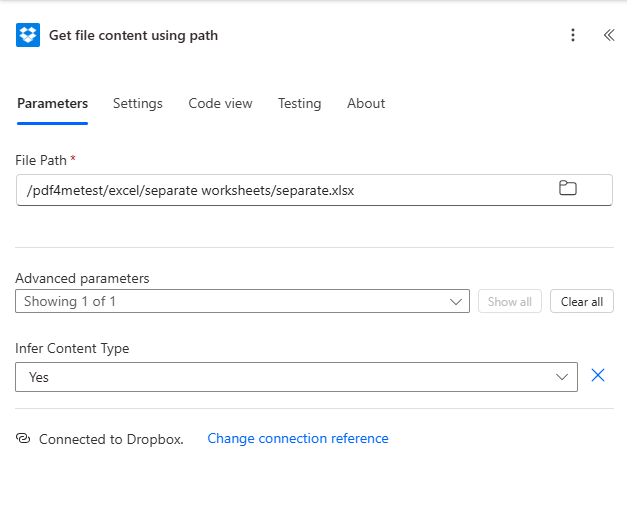
操作 2:Dropbox - 使用路径获取文件内容

指向源工作簿:

/pdf4metest/excel/separate worksheets/Separate.xlsx

离开 推断内容类型 默认情况下(是的)在高级参数下。

Dropbox 使用路径操作获取文件内容。文件路径设置为 /pdf4metest/excel/separate worksheets/Separate.xlsx。高级参数“推断内容类型”设置为“是”。

操作 3:PDF4me - Excel - 分离工作表

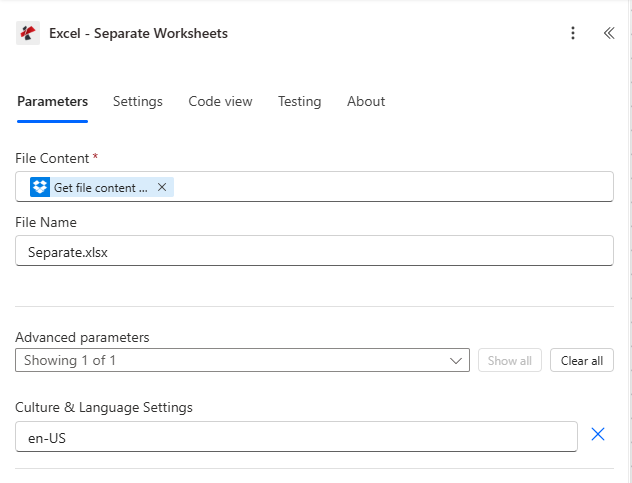
搜索 PDF4me 在动作选择器和选择器中 Excel - 单独的工作表配置:

场地本次运行中使用的值
File ContentFile Content from the previous Dropbox step (dynamic content)
File NameSeparate.xlsx
Culture & Language Settings (Advanced)en-US (default. change only for non-US locales)
PDF4me Excel - 已配置“分离工作表”操作。文件内容已从 Dropbox 映射。文件名:Separate.xlsx。高级参数显示区域和语言设置:en-US。
操作配置。区域性默认为 en-US。切换到 法语那就是I-JP 仅当表格内容使用非美国数字/日期格式时才适用。

操作 4:应用于每个 → Dropbox - 创建文件

在执行“分离工作表”操作后,添加 适用于每个 并选择 输出文档 从动态内容选择器中选择内容。在循环内部,拖放一个 Dropbox 对象。 创建文件 执行操作并按如下方式配置:

场地本次运行中使用的值
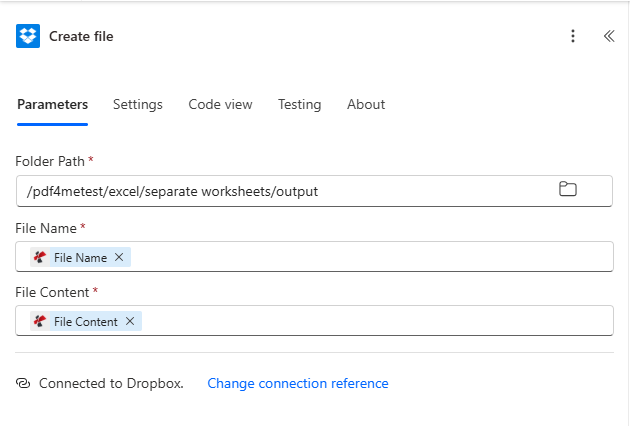
Folder Path/pdf4metest/excel/separate worksheets/output
File NameFile Name (dynamic content from the current item)
File ContentFile Content (dynamic content from the current item)
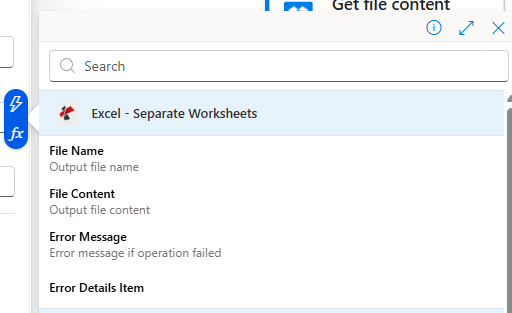
应用于每个包含“创建文件”操作的循环。选择输出下拉菜单显示的是从上一步“Excel - 分离工作表”中选择的输出文档。
“应用”操作会遍历输出文档。当前项的文件名和文件内容会显示在循环内的动态内容选择器中。
在循环内创建 Dropbox 文件。文件夹路径:/pdf4metest/excel/separate worksheets/output。文件名:动态内容。文件内容:动态内容。已连接到 Dropbox。
在循环内部。文件名和文件内容来自当前项。

保存并点击 测试。 完毕。


结果

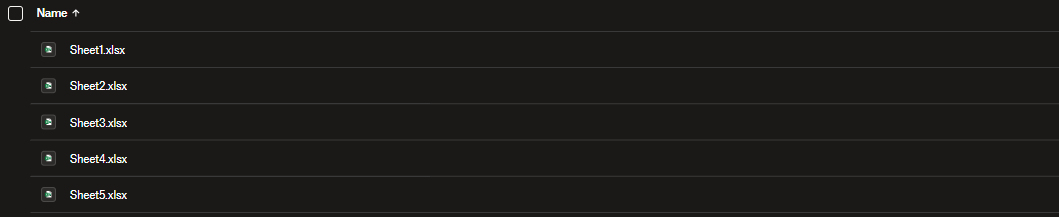
打开 Dropbox 中的输出文件夹。5 个单页工作簿已下载完毕,每个工作簿都以其源工作表命名:

Dropbox 输出文件夹列表 Sheet1.xlsx、Sheet2.xlsx、Sheet3.xlsx、Sheet4.xlsx、Sheet5.xlsx。
五个独立的工作簿,每个源表一个工作簿,按字母顺序排列。

下载本次运行的实际输出文件: sheet1.xlsxsheet2.xlsxsheet3.xlsxsheet4.xlsxsheet5.xlsx


故障排除

Apply to each does not show File Name / File Content
Make sure the loop is iterating outputDocuments, not the action itself. Click the Apply to each dropdown, search "outputDocuments", and pick it.
Only one file appears in the output folder
Create file is OUTSIDE the loop. Drag it inside the Apply to each container so it runs once per item.
Output files all overwrite each other
Two causes: (a) File Name is hardcoded instead of mapped to dynamic content. delete and re-pick File Name from the inner item; (b) two sheets in the source share the same name. rename them in Excel or build a unique name in a Compose step.
Decimals read as text or dates
A sheet using 1.234,56 (comma decimal) gets misinterpreted because Culture & Language Settings is en-US. Switch to your locale (fr-FR, de-DE, pt-BR, etc).
Cross-sheet formula came out as #REF!
Expected. After splitting, =Sheet2!A1 from a Sheet1 output cannot resolve because Sheet2 is now in a different file. Plan each sheet to be self-contained, or pre-compute the values upstream.
Need a date prefix on each output file name
Inside the Apply to each, add a Compose before Create file with: concat(formatDateTime(utcNow(),'yyyy-MM-dd'),'_',items('Apply_to_each')?['fileName']). Point File Name at the Compose output. Result: 2026-06-02_Sheet1.xlsx.

何时使用这种模式

Monthly report distribution
One workbook arrives with Jan, Feb, Mar tabs. Split, then email each tab to its owner.
Regional sales splits
Single workbook with one tab per territory becomes individual files for each regional manager.
HR roster fan-out
One company workbook with one tab per department. Upload each tab to the right SharePoint library.
Data prep for downstream tools
Many BI and accounting tools accept single-sheet inputs only. Split once, ingest many.
Compliance and auditing
Each split file is a self-contained artifact you can store, version, or sign without dragging the rest of the workbook.

接下来读什么?


常问问题

How do I split an Excel file with multiple sheets into separate files automatically in Power Automate?+
Use the PDF4me Excel - Separate Worksheets action. It takes a single multi-sheet .xlsx as input and returns an outputDocuments array with one file per sheet. Wrap the result in an Apply to each loop and write each item with Create file. Four actions total: trigger, Get file content, Separate Worksheets, Apply to each → Create file.
Can Power Automate save each sheet as a separate Excel file without code?+
Yes. The PDF4me Excel - Separate Worksheets action is a no-code cloud connector. There is no VBA, no Office Script, no Power Automate Desktop required. it runs entirely in the Power Automate cloud designer and outputs ready-to-save .xlsx files.
What happens if the source workbook has a different sheet count next run?+
Nothing breaks. The action dynamically returns one outputDocuments entry per sheet present, and the Apply to each iterates whatever the array length is. Build the flow once with a 5-sheet sample and it will handle 2-sheet or 200-sheet workbooks identically.
Do the output files keep their sheet names?+
Yes. Each output file is named after its source sheet name plus the .xlsx extension. Sheet5 → Sheet5.xlsx. If you have custom sheet names (e.g. "Q1 2025"), the output file is "Q1 2025.xlsx" accordingly.
Will my formulas still work after the split?+
Intra-sheet formulas (everything that references cells on the same sheet) work as expected. the engine preserves cell values, number formats, and styles. Cross-sheet references like =Sheet2!A1 cannot survive because Sheet2 is no longer in the same file; expect those to become #REF!. Plan the workbook so each sheet is self-contained, or pre-compute the values upstream.
Can I use SharePoint, OneDrive, or Dataverse instead of Dropbox?+
Yes. Swap the Dropbox actions for SharePoint Get file content / Create file, OneDrive Get file content / Create file, or Dataverse Download file / Add file. The PDF4me action and its parameters are identical regardless of source.
How do I rename the output files (add a date prefix, replace spaces, etc.)?+
Inside the Apply to each loop, add a Compose step before Create file. Build the new name with concat() and formatDateTime() expressions, then bind Create file → File Name to the Compose output. Example: concat(formatDateTime(utcNow(),'yyyy-MM-dd'),'_',items('Apply_to_each')?['fileName']) produces 2026-06-02_Sheet1.xlsx.
Is there a limit on the number of sheets I can split?+
Practical limits are bounded by Power Automate run-time and action body size. A single workbook with hundreds of sheets is fine; the loop just iterates more times. For thousands of sheets, consider Power Automate concurrency settings or batching the work across multiple runs.
Does this work in Power Automate Desktop?+
PDF4me Connect is a cloud connector available in Power Automate (the web flow designer). For Power Automate Desktop, call the same Separate Worksheets REST endpoint with the HTTP action.

开始使用