Bölmek PDF İsviçre tarafından QR içinde Zapier
SwissQR Kodu ile Bölündü bir Zapier eylem tarafından PDF4me bir partiyi tarayan PDF İsviçre için QR Fatura kodlarını belirler ve her tespit edilen kodda ayrı belgelere böler. Tedarikçi faturaları, müşteri faturaları veya taranmış ödeme makbuzları tek bir büyük dosya halinde geldiğinde tetiklenir. PDF Otomatik olarak ayrılması gereken şey.
Bu eylemin yaptığı şey
PDF4me, SwissQR Kodu ile Bölündü taramalar PDF İsviçre için QR fatura kodlarını oluşturur ve belgeyi her aşamada ayrı dosyalara böler. QR Kod konumu, ödeme fişi sayfasından önce veya sonra, seçim sizin. Tedarikçilerden gelen toplu taranmış faturalar, çok müşterili faturalar ve aylık hesap özetleri tek bir büyük dosya halinde gelir. PDF Otomatik olarak ayrı belgelere ayrılırlar. Oluşturma ayarlarını yapılandırın. DPI güvenilir için QR Herhangi bir tarama kalitesinde algılama, isteğe bağlı olarak ardışık sayfaları aynı şekilde birleştirme QR kodu girin ve tüm çıktı dosyalarını tek bir yerde alın. ZIP aşağı yöndeki işlemleri kolaylaştırmak için Zapier.
Kimliğinizi Doğrulama API Rica etmek
Her PDF4me eylemde Zapier bağlantılı bir cihaz gerektirir. hesapBağlantı kurmak için şunu kullanın: PDF4me API Eylemi ilk kez eklediğinizde bu anahtarı girin.
Kaçırmamanız Gereken Önemli Bilgiler
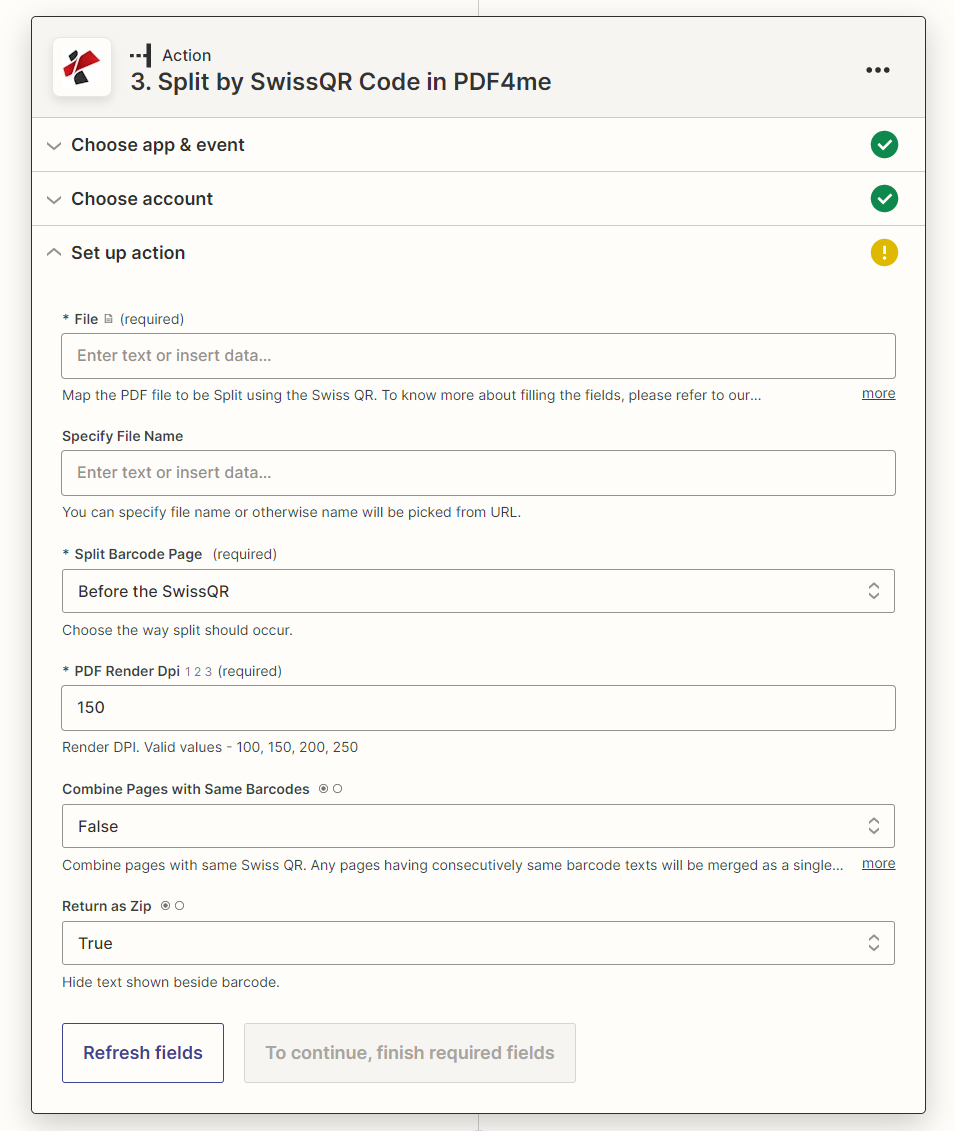
Harita Dosya Tetikleyici veya indirme adımınızdan, göreceli olarak bölme konumunu seçin. QR sayfa, set DPIve etkinleştir ZIP Toplu işlemler için çıktı.
Parametreler
Gerekli: Dosya, Bölünmüş Barkod Sayfası, Ve PDF Oluştur DPIDiğer tüm parametreler isteğe bağlıdır ve mantıklı varsayılan değerlere sahiptir.
| Parametre | Gerekli | Ne işe yarar? | Örnek |
|---|---|---|---|
| File | Required | The PDF to split. Map the binary file output from your Zap trigger or a prior download step. Hint: "Map the PDF file to be Split using the Swiss QR." | PDF file from trigger |
| Specify File Name | Optional | Output filename for the ZIP or individual split files. If left empty, the name is picked from the source file or URL. Hint: "You can specify file name or otherwise name will be picked from URL." | swiss_invoices_split |
| Split Barcode Page | Required | Where to divide the document relative to the Swiss QR page. Options: Before the SwissQR (QR page starts the next document) or After the SwissQR (QR page closes the current document). Hint: "Choose the way split should occur." | After the SwissQR |
| PDF Render DPI | Required | Resolution used to render PDF pages for QR code scanning. Valid values: 100, 150, 200, 250. Higher DPI improves detection on low-quality scans but increases processing time. Hint: "Render DPI. Valid values - 100, 150, 200, 250." | 150 |
| Combine Pages with Same Barcodes | Optional | When True, consecutive pages sharing the same Swiss QR code are merged into one output document. Set True for multi-page invoices where each page repeats the payment QR. Hint: "Combine pages with same Swiss QR." | False |
| Return as Zip | Optional | When True, all split documents are packaged into a single ZIP file for easy downstream handling. Recommended for batch PDFs with many invoices. | True |
Çıktı hangi alanları içeriyor?
| Alan | Tip | İçeriğinde neler var? |
|---|---|---|
File Content | Binary | Split PDF documents or a single ZIP archive, depending on the Return as Zip setting. |
File Name | String | Name of each split PDF file, or the ZIP file name when Return as Zip is True. |
SwissQR kodu ile bölme işlemini nasıl ayarlayabilirim? Zapier?
- Zap uygulamanızda tıklayın. + Yeni bir işlem eklemek ve aramak için PDF4me.
- Seçme SwissQR Koduna Göre Bölünmüş PDF4me Etkinlik olarak.
- Bağlantınızı kurun. PDF4me hesabınızı kullanarak API anahtar.
- Harita Dosya -e PDF Tetikleyici veya indirme adımınızdan gelen ikili dosya.
- Ayarlamak Bölünmüş Barkod Sayfası: seçmek SwissQR'dan sonra Ödeme makbuzunun her bölümü kapattığı faturalar için.
- Girmek PDF Oluşturma DPI: ile başlayın
150; artırmak için200eğer QR Kodlar atlandı. - Ayarlamak Aynı barkodlara sahip sayfaları birleştirin ile
Trueçok sayfalı faturalar için,Falsetek sayfa için. - Ayarlamak Zip olarak geri dön ile
TrueBirden fazla faturanın bulunduğu toplu işlemler için. - Tıklamak Test işlemi Bölme sonucunu doğruladıktan sonra Zap'ı yayınlayın.
İş Akışı Örnekleri
İş Akışı ÖrnekleriCommon Zapier workflow patterns using Split by Swiss QR.
- Bir tedarikçi toplu bir e-posta gönderiyor. PDF Her biri İsviçre doları ile kapanan 30 faturayı içeren QR Ödeme fişi.
- Gmail, satıcı adresinden gelen yeni bir e-posta olduğunda Zap'ı tetikler. PDF EK.
- SwissQR Kodu ile Bölündü partiyi her birinde bölüyor QR sayfa (SwissQR'dan sonra), DPI 150, Posta Kodu Olarak Döndür True.
- Biçimlendirme adımı, tek tek dosyaları ayıklar. ZIP paket.
- Her bir fatura ayrı ayrı PDF yüklemeler SharePoint "Ödenecek Hesaplar / Gelen Ödemeler" inceleme ve ödeme kütüphanesi.
- Fatura sistemi birleşik bir müşteriyi listeden çıkardığında, ay sonunda planlanmış bir Zap tetiklenir. PDF Dropbox'a.
- Dropbox, Zap'ı tetikler ve gerekli bilgileri sağlar. PDF ikili.
- SwissQR Kodu ile Bölündü Her müşterinin faturasını ayrı ayrı gösterir (Aynı barkodlu sayfaları birleştir True, Posta kodu olarak döndür True).
- Biçimlendirme adımı ve yineleyici, bölünmüş her dosya üzerinde döngü yapar.
- Gmail her bir faturayı ayrı ayrı e-postayla gönderiyor. PDF Airtable müşteri sorgulamasından eşleşen müşteri e-postasına QR referans numarası.
- Çok fonksiyonlu bir yazıcı, gelen İsviçre faturalarını tek bir günlük toplu işlem halinde tarar. PDF ve Google Drive'a kaydeder.
- Google Drive, "Taranmış Gelen Kutusu" klasöründeki yeni bir dosya için Zap uygulamasını tetikler.
- SwissQR Kodu ile Bölündü günlük partiyi her birine böler QR kaymak DPI MFP taramalarında güvenilir algılama için 200.
- Bölünmüş her belge, dosya adı olarak zaman damgası önekiyle birlikte "İşlenmiş Faturalar" adlı bir Drive klasörüne yüklenir.
- Google Sheets'te yer alan bir adım, denetim izleme amacıyla dosya adı, bölme sayısı ve işlem tarihini içeren bir günlük satırı ekler.