Güvenli Word Belgede n8n
Güvenli Word Belge bir PDF4me düğüm eylemi n8n kilitleyen bir .docx Şifreyle, düzenleme kısıtlamasıyla veya her ikisiyle birlikte korunan bir dosya. Gizli raporları gönderilmeden önce korumak, imzalı bir şablonun değiştirilmesini önlemek veya gözden geçirenlerin sözleşmenin metnini değiştirmeden yorum yapmasına olanak sağlamak için kullanabilirsiniz.
Bu düğüm ne işe yarıyor?
PDF4me WordGüvenli Word Belge uygulanır iki bağımsız koruma türü. Açıkken Güvenli artı Şifreyi Aç Dosyanın açılıp açılmayacağına karar verir. Koruma Türü artı Koruma Parolası Açıldıktan sonra nelerin değiştirilebileceğine karar verir; tamamen salt okunur moddan yorumlara, form alanlarına veya yalnızca izlenen revizyonlara kadar. İkisinden birini veya ikisini birlikte kullanabilirsiniz.
Kimliğinizi Doğrulama API Rica etmek
Her PDF4me düğümde n8n geçerli bir belge gerektirir Bağlantı kurmak için kimlik bilgisi. İçeriğinizi barındıran birini oluşturun veya seçin. PDF4me API Bu sayede iş akışı, belge güvenliği isteklerini doğrulayabilir.
Kaçırmamanız Gereken Önemli Bilgiler
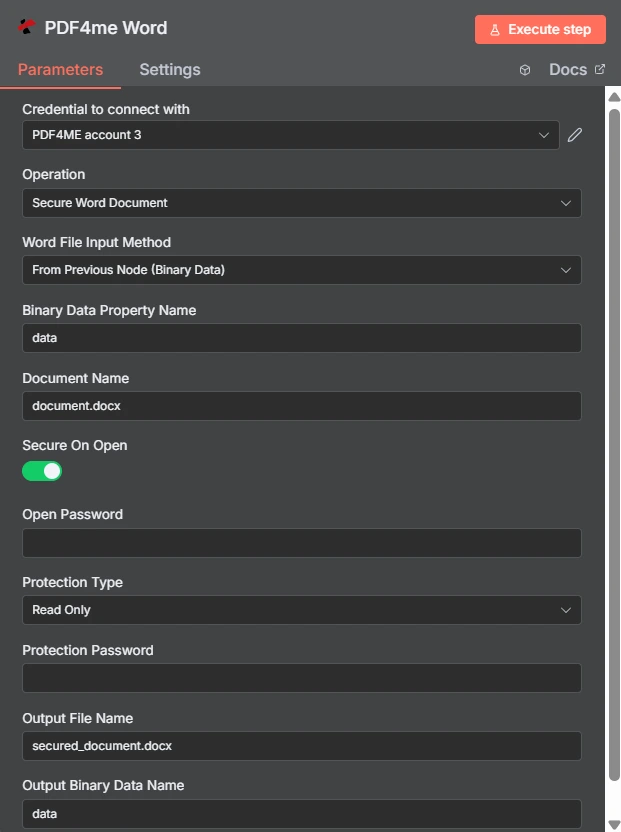
"Güvenli Açılır" bir geçiş düğmesidir ve "Koruma Türü" ayrı bir açılır menüdür ve burada "Sadece Okuma" olarak ayarlanmıştır. Altlarındaki iki parola alanı birbirinden bağımsızdır.
Açık Parola mı Yoksa Düzenleme Kısıtlaması mı?
| Soru | Şifreyi aç | Düzenleme kısıtlaması |
|---|---|---|
| Which fields set it | Secure On Open and Open Password | Protection Type and Protection Password |
| What it blocks | Opening the document at all | Changing the document once open |
| Can the recipient read it | Only with the password | Yes, reading is always allowed |
| Typical recipient | A named person receiving something confidential | A reviewer or a form filler |
| Use it when | The content must not be seen by others | The content may be seen but not altered |
Güvenlik Hangi Parametreleri Kapsar? Word Belgeye mi ihtiyacınız var?
| Parametre | Gerekli | Ne işe yarar? | Örnek |
|---|---|---|---|
| Credential to connect with | Required | The PDF4me account credential the node authenticates with. | PDF4ME account |
| Operation | Required | The action this node performs. Select Secure Word Document. | Secure Word Document |
| Word File Input Method | Required | How the .docx reaches the node: from the previous node as binary data, as a Base64 string, or from a URL. | From Previous Node (Binary Data) |
| Binary Data Property Name | Conditional | Name of the binary property holding the document. Appears when the file comes from the previous node. | data |
| Document Name | Required | Filename of the input document including the extension. Drives format detection. | document.docx |
| Secure On Open | Optional | Toggle that requires a password before the document will open. Leave off if you only want an editing restriction. | enabled |
| Open Password | Conditional | The password needed to open the file. Required once Secure On Open is enabled. Supply it through an expression, not as literal text. | {{ $env.DOC_OPEN_PW }} |
| Protection Type | Optional | Editing restriction applied to the document: Read Only, Allow Comments, Allow Form Fields, or Allow Revisions. | Read Only |
| Protection Password | Conditional | The password that lifts the editing restriction. Required once a Protection Type is chosen, and should differ from Open Password. | {{ $env.DOC_EDIT_PW }} |
| Output File Name | Optional | Filename of the returned secured document. Keep the .docx extension. | secured_document.docx |
| Output Binary Data Name | Optional | Binary property the secured document is written to. Leave as data unless a later node expects another name. | data |
Koruma Türü seçenekleri
| Seçenek | Alıcının yapabilecekleri |
|---|---|
Read Only | View the document only. No edits of any kind are accepted. |
Allow Comments | Add and edit comments, but not change the document text itself. |
Allow Form Fields | Fill in form fields while the surrounding content stays locked. |
Allow Revisions | Edit, but only with tracked changes recorded so every alteration is visible. |
Çıktı
| Alan | Tip | İçeriğinde neler var? |
|---|---|---|
| fileName | String | Name of the returned secured document. |
| fileSize | Number | Size of the secured document in bytes. |
| success | Boolean | Whether protection was applied. Branch on this so failures surface as alerts. |
| originalFileName | String | Name of the input document as supplied in Document Name. |
| secureOnOpen | Boolean | Whether an open password was applied, echoed back for verification. |
| protectionType | String | The editing restriction applied, such as ReadOnly, or empty when none was set. |
| message | String | Human-readable status text describing the result of the operation. |
Kontrol Etme protectionType Yanıtta, amaçladığınız kısıtlamanın gerçekten uygulandığını doğrulamanın en ucuz yolu budur.
Güvenli kurulumu nasıl yaparım? Word Belgede n8n?
- Ekle PDF4me Word düğümü iş akışınıza ekleyin ve ayarlayın. Operasyon ile Güvenli Word Belge.
- Seçiminizi yapın PDF4me veya bir tane oluşturup oraya yapıştırabilirsiniz. API anahtar.
- Bir tane seçin Word Dosya Giriş Yöntemi ve tedarik etmek
.docxaltındaki tarlanın içinden. - Ayarlamak Belge Adı Doğru uzantıyla.
- Kapıyı açmak için açın. Açıkken Güvenli ve ayarla Şifreyi Aç Kimlik bilgilerinden veya ortam değişkenlerinden.
- Düzenlemeyi devre dışı bırakmak için şunu ayarlayın: Koruma Türü ve farklı bir şey tedarik edin Koruma Parolası.
- Ayarlamak Çıktı Dosya Adı sonlanan
.docx. - Düğümü çalıştırın, onaylayın
secureOnOpenVeprotectionTypeYanıtı aldıktan sonra, güvenli dosyayı आगे yönlendirin.
Tipik Kurulumlar
İş Akışı ÖrnekleriCommon n8n workflow patterns using Secure Word Document.
- Raporlama aşaması, hassas rakamlar içeren bir belge oluşturur.
- Secure On Open, ortam değişkeninde saklanan bir parolayı kullanır.
- Dosya e-posta ile gönderilir ve şifre ayrı bir kanal üzerinden paylaşılır.
- Koruma Türü, Yorumlara İzin Ver olarak ayarlanmıştır.
- Değerlendiriciler, madde metninde herhangi bir değişiklik yapmadan notlar eklerler.
- Geri bildirim, sonradan uzlaştırılacak bir fark olmadan geliyor.
- Form Alanlarına İzin Ver seçeneği, çevreleyen metnin sabit kalmasını sağlar.
- Alıcılar yalnızca kendileri için ayrılmış alanları doldururlar.
- Geri dönen formlar, otomatik olarak ayrıştırılabilecek kadar tutarlıdır.
- Şablon onaylandı ve paylaşılan bir sürücüye yayınlandı.
- Salt okunur koruma, sessiz yerel düzenlemeleri engeller.
- Herkes aynı otoriter ifadeyi temel alarak konuşuyor.
Pratik İpuçları
Kopya Kağıdı
| Alan | Değer |
|---|---|
| Operation | Secure Word Document |
| Word File Input Method | From Previous Node (Binary Data) |
| Binary Data Property Name | data |
| Document Name | document.docx |
| Secure On Open | enabled |
| Open Password | {{ $env.DOC_OPEN_PW }} |
| Protection Type | Read Only |
| Protection Password | {{ $env.DOC_EDIT_PW }} |
| Output File Name | secured_document.docx |
| Output Binary Data Name | data |