Resim Başlığı veya Alt Bilgisi Ekle Excel içinde n8n
Resim Başlığı/Altbilgisi Ekle bir PDF4me Excel operasyonda n8n Bu eklenti, bir .xlsx çalışma kitabının başlığına veya altbilgisine, sola, ortaya veya sağa konumlandırılmış, tek bir çalışma sayfasına veya tüm çalışma sayfalarına bir logo veya marka görseli ekler. Oluşturulan raporlara tutarlı kurumsal marka kimliği uygulamak için dosyayı açmadan kullanabilirsiniz. Excel.
Bu düğüm ne işe yarıyor?
PDF4me ExcelResim Başlığı/Altbilgisi Ekle Kaynak çalışma kitabını ve ayrı bir resim girişini alır, ardından resmi seçilen yatay konumda, yapılandırılabilir sayfa kenar boşluklarıyla sayfa başlığına veya altbilgisine yerleştirir. Hedef Çalışma Sayfaları, resmi ada göre belirli sayfalara veya boş bırakıldığında tüm çalışma kitabına uygular.
Kimliğinizi Doğrulama API Rica etmek
Her PDF4me düğümde n8n geçerli bir belge gerektirir Bağlantı kurmak için kimlik bilgisi. . İçeriğinizi barındıran birini oluşturun veya seçin. PDF4me API Bu sayede iş akışı, markalama taleplerini güvenli bir şekilde doğrulayabilir.
Kaçırmamanız Gereken Önemli Bilgiler
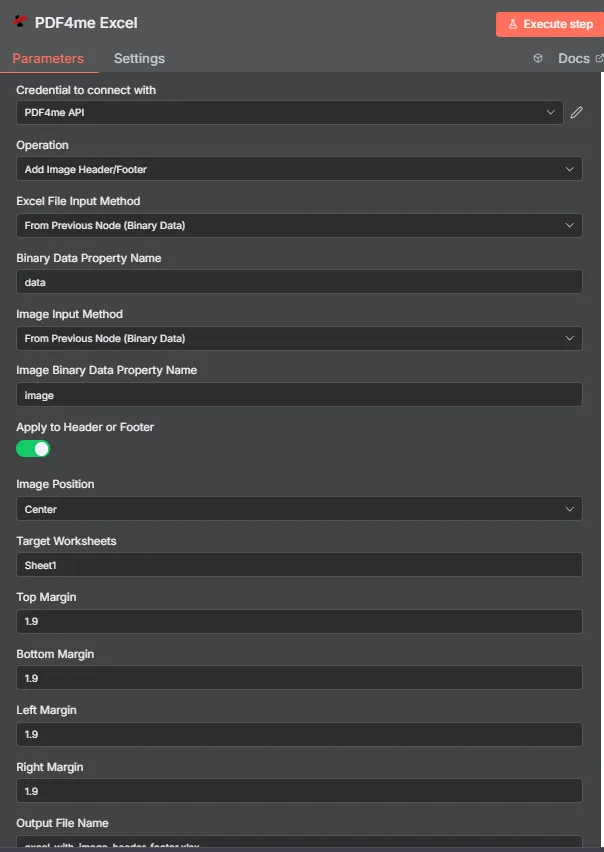
PDF4me Excel Resim Başlığı/Altbilgisi parametreleri panelini ekleyin. n8n
Resim başlığı/altbilgisi eklemek için hangi parametrelere ihtiyaç duyulur?
Gerekli: Operasyon, Excel Dosya Giriş Yöntemi, Görüntü Giriş Yöntemi, her iki yönteme de uyan giriş alanları ve Çıkış Dosya Adı. Üstbilgiye veya Altbilgiye Uygula, Görüntü Konumu, Hedef Çalışma Sayfaları ve dört kenar boşluğu alanı, varsayılan çalışma değerleriyle birlikte gelir.
| Parametre | Gerekli | Ne işe yarar? | Örnek |
|---|---|---|---|
| Operation | Required | Selects the PDF4me Excel action to run. Choose Add Image Header/Footer. | Add Image Header/Footer |
| Excel File Input Method | Required | How the workbook reaches the node. From Previous Node (Binary Data) reads it from an upstream item; the dropdown also offers base64 and file URL alternatives. | From Previous Node (Binary Data) |
| Binary Data Property Name | Conditional | Name of the binary property on the incoming n8n item holding the .xlsx workbook. Applies when the input method is binary data. Defaults to data. | data |
| Image Input Method | Required | How the image reaches the node, chosen independently of the workbook input. Supports Binary Data, Base64 String, or URL. | From Previous Node (Binary Data) |
| Image Binary Data Property Name | Conditional | Name of the binary property on the incoming n8n item holding the image file. Applies when Image Input Method is binary data. | image |
| Apply to Header or Footer | Optional | Toggle that places the image in the header when on, or the footer when off. Default true (header). | true |
| Image Position | Optional | Horizontal placement of the image. Left, Center, or Right. Default Center. | Center |
| Target Worksheets | Optional | Comma-separated worksheet names to apply the image to. Leave blank to apply it to every worksheet. | Sheet1 |
| Top Margin | Optional | Top page margin in centimeters. Default 1.9. | 1.9 |
| Bottom Margin | Optional | Bottom page margin in centimeters. Default 1.9. | 1.9 |
| Left Margin | Optional | Left page margin in centimeters. Default 1.9. | 1.9 |
| Right Margin | Optional | Right page margin in centimeters. Default 1.9. | 1.9 |
| Output File Name | Required | Filename for the branded workbook the node returns. Include the .xlsx extension. | excel_with_image_header_footer.xlsx |
Çıkış Alanları
Başarılı bir koşu bir getiri sağlar. n8n eşya taşıma JSON Meta veriler ve markalı çalışma kitabı ikili veri olarak.
| Alan | Tip | İçeriğinde neler var? |
|---|---|---|
success | Boolean | True when the image was applied successfully. Use it to route error-handling branches. |
fileName | String | Filename of the branded workbook, matching Output File Name. |
fileSize | Number | Size of the returned workbook in bytes. |
originalFileName | String | The filename of the input workbook, echoed back for tracking. |
isHeader | Boolean | True when the image was placed in the header, false when placed in the footer. |
position | String | Horizontal alignment applied to the image: Left, Center, or Right. |
worksheetNames | Array | Worksheet names the image was applied to. |
topMargin | Number | Top page margin in centimeters, matching the Top Margin input. |
bottomMargin | Number | Bottom page margin in centimeters, matching the Bottom Margin input. |
leftMargin | Number | Left page margin in centimeters, matching the Left Margin input. |
rightMargin | Number | Right page margin in centimeters, matching the Right Margin input. |
message | String | Human-readable result message for the operation. |
Binary (data) | Binary | The branded .xlsx workbook. Pass into Write Binary File, Email, or a cloud-storage upload. |
N8N Eylem Yanıtı
- JSON
- Schema
- Binary
JSON Yanıt Formatı
[
  {
    "fileName": "excel_with_image_header_footer.xlsx",
    "fileSize": 221849,
    "success": true,
    "originalFileName": "myExcelFile.xlsx",
    "isHeader": true,
    "position": "Center",
    "worksheetNames": ["Sheet1"],
    "topMargin": 1.9,
    "bottomMargin": 1.9,
    "leftMargin": 1.9,
    "rightMargin": 1.9,
    "message": "Image header/footer added to Excel file successfully"
  }
]
Şema Görünümü
1 item
fileName: T excel_with_image_header_footer.xlsx
fileSize: # 221849
success: true
originalFileName: T myExcelFile.xlsx
isHeader: true
position: T Center
worksheetNames: [] Array
  [0]: T Sheet1
topMargin: # 1.9
bottomMargin: # 1.9
leftMargin: # 1.9
rightMargin: # 1.9
message: T Image header/footer added to Excel file successfully
Tip Göstergeleri: T = String, # = Number, [] = Array.
İkili Veri Görünümü
data
File Name: excel_with_image_header_footer.xlsx
File Extension: xlsx
Mime Type: application/vnd.openxmlformats-officedocument.spreadsheetml.sheet
File Size: 221.8 kB
İkili Verilere Erişim: Çalışma kitabına şu adresten ulaşabilirsiniz: $binary.data.dataİndirilmeye, e-posta ile gönderilmeye veya depolanmaya hazır.
Resimli başlık/altbilgi eklemeyi nasıl ayarlayabilirim? n8n?
- Ekle PDF4me Excel düğümü iş akışınıza ekleyin ve ayarlayın. Operasyon ile Resim Başlığı/Altbilgisi Ekle.
- İçinde Bağlantı kurmak için kimlik bilgisi, sizinkini seçin PDF4me API veya kendi kimliğinizle bir tane oluşturun API anahtar.
- Ayarlamak Excel Dosya Giriş Yöntemi Ve İkili Veri Özellik Adı Kaynak çalışma kitabı için.
- Ayarlamak Görüntü Giriş Yöntemi Ve Görüntü İkili Veri Özellik Adı logo veya resim için.
- Anahtar Başlığa veya Altbilgiye Uygula Başlık görseli için açık, altbilgi görseli için kapalı.
- Ayarlamak Görüntü Konumu ile Sol, Merkez, veya Sağ.
- Ayarlamak Hedef Çalışma SayfalarıYa da resmi her yere uygulamak için boş bırakın ve gerekirse kenar boşluklarını ayarlayın.
- Ayarlamak Çıktı Dosya Adı sonlanan
.xlsxDüğümü çalıştırın ve markalı çalışma kitabını ileriye doğru yönlendirin.
Tipik Kurulumlar
İş Akışı ÖrnekleriCommon n8n workflow patterns using Add Image Header/Footer for Excel.
- Zamanlama Tetikleyicisi, haftalık rakamlar çalışma kitabı oluşturur.
- Resim Başlığı/Altbilgisi Ekle seçeneği, şirket logosunu Başlığa veya Altbilgiye Uygula seçeneği ve Resim Konumu Sağ seçeneğiyle ekler.
- Kurumsal kimlik belgesiyle hazırlanan rapor, paydaşlara e-posta yoluyla gönderilir.
- Bir iş akışı, müşterinin logosunu çekiyor. URL bir CRM kayıt.
- Görüntü Giriş Yöntemi şu şekilde ayarlanmıştır: URL Bu nedenle logo doğrudan o kayıttan yüklenir.
- Çalışma kitabı, başlık kısmında müşterinin kendi marka kimliğiyle birlikte teslim edilir.
- Bir yönetici dahili bir araçta onay verdiğinde, onay webhook'u tetiklenir.
- "Üst Bilgiye/Alt Bilgiye Resim Ekle" özelliği, "Üst Bilgiye veya Alt Bilgiye Uygula" seçeneği kapalıyken çalışır ve onay görselini alt bilgiye yerleştirir.
- Damgalı çalışma defteri arşivlenmiştir. SharePoint.
- Çok sayfalı bir çalışma kitabı, ham veri sekmelerinin yanı sıra bir özet sayfası da içerir.
- Hedef Çalışma Sayfaları Özet olarak ayarlandığı için ham veri sekmeleri markasız kalır.
- Markalı özet sayfası dışa aktarılır. PDF Dağıtım için.
Pratik İpuçları
Kopya Kağıdı
| Alan | Değer |
|---|---|
| Operation | Add Image Header/Footer |
| Excel File Input Method | From Previous Node (Binary Data) |
| Binary Data Property Name | data |
| Image Input Method | From Previous Node (Binary Data) |
| Image Binary Data Property Name | image |
| Apply to Header or Footer | on (header) |
| Image Position | Center |
| Target Worksheets | Sheet1 (blank for all) |
| Top / Bottom / Left / Right Margin | 1.9 cm each |
| Output File Name | excel_with_image_header_footer.xlsx |
| Credentials | PDF4me API credential |