Okumak PDF Meta verilerde MakeBelge Bilgilerini Al
PDF4me Belge Bilgilerini Al bir Make okuyan bir modül PDF Kaynak dosyayı değiştirmeden başlık, yazar, sayfa sayısı, dosya boyutu ve daha fazlasını içeren 11 meta veri alanı döndürür. Belgeleri anahtar kelimeye göre yönlendirmek, dönüştürmeden önce büyük boyutlu yüklemeleri engellemek veya arşiv dosyalarını otomatik olarak bir elektronik tabloya kataloglamak için kullanabilirsiniz.
Bu modülün işlevi
PDF4me - Belge Bilgilerini Al herhangi bir nesnenin meta verilerini ve yapısal özelliklerini okur. PDF Kaynak dosyaya dokunmadan. Geri dönüş değeri 11 ayrı alan - Başlık, Yazar, Konu, Anahtar Kelimeler, Oluşturan, Yapımcı, Oluşturma Tarihi, Değiştirme Tarihi, Sayfa Sayısı, Dosya Boyutu ve PDF Sürümü - doğrudan bağlayabileceğiniz eşlenebilir belirteçler olarak. Make Filtreler, yönlendiriciler, veritabanı modülleri veya bildirim adımları. Dönüştürme adımından önce belge boyutunu önceden kontrol etmek, dosyaları yazar veya departman anahtar kelimesine göre yönlendirmek, arşiv yüklemelerini Airtable veya Google Sheets'e otomatik olarak kataloglamak veya onay e-postasında sayfa sayısını göstererek inceleyicilerin neyi onayladıklarını bilmelerini sağlamak için kullanabilirsiniz.
Kimliğinizi Doğrulama API Rica etmek
Her PDF4me modül içinde Make geçerli bir belge gerektirir Bağlantı. İçeriğinizi barındıran birini oluşturun veya seçin. PDF4me API Bu sayede senaryo, meta veri hizmetini güvenli bir şekilde çağırabilir.
Kaçırmamanız Gereken Önemli Bilgiler
Bu modül dosya yapısını okur ve veri döndürür. Orijinalinde bayt yok. PDF Yazılır, yeniden sıralanır veya kaldırılır. Eşleştirdiğiniz belge, aşağıya doğru iletilen belgeyle aynıdır; kaynakta herhangi bir değişiklik riski olmadan üretim dosyalarında güvenle çalıştırılabilir.
Başlık, Yazar, Konu, Anahtar Kelimeler, Oluşturan, Üretici, Oluşturma Tarihi, Değiştirme Tarihi, Sayfa Sayısı, Dosya Boyutu ve PDF Sürümü, çıktı paketinde ayrı ayrı eşlenebilir belirteçler olarak mevcuttur; tek tek değerleri çıkarmak için herhangi bir ayrıştırma adımı veya özel fonksiyona gerek yoktur.
Sayfa sayısını, yazarı veya anahtar kelimeleri doğrudan haritaya entegre edin. Make Belge özelliklerine göre senaryonuzu dallandırmak için filtre veya yönlendirici kullanın. Büyük boyutlu dosyaları reddedilecek bir yola yönlendirin, departman etiketli dosyaları gönderin. PDFs Eşleşen klasörlere taşıyın veya yinelenen kayıt kontrolüyle zaten kataloglanmış belgeleri atlayın.
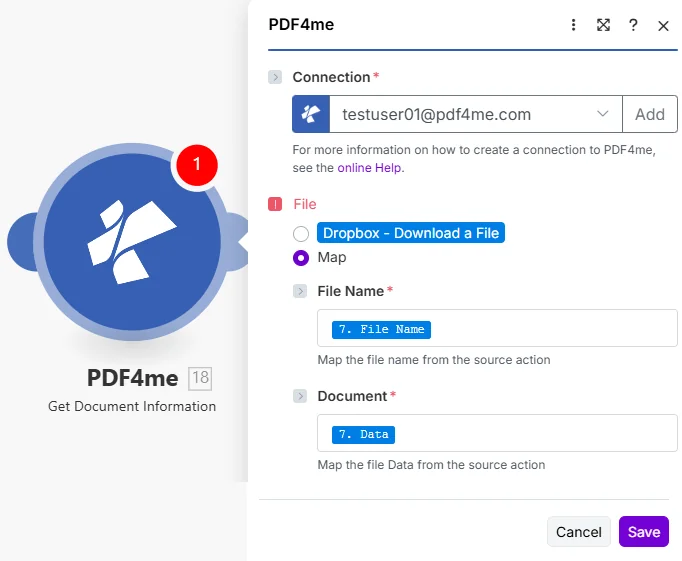
Seçme Harita Dosya menüsünden haritaya gidin. Dosya adı Ve Belge indirme işlemini gerçekleştiren adımdan itibaren PDF.
Parametreler
Gerekli: Bağlantı, Dosya adı, Ve Belge. Ayarlamak Dosya ile Harita Öncelikle her iki giriş alanının da görünür hale gelmesi gerekiyor. Belge için ikili dosya baytları gereklidir; yalnızca URL dizesi veya dosya adı yeterli olmaz.
| Parametre | Gerekli | Ne işe yarar? | Örnek eşleme |
|---|---|---|---|
| Connection | Required | PDF4me API connection used by the scenario to authenticate metadata requests. Click Add and paste your API key if connecting for the first time. | Your PDF4me connection |
| File | Required | Determines how the PDF is supplied. Choose Map to wire File Name and Document from a prior module's output - the most common setup for multi-step scenarios. | Map |
| File Name | Conditional | Filename with .pdf extension from the source module, required when File is set to Map. Map from the file name field of your Dropbox, Drive, or OneDrive step. | 7. File Name |
| Document | Conditional | Binary PDF content from the download step, required when File is set to Map. Must be actual file bytes - not a URL or a filename string. Map from the Data field of Dropbox or the File Content field of SharePoint. | 7. Data |
Nasıl Okuyabilirim? PDF Meta verilerde Make?
- Eklemek PDF4me → Belge Bilgilerini Al Senaryonuza göre.
- Seçme Bağlantı (veya tıklayın) Eklemek sizinle bir tane oluşturmak için API anahtar).
- Altında Dosya, seçmek Harita.
- Harita Dosya adı İndirme adımınızdaki dosya adı alanına şunu ekleyin:
.pdfeklenti. - Harita Belge aynı adımdan ikili veri alanına (genellikle Veri Dropbox'ta veya Dosya İçeriği SharePoint/OneDrive modüllerinde).
- Kaydetmek ve tıklayın Bir kez çalıştırGenişletin Dosya Bilgileri Çıktı paketi - 11 meta veri alanının her biri, sonraki herhangi bir modüle bağlanmaya hazır ayrı bir eşlenebilir belirteçtir.
Bu modül hangi meta veri alanlarını döndürüyor?
Modül bir değer döndürür. Dosya Bilgileri 11 ayrı meta veri alanı içeren paket; her biri bağımsız olarak eşlenebilir. Başlık, Yazar, Konu, Anahtar Kelimeler, Oluşturucu ve Yapımcı bilgileri buradan gelir. PDF belge bilgi sözlüğü (Bölüm 14.3.3) PDF 32000-1:2008 spesifikasyonu), Oluşturma Tarihi ve Değiştirme Tarihi ise bunu takip eder. ISO 8601 Zaman damgası biçimlendirmesi.
| Alan | Tip | İçeriği ve kullanım şekli |
|---|---|---|
Title | String | Document title as stored in the PDF metadata dictionary. Empty string if not set. Map into an Airtable record or email subject line. |
Author | String | Name of the person or system that created the document. Use in a Router to send files to department-specific folders based on creator. |
Subject | String | Subject or description field from the document properties dialog. Often populated by enterprise document management systems. |
Keywords | String | Comma-separated keyword tags embedded by the author. Filter on this field in a Make Filter to route to the correct team or project. |
Creator | String | Application that originally created the document - for example, Microsoft Word, Adobe InDesign, or a PDF library name. |
Producer | String | PDF conversion library or printer driver that generated the final PDF bytes. Different from Creator when a Word file was later exported to PDF. |
Creation Date | DateTime | ISO 8601 timestamp of when the document was first created. Use in a Filter to process only documents created within a target date range. |
Modification Date | DateTime | ISO 8601 timestamp of the last save. Compare to a stored baseline date to detect documents that have changed since last processing. |
Page Count | Integer | Total number of pages. Use in a Filter to block files over a page limit or route short vs. long documents to different processing branches. |
File Size | Integer | File size in bytes. Gate on this before a conversion or email step - reject oversized files and notify the submitter to re-upload a compressed version. |
PDF Version | String | PDF specification version (e.g. 1.4, 1.7, 2.0). Verify conformance before routing to a PDF/A archive that requires a specific version. |
Belge Bilgilerini Al özelliğini ne zaman kullanmalıyım?
Tipik KurulumlarCommon Make scenario patterns that use Get Document Information to drive routing, validation, or cataloging.
- Yeni PDF Dosya, paylaşılan bir Dropbox gelen kutusu klasörüne düşer ve senaryoyu tetikler.
- Belge Bilgilerini Al Anahtar Kelimeler meta veri alanını çıkarır.
- A Make Yönlendirici, anahtar kelime değerini departman adlarıyla (Finans, Hukuk, İnsan Kaynakları) karşılaştırır.
- Her şube dosyayı Google Drive'daki ilgili ekip klasörüne yükler.
- Slack üzerinden gönderilen bir bildirim, belgenin başlığını ve sayfa sayısını hedef ekibe iletir.
- Form gönderimi, ekli bir dosya ile birlikte senaryoyu tetikler. PDF.
- Belge Bilgilerini Al Sayfa sayısını ve dosya boyutunu döndürür.
- Filtre, 50 MB'tan büyük veya 1 sayfadan küçük dosyaların işlenmesini engeller.
- Geçerli belgeler dönüştürme veya elektronik imza modülüne yönlendirilir.
- Reddedilen dosyalar için, gönderenden daha küçük bir sürümü yeniden yüklemesini isteyen bir e-posta yanıtı gönderilir.
- Planlanmış bir senaryo yeni işlemler üzerinde tekrarlanır. PDFs OneDrive arşiv klasöründe.
- Belge Bilgilerini Al Dosya başına 11 meta veri alanının tamamını çıkarır.
- Bir Airtable modülü, Başlık, Yazar, Oluşturma Tarihi ve Sayfa Sayısı bilgilerini içeren yeni bir kayıt oluşturur.
- Kayıt, tek tıklamayla erişim için OneDrive dosya URL'sine geri bağlantı veriyor.
- Filtre, yinelenen kayıtları önlemek için halihazırda eşleşen bir Airtable kaydı bulunan dosyaları atlar.
Pratik İpuçları
Kopya Kağıdı
| Alan | Değer |
|---|---|
| File | Map |
| File Name | 7. File Name |
| Document | 7. Data |
| Always populated | Page Count, File Size, PDF Version |
| Can be empty | Title, Author, Subject, Keywords, Creator, Producer |