Köprü bağlantıları oluşturun PDF ile Make
PDF4me PDF - Köprü bağlantıları oluşturmak bir Make belirli bir metin dizesini dönüştüren bir modül PDF koordinatlar veya herhangi bir bilgi olmaksızın tıklanabilir bir bağlantıya dönüştürün. PDF Editörü kullanarak ürün adlarını mağaza sayfalarına, alıntıları kaynaklara veya politika ifadelerini SSS sayfasına bağlayabilir, ardından modülleri zincirleyerek tek bir belgeye birden fazla farklı bağlantı ekleyebilirsiniz.
Bu modülün işlevi
PDF4me, PDF - Köprü bağlantıları oluşturun herhangi bir metin dizesini dönüştürür PDF tıklanabilir bir bağlantıya dönüştürün Make Senaryo şu şekilde: Hangi metni bulacağını, nereye işaret edeceğini ve hangi sayfalarda arama yapacağını söylüyorsunuz, modül gerisini hallediyor. Koordinat yok, manuel işaretleme yok, hiçbir şey yok. PDF Editör masaüstünde açık.
API İsteğinizin Kimlik Doğrulaması
Her PDF4me modül içinde Make geçerli bir belge gerektirir Bağlantı. İçeriğinizi barındıran birini oluşturun veya seçin. PDF4me API Bu sayede senaryo, hiper bağlantı hizmetini güvenli bir şekilde çağırabilir.
Kaçırmamanız Gereken Önemli Bilgiler
En PDF bağlantı APIs Tam x/y koordinatlarını belirtmenizi gerektirir. Bu modül metni sizin için bulur; tıklanabilir hale getirmek istediğiniz kelimeyi veya ifadeyi yazın ve konumlandırmayı otomatik olarak halleder.
Ayrılmak New Text Boş bırakılırsa, orijinal aranan metin bağlantı etiketi olarak görünür kalır. Okuyucunun gördüğünü değiştirmek için doldurun; bu, ham bir metni dönüştürmek için kullanışlıdır. URL veya bir ürün kodunu okunabilir bağlantı metnine dönüştürün.
Bir modül, bir metinden diğerine dönüştürme işlemini gerçekleştirir.URL Birbirine bağlı birden fazla Köprü Oluştur modülü kullanmak için, her biri bir öncekinin çıktısını alacak şekilde, birden fazla Köprü Oluştur modülünü sırayla bağlayın.
Bu modül standart bir metin yazıyor. PDF bağlantı ek açıklaması, tanımlandığı şekilde PDF 32000-1:2008 spesifikasyonu (Bölüm 12.5.6.5, Bağlantı Ek Açıklamaları), belgede belirtilen aynı ek açıklama türü. PDF Derneğin şartname endeksiBu nedenle ortaya çıkan bağlantılar Acrobat'ta, tarayıcılarda ve mobil cihazlarda doğru şekilde açılır. PDF Özel bir eklentiye ihtiyaç duymayan izleyiciler.
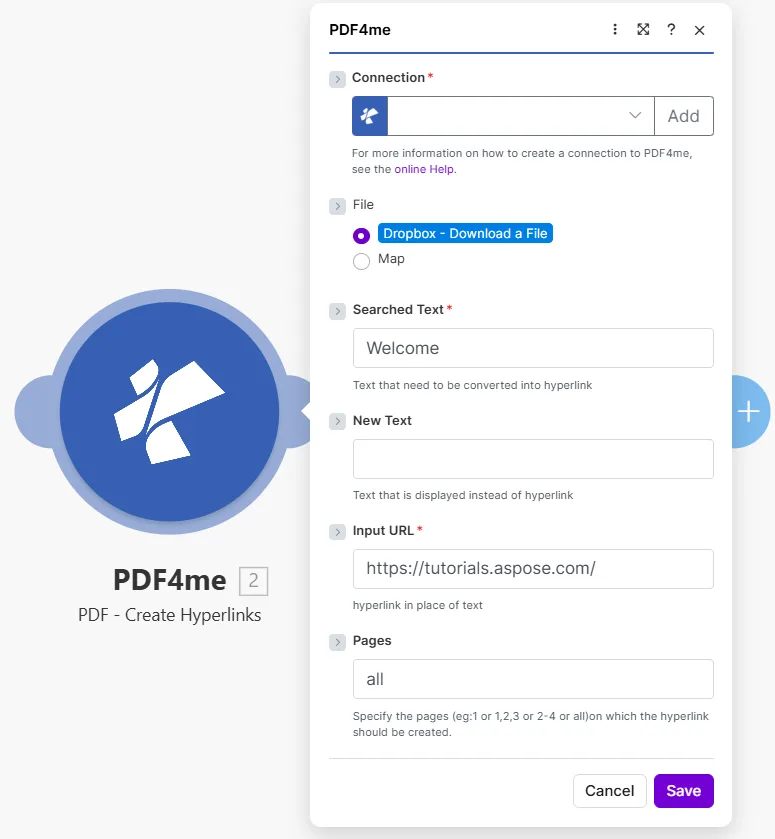
Aramak istediğiniz metni tam olarak girin. Searched Textvarış noktası Input URLve hangi sayfalarda arama yapılacağı Pages.
Parametreler
Gerekli: Connection, Searched Text, Ve Input URL. New Text Ve Pages isteğe bağlıdır.
| Parametre | Gerekli | Ne işe yarar? | Örnek |
|---|---|---|---|
| Connection | Required | PDF4me API connection used to authenticate hyperlink creation requests. | Your PDF4me connection |
| File | Required | Source PDF. Choose Dropbox - Download a File for a direct Dropbox trigger, or Map to wire filename and binary data from a prior module. | Dropbox - Download a File |
| Searched Text | Required | The exact text string in the PDF that will become a clickable hyperlink. The module searches the specified pages for this text and wraps every occurrence in a link annotation. | Welcome |
| New Text | Optional | Optional label that replaces what the reader sees over the link. Leave empty to keep the original searched text as the visible link label. | Visit our site |
| Input URL | Required | The destination URL the hyperlink points to. Readers are taken to this address when they click the linked text. | https://tutorials.aspose.com/ |
| Pages | Optional | Pages to search for the text. Accepts a single number, a comma-separated list (1,3,5), a range (2-4), or the word all. Defaults to all if left empty. | all |
Bir metne nasıl köprü eklerim? PDF içinde Make?
- Eklemek PDF4me → PDF - Köprü bağlantıları oluşturun Senaryonuza göre.
- Seçme Connection (veya tıklayın) Eklemek sizinle bir tane oluşturmak için API anahtar).
- Ayarlamak File ile Dropbox - Dosya İndir veya Harita Önceki bir modülden.
- İçinde Searched TextTıklanabilir hale getirmek istediğiniz metni tam olarak yazın (örneğin:
Welcomeveya bir ürün adı). - İsteğe bağlı olarak girin New Text Görünür etiketin, aranan metinden farklı görünmesini istiyorsanız.
- Hedef adresini yapıştırın. Input URL.
- Ayarlamak Pages: tip
allher sayfa için veya belirli sayfaları hedeflemek gibi1,3veya2-4. - Kaydetmek ve tıklayın Bir kez çalıştırÇıktı şunları içerir: Document Name Ve Document Data: PDF Köprü bağlantıları eklenmiştir.
Çıktı
| Alan | Tip | İçeriğinde neler var? |
|---|---|---|
Document Name | String | Filename of the output PDF with hyperlinks applied. |
Document Data | Buffer | Binary content of the PDF with link annotations added. Map this into an upload, email, or further processing module. |
Ne zaman köprü oluşturmalıyım?
Tipik KurulumlarCommon Make scenario patterns that use PDF - Create Hyperlinks to enrich documents automatically.
- Planlanmış bir senaryo, veritabanınızdan en son ürün listesini alır ve bir katalog oluşturur. PDF.
- Yineleyici, listedeki her ürün adını tek tek döngüye alır.
- Köprü bağlantıları oluşturun Ürün başına bir kez çalıştırılır, Searched Text = ürün adı, Input URL = ürün sayfası URL.
- Döngü tamamlandıktan sonra, katalogdaki her ürün adı, ilgili mağaza sayfasına yönlendiren canlı bir bağlantı haline gelir.
- Tamamlanan etkileşimli katalog Google Drive'a yüklenir ve satış ekibine e-posta ile gönderilir.
- Aylık rapor PDF Google Docs şablonundan oluşturulmuştur.
- Bir veri deposu, alıntı etiketlerinin ve bunlara karşılık gelen etiketlerin bir listesini içerir. URLs.
- Köprü bağlantıları oluşturun Her alıntı için bir kez çalışır ve her etiketi tıklanabilir bir kaynak bağlantısına dönüştürür.
- Okuyucular, metindeki herhangi bir alıntıya tıklayabilirler. PDF Orijinal kaynağı tarayıcılarında açmak için.
- Zenginleştirilmiş rapor şu konumda saklanır: SharePoint ve paydaşlara dağıtıldı.
- İK departmanı yeni bir politika yükledi. PDF İzlenen bir Dropbox klasörüne.
- Köprü bağlantıları oluşturun Tüm sayfalarda "Daha fazla bilgi" ifadesini arar.
- Her olay, İK ile bir bağlantı haline gelir. FAQ Şirket içi intranet sayfasında.
- İkinci bir zincirleme modül, "Talep gönder" ifadesini biletleme sistemine giden bir bağlantıya dönüştürür.
- Tamamlandı PDF İnsan Kaynakları doküman kütüphanesine kaydedilir ve tüm personele e-posta ile gönderilir.
Sıkça Sorulan Sorular
Pratik İpuçları
Kopya Kağıdı
| Alan | Değer |
|---|---|
| Searched Text | Exact text to make clickable |
| New Text | Optional replacement label |
| Input URL | Destination address |
| Pages | all, a number, 1,3, or 2-4 |
| Output | Document Name + Document Data |