5, 50 veya 500 sayfalık bir çalışma kitabı ayrı ayrı parçalara bölünebilir. .xlsx Tek bir Power Automate akışında dosyalar. PDF4me Excel - Ayrı Çalışma Sayfaları Sayfa başına bir dosya içeren bir dizi döndürür; Her birine uygulayın Bu döngü, Dropbox, SharePoint, OneDrive veya Dataverse'e yazma işlemlerini gerçekleştirir. Bu kılavuz, ekran görüntülerinde gösterilen tam çalıştırma işlemini adım adım açıklamaktadır: 5 sekmeli bir işlem. Separate.xlsx Dropbox'ta şu hale gelir: Sheet1.xlsx başından sonuna kadar Sheet5.xlsx Çıktı klasöründe. Toplam akış: 4 işlem, sıfır kod, uçtan uca yaklaşık 9 saniyede çalışır..
Akışa genel bakış
1. Manual trigger
Manually trigger a flow. Swap for any trigger that produces a workbook.
PDF4me action. Splits the 5-sheet workbook into 5 single-sheet XLSXes.
4. Apply to each → Create file
Loop outputDocuments. Each iteration writes one sheet as its own .xlsx to Dropbox.
kısa versiyon
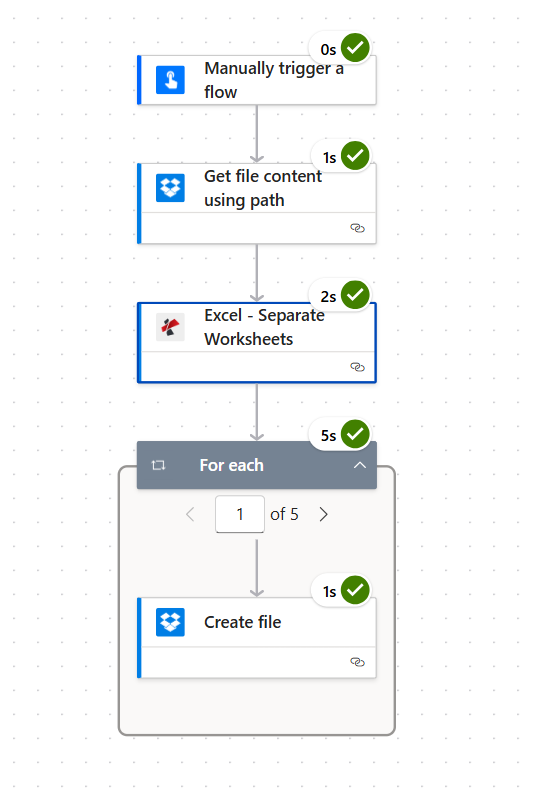
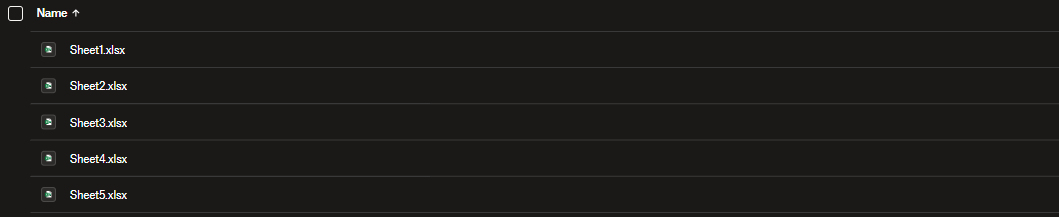
Akış, manuel bir tetikleyici ile başlatılır. Dropbox Yol kullanarak dosya içeriğini al okur Separate.xlsx (Her birinde farklı kişi kayıtları bulunan 5 sayfa). Excel - Ayrı Çalışma Sayfaları bir döndürür çıktıBelgeleri 5 elemanlı dizi: {fileName: "Sheet1.xlsx", streamFile: "<base64>"} Sheet5.xlsx üzerinden. Bir Her birine uygulayın `outputDocuments` komutu her sayfa için bir kez çalışır (ekran görüntüsü bunu göstermektedir). 1/5 (tekrar sayacı) ve kullanır Dosya oluştur her XLSX dosyasını içine bırakmak için /pdf4metest/excel/ayrı çalışma sayfaları/çıktıÇıktı klasörüne göz atın; alfabetik olarak sıralanmış 5 adet bölünmüş dosya orada yer almaktadır.
İnsanların gözden kaçırdığı tek şey: Her birine uygulayın isteğe bağlı değil
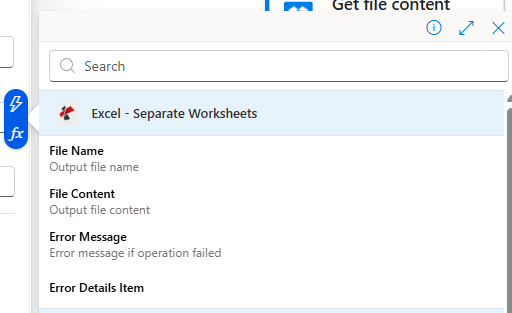
Excel - Ayrı Çalışma Sayfaları şu sonucu döndürür: sıralamakTek bir dosya değil, tüm sayfalar için geçerlidir. Giriş sayısı kaynak çalışma kitabına bağlıdır (2 sayfa varsa → 2 giriş; 50 sayfa varsa → 50 giriş). Bir sonraki adımı her zaman "Her birine uygula" seçeneğiyle sarmalayın. çıktıBelgeleriSeçmek Dosya İçeriği Döngünün dışından gelen veri hiçbir işe yarar sonuç vermez. Döngünün içinde ise dinamik içerik seçici şunları sunar: Dosya adı Ve Dosya İçeriği Mevcut öğe hakkında.
Bu, gerçek dünyada sıkça karşılaşılan soruları çözüyor.
İnsanlar bu sorunu şaşırtıcı derecede spesifik ifadelerle arıyorlar. İşte bu akışın yanıtladığı gerçek sorgular:
"Birden fazla sayfadan oluşan bir Excel dosyasını otomatik olarak ayrı dosyalara nasıl bölebilirim?" Evet. Bu akış tam olarak bunu yapıyor. Kaynak çalışma kitabını Dropbox'a bırakın, bölme ve yükleme işlemi otomatik olarak gerçekleşir.
"Power Automate her sayfayı ayrı bir Excel dosyası olarak kaydedebilir mi?" Evet, PDF4me Connect eylemi ve "Her birine uygula" döngüsü aracılığıyla. VBA veya Office komut dosyalarına gerek yok.
"Her sayfaya bir işlem yazmam gerekiyor mu?" Hayır. "Her birine uygula" seçeneği, sayfa sayısından bağımsız olarak çalışır. Akış gövdesi asla değişmez.
"Peki ya çalışma kitabında 100 sayfa varsa?" Aynı akış. Döngü 100 kez tekrarlanıyor. Her tekrar yaklaşık 1 saniye sürüyor.
"Çıktı dosyalarının adını değiştirebilir miyim?" Evet, yeni adı, Dosya Oluşturma işleminden önce döngü içinde bir Oluşturma adımı veya ifadesi kullanarak oluşturun. Sorun giderme bölümüne bakın.
Çok sayfalı herhangi bir belgeyi işleyebilen dört aşamalı bir Power Automate akışı. .xlsx ve her çalışma sayfası için bir dosyayı hedef klasöre yazar. İK listeleri, bölgeye göre ayrılmış satış süreçleri, aya göre ayrılmış aylık raporlar ve tek bir çalışma kitabında birden fazla sekme olarak yer alan her şeyde yeniden kullanılabilir.
Tüm akış. Her biri için döngü 5 kez çalışır (her çıktı sayfası için bir kez); her yineleme yaklaşık 1 saniye sürer.
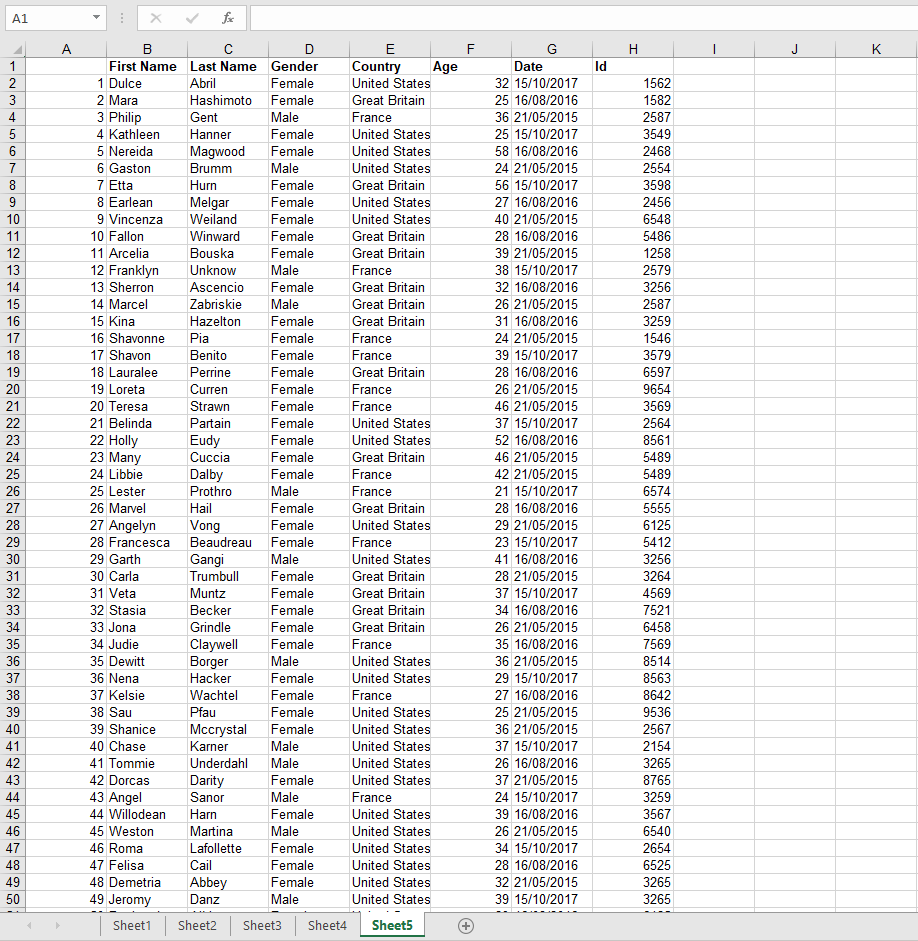
Açık Separate.xlsx Excel'de hazırlanmıştır. Her biri Kişi kayıtlarından oluşan satırlarla doldurulmuş 5 sayfa sekmesi (Sayfa1'den Sayfa5'e kadar) bulunmaktadır: Ad, Soyad, Cinsiyet, Ülke, Yaş, Tarih, Kimlik.
Kaynak çalışma kitabı. Altta beş sayfa sekmesi, her birinde yaklaşık 50 satır Kişi kaydı bulunmaktadır.Akış çalıştırılmadan önceki kaynak klasör. Sadece tek bir çalışma kitabı.
Test aşamasında manuel tetikleyici en hızlı yöntemdir. Üretimde ise bunun yerine şunu kullanın: Bir dosya oluşturulduğunda (Dropbox), Bir öğe oluşturulduğunda (SharePoint), Yeni bir e-posta geldiğinde (Outlook), Tekrarlamaveya başka herhangi bir tetikleyici.
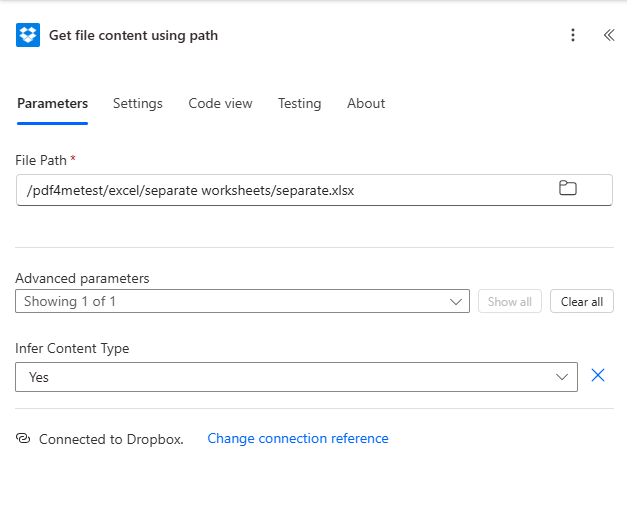
2. Adım: Dropbox - Yol kullanarak dosya içeriğini al
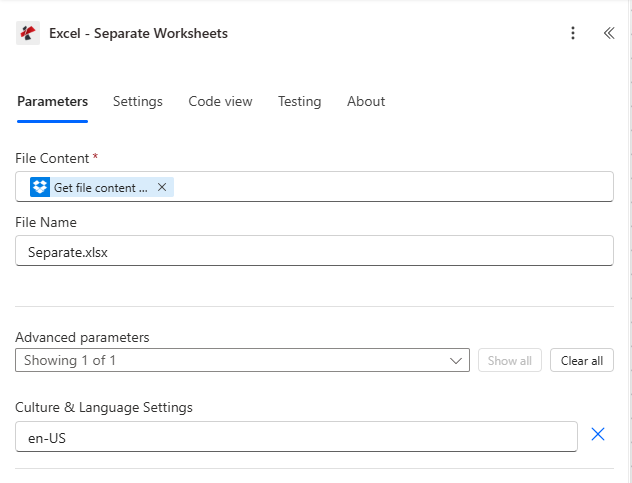
Arama PDF4me Eylem seçici ve seçim ekranında Excel - Ayrı Çalışma Sayfaları. Yapılandır:
Alan
Bu çalıştırmada kullanılan değer
File Content
File Content from the previous Dropbox step (dynamic content)
File Name
Separate.xlsx
Culture & Language Settings (Advanced)
en-US (default. change only for non-US locales)
Eylem yapılandırması. Kültür varsayılan olarak en-US'tur. 'a geçin. fr-FR, Bu,, I-JP vb. yalnızca sayfa içeriğinde ABD dışı sayı/tarih biçimleri kullanılıyorsa geçerlidir.
4. Adım: Her birine uygula → Dropbox - Dosya oluştur
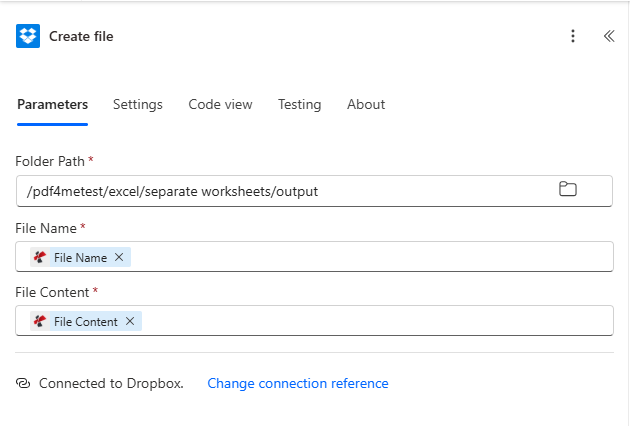
Ayrı Çalışma Sayfaları işleminden sonra ekleyin. Her birine uygulayın ve seçin çıktıBelgeleri Dinamik içerik seçiciden. Döngünün içinde bir Dropbox dosyası sürükleyip bırakın. Dosya oluştur İşlemi şu şekilde gerçekleştirin ve yapılandırın:
Alan
Bu çalıştırmada kullanılan değer
Folder Path
/pdf4metest/excel/separate worksheets/output
File Name
File Name (dynamic content from the current item)
File Content
File Content (dynamic content from the current item)
"Her birine uygula" seçeneği, outputDocuments üzerinde döngü oluşturur. Geçerli öğenin Dosya Adı ve Dosya İçeriği, döngü içindeki dinamik içerik seçicide görünür.Döngünün içinde. Dosya adı ve dosya içeriği mevcut öğeden alınır.
Apply to each does not show File Name / File Content
Make sure the loop is iterating outputDocuments, not the action itself. Click the Apply to each dropdown, search "outputDocuments", and pick it.
Only one file appears in the output folder
Create file is OUTSIDE the loop. Drag it inside the Apply to each container so it runs once per item.
Output files all overwrite each other
Two causes: (a) File Name is hardcoded instead of mapped to dynamic content. delete and re-pick File Name from the inner item; (b) two sheets in the source share the same name. rename them in Excel or build a unique name in a Compose step.
Decimals read as text or dates
A sheet using 1.234,56 (comma decimal) gets misinterpreted because Culture & Language Settings is en-US. Switch to your locale (fr-FR, de-DE, pt-BR, etc).
Cross-sheet formula came out as #REF!
Expected. After splitting, =Sheet2!A1 from a Sheet1 output cannot resolve because Sheet2 is now in a different file. Plan each sheet to be self-contained, or pre-compute the values upstream.
Need a date prefix on each output file name
Inside the Apply to each, add a Compose before Create file with: concat(formatDateTime(utcNow(),'yyyy-MM-dd'),'_',items('Apply_to_each')?['fileName']). Point File Name at the Compose output. Result: 2026-06-02_Sheet1.xlsx.
How do I split an Excel file with multiple sheets into separate files automatically in Power Automate?+
Use the PDF4me Excel - Separate Worksheets action. It takes a single multi-sheet .xlsx as input and returns an outputDocuments array with one file per sheet. Wrap the result in an Apply to each loop and write each item with Create file. Four actions total: trigger, Get file content, Separate Worksheets, Apply to each → Create file.
Can Power Automate save each sheet as a separate Excel file without code?+
Yes. The PDF4me Excel - Separate Worksheets action is a no-code cloud connector. There is no VBA, no Office Script, no Power Automate Desktop required. it runs entirely in the Power Automate cloud designer and outputs ready-to-save .xlsx files.
What happens if the source workbook has a different sheet count next run?+
Nothing breaks. The action dynamically returns one outputDocuments entry per sheet present, and the Apply to each iterates whatever the array length is. Build the flow once with a 5-sheet sample and it will handle 2-sheet or 200-sheet workbooks identically.
Do the output files keep their sheet names?+
Yes. Each output file is named after its source sheet name plus the .xlsx extension. Sheet5 → Sheet5.xlsx. If you have custom sheet names (e.g. "Q1 2025"), the output file is "Q1 2025.xlsx" accordingly.
Will my formulas still work after the split?+
Intra-sheet formulas (everything that references cells on the same sheet) work as expected. the engine preserves cell values, number formats, and styles. Cross-sheet references like =Sheet2!A1 cannot survive because Sheet2 is no longer in the same file; expect those to become #REF!. Plan the workbook so each sheet is self-contained, or pre-compute the values upstream.
Can I use SharePoint, OneDrive, or Dataverse instead of Dropbox?+
Yes. Swap the Dropbox actions for SharePoint Get file content / Create file, OneDrive Get file content / Create file, or Dataverse Download file / Add file. The PDF4me action and its parameters are identical regardless of source.
How do I rename the output files (add a date prefix, replace spaces, etc.)?+
Inside the Apply to each loop, add a Compose step before Create file. Build the new name with concat() and formatDateTime() expressions, then bind Create file → File Name to the Compose output. Example: concat(formatDateTime(utcNow(),'yyyy-MM-dd'),'_',items('Apply_to_each')?['fileName']) produces 2026-06-02_Sheet1.xlsx.
Is there a limit on the number of sheets I can split?+
Practical limits are bounded by Power Automate run-time and action body size. A single workbook with hundreds of sheets is fine; the loop just iterates more times. For thousands of sheets, consider Power Automate concurrency settings or batching the work across multiple runs.
Does this work in Power Automate Desktop?+
PDF4me Connect is a cloud connector available in Power Automate (the web flow designer). For Power Automate Desktop, call the same Separate Worksheets REST endpoint with the HTTP action.