AI-анализатор чеков в Power Automate
AI-анализатор чеков является Power Automate действие посредством PDF4me который считывает чек PDF или изображение, и возвращает данные о продавце, позиции заказа, финансовые итоги и способ оплаты в виде структурированных данных. Используйте его для автоматизации учета расходов, передачи данных. Excel или отслеживание расходов в Power BI, или прямое внесение транзакций в систему. Dynamics 365 без ручного ввода.
Что делает это действие
PDF4me AI-Receipt Parser читает чек (PDF, PNG, JPG, или JPEG) и возвращается информация о продавце, позиции, финансовые итоги, и способ оплаты как структурированный JSONОно также признает специализированные области для отель, топливо и энергия, здравоохранение, и обучение квитанции и могут извлечь дополнительные пользовательские поля за пределами стандартной схемы.
Как мне пройти аутентификацию? Power Automate Поток?
Позвонить PDF4me через Power AutomateДля этого потоку требуется действительный PDF4me API ключ на PDF4me Соединять Коннектор. Аутентификация обеспечивает безопасную связь и подтверждает вашу личность как авторизованного пользователя.
Важные факты, которые нельзя пропустить
Содержимое файла и Текст/Документ/Имяне "Содержимое файла квитанции" или "Имя квитанции". Сопоставьте байты квитанции с... Содержимое файла.Тип тела/чека, Body/analyzeItems, Body/extractMerchantInfo, Body/calculateTotals, и Body/customFieldKeys Все они находятся в разделе «Расширенные параметры», что подтверждается на скриншоте сообщением «Показано 5 из 5».успех: истинный с населенным предупреждения массив или fallbackUsed: trueВместо автоматического подсчета итоговых сумм, перенаправьте эти данные на ручную проверку.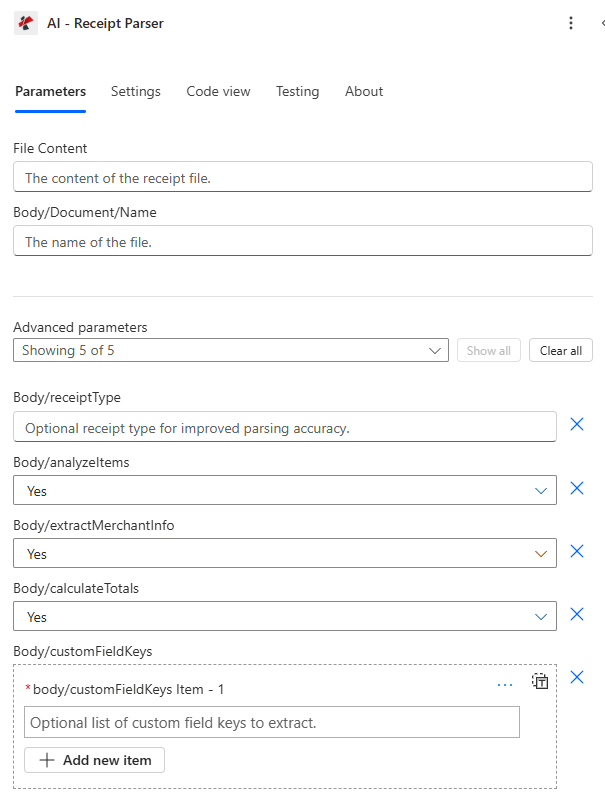
На главной панели отображается только Содержимое файла и Текст/Документ/ИмяКаждый переключатель извлечения является расширенным параметром.
Параметры
Для выполнения действия требуется: Содержимое файла и Текст/Документ/ИмяВсе остальные поля являются необязательными расширенными параметрами с рабочими значениями по умолчанию.
| Параметр | Необходимый | Что это делает | Пример |
|---|---|---|---|
| File Content | Optional | Content of the receipt file to process. Map it from the file content returned by a previous action, such as SharePoint or OneDrive Get file content. | @{body('Get_file_content')?['$content']} |
| File Name | Optional | Name of the receipt file, including its extension (for example `receipt.jpg`). Map it from the file name returned by a previous action. | receipt.jpg |
| ReceiptType | Optional | Optional receipt type for improved parsing accuracy. Supported values: meal, supplies, hotel, fuel and energy, transportation, communication, subscriptions, entertainment, training, healthcare, generic. | your value |
| analyzeItems | Optional | Whether to analyze individual items on the receipt. Defaults to `Yes`. | Yes |
| extractMerchantInfo | Optional | Whether to extract merchant information. Defaults to `Yes`. | Yes |
| calculateTotals | Optional | Whether to calculate totals and subtotals. Defaults to `Yes`. | Yes |
| customFieldKeys | Optional | Optional list of custom field keys to extract. | your value |
| Customisation Note | Optional | Optional customisation note for the extraction. | your value |
Как настроить AI-Receipt Parser в Power Automate?
- Добавлять AI-анализатор чеков Это новый шаг к вашему потоку.
- Войдите в систему PDF4me Соединять с вашим API ключ.
- Карта Содержимое файла из предыдущего действия (Получить содержимое файла из SharePoint, OneDrive(через Dropbox или вложение в электронное письмо).
- Набор Текст/Документ/Имя с соответствующим расширением (
.pdf,.png,.jpg, или.jpeg). - Под Расширенные параметры, набор Тип тела/чека если вы знаете категорию и переключатель Body/analyzeItems, Body/extractMerchantInfo, Body/calculateTotals по мере необходимости.
- Запустите процесс. Проверьте. успех перед использованием извлеченных полей в дальнейшем.
- Маршрут merchantName, analyzeItems, Общая суммаи смежные области Excel, SharePoint, Dynamics 365 или Power BI.
Выход
Ответ включает основные поля транзакции, вложенные массивы для товаров/продавцов/финансовых данных, специализированные поля для каждого типа чека и метаданные обработки.
| Поле | Тип | Описание |
|---|---|---|
| Receipt Type | Text | Receipt Type as read from the receipt. |
| Transaction Date | Text | Transaction date as string |
| Transaction Time | Text | Transaction Time as read from the receipt. |
| Receipt Number | Text | Receipt Number as read from the receipt. |
| Analyze Items | Array | Analyze Items found in the receipt, one item per entry. Use Apply to each to go through the items. |
| Analyze Items[].Name | Text | Name as read from the receipt. |
| Analyze Items[].Quantity | Number | Quantity as read from the receipt. |
| Analyze Items[].Unit Price | Number | Unit Price as read from the receipt. |
| Analyze Items[].Total Price | Number | Total Price as read from the receipt. |
| Analyze Items[].Category | Text | Category as read from the receipt. |
| Analyze Items[].Description | Text | Description as read from the receipt. |
| Analyze Items[].Item Code | Text | Item Code as read from the receipt. |
| Analyze Items[].Brand | Text | Brand as read from the receipt. |
| Analyze Items[].Size | Text | Size as read from the receipt. |
| Analyze Items[].Color | Text | Color as read from the receipt. |
| Analyze Items[].SKU | Text | SKU as read from the receipt. |
| Merchant Info List | Array | Merchant Info List found in the receipt, one item per entry. Use Apply to each to go through the items. |
| Merchant Info List[].Merchant Name | Text | Merchant Name as read from the receipt. |
| Merchant Info List[].Merchant Address | Text | Merchant Address as read from the receipt. |
| Merchant Info List[].Merchant Phone | Text | Merchant Phone as read from the receipt. |
| Merchant Info List[].Merchant Website | Text | Merchant Website as read from the receipt. |
| Merchant Info List[].Cashier Name | Text | Cashier Name as read from the receipt. |
| Merchant Info List[].Store Number | Text | Store Number as read from the receipt. |
| Financial Info List | Array | Financial Info List found in the receipt, one item per entry. Use Apply to each to go through the items. |
| Financial Info List[].Subtotal | Number | Subtotal as read from the receipt. |
| Financial Info List[].Tax Amount | Number | Tax Amount as read from the receipt. |
| Financial Info List[].Total Amount | Number | Total Amount as read from the receipt. |
| Financial Info List[].Payment Method | Text | Payment Method as read from the receipt. |
| Financial Info List[].Card Last Four | Text | Card Last Four as read from the receipt. |
| Merchant Name | Text | Merchant Name as read from the receipt. |
| Merchant Address | Text | Merchant Address as read from the receipt. |
| Merchant Phone | Text | Merchant Phone as read from the receipt. |
| Merchant Website | Text | Merchant Website as read from the receipt. |
| Store Number | Text | Store Number as read from the receipt. |
| Cashier Name | Text | Cashier Name as read from the receipt. |
| Subtotal | Number | Subtotal as read from the receipt. |
| Tax Amount | Number | Tax Amount as read from the receipt. |
| Total Amount | Number | Total Amount as read from the receipt. |
| Payment Method | Text | Payment Method as read from the receipt. |
| Card Last Four | Text | Card Last Four as read from the receipt. |
| Room Number | Text | Room Number as read from the receipt. |
| Check In Date | Text | Check In Date as read from the receipt. |
| Check Out Date | Text | Check Out Date as read from the receipt. |
| Fuel Type | Text | Fuel Type as read from the receipt. |
| Fuel Quantity | Number | Fuel Quantity as read from the receipt. |
| Fuel Unit | Text | Fuel Unit as read from the receipt. |
| Vehicle Number | Text | Vehicle Number as read from the receipt. |
| Service Type | Text | Service Type as read from the receipt. |
| Subscription Period | Text | Subscription Period as read from the receipt. |
| Training Provider | Text | Training Provider as read from the receipt. |
| Course Name | Text | Course Name as read from the receipt. |
| Healthcare Provider | Text | Healthcare Provider as read from the receipt. |
| Patient Name | Text | Patient Name as read from the receipt. |
| Insurance Info | Text | Insurance Info as read from the receipt. |
| Additional Info | Object | Additional information from the receipt, as an object. The connector defines no fields for it; use expressions to read its values. |
| Raw OCR Text | Text | Raw OCR text extracted from document |
| CustomFieldsData | Array | Custom fields returned for the receipt, as key and value pairs. |
| CustomFieldsData[].key | Text | Key of the custom field. |
| CustomFieldsData[].value | Text | Value of the custom field. |
Типичные конфигурации
- Запуск происходит при отправке квитанции по электронной почте или ее загрузке. SharePoint.
- Запустите AI-Receipt Parser с включенными параметрами extractMerchantInfo и calculateTotals.
- Добавьте merchantName, totalAmount и transactionDateStr в качестве нового элемента. Excel ряд.
- Сохраните в архиве оригинальный чек со ссылками на извлеченные данные.
- Запуск происходит при загрузке чека с включенной функцией analyzeItems.
- Примените к каждому элементу в analyzeItems и классифицируйте по возвращенному полю категории.
- Отправляйте запросы, превышающие установленный законом порог, на утверждение менеджеру.
- Размещайте утвержденные элементы в Dynamics 365 Финансы.
- Запуск происходит при загрузке чека; установите параметры Body/receiptType, если категория известна.
- Проверьте возвращенный чек. Укажите тип и отделение: гостиницы, топливо и энергетика или здравоохранение.
- Отправьте в систему сопоставления данные roomNumber/checkInDate, fuelType/vehicleNumber или patientName.
- Все предупреждения следует записывать для ручной проверки.
Практические советы
Наличие массива предупреждений или параметра fallbackUsed: true означает, что достоверность извлечения данных была ниже. Направляйте эти данные на ручную проверку вместо автоматического внесения в систему учета расходов или бухгалтерского учета.
Если оставить этот параметр незаданным, он по-прежнему будет работать с помощью общего извлечения данных, но соответствующий receiptType повысит точность для полей, специфичных для категории, таких как roomNumber или fuelType.
Если вам нужна только общая сумма, установите для параметров analyzeItems и extractMerchantInfo значение No, чтобы уменьшить размер ответа и сосредоточить внимание на обработке данных.
Несоответствие расширения (например, в названии) JPG Файл receipt.pdf может повлиять на точность определения формата и извлечения данных.
Номер участника программы лояльности, промокод или внутренний идентификатор, напечатанный на чеке, можно получить через Body/customFieldKeys без ожидания обновления схемы.
Шпаргалка
| Цель | receiptType | Ключевые выходные поля |
|---|---|---|
| General expense capture | generic | merchantName, totalAmount, transactionDateStr |
| Line-item expense report | supplies or retail | analyzeItems (name, category, price) |
| Travel expense reconciliation | hotel | roomNumber, checkInDate, checkOutDate, totalAmount |
| Fleet fuel tracking | fuel and energy | fuelType, fuelQuantity, vehicleNumber |
| Healthcare expense/insurance | healthcare | healthcareProvider, patientName, insuranceInfo |