Преобразовать Visio в Power Automate
PDF4me Преобразовать Visio Действие обеспечивает профессиональное преобразование диаграмм в Power Automate с автоматизированной трансформацией Microsoft Visio файлы в PDF, PNG, SVGи другие универсальные форматы. Этот комплексный сервис преобразования обеспечивает беспрепятственный обмен диаграммами, публикацию в интернете и кроссплатформенную совместимость, преобразуя Visio—зависимые рабочие процессы в доступную автоматизацию документов по всему миру Microsoft 365 экосистема.
Аутентификация вашего API Запрос
Для доступа к PDF4me Веб API через Power AutomateКаждый запрос должен включать надлежащие учетные данные для аутентификации. Аутентификация обеспечивает безопасную связь и подтверждает вашу личность как авторизованного пользователя, что позволяет беспрепятственно интегрировать ваши системы. Power Automate потоки и PDF4meМощные сервисы обработки документов от компании.
Основные характеристики
- Несколько форматов вывода: Преобразовать Visio к PDF, PNG, SVG, JPGи другие форматы
- Visio СовместимостьПоддержка файлов .vsd, .vsdx, .vsdm Visio форматы файлов
- Сохранение качества: Сохраняйте качество и структуру диаграммы во время преобразования.
- Автоматизированная обработка: Преобразовать Visio диаграммы автоматически в рабочих процессах
- Интеграция потоковИспользуйте преобразованные файлы в последующих действиях. Power Automate действия
Параметры
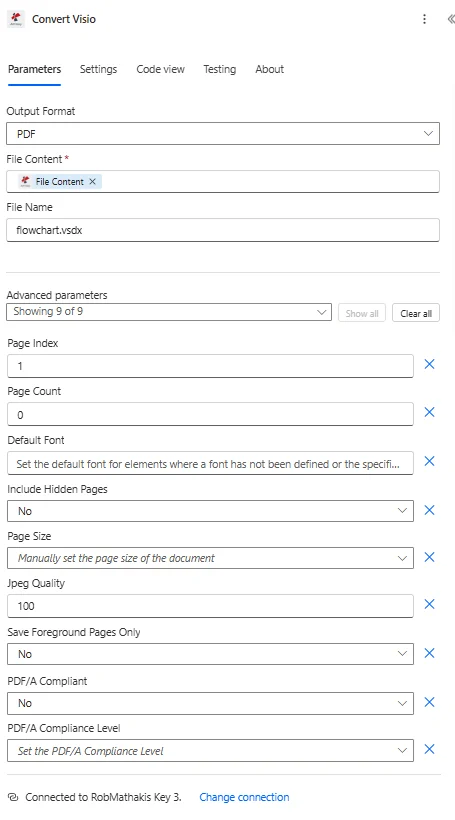
Полный список параметров для конвертации Visio Действие. Настройте эти параметры для управления преобразованием диаграммы.
| Параметр | Необходимый | Что это делает | Пример |
|---|---|---|---|
| Output Format | Optional | Format to convert the Visio file to. After you choose it, the fields for that format are loaded into the action card. Options: PDF, BMP, GIF, PNG, JPG, SVG, TIFF, HTML, VSDX. Defaults to `PDF`. | PDF |
| Page Index | Conditional | Page of the drawing to start converting from. Defaults to `1`. Shown when Output Format is BMP or Output Format is GIF or Output Format is HTML or Output Format is JPG or Output Format is PDF or Output Format is PNG or Output Format is SVG or Output Format is TIFF. | 1 |
| Page Count | Conditional | Set the number of pages to convert. Defaults to `0`. Shown when Output Format is HTML or Output Format is PDF or Output Format is TIFF. | 0 |
| Default Font | Optional | Set the default font for elements where a font has not been defined or the specified font is unavailable. | your value |
| Include Hidden Pages | Conditional | Set whether hidden pages should be converted, false by default. Defaults to `No`. Shown when Output Format is HTML or Output Format is PDF or Output Format is TIFF. | No |
| Page Size | Conditional | Manually set the page size of the document. Options: Inherit, A1, A2, A3, A4, A5, B4, B5, Envelope, Executive, Legal, Letter, Tabloid. Shown when Output Format is BMP or Output Format is GIF or Output Format is HTML or Output Format is JPG or Output Format is PDF or Output Format is PNG or Output Format is SVG or Output Format is TIFF. | Inherit |
| Jpeg Quality | Conditional | Quality of JPEG images in the result, from 0 (lowest) to 100 (highest). Defaults to `100`. Shown when Output Format is JPG or Output Format is PDF. | 100 |
| Save Foreground Pages Only | Conditional | If Yes, only the foreground pages are converted; background pages are left out. Defaults to `No`. Shown when Output Format is HTML or Output Format is PDF or Output Format is TIFF. | No |
| PDF/A Compliant | Conditional | Set whether the PDF document should be PDF/A compliant. Defaults to `No`. Shown when Output Format is PDF. | No |
| PDF/A Compliance Level | Conditional | PDF/A conformance level to use when PDF/A Compliant is Yes. Options: Pdf15, PdfA1a, PdfA1b. Shown when Output Format is PDF. | Pdf15 |
| File Content | Required | Content of the Visio file to convert. Map it from the file content returned by a previous action, such as SharePoint or OneDrive Get file content. | @{body('Get_file_content')?['$content']} |
| File Name | Optional | Name of the Visio file to convert, including its extension (for example `diagram.vsdx`). Map it from the file name returned by a previous action. | diagram.vsdx |
| Brightness | Conditional | Set image brightness. Shown when Output Format is BMP or Output Format is GIF or Output Format is JPG or Output Format is PNG or Output Format is TIFF. | 0 |
| Contrast | Conditional | Set image contrast. Shown when Output Format is BMP or Output Format is GIF or Output Format is JPG or Output Format is PNG or Output Format is TIFF. | 0 |
| Color Mode | Conditional | Set image colour mode. Options: None, Grayscale, BlackAndWhite. Defaults to `None`. Shown when Output Format is BMP or Output Format is GIF or Output Format is JPG or Output Format is PNG or Output Format is TIFF. | None |
| Compositing Quality | Conditional | Specify the quality level to use during compositing. Options: Invalid, Default, HighSpeed, HighQuality, GammaCorrected, AssumeLinear. Defaults to `Default`. Shown when Output Format is BMP or Output Format is GIF or Output Format is JPG or Output Format is PNG or Output Format is TIFF. | Default |
| Interpolation Mode | Conditional | Specify the algorithm that is used when images are scaled or rotated. Options: Invalid, Default, Low, High, Bilinear, Bicubic, NearestNeighbor, HighQualityBilinear, HighQualityBicubic. Defaults to `Default`. Shown when Output Format is BMP or Output Format is GIF or Output Format is JPG or Output Format is PNG or Output Format is TIFF. | Default |
| Pixel Offset Mode | Conditional | Set a value specifying how pixels are offset during conversion. Options: Invalid, Default, HighSpeed, HighQuality, None, Half. Defaults to `Default`. Shown when Output Format is BMP or Output Format is GIF or Output Format is JPG or Output Format is PNG or Output Format is TIFF. | Default |
| Resolution | Conditional | Set image resolution in dots per inch. The default value is 96. Defaults to `96`. Shown when Output Format is BMP or Output Format is GIF or Output Format is JPG or Output Format is PNG or Output Format is TIFF. | 96 |
| Scale | Conditional | Set image zoom factor. Defaults to `1.0`. Shown when Output Format is BMP or Output Format is GIF or Output Format is JPG or Output Format is PNG or Output Format is TIFF. | 1.0 |
| Smoothing Mode | Conditional | Specify whether smoothing (antialiasing) is applied to lines, curves and the edges of filled areas. Options: Invalid, Default, HighSpeed, HighQuality, None, AntiAlias. Defaults to `Default`. Shown when Output Format is BMP or Output Format is GIF or Output Format is JPG or Output Format is PNG or Output Format is TIFF. | Default |
| Compression | Conditional | Set the compression type. Options: None, Rle, Ccitt3, Ccitt4, Lzw. Defaults to `None`. Shown when Output Format is TIFF. | None |
| Save Toolbar | Conditional | Set whether to include the toolbar, default value is false. Defaults to `No`. Shown when Output Format is HTML. | No |
| Auto Fit | Conditional | If Yes, the diagram is fitted to the width of the page. Defaults to `No`. Shown when Output Format is VSDX. | No |
Выход
Он PDF4me Преобразовать Visio Действие возвращает исчерпывающие выходные данные для бесперебойной работы. Power Automate Интеграция потоков:
- Table
- JSON
- Flow Integration
Табличный вид
Данные ответов представлены в структурированном табличном формате:
| Поле | Тип | Что в нём содержится |
|---|---|---|
| File Content | File content | Content of the converted file, in the chosen output format. Map it into the next action, for example the File Content field of SharePoint or OneDrive Create file. |
| File Name | Text | File name of the converted file, as returned by PDF4me. Use it as the file name when saving the file. |
| Page Count | Text | Page count reported by PDF4me for the processed document. Returned as text; wrap it in int() to use it as a number. |
Формат ответа JSON
Поля, возвращаемые действием, в том виде, в котором они отображаются в динамическом контенте:
{
"File Content": "[Binary File Data]",
"File Name": "flowchart.pdf"
}
Power Automate Использование потока
Использовать преобразованный Visio файлы в последующих действиях:
- Рассылка электронных писемПрикрепите преобразованные диаграммы к Outlook электронные письма
- SharePoint Издательское дело: Загрузить PDF диаграммы для документирования библиотек
- Командное взаимодействиеДелитесь преобразованными диаграммами в каналах Teams.
- Веб-публикации: Использовать PNG/SVG диаграммы на веб-сайтах или порталах
- Встраивание документаВставка диаграмм в Word/PowerPoint документы
- Архивное хранилищеСохраняйте преобразованные диаграммы в OneDrive или Azure.
Примеры рабочих процессов
Он PDF4me Преобразовать Visio действие в Power Automate Предоставляет комплексные шаблоны рабочих процессов, разработанные для реальных бизнес-сценариев:
- Process Documentation
- Web Publishing
- Client Deliverables
- Compliance Archival
Автоматизированная схема процесса преобразования PDF-файлов
Преобразуйте свою документацию по процессам с помощью автоматизации. Visio к PDF конверсия для распространения среди заинтересованных сторон:
Полные этапы рабочего процесса:
- КурокОбновленная схема процесса сохранена в SharePoint Visio библиотека
- Получать Visio: Получить последние данные Visio Блок-схема из библиотеки документов
- Преобразовать в PDF: Трансформация Visio диаграмма к универсальной PDF формат
- Добавить метаданныеПримените номер версии и статус утверждения к PDF
- Сохранить PDFМагазин переоборудован PDF библиотека документации в процессе
- Команда электронной почты: Отправлять PDF диаграмму для заинтересованных сторон через Outlook
- Обновить реестр: Бревно PDF версия в процессе обработки документации регистр
- Архив: Переместить предыдущий PDF версия в архивную папку
Преимущества для бизнеса:
- Автоматизирует распространение диаграмм для более чем 100 технологических документов ежемесячно.
- Обеспечивает доступ заинтересованных сторон без Visio требования к лицензии
- Автоматическое преобразование сокращает время обмена диаграммами на 90%.
- Обеспечивает контроль версий с помощью автоматизированных средств. PDF архивный
Автоматизированный рабочий процесс веб-публикации диаграмм
Оптимизируйте свою внутреннюю сеть с помощью автоматизации. Visio к SVG конверсия для веб-публикации:
Полные этапы рабочего процесса:
- КурокНовая организационная схема загружена в Visio библиотека
- Получать Visio: Получить организационную схему Visio файл из SharePoint
- Преобразовать в SVGПреобразовать в масштабируемую векторную графику для веб-сайтов.
- Оптимизировать: Сжать SVG для быстрой загрузки веб-страниц
- Загрузить: Опубликовать SVG к внутреннему веб-серверу или Azure Blob
- Обновить страницуОбновите страницу интранета, добавив новую ссылку на диаграмму.
- Уведомить: Уведомить группу по связям с общественностью об обновленной организационной структуре.
- Отслеживать: Журнал активности публикации в системе управления контентом
Преимущества для бизнеса:
- Автоматически публикует более 50 диаграмм ежемесячно во внутреннюю сеть.
- Обеспечивает адаптивный просмотр диаграмм на всех устройствах. SVG
- Автоматизация сокращает трудозатраты на веб-публикацию на 85%.
- Поддерживает актуальность организационных схем без ручного обновления.
Автоматизированный рабочий процесс доставки клиентских диаграмм
Оптимизируйте доставку заказов клиентам с помощью автоматизированных процессов. Visio к PDF Преобразование для профессиональной презентации:
Полные этапы рабочего процесса:
- КурокСхема проекта окончательно утверждена и находится в папке проекта.
- Получать VisioПолучите утвержденную техническую схему из SharePoint
- Преобразовать в PDF: Трансформация Visio для удобства клиента PDF формат
- Добавить брендинг: Применить водяной знак компании и нижний колонтитул к PDF
- Сжать: Оптимизировать PDF размер для отправки по электронной почте
- Почтовый клиент: Отправить профессионального специалиста PDF диаграмму клиенту
- Сохранить копиюДоставка из магазина PDF в папке с результатами работы клиента
- Обновить CRM: Доставка лог-диаграммы в Dynamics Запись о проекте 365
Преимущества для бизнеса:
- Автоматически предоставляет клиентам более 200 технических схем ежемесячно.
- Устраняет Visio Требования к программному обеспечению для просмотра клиентом
- Улучшает профессиональную презентацию благодаря фирменному оформлению. PDF выход
- Обеспечивает полный контроль за ходом доставки. CRM система
Автоматизированный процесс архивирования данных для обеспечения соответствия диаграмм требованиям
Улучшите свои операции по обеспечению соответствия нормативным требованиям с помощью автоматизированных систем. Visio к PDF преобразование для долговременного архивирования:
Полные этапы рабочего процесса:
- Курок: Плановое ежемесячное архивирование схем соответствия требованиям.
- Получать Visio Файлы: Восстановить все данные о соответствии требованиям Visio диаграммы из библиотеки
- Преобразование цикла: Для каждого Visio файл, преобразовать в PDF/Формат
- Добавить метаданные: Примените политику хранения и теги соответствия требованиям.
- Архив: Магазин PDF/Библиотека архива диаграмм соответствия
- Индекс: Создать поисковый индекс архивных диаграмм
- Сгенерировать отчет: Создать отчет о завершении архивирования
- Уведомить: Уведомить группу по соблюдению нормативных требований об успешном архивировании
Преимущества для бизнеса:
- Ежегодно автоматически архивирует более 500 схем соответствия требованиям.
- Обеспечивает долговременное сохранение диаграммы с помощью PDF/Формат
- Соответствует нормативным требованиям благодаря автоматизированному архивированию документов, подтверждающих соответствие требованиям.
- Обеспечивает поиск информации в ходе аудита с помощью индекса диаграмм с возможностью поиска.
Примеры применения и примеры использования в промышленности
- IT & Technology
- Project Management
- Business Process
- Engineering & Design
Примеры использования ИТ и технологий
- Архитектура системыПреобразование IT-диаграмм в PDF для документирования.
- Сетевые диаграммы: Обмен топологией сети в универсальных форматах.
- Технологические схемы: Публиковать схемы рабочих процессов во внутренних сетях
- Технические характеристики: Предоставлять клиентам технические схемы
Примеры использования управления проектами
- Планы проектаПреобразуйте схемы проекта в PDF-файлы, которыми можно делиться.
- Диаграммы ГантаПреобразование временных шкал Visio в универсальные форматы.
- Карты ресурсов: Совместное использование диаграмм распределения ресурсов
- Отслеживание этапов: Опубликовать диаграммы состояния проекта
Варианты использования бизнес-процессов
- Картирование процессовПреобразование BPM-диаграмм для ознакомления заинтересованными сторонами.
- Документация по рабочему процессу: Делитесь схемами бизнес-процессов в формате PDF.
- Схемы соответствияАрхивные схемы нормативных процессов
- Учебные материалы: Создание учебных документов на основе диаграмм
Примеры применения в инженерии и проектировании
- CAD-диаграммыПреобразование технических чертежей в PDF
- Планировки этажей: Обмен архитектурными схемами между всеми пользователями.
- Электрические схемыРаспространять схемы электропроводки в формате PDF.
- Схемы P&IDПреобразование технологических схем для документирования.