Seguro Word Documento em n8n
Seguro Word Document é um PDF4me ação do nó em n8n que tranca um .docx Crie um arquivo com senha, restrição de edição ou ambos. Use-o para proteger relatórios confidenciais antes do envio, impedir alterações em um modelo assinado ou permitir que revisores comentem um contrato sem alterar o texto.
O que este nó faz
PDF4me Word: Seguro Word Document aplica dois tipos independentes de proteção. Segurança ao abrir mais Senha de abertura Decide se o arquivo será aberto ou não. Tipo de proteção mais Senha de proteção Define o que pode ser alterado depois de aberto, desde somente leitura até comentários, campos de formulário ou apenas revisões rastreadas. Use um ou ambos, ou ambos em conjunto.
Autenticando seu API Solicitar
Todo PDF4me nó em n8n requer um válido Credencial para se conectar comCrie ou selecione um que contenha o seu PDF4me API chave para que o fluxo de trabalho possa autenticar solicitações de segurança de documentos.
Fatos importantes que você não deve perder
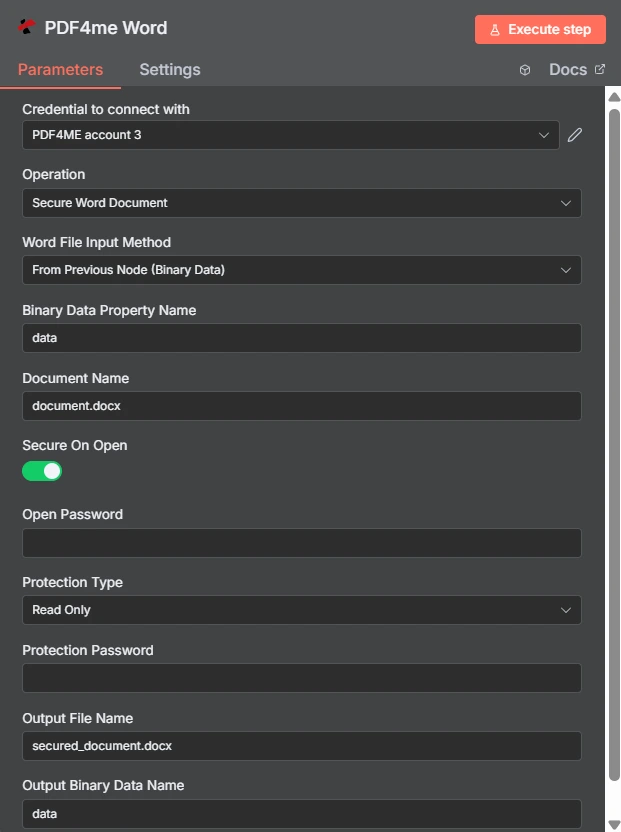
A opção "Seguro ao abrir" é um botão de alternância, e o "Tipo de proteção" é um menu suspenso separado, definido como "Somente leitura". Os dois campos de senha abaixo deles são independentes um do outro.
Senha aberta vs. Restrição de edição
| Pergunta | Senha aberta | Restrição de edição |
|---|---|---|
| Which fields set it | Secure On Open and Open Password | Protection Type and Protection Password |
| What it blocks | Opening the document at all | Changing the document once open |
| Can the recipient read it | Only with the password | Yes, reading is always allowed |
| Typical recipient | A named person receiving something confidential | A reviewer or a form filler |
| Use it when | The content must not be seen by others | The content may be seen but not altered |
Quais parâmetros o Secure utiliza? Word Precisa de algum documento?
| Parâmetro | Obrigatório | O que faz | Exemplo |
|---|---|---|---|
| Credential to connect with | Required | The PDF4me account credential the node authenticates with. | PDF4ME account |
| Operation | Required | The action this node performs. Select Secure Word Document. | Secure Word Document |
| Word File Input Method | Required | How the .docx reaches the node: from the previous node as binary data, as a Base64 string, or from a URL. | From Previous Node (Binary Data) |
| Binary Data Property Name | Conditional | Name of the binary property holding the document. Appears when the file comes from the previous node. | data |
| Document Name | Required | Filename of the input document including the extension. Drives format detection. | document.docx |
| Secure On Open | Optional | Toggle that requires a password before the document will open. Leave off if you only want an editing restriction. | enabled |
| Open Password | Conditional | The password needed to open the file. Required once Secure On Open is enabled. Supply it through an expression, not as literal text. | {{ $env.DOC_OPEN_PW }} |
| Protection Type | Optional | Editing restriction applied to the document: Read Only, Allow Comments, Allow Form Fields, or Allow Revisions. | Read Only |
| Protection Password | Conditional | The password that lifts the editing restriction. Required once a Protection Type is chosen, and should differ from Open Password. | {{ $env.DOC_EDIT_PW }} |
| Output File Name | Optional | Filename of the returned secured document. Keep the .docx extension. | secured_document.docx |
| Output Binary Data Name | Optional | Binary property the secured document is written to. Leave as data unless a later node expects another name. | data |
Opções de tipo de proteção
| Opção | O que o destinatário pode fazer |
|---|---|
Read Only | View the document only. No edits of any kind are accepted. |
Allow Comments | Add and edit comments, but not change the document text itself. |
Allow Form Fields | Fill in form fields while the surrounding content stays locked. |
Allow Revisions | Edit, but only with tracked changes recorded so every alteration is visible. |
Saída
| Campo | Tipo | O que contém |
|---|---|---|
| fileName | String | Name of the returned secured document. |
| fileSize | Number | Size of the secured document in bytes. |
| success | Boolean | Whether protection was applied. Branch on this so failures surface as alerts. |
| originalFileName | String | Name of the input document as supplied in Document Name. |
| secureOnOpen | Boolean | Whether an open password was applied, echoed back for verification. |
| protectionType | String | The editing restriction applied, such as ReadOnly, or empty when none was set. |
| message | String | Human-readable status text describing the result of the operation. |
Verificando protectionType Na resposta, está a maneira mais barata de confirmar se a restrição pretendida é realmente a que foi aplicada.
Como configuro um sistema seguro? Word Documento em n8n?
- Adicione o PDF4me Word Adicione um nó ao seu fluxo de trabalho e configure-o. Operação para Seguro Word Document.
- Selecione o seu PDF4me credencial, ou crie uma e cole a sua API chave.
- Escolha um Word Método de entrada de arquivo e fornecer o
.docxatravés do campo abaixo dele. - Definir Nome do documento com a extensão correta.
- Para abrir o portão, ligue Segurança ao abrir e definir Senha de abertura a partir de uma credencial ou variável de ambiente.
- Para controlar a edição, defina Tipo de proteção e fornecer um diferente Senha de proteção.
- Definir Nome do arquivo de saída terminando em
.docx. - Execute o nó e confirme.
secureOnOpeneprotectionTypeNa resposta, encaminhe o arquivo protegido adiante.
Configurações típicas
Exemplos de fluxo de trabalhoCommon n8n workflow patterns using Secure Word Document.
- Uma etapa de geração de relatórios produz um documento com dados sensíveis.
- A opção "Segurar ao abrir" aplica uma senha armazenada em uma variável de ambiente.
- O arquivo é enviado por e-mail e a senha é compartilhada por um canal separado.
- O tipo de proteção está definido como Permitir comentários.
- Os revisores fazem anotações sem alterar o texto original de nenhuma cláusula.
- O feedback chega sem nenhuma diferença a ser resolvida posteriormente.
- Permitir campos de formulário mantém o texto ao redor fixo.
- Os destinatários devem preencher apenas os campos que lhes são destinados.
- Os formulários retornados são suficientemente consistentes para serem analisados automaticamente.
- Um modelo é aprovado e publicado em uma unidade compartilhada.
- A proteção "Somente leitura" impede edições locais silenciosas.
- Todos trabalham com base na mesma redação oficial.
Dicas práticas
Folha de dicas
| Campo | Valor |
|---|---|
| Operation | Secure Word Document |
| Word File Input Method | From Previous Node (Binary Data) |
| Binary Data Property Name | data |
| Document Name | document.docx |
| Secure On Open | enabled |
| Open Password | {{ $env.DOC_OPEN_PW }} |
| Protection Type | Read Only |
| Protection Password | {{ $env.DOC_EDIT_PW }} |
| Output File Name | secured_document.docx |
| Output Binary Data Name | data |