Redimensionar imagem em n8n
Redimensionar imagem é um PDF4me ação do nó em n8n Essa ferramenta redimensiona uma imagem, seja por uma porcentagem do seu tamanho original ou para a largura e altura exatas em pixels, com a opção de preservar a proporção disponível. Use-a para gerar miniaturas, normalizar uploads de usuários para um tamanho adequado ou reduzir fotos muito grandes antes que sejam armazenadas.
O que este nó faz
PDF4me: Redimensionar imagem Extrai uma imagem de dados binários, um Base64 Stringou um URL e retorna uma cópia dimensionada. Tipo de redimensionamento O campo define o método: Percentagem escalas relativas ao original, o que é adequado para entradas de tamanhos mistos, enquanto Específico Define uma largura e altura exatas em pixels para espaços de layout fixos. Como o nó é executado uma vez para cada item recebido, um nó configurado redimensiona um lote inteiro com configurações idênticas.
Autenticando seu API Solicitar
Todo PDF4me nó em n8n requer um válido Credencial para se conectar comCrie ou selecione um que contenha o seu PDF4me API chave para que o fluxo de trabalho possa autenticar solicitações de redimensionamento com segurança.
Fatos importantes que você não deve perder
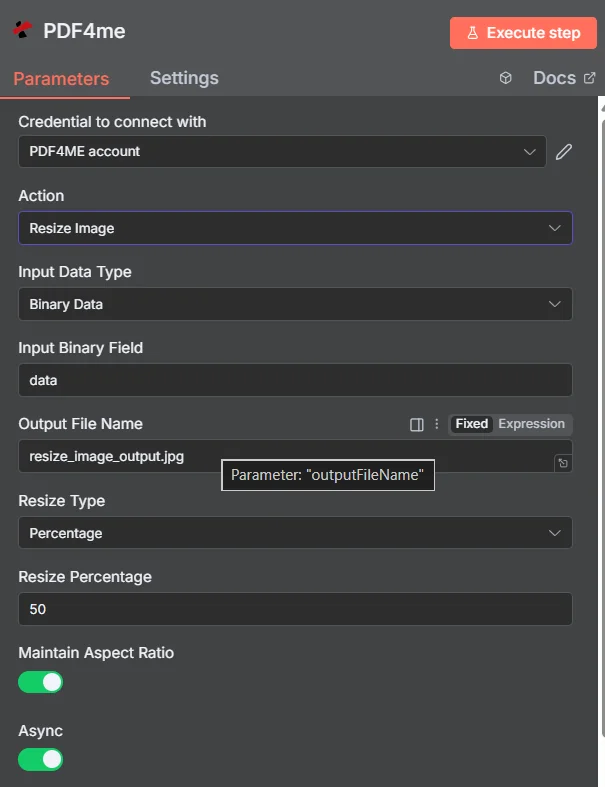
PDF4me Painel de parâmetros de redimensionamento de imagem em n8n, exibido no modo de porcentagem
Percentagem versus específico: qual tipo de redimensionamento você deve usar?
Os dois modos resolvem problemas diferentes, e escolher o modo errado é a causa mais comum de tamanhos de saída inesperados.
| Tipo de redimensionamento | Campos que você preenche | Melhor ajuste |
|---|---|---|
| Percentage | Resize Percentage, for example 50 to halve or 200 to double | Mixed-size inputs that should all shrink or grow by the same proportion, keeping their relative differences |
| Specific | Width and Height in pixels | A fixed layout slot, thumbnail grid, or platform that demands exact dimensions regardless of the source size |
Quais parâmetros a função Redimensionar Imagem precisa?
Obrigatório: Ação, Tipo de Dados de Entrada, o campo correspondente a esse tipo de entrada, Nome do Arquivo de Saída, Tipo de Redimensionamento e os campos de dimensão que o Tipo de Redimensionamento revela. Async e o nome de saída de dados binários mantém os valores padrão de funcionamento.
| Parâmetro | Obrigatório | O que faz | Exemplo |
|---|---|---|---|
| Action | Required | Selects the PDF4me node action to run. Choose Resize Image. | Resize Image |
| Input Data Type | Required | Format of the source image input. Choose Binary Data (from a previous node), Base64 String, or URL. | Binary Data |
| Input Binary Field | Conditional | Name of the binary property on the incoming n8n item that holds the image. Required when Input Data Type is Binary Data. Defaults to data. | data |
| Base64 Image Content | Conditional | Base64-encoded content of the source image. Required when Input Data Type is Base64 String. | /9j/4AAQSkZJRgAB... |
| Image URL | Conditional | Publicly reachable HTTPS URL to the source image. Required when Input Data Type is URL. | https://example.com/photo.jpg |
| Output File Name | Required | Filename for the resized image. Include the extension matching the output format. | resize_image_output.jpg |
| Resize Type | Required | Scaling method. Percentage scales relative to the original size, Specific targets exact pixel dimensions. Your choice decides which fields appear next. | Percentage |
| Resize Percentage | Conditional | Scaling percentage relative to the original. Below 100 reduces, above 100 enlarges. Required when Resize Type is Percentage. | 50 |
| Width | Conditional | Target width in pixels. Required when Resize Type is Specific. | 800 |
| Height | Conditional | Target height in pixels. Required when Resize Type is Specific. | 600 |
| Maintain Aspect Ratio | Optional | Toggle that preserves the original proportions so the image is not stretched. Leave enabled unless you need forced dimensions. | true |
| Async | Optional | Toggle that runs the resize in the background instead of holding the workflow execution open. Useful for large images or long batches. | true |
| Binary Data Output Name | Optional | Name of the binary property the output item exposes. Defaults to data. | data |
Campos de saída
Uma corrida bem-sucedida retorna um n8n item contendo a imagem redimensionada e seu relatório de dimensões.
| Campo | Tipo | O que contém |
|---|---|---|
Binary (data) | Binary | The resized image, under Binary Data Output Name (default data). |
fileName | String | Generated filename, matching Output File Name. |
mimeType | String | MIME type of the output image, for example image/jpeg or image/png. |
fileSize | Number | Size of the resized image in bytes. |
originalDimensions | String | Width and height of the source image in pixels, for example 1920x1080. |
newDimensions | String | Width and height after resizing, for example 960x540. Compare it against your target to confirm aspect ratio behaviour. |
success | Boolean | True when the resize completed, false on failure. Use it to branch error handling. |
message | String | Human-readable status message, carrying success confirmation or error detail. |
Como faço para configurar o redimensionamento de imagem? n8n?
- Adicionar PDF4me para o seu n8n fluxo de trabalho e escolha o Redimensionar imagem Ação.
- Em Credencial para se conectar com, selecione o seu PDF4me credencial ou clique Criar nova credencial e cole o seu API chave.
- Definir Tipo de dados de entrada para Dados binários (padrão), Base64 String, ou URL e forneça o campo da imagem de origem correspondente.
- Definir Tipo de redimensionamento para Percentagem e preencha Porcentagem de redimensionamento, ou para Específico e preencha Largura e Altura.
- Deixar Manter a proporção da tela ativado para evitar alongamento e ativar Async Para imagens grandes ou lotes extensos.
- Definir Nome do arquivo de saída, execute o nó e verifique
newDimensionsna saída para confirmar o resultado.
Configurações típicas
Exemplos de fluxo de trabalhoCommon n8n workflow patterns using Resize Image.
- Uma nova imagem de produto é disponibilizada no armazenamento em nuvem.
- A função Redimensionar Imagem é executada no modo Específico, com as dimensões da grade de miniaturas.
- A miniatura é impressa ao lado da imagem original em tamanho real.
- Um webhook recebe uma foto enviada através de um formulário.
- A função Resize Image (Redimensionar Imagem) é executada no modo Porcentagem para reduzir a imagem proporcionalmente.
- O arquivo menor é armazenado, mantendo o armazenamento e a largura de banda sob controle.
- Um nó "Loop Over Items" itera sobre uma pasta existente contendo imagens de tamanhos variados.
- A opção Redimensionar Imagem aplica uma configuração consistente a todos os itens, com Async habilitado.
- A biblioteca acaba ficando uniforme sem que ninguém abra um editor.
- Uma imagem editorial é extraída de um CMS (Sistema de Gestão de Conteúdos).
- A opção "Redimensionar imagem" primeiro ajusta a imagem à largura da tela.
- A compressão de imagem reduz ainda mais o tamanho do arquivo antes da publicação.
Dicas práticas
Folha de dicas
| Campo | Valor |
|---|---|
| Action | Resize Image |
| Input Data Type | Binary Data |
| Input Binary Field | data |
| Output File Name | resize_image_output.jpg |
| Resize Type | Percentage |
| Resize Percentage | 50 |
| Width / Height (Specific mode) | 800 / 600 |
| Maintain Aspect Ratio | true |
| Async | true |
| Binary Data Output Name | data |