Adicionar anexo a PDF em n8n
Adicionar anexo a PDF é um PDF4me ação do nó em n8n que incorpora um ou mais arquivos dentro de um PDFentão uma planilha, imagem, arquivo ou segundo PDF Acompanha o documento em vez de ser enviado ao lado. Use-o para incluir provas documentais em um contrato, enviar dados brutos junto com um relatório ou empacotar certificados com um documento de conformidade.
O que este nó faz
PDF4meAdicionar anexo a PDF leva um anfitrião PDF de Dados Binários, um Base64 Stringou um URL, e então incorpora cada arquivo que você lista em Anexos dentro dele como um objeto separado. Ao contrário da mesclagem, os arquivos anexados mantêm seu próprio formato e nome de arquivo e podem ser abertos ou salvos individualmente pelo destinatário. Cada anexo pode vir de uma fonte diferente, portanto, um arquivo binário de um nó anterior e um arquivo obtido de um nó posterior podem ser arquivos separados. URL podem ser incorporados na mesma execução.
Autenticando seu API Solicitar
Todo PDF4me nó em n8n requer um válido Credencial para se conectar comCrie ou selecione um que contenha o seu PDF4me API chave para que o fluxo de trabalho possa autenticar solicitações de anexos com segurança.
Fatos importantes que você não deve perder
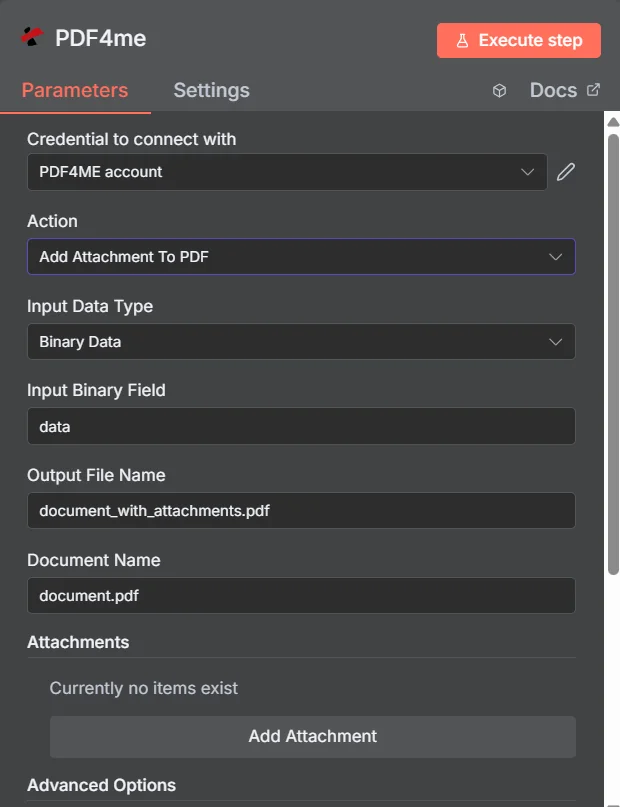
PDF4me Adicionar anexo a PDF painel de parâmetros em n8n, com a coleção Attachments vazia antes da adição da primeira entrada.
Anexar vs. Unir vs. Compactar
Três maneiras de entregar vários arquivos como um só, com consequências diferentes para o destinatário.
| Abordagem | O que o destinatário recebe | Melhor ajuste |
|---|---|---|
| Add Attachment to PDF | One PDF that opens normally, with the extra files available in the attachments panel | Supporting material that must stay in its original format, such as a spreadsheet or an archive |
| Merge PDFs | One continuous document where all pages read in sequence | Content that genuinely belongs together as a single readable document |
| Zip the files together | An archive that must be unpacked before anything can be read | Bulk transfer where nothing needs to be readable without extracting first |
Quais parâmetros a opção "Adicionar anexo" define? PDF Precisar?
Obrigatório: Ação, Tipo de Dados de Entrada, o campo correspondente a esse tipo de entrada, Nome do Arquivo de Saída, Nome do Documento e pelo menos uma entrada em Anexos. O Nome de Saída de Dados Binários e os Perfis Personalizados possuem valores padrão funcionais.
| Parâmetro | Obrigatório | O que faz | Exemplo |
|---|---|---|---|
| Action | Required | Selects the PDF4me node action to run. Choose Add Attachment To PDF. | Add Attachment To PDF |
| Input Data Type | Required | Format of the host PDF input. Choose Binary Data (from a previous node), Base64 String, or URL. | Binary Data |
| Input Binary Field | Conditional | Name of the binary property on the incoming n8n item that holds the host PDF. Required when Input Data Type is Binary Data. Defaults to data. | data |
| Base64 Document Content | Conditional | Base64-encoded content of the host PDF. Required when Input Data Type is Base64 String. | JVBERi0xLjQK... |
| File URL | Conditional | Publicly reachable HTTPS URL to the host PDF. Required when Input Data Type is URL. | https://example.com/contract.pdf |
| Output File Name | Required | Filename for the PDF returned with the files embedded. Include the .pdf extension. | document_with_attachments.pdf |
| Document Name | Required | Filename of the source PDF, used for reference and tracking on the request. | document.pdf |
| Attachments | Required | Collection of files to embed. Click Add Attachment once per file, then fill in the per-attachment fields listed below. | One entry per embedded file |
| Binary Data Output Name | Optional | Name of the binary property the output item exposes. Defaults to data. | data |
| Custom Profiles | Optional | Advanced Options field for extra processing settings, supplied in a JSON-like format. Leave blank unless you have a specific profile to apply. | { "preserveMetadata": true } |
Campos dentro de cada entrada de anexo
Cada entrada que você cria com Adicionar anexo expõe seu próprio conjunto de campos.
| Parâmetro | Obrigatório | O que faz | Exemplo |
|---|---|---|---|
| Attachment Content Type | Required | How this particular attachment is supplied. Choose Binary Data, Base64 Content, or File URL. Each entry can differ. | Binary Data |
| Attachment Name | Required | Filename the embedded file will carry inside the PDF. Include the correct extension so readers can open it after extraction. | supporting_data.xlsx |
| Binary Field Name | Conditional | Name of the binary property holding this attachment. Required when Attachment Content Type is Binary Data. | data |
| Base64 Content | Conditional | Base64-encoded content of this attachment. Required when Attachment Content Type is Base64 Content. | SGVsbG8gV29ybGQ= |
| File URL | Conditional | Publicly reachable HTTPS URL to this attachment. Required when Attachment Content Type is File URL. | https://example.com/certificate.pdf |
Campos de saída
Uma corrida bem-sucedida retorna um n8n item que carrega o PDF com seus arquivos incorporados.
| Campo | Tipo | O que contém |
|---|---|---|
Binary (data) | Binary | The PDF with all listed files embedded, under Binary Data Output Name (default data). |
fileName | String | Generated filename, matching Output File Name. |
mimeType | String | MIME type of the output, always application/pdf. |
fileSize | Number | Size of the returned PDF in bytes, including the embedded files. |
attachmentCount | Number | Number of attachments successfully embedded. Compare it against your expected count to catch a silently skipped file. |
success | Boolean | True when the attachment operation completed, false on failure. Use it to branch error handling. |
message | String | Human-readable status message, carrying success confirmation or error detail. |
Como faço para configurar a opção "Adicionar anexo"? PDF em n8n?
- Adicionar PDF4me para o seu n8n fluxo de trabalho e escolha o Adicionar anexo a PDF Ação.
- Em Credencial para se conectar com, selecione o seu PDF4me credencial ou clique Criar nova credencial e cole o seu API chave.
- Definir Tipo de dados de entrada para Dados binários (padrão), Base64 String, ou URL e fornecer o host correspondente PDF campo.
- Sob Anexos, clique Adicionar anexo uma vez para cada arquivo, depois defina-o Tipo de conteúdo do anexo, Nome do anexoe campo de origem correspondente.
- Definir Nome do arquivo de saída (deve terminar em
.pdf) e Nome do documento para o arquivo fonte. - Execute o nó e direcione o retorno. PDF Em frente, verificando
attachmentCountem relação ao número de arquivos que você esperava.
Configurações típicas
Exemplos de fluxo de trabalhoCommon n8n workflow patterns using Add Attachment to PDF.
- Uma fatura PDF é gerado a partir de dados de faturamento.
- Adicionar anexo a PDF Incorpora os recibos correspondentes e o registro de aprovação.
- Um dos arquivos é encaminhado ao departamento de contas a pagar, contendo todo o histórico de evidências.
- Um relatório analítico agendado é apresentado ao PDF.
- Adicionar anexo a PDF incorpora o subjacente CSV Exportar como anexo nomeado.
- Os leitores têm acesso à narrativa e podem consultar os números brutos quando desejarem verificá-los.
- Um contrato é gerado a partir de um modelo mediante solicitação de assinatura.
- Adicionar anexo a PDF incorpora certificados e cronogramas extraídos de URLs.
- A contraparte recebe um único documento autossuficiente para assinar.
- Um nó "Loop Over Items" reúne arquivos de evidências para um determinado período de arquivamento.
- Adicionar anexo a PDF incorpora cada um deles no documento de capa.
- O pacote está arquivado e o anexo pode ser extraído de PDF Podemos desembalar mais tarde, mediante solicitação.
Dicas práticas
Folha de dicas
| Campo | Valor |
|---|---|
| Action | Add Attachment To PDF |
| Input Data Type | Binary Data |
| Input Binary Field | data |
| Output File Name | document_with_attachments.pdf |
| Document Name | document.pdf |
| Attachments | One entry per file, added with Add Attachment |
| Attachment Content Type | Binary Data |
| Attachment Name | supporting_data.xlsx |
| Binary Data Output Name | data |
| Credentials | PDF4me API credential |