Criar hiperlinks em PDF com Make
PDF4me PDF - Criar hiperlinks é um Make módulo que transforma uma string de texto específica em um PDF em um link clicável, sem coordenadas ou um PDF editor. Use-o para vincular nomes de produtos a páginas da loja, citações a fontes ou frases de políticas a uma página de perguntas frequentes e, em seguida, encadeie módulos para adicionar vários links diferentes a um único documento.
O que este módulo faz
PDF4me, PDF - Criar hiperlinks transforma qualquer sequência de texto em um PDF em um link clicável dentro de um Make cenário. Você informa qual texto encontrar, para onde apontar e quais páginas pesquisar, e o módulo cuida do resto. Sem coordenadas, sem anotações manuais, sem PDF editor aberto em uma área de trabalho.
Autenticando sua solicitação de API
Todo PDF4me módulo em Make requer um válido ConexãoCrie ou selecione um que contenha o seu PDF4me API chave para que o cenário possa chamar o serviço de hiperlink com segurança.
Fatos importantes que você não deve perder
Maioria PDF link APIs É necessário especificar as coordenadas x/y exatas. Este módulo encontra o texto para você; digite a palavra ou frase que deseja tornar clicável e ele cuidará do posicionamento automaticamente.
Deixar New Text O texto original pesquisado permanece visível como o rótulo do link. Preencha-o para substituir o que o leitor vê, o que é útil para transformar um texto bruto em um texto bruto. URL ou um código de produto transformado em texto âncora legível.
Um módulo processa uma conversão de texto para texto.URL Para adicionar vários links diferentes ao mesmo documento, conecte vários módulos Criar Hiperlinks em sequência; cada um receberá a saída do anterior.
O módulo escreve um padrão PDF anotação de link conforme definida em PDF Especificação 32000-1:2008 (Seção 12.5.6.5, Anotações de Link), o mesmo tipo de anotação documentado em PDF Índice de especificações da associaçãoÉ por isso que os links resultantes abrem corretamente no Acrobat, em navegadores e em dispositivos móveis. PDF visualizadores sem nenhum plugin personalizado.
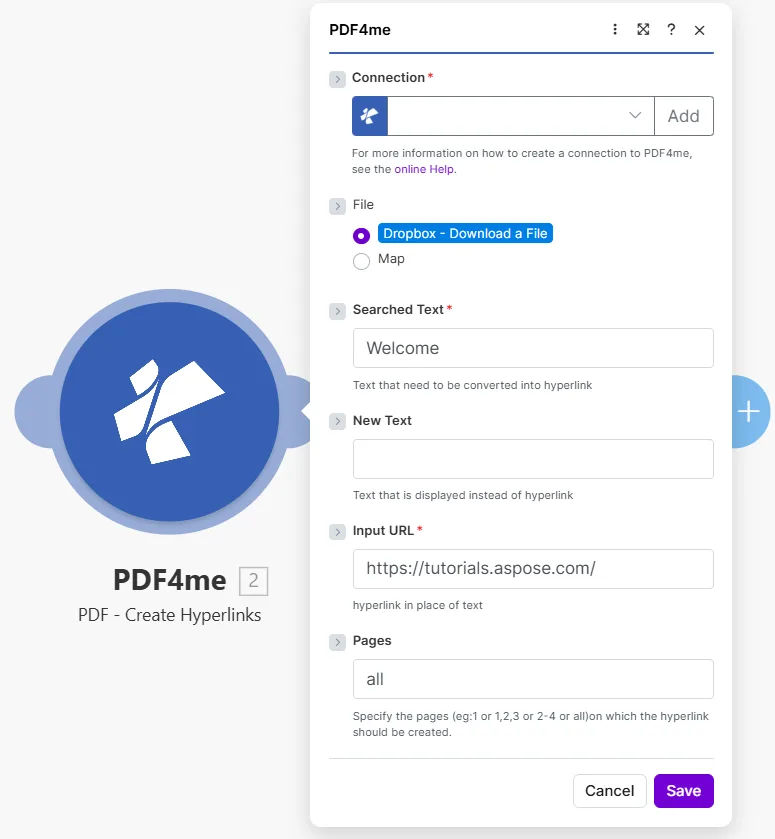
Digite o texto exato que deseja encontrar em Searched Text, o destino em Input URLe em quais páginas pesquisar Pages.
Parâmetros
Obrigatório: Connection, Searched Text, e Input URL. New Text e Pages são opcionais.
| Parâmetro | Obrigatório | O que faz | Exemplo |
|---|---|---|---|
| Connection | Required | PDF4me API connection used to authenticate hyperlink creation requests. | Your PDF4me connection |
| File | Required | Source PDF. Choose Dropbox - Download a File for a direct Dropbox trigger, or Map to wire filename and binary data from a prior module. | Dropbox - Download a File |
| Searched Text | Required | The exact text string in the PDF that will become a clickable hyperlink. The module searches the specified pages for this text and wraps every occurrence in a link annotation. | Welcome |
| New Text | Optional | Optional label that replaces what the reader sees over the link. Leave empty to keep the original searched text as the visible link label. | Visit our site |
| Input URL | Required | The destination URL the hyperlink points to. Readers are taken to this address when they click the linked text. | https://tutorials.aspose.com/ |
| Pages | Optional | Pages to search for the text. Accepts a single number, a comma-separated list (1,3,5), a range (2-4), or the word all. Defaults to all if left empty. | all |
Como adiciono hiperlinks a um PDF em Make?
- Adicionar PDF4me → PDF - Criar hiperlinks de acordo com o seu cenário.
- Selecione Connection (ou clique) Adicionar para criar um com o seu API chave).
- Definir File para Dropbox - Baixar um arquivo ou Mapa de um módulo anterior.
- Em Searched Text, digite o texto exato que você deseja tornar clicável (por exemplo,
Welcomeou o nome de um produto). - Opcionalmente, insira New Text Se você deseja que o rótulo visível seja diferente do texto pesquisado.
- Cole o endereço de destino em Input URL.
- Definir Pages: tipo
allpara todas as páginas, ou direcione páginas específicas como1,3ou2-4. - Salvar e clique Executar uma vezA saída contém Document Name e Document Data: o PDF Com hiperlinks aplicados.
Saída
| Campo | Tipo | O que contém |
|---|---|---|
Document Name | String | Filename of the output PDF with hyperlinks applied. |
Document Data | Buffer | Binary content of the PDF with link annotations added. Map this into an upload, email, or further processing module. |
Quando devo usar a opção "Criar hiperlinks"?
Configurações típicasCommon Make scenario patterns that use PDF - Create Hyperlinks to enrich documents automatically.
- Um cenário agendado busca a lista de produtos mais recente do seu banco de dados e gera um catálogo. PDF.
- Um iterador percorre cada nome de produto da lista.
- Criar hiperlinks Executa uma vez por produto. Searched Text = nome do produto, Input URL = página do produto URL.
- Após o loop, cada nome de produto no catálogo se torna um link ativo para a página do produto na loja.
- O catálogo interativo finalizado é carregado no Google Drive e enviado por e-mail para a equipe de vendas.
- Um relatório mensal PDF é gerado a partir de um modelo do Google Docs.
- Um repositório de dados armazena uma lista de rótulos de citação e suas respectivas correspondências. URLs.
- Criar hiperlinks Executa uma vez por citação, transformando cada rótulo em um link clicável para a fonte.
- Os leitores podem clicar em qualquer citação no PDF para abrir a fonte original em seu navegador.
- O relatório enriquecido é armazenado em SharePoint e distribuído às partes interessadas.
- O departamento de RH publica uma nova política. PDF para uma pasta do Dropbox monitorada.
- Criar hiperlinks A pesquisa pela frase "Mais informações" ocorre em todas as páginas.
- Cada ocorrência se torna um elo com o RH. FAQ página na intranet da empresa.
- Um segundo módulo encadeado converte a frase "Enviar uma solicitação" em um link para o sistema de emissão de tickets.
- O acabado PDF O documento é salvo na biblioteca de documentos de RH e enviado por e-mail a todos os funcionários.
Perguntas frequentes
Dicas práticas
Folha de dicas
| Campo | Valor |
|---|---|
| Searched Text | Exact text to make clickable |
| New Text | Optional replacement label |
| Input URL | Destination address |
| Pages | all, a number, 1,3, or 2-4 |
| Output | Document Name + Document Data |