安全な文書 - 保護 Zapier
PDF4me 安全な文書 は Zapier パスワード保護と編集制限を追加するアクション Word ファイル。これを使用して、ドキュメントを開く際にパスワードを要求したり、編集を読み取り専用、コメント専用、フォームフィールド、または追跡された改訂に制限したりできます。セキュリティ保護されたファイルを返します。 Word 次のZapステップ用のファイル。
このアクションが何をするか
取る Word 前の Zap ステップからのドキュメントを読み取り、2 つの独立した保護のうち 1 つまたは両方を適用します。 パスワードを開く (Secure On Open)ファイルを表示する前に入力しなければならないもの、そして 編集制限 (保護タイプ)ファイルを開いた後にユーザーが行える操作を制限するもので、読み取り専用、コメント専用、フォームフィールドのみの編集、リビジョン追跡のみの編集などが可能です。各保護にはそれぞれ固有のパスワードが使用されます。機密性の高い配布、読み取り専用レポート、コメントのみが許可されるレビューワークフローなどに最適です。
認証 API リクエスト
アクセスするには PDF4me ウェブ API を通して Zapierすべてのリクエストには適切な認証情報を含める必要があります。認証により安全な通信が保証され、承認されたユーザーとしての身元が検証され、シームレスな統合が可能になります。 Zapier ワークフローと PDF4meの Word 文書セキュリティサービス。
このアクションにおいて「安全」とみなされるのはどのような場合ですか?
この操作では、文書に署名、透かし、または墨消しは行いません。2 つの Microsoft を適用します。 Word-ネイティブ保護: 暗号化パスワード ファイルを開く際に必要なセキュリティ機能(Secure On Open)と、 文書保護パスワード ファイルを開いた後に編集できる内容を制限するもの(保護タイプ)。どちらも標準です。 Word 保護機能は、 Word デスクトップUI。
見逃してはならない重要な事実
:::ヒント 前の手順のマップファイルを使用します + 隣のボタン ファイル そして ファイル名 以前の Zap ステップからマッピングします (例: Google Drive、Dropbox、またはトリガー)。 Wordファイルには完全なコンテンツを提供する必要があり、「存在するが表示されない」参照は認められません。 :::
:::警告 ファイル: (存在しますが表示されません) ファイルフィールドに「ファイル: (存在しますが表示されません)」と表示され、エラーが発生した場合は、 ファイルの内容全体 代わりに。参照 Zapier & Power Automate ヒント詳細は :::
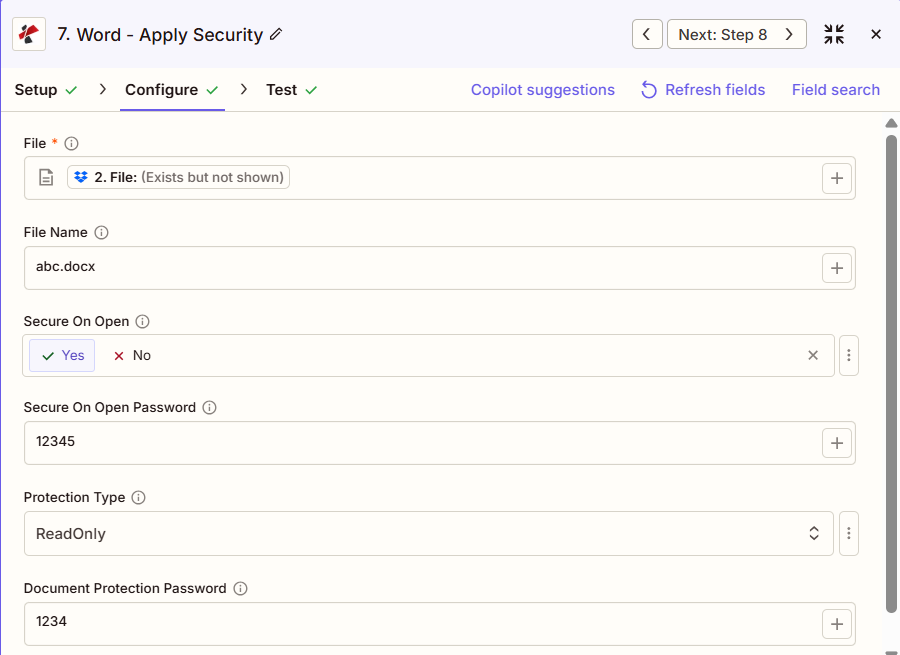
セキュアドキュメントの主な特徴は何ですか?
- パスワード保護: ドキュメントを開く際にパスワードを要求するようにする
- 文書保護: さまざまな保護タイプを使用して編集機能を制限します
- 読み取り専用セキュリティ: 不正な編集を防ぐため、ドキュメントを読み取り専用にする
- コメント専用アクセスコメントの追加または変更のみを許可する
- フォームフィールドの編集フォームフィールドのみに編集を制限する
- 改訂履歴追跡変更履歴と改訂履歴のみを許可する
- 複合セキュリティパスワード保護と編集制限の両方を適用する
- 柔軟なアクセス制御: 用途に応じて異なるセキュリティレベルを設定
パラメータ
セキュアドキュメントアクションのパラメータの完全なリスト。パラメータ名は、 Zapier 構成 UI 上記のスクリーンショットに示されています。
- 地図 ファイル そして ファイル名 前のステップから
- セット 開くと安全 = はい、そして パスワードで開くと安全になります 暗号化のため
- セット 保護タイプ (読み取り専用、コメントの許可など) 文書保護パスワード 「保護なし」でない場合
| パラメータ | 必須 | その機能 | 例 |
|---|---|---|---|
| File | Required | Word document to secure. Map from a previous step (Drive, Dropbox, trigger). Must provide full file content. | [2. File from Step 2] |
| File Name | Optional | Word filename with .docx or .doc extension for the output file. | abc.docx |
| Secure On Open | Optional | Enable password to open. Yes requires a password before the file can be opened at all. | Yes |
| Secure On Open Password | Optional | Password to open the document. Required when Secure On Open is Yes. | 12345 |
| Protection Type | Optional | Editing restriction applied once the file is open. ReadOnly, Allow Comments, Allow Form Fields, Allow Revisions, or No Protection. Defaults to NoProtection. | ReadOnly |
| Document Protection Password | Optional | Password to remove the editing restriction inside Word. Required when Protection Type is not No Protection. | 1234 |
重要: パラメータ 必須 常に設定する必要があります。 パラメータはマークされています。 条件付き 対応するセキュリティオプションが有効になっている場合にのみ必要です(「Secure On Open = Yes」の場合は「Secure On Open Password」、保護タイプが「保護なし」でない場合は「Document Protection Password」)。
セキュア文書返却とは何ですか?
の PDF4me 安全な文書 アクションは保護された Word 後続の Zap ステップで使用するためのファイル。出力形式はすべて共通です。 PDF4me Word ファイルを返すアクション Zapier。
主要な出力フィールド(次のステップに対応付けてください)
API 保護されたエンドポイントをダウンロードする Word ファイル。これを次のステップのファイル入力にマッピングします。
api.pdf4me.com/Zapier/GetDocument?d=...代替ダウンロード URL パスにファイル名が含まれている。
api.pdf4me.com/Zapier/GetAltDocument/.../document.docx| 分野 | タイプ | 内容物 |
|---|---|---|
jobId | Text | ID of the PDF4me job that processed the request. |
traceId | Text | Trace ID of the request, when PDF4me returns one. Give it to PDF4me support when reporting a problem. |
documentId | Text | ID PDF4me gives the resulting document. |
File Name | Text | Name of the resulting file, without extension. |
File Extension | Text | Extension of the resulting file, for example `.pdf`. |
Full File Name | Text | Name of the resulting file, with extension. |
File Url | Text | Download link of the resulting file. Map it into any later step that needs the file, for example an upload to Google Drive, Dropbox or OneDrive. |
Alternate File Url | Text | Alternative download link of the resulting file, with the file name at the end of the URL. |
File Size | Number | Size of the resulting file, as reported by PDF4me. |
- JSON
- Zap Integration
例 JSON 出力 (URL(表示形式のみ、リンクは機能しません):
{
"Job Id": "...",
"File Url": "api.pdf4me.com/Zapier/GetDocument?d=...",
"Alternate File Url": "api.pdf4me.com/Zapier/GetAltDocument/.../document.docx",
"File Name": "document",
"Full File Name": "document.docx",
"File Extension": ".docx"
}
使用 + 地図を作成する ファイルURL または 代替ファイルURL 次のステップへ、ドライブ、Dropbox、メール、または別の PDF4me Word アクション。
典型的な構成
ワークフローの例Common Zapier workflow patterns using Secure Document.
- 共有ドライブフォルダ内のドキュメントが完了済みとしてマークされると、トリガーが作動します。
- PDF4me セキュア文書は、「開くときにセキュア」が「はい」に設定され、「開くときにセキュアパスワード」が設定され、さらに「保護タイプ」が「読み取り専用」に設定され、別途「文書保護パスワード」が設定されている場合、実行されます。
- Gmailのステップでは、保護されたファイルがメールで送信され、開くためのパスワードはSlackなどの別のチャネルを通じて送信されます。
- スケジュールされたZapは、Dropboxフォルダから最新の生成済みレポートを取得します。
- PDF4me セキュアドキュメントは、「開くときにセキュア」が「いいえ」、保護タイプが「読み取り専用」に設定され、ドキュメント保護パスワードが設定されているため、誰でもファイルを開くことはできますが、編集することはできません。
- セキュリティ保護されたファイルは、広範囲に配布するために共有チームフォルダにアップロードされます。
- 下書き文書がレビューフォルダに移動すると、Zapが起動します。
- PDF4me セキュリティ文書では、保護タイプを「文書保護パスワードを使用したコメントの許可」に設定することで、レビュー担当者がコメントを追加できますが、元のテキストを変更できないようにします。
- メール送信の手順により、レビュー用コピーが関係者に送信され、保護パスワードは文書所有者に別途共有されます。
実践的なヒント
チートシート
| 分野 | 価値 |
|---|---|
| Action | Secure Document |
| File | [Mapped from previous step] |
| File Name | abc.docx |
| Secure On Open | Yes |
| Secure On Open Password | 12345 |
| Protection Type | ReadOnly |
| Document Protection Password | 1234 |
| Connection | PDF4me API key |
よくある質問
関連アクション
他のプラットフォームでの同じタスク
業界におけるユースケースとアプリケーション
- Finance & Accounting
- Legal & Professional
- Human Resources
- Corporate
- 財務報告書の暗号化四半期財務諸表は取締役会への配布前に暗号化する。
- 給与ファイル保護報酬分析文書をパスワードで保護する
- 監査作業文書セキュリティ監査ファイルを企業固有のパスワードで暗号化する
- 予算テンプレート保護: 数式を保持したまま、予算テンプレートに読み取り専用を適用する
- ボードパッケージの暗号化暗号化と読み取り専用保護により、ボード資料を安全に保管します。
- 顧客案件の暗号化: 顧客の機密文書をパスワードで保護する
- 特権文書のセキュリティ弁護士と依頼人の間の秘匿通信を暗号化する
- 契約書読み取り専用保護実行済みの契約に読み取り専用を適用し、変更を防止する。
- 発見文書のセキュリティ機密性の高い証拠開示資料を暗号化する
- 作業成果物保護: パスワード暗号化で弁護士の作業成果物を保護する
- 人事ファイルの暗号化従業員記録をパスワード保護で安全に保管する
- パフォーマンスレビューセキュリティ: パフォーマンス評価文書を暗号化する
- 報酬分析保護: パスワードで保護された給与および福利厚生分析
- ポリシーテンプレート(読み取り専用): 一貫性を保つため、ポリシーテンプレートに読み取り専用を適用する
- 機密メモの暗号化: 機密性の高い人事関連の通信を暗号化する
- 戦略計画暗号化戦略計画文書をパスワードで保護する
- M&A文書のセキュリティ合併・買収関連資料は二重パスワードで保護する
- 機密提案の保護機密性の高いビジネス提案を暗号化する
- エグゼクティブレポートセキュリティ: パスワードと読み取り専用設定で経営幹部向けレポートを保護する
- 製品発売保護: 不正な編集を防ぐための、ローンチ前の文書のセキュリティ保護