ドキュメントの最適化 - 圧縮 Zapier
PDF4me ドキュメントの最適化 は Zapier 縮小する行動 Word ドキュメントを開かずにファイルサイズを Word使用されていないマクロ、コメント、非表示コンテンツ、個人メタデータを削除し、埋め込み画像を圧縮するには、低、中、高の圧縮レベルを選択してください。より小さなサイズが返されます。 Word 次のZapステップ用のファイル。
このアクションが何をするか
取る Word 前の Zap ステップで作成されたドキュメントに対して、3 つの最適化レベルのいずれかを適用します。低レベルでは、ほぼすべての要素を保持し、軽くトリミングします。中レベルでは、コメント、マクロ、非表示コンテンツ、個人情報を削除し、画像を圧縮します。高レベルでは、追跡されたリビジョンと未使用のスタイルも削除し、ファイルサイズを最小化します。メール添付ファイルの制限内に収めたり、クラウドストレージの使用量を削減したり、配布用にファイルを準備したりするのに役立ちます。
認証 API リクエスト
アクセスするには PDF4me ウェブ API を通して Zapierすべてのリクエストには適切な認証情報を含める必要があります。認証により安全な通信が保証され、承認されたユーザーとしての身元が検証され、シームレスな統合が可能になります。 Zapier ワークフローと PDF4meの Word 文書最適化サービス。
見逃してはならない重要な事実
:::ヒント 前の手順のマップファイルを使用します + 隣のボタン ファイル そして ファイル名 以前の Zap ステップからマッピングします (例: Google Drive、Dropbox、またはトリガー)。 Wordファイルには完全なコンテンツを提供する必要があり、「存在するが表示されない」参照は認められません。 :::
:::警告 ファイル: (存在しますが表示されません) ファイルフィールドに「ファイル: (存在しますが表示されません)」と表示され、エラーが発生した場合は、 ファイルの内容全体 代わりに。参照 Zapier & Power Automate ヒント詳細は :::
Optimize Documentの主な機能は何ですか?
- 3つの最適化レベル:低(約0~10%)、中(約50~80%)、高(約80~90%)のターゲットサイズ縮小
- 画像圧縮: レベルごとに設定可能な画像品質低下
- コンテンツのクリーンアップMedium以上の未使用マクロ、コメント、非表示コンテンツを削除します
- 書式設定の正規化: 重複した書式設定と未使用のスタイルをクリーンアップします。
- 個人情報の削除Medium以上の記事から著者、管理者、および会社のメタデータを削除します。
- フォントの最適化フォントを正規化し、不要なフォントプロパティを削除します。
パラメータ
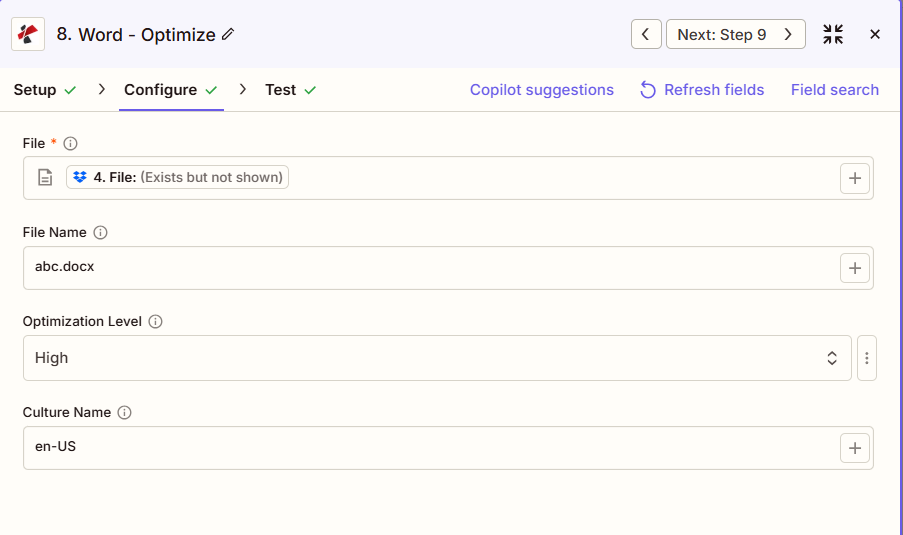
ドキュメント最適化アクションのパラメーターの完全なリスト。パラメーター名は、 Zapier 構成 UI 上記のスクリーンショットに示されています。
- 地図 ファイル (Wordトリガーまたは前のステップから
- オプションでマッピング ファイル名 前のステップから
- セット 最適化レベル低、中(デフォルト)、高
- オプションで設定可能 文化名 地域固有の処理のため
| パラメータ | 必須 | その機能 | 例 |
|---|---|---|---|
| File | Required | Word document to compress. Map from a previous step. Must provide full file content. | [4. File from Step 4] |
| File Name | Optional | Word filename with .docx or .doc extension for the output file. | abc.docx |
| Optimization Level | Optional | Low, Medium, or High. Controls how aggressively content is removed and images are compressed. Defaults to Low. | Medium |
| Culture Name | Optional | Culture code affecting locale-specific document processing, such as date and number formatting. Defaults to en-US. | en-US |
最適化レベルを比較するとどう違うのか?
| 特徴 | 低い | 中くらい | 高い |
|---|---|---|---|
| Target file size reduction | ~0-10% | ~50-80% | ~80-90% |
| Image quality target | ~80% | ~60% | ~50% |
| Formatting | Preserved | Normalized | Aggressive cleanup |
| Comments | Preserved | Removed | Removed |
| Tracked revisions | Preserved | Preserved | Removed |
| Personal info (author/manager) | Preserved | Removed | Removed |
| Macros | Preserved | Removed | Removed |
| Unused styles | Preserved | Preserved | Removed |
| Hidden content | Preserved | Removed | Removed |
ドキュメントの最適化リターンとは何ですか?
の PDF4me ドキュメントの最適化 アクションは圧縮されたものを返します Word 後続の Zap ステップで使用するためのファイル。出力形式はすべて共通です。 PDF4me Word ファイルを返すアクション Zapier。
主要な出力フィールド(次のステップに対応付けてください)
API 最適化されたエンドポイントをダウンロードします Word ファイル。これを次のステップのファイル入力にマッピングします。
api.pdf4me.com/Zapier/GetDocument?d=...代替ダウンロード URL パスにファイル名が含まれている。
api.pdf4me.com/Zapier/GetAltDocument/.../document.docx| 分野 | タイプ | 内容物 |
|---|---|---|
jobId | Text | ID of the PDF4me job that processed the request. |
traceId | Text | Trace ID of the request, when PDF4me returns one. Give it to PDF4me support when reporting a problem. |
documentId | Text | ID PDF4me gives the resulting document. |
File Name | Text | Name of the resulting file, without extension. |
File Extension | Text | Extension of the resulting file, for example `.pdf`. |
Full File Name | Text | Name of the resulting file, with extension. |
File Url | Text | Download link of the resulting file. Map it into any later step that needs the file, for example an upload to Google Drive, Dropbox or OneDrive. |
Alternate File Url | Text | Alternative download link of the resulting file, with the file name at the end of the URL. |
File Size | Number | Size of the resulting file, as reported by PDF4me. |
- JSON
- Zap Integration
例 JSON 出力 (URL(表示形式のみ、リンクは機能しません):
{
"Job Id": "...",
"File Url": "api.pdf4me.com/Zapier/GetDocument?d=...",
"Alternate File Url": "api.pdf4me.com/Zapier/GetAltDocument/.../document.docx",
"File Name": "document",
"Full File Name": "document.docx",
"File Extension": ".docx"
}
使用 + 地図を作成する ファイルURL または 代替ファイルURL 次のステップへ、ドライブ、Dropbox、メール、または別の PDF4me Word アクション。
典型的な構成
ワークフローの例Common Zapier workflow patterns using Optimize Document.
- 文書が電子メール配信準備完了とマークされたときに、トリガーが作動します。
- PDF4me 文書最適化機能は、サイズ削減と書式設定のバランスを取るため、最適化レベルを「中」に設定して実行されます。
- GmailまたはOutlookの手順では、より小さなファイルを添付ファイルとして送信します。
- スケジュールされた Zap リスト Word DropboxまたはDriveフォルダ内の、サイズしきい値を超えるファイル。
- PDF4me ドキュメント最適化は、最適化レベルを「高」に設定して実行することで、最大の削減効果を得られます。
- 圧縮ファイルは、クラウドストレージ内の元のファイルを置き換えるか、または補完します。
- 四半期ごとのプロジェクトまたは案件の完了時にトリガーが作動します。
- PDF4me ドキュメントの最適化は、ファイルサイズを削減しながら品質と改訂履歴を保持するため、最適化レベルを「低」に設定して実行されます。個人メタデータも削除する場合は、「中」に設定してください。
- アップロード手順では、最適化されたファイルがコールドストレージにアーカイブされます。
実践的なヒント
チートシート
| 分野 | 価値 |
|---|---|
| Action | Optimize Document |
| File | [Mapped from previous step] |
| File Name | abc.docx |
| Optimization Level | Medium (default) |
| Culture Name | en-US (optional) |
| Connection | PDF4me API key |
よくある質問
関連アクション
他のプラットフォームでの同じタスク
業界におけるユースケースとアプリケーション
- Corporate & Business
- Legal & Professional
- Education
- Publishing & Documentation
- メールマーケティング資料マーケティングキャンペーン向けドキュメント添付ファイルの最適化(中級レベル)
- クライアントへの成果物クライアントのダウンロード速度を向上させるため、ファイルサイズを縮小します(品質を優先するため、低レベル設定)。
- 提案書の配布RFP回答を圧縮してメール送信する(中レベル)
- レポート配信月次レポートを最適化し、より広範囲のメール配信に対応する(中レベル)
- テンプレートライブラリのクリーンアップテンプレートの保存要件を削減する(保存に関する高レベルな対策)
- 裁判所提出書類の最適化: 電子申請のサイズ制限に合わせて、ブリーフのサイズを縮小する(中程度)
- ディスカバリープロダクション: 大規模なドキュメントセットを本番環境への納品向けに最適化する(概要)
- クライアント向け文書配信メール送信用に配信データを圧縮する(低~中レベル)
- アーカイブストレージ:クローズド案件ファイルの最適化により、アーカイブコストを削減する(概要レベル)
- 電子メールによる訴状提出相手方弁護士への提出書類のサイズを縮小する(中程度)
- コース教材の配布学生のダウンロード用にシラバスと教材を最適化する(中級レベル)
- 課題提出: 採点システムへのアップロード用に学生の提出物を圧縮する(低レベル)
- 研究論文の共有: 学術誌投稿用紙のサイズを縮小する(品質上の問題で低レベル)
- オンライン学習コース資料をLMSへのアップロードとアクセス用に最適化する(中級レベル)
- 図書館資料: 参考資料を圧縮してデジタルライブラリのストレージ容量を削減する(概要)
- 原稿投稿出版社ポータル向けに原稿を最適化する(品質レベルは低め)
- 印刷用ファイル印刷品質を維持しながら圧縮する(低レベル)
- デジタル配信電子書籍およびデジタル出版物の最適化(中級レベル)
- 共同編集ファイルサイズを縮小してクラウド同期を高速化する(中レベル)
- アーカイブストレージ公開コンテンツを長期デジタルアーカイブ向けに最適化する(高レベル)