比較する Word ドキュメントの使用 Zapier
文書を比較する は Zapier アクション PDF4me オリジナルと改訂版を比較する Word ファイルを開き、変更履歴が記録された単一のドキュメントを返します。出力は同じです。 Word独自の比較機能で生成されますが、自動化されています。書式、大文字小文字、コメント、表、フィールドを無視して、赤線部分に焦点を当てます。契約書を開かずに赤線を引くことやバージョン管理を行うのに最適です。 Word。
認証方法 API リクエスト?
アクセスするには PDF4me ウェブ API を通して Zapierすべてのリクエストには適切な認証情報を含める必要があります。認証により安全な通信が保証され、承認されたユーザーとしての身元が検証され、シームレスな統合が可能になります。 Zapier ワークフローと PDF4meの強力な Word 文書比較サービス。
見逃してはならない重要な事実
設定概要
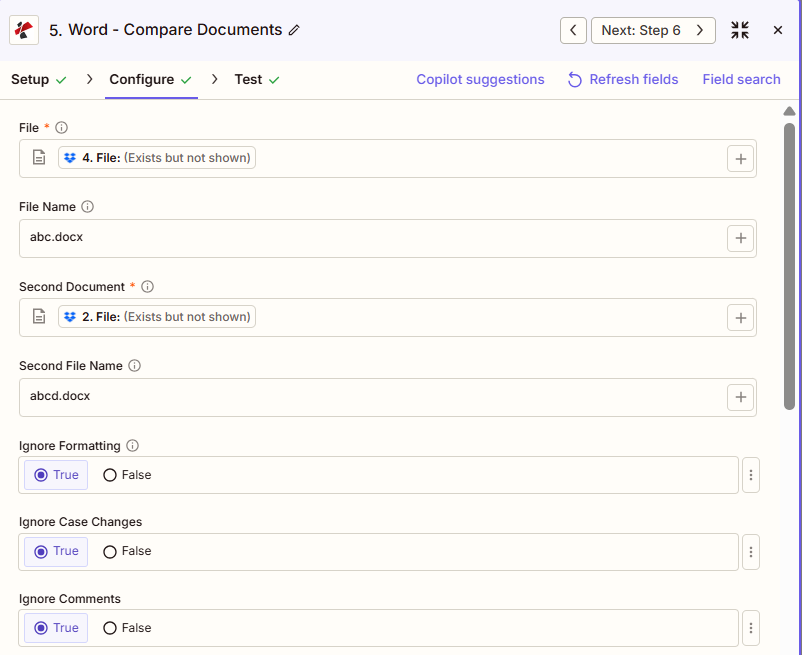
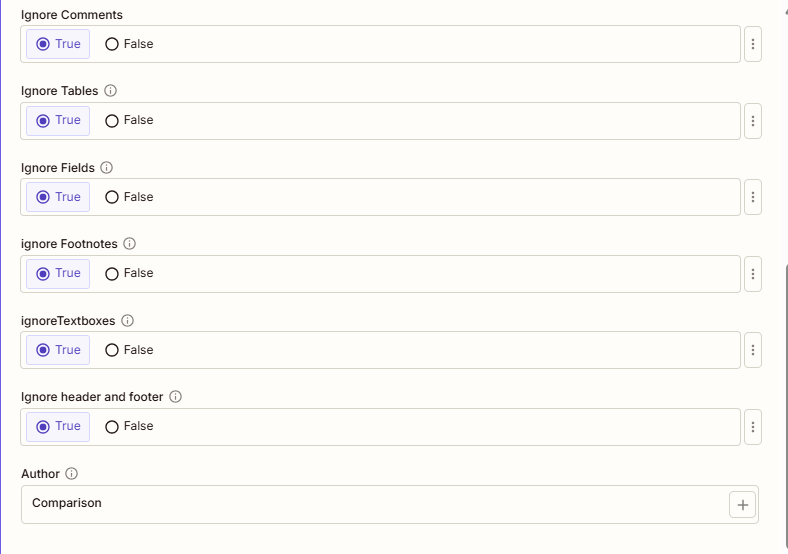
前の手順から、ファイルとファイル名(最初の/オリジナル)、および2番目のドキュメントと2番目のファイル名(2番目/改訂版)がマッピングされます。例:ファイル名 = abc.docx、2番目のファイル名 = abcd.docx。8つの「無視」トグルはすべて「True」に設定され、著者はデフォルトの「比較」のままです。
オリジナルファイル(abc.docx)
改訂版(abcd.docx)
真実
比較
パラメータ
ドキュメント比較アクションのパラメーターの完全なリスト。パラメーター名は、 Zapier 構成 UI。
必須 Zapier UI: ファイルと2番目のドキュメント。ファイル名、2番目のファイル名、すべての無視切り替え、および作成者はオプションです。
| パラメータ | 必須 | その機能 | 例 |
|---|---|---|---|
| File | Required | The original (baseline) document, mapped from a previous step with full file content. | abc.docx |
| File Name | Optional | Filename with .docx or .doc extension for the original document. | abc.docx |
| Second Document | Required | The revised document. Changes from this file relative to File are marked in the output. | abcd.docx |
| Second File Name | Optional | Filename with extension for the revised document. | abcd.docx |
| Ignore Formatting | Optional | True skips bold, italic, font, and color differences. Defaults to No. | True |
| Ignore Case Changes | Optional | True treats "Hello" and "hello" as identical instead of flagging a case change. Defaults to No. | True |
| Ignore Comments | Optional | True skips comment additions and edits. Defaults to No. | True |
| Ignore Tables | Optional | True skips table structure and content changes. Defaults to No. | True |
| Ignore Fields | Optional | True skips auto-updating fields such as dates, preventing false positives. Defaults to No. | True |
| Ignore Footnotes | Optional | True skips footnote content changes. Defaults to No. | True |
| Ignore Textboxes | Optional | True skips textbox content and positioning changes. Defaults to No. | True |
| Ignore Headers And Footers | Conditional | True skips header and footer content changes, focusing on the document body. | True |
| Author | Optional | Name attributed to the tracked changes in the output document. Defaults to Comparison. | Comparison |
| Ignore header and footer | Optional | Ignore header and footer changes. Defaults to No. | No |
出力にはどのようなフィールドが含まれますか?
このアクションは、比較ドキュメント(変更履歴付き)と追跡メタデータを返します。この出力形式は、すべてのアクションで共通です。 PDF4me Word ファイルを返すアクション Zapier。
| 分野 | タイプ | 内容物 |
|---|---|---|
jobId | Text | ID of the PDF4me job that processed the request. |
traceId | Text | Trace ID of the request, when PDF4me returns one. Give it to PDF4me support when reporting a problem. |
documentId | Text | ID PDF4me gives the resulting document. |
File Name | Text | Name of the resulting file, without extension. |
File Extension | Text | Extension of the resulting file, for example `.pdf`. |
Full File Name | Text | Name of the resulting file, with extension. |
File Url | Text | Download link of the resulting file. Map it into any later step that needs the file, for example an upload to Google Drive, Dropbox or OneDrive. |
Alternate File Url | Text | Alternative download link of the resulting file, with the file name at the end of the URL. |
File Size | Number | Size of the resulting file, as reported by PDF4me. |
典型的な構成
ワークフローの例Common Zapier workflow patterns using Compare Documents.
- 新しい契約書がGoogleドライブの契約書フォルダに保存されると、Zapが起動します。
- 「文書の比較」を実行する際は、ファイルをアーカイブされたベースライン契約書に、2番目の文書を新しいバージョンに設定し、「書式設定を無視」と「フィールドを無視」をTrueに設定することで、赤線が実質的なテキストの変更点に焦点を当てるようにします。
- 著者は「法的レビュー」に設定され、修正箇所を示すレッドラインが取引を担当する弁護士にメールで送信されます。
- 政策改訂案は、 SharePoint リスト。
- ドキュメント比較機能は、ファイルが現在承認されているポリシーに設定され、2番目のドキュメントが提案された改訂版に設定され、包括的な追跡のためにすべての「無視」トグルがFalseのままになっている状態で実行されます。
- 比較結果は審査委員会の共有フォルダにアップロードされます。
- スケジュールされたトリガーは、バージョン管理フォルダから管理対象ドキュメントのすべてのバージョンを一覧表示します。
- ドキュメント比較機能は、連続する各ペアに対して実行されます。自動更新された日付が誤った変更として表示されないように、「フィールドを無視」をTrueに設定します。
- 各比較結果は、バージョン間で何が変更されたかの証拠として、監査フォルダに保存されます。
実践的なヒント
チートシート
| 分野 | 価値 |
|---|---|
| Action | Compare Documents |
| File | [mapped, original document] |
| File Name | abc.docx |
| Second Document | [mapped, revised document] |
| Second File Name | abcd.docx |
| Ignore Formatting | True |
| Ignore Case Changes | True |
| Ignore Fields | True |
| Author | Comparison |
よくある質問
関連アクション
他のプラットフォームでの同じタスク
業界におけるユースケースとアプリケーション
- Legal & Professional
- Compliance & Regulatory
- Corporate & Business
- Publishing & Documentation
- 契約上の修正条項: 交渉での変更点をすべて示した契約書案と、追跡された改訂履歴を比較する
- 法律文書版: 議論と引用の変更を追跡した短い草稿を比較する
- 和解契約書のレビュー: 交渉で変更されたすべての内容を特定した和解案を比較する。
- 裁判所提出書類の比較提出前に、提出済みの書類と下書きの書類を比較して正確性を確認する。
- クライアント文書レビュー顧客提出文書と会社修正文書を比較し、推奨事項を示す。
- ポリシーバージョン管理: すべての規制遵守変更を追跡するポリシー改訂を比較する
- 手順の更新プロセス改善の変更点を文書化したSOPのバージョンを比較する
- 規制当局への届出審査変更点を特定するため、規制当局への提出書類の草案と最終版を比較する。
- 監査文書追跡: コンプライアンス監査証跡文書化のために監査ファイルバージョンを比較する
- 文書管理品質管理システムで管理されている文書の変更を追跡する
- 提案書のレビューRFP回答ドラフトを比較し、チームによる編集と改善を追跡する
- レポートの改訂アナリストによる修正が反映された財務報告書のバージョンを比較する
- 戦略計画の更新戦略変更を追跡する計画文書のバージョンを比較する
- ボードパッケージレビュー配布前にボード資料のバージョンを比較して更新内容を特定する。
- ベンダー契約交渉ベンダーとの契約変更を交渉プロセス全体を通して追跡する
- 原稿編集著者と編集者の変更を追跡しながら原稿のバージョンを比較する
- 技術文書技術文書の改訂版を比較して、技術的な更新内容を確認する。
- ユーザーマニュアルの更新製品バージョン全体にわたるユーザー向けドキュメントの変更点を追跡する
- 翻訳レビュー翻訳された文書と原文を比較し、翻訳の変更点を追跡する
- スタイルガイドの適用: 文書とスタイルガイドテンプレートを比較し、相違点を特定する