AI配送ラベルパーサー Zapier
このアクションが何をするか
PDF4me AI配送ラベル解析ツール 配送ラベルデータを自動的に抽出できます Zapier追跡番号、運送業者名、差出人および受取人の住所、重量、寸法、出荷日、特別な取り扱い指示など、あらゆる情報 PDF、 PNG、 または JPG ラベルファイル。 Zapier トリガー(Gmail、Google Drive、Dropbox、Shopify、WooCommerceなど)を設定し、構造化された出力を注文管理システム、倉庫プラットフォーム、スプレッドシート、または顧客通知ステップに直接パイプします。コード不要。手動でのコピー&ペーストも不要。ラベルファイルをマッピングするだけで、すべてのフィールドが構造化され、すぐに使用できる状態で返されます。
認証 API リクエスト
毎 PDF4me アクション Zapier 有効な 繋がり. 接続を作成または選択して、 PDF4me API 鍵があれば、ZapはAI抽出を安全に呼び出すことができます。
見逃してはならない重要な事実
ファイル 前のステップからの実際のバイナリデータである必要があり、 URL またはファイル名文字列。トリガーのファイルデータ出力(Gmail添付ファイル、Googleドライブファイルコンテンツ、Dropbox)からマッピングします。 URL 抽出失敗の原因となります。
の ファイル名 フィールドは以下で終了する必要があります .pdf、 .png、 または .jpg。 PDF4me 拡張子を使用してフォーマットを検出します。拡張子のない名前は空の結果を返します。例: Labels-199287-1.pdf。
すべてのフィールドには0~1の信頼度スコアが付いています。 Zapier パーサー後のフィルター: 条件を満たした場合にのみ続行します 信頼度トラッキングナンバー > 0.85信頼性の低い記録は、疑わしいデータをOMSに書き込むのではなく、レビューシートに回してください。
アクションの設定 Zapier
開く 設定する タブ PDF4me AI配送ラベル解析ステップ。マップ ファイル 前のステップのバイナリ出力から(以下のように表示) 「存在するが、表示されていない」 で ZapierのUI(ファイルオブジェクトの場合は通常通りです)。次にビルドします ファイル名 組み合わせることで ファイル名 トークンと ファイル拡張子 トリガーからのトークンにより、結果には拡張子が含まれます (例: Labels-199287-1.pdf)
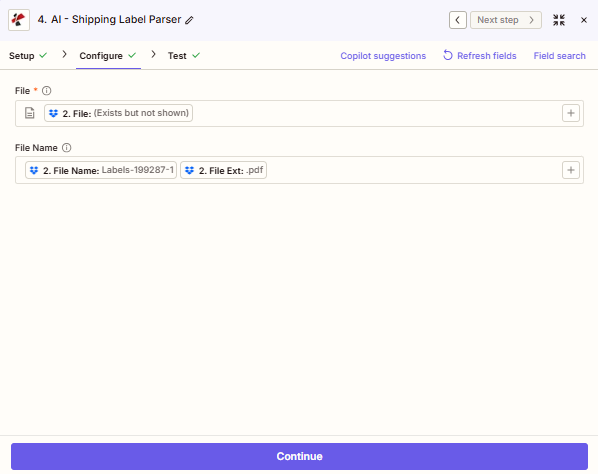
設定タブ: ファイル ステップ2(バイナリラベルファイル)からマッピングされます。 Zapier ショー 「存在するが、表示されていない」 ファイルオブジェクトの場合、これは想定どおりです。 ファイル名 2つのトークンから組み立てられ、 ファイル名 そして ファイル拡張子生産する Labels-199287-1.pdf。 使用 フィールドを更新 ステップ2の名前が最近変更され、サンプルデータが同期していない場合。
主な機能
- AIを活用した抽出印刷ラベルと感熱印刷ラベルを読み取ります。低解像度スキャン、デジタル画像に対応します。 PDFs、および複数のラベル方向
- 完全な住所解析送信者と受信者を個別のフィールドに分割: 名前、会社名、住所、都市、州、郵便番号、国
- キャリア自動検出: UPS、FedEx、DHL、 USPS、 Royal Mail、 Australia Postカナダ郵便、および自動的に識別された地域配送業者
- 追跡とバーコード: プライマリ追跡番号、セカンダリバーコード、およびキャリア参照IDは別々のフィールドとして返されます
- 重量と寸法表示重量(単位:kg/lb)および梱包寸法(単位:cm/in)
- 特別な取り扱いに関する指示: 壊れ物注意、署名必須、安全な場所に置いてください、折り曲げ厳禁(構造化テキストとしてキャプチャ)
- フィールドごとの信頼度スコア: Zapロジックを分岐させ、低品質のレコードにフラグを付け、下流システムを保護するために使用します。
パラメータ
必須: 繋がり、 ファイル、 そして ファイル名アクションステップを保存する前に、これら3つすべてを設定する必要があります。
| パラメータ | 必須 | その機能 | 例の値 |
|---|---|---|---|
| Connection | Required | Your PDF4me API connection. Create one via "Add a new connection" and paste your API key from pdf4me.com. | My PDF4me connection |
| File | Required | Binary content of the shipping label. Map the file data output (not a URL) from your trigger or a file-download step. | 1. Attachment (File Content) |
| File Name | Optional | File name including extension (.pdf, .png, .jpg). Used for format detection and AI optimization. Must include extension. | Labels-199287-1.pdf |
| Custom Field Keys | Optional | Optional list of extra field keys for the AI to extract: carrier-specific codes, routing zones, or hazmat classes not covered by the default output. | ["routingCode","hazmatClass"] |
配送ラベルデータを抽出する方法 Zapier
AI-Shipping Label Parserを任意のZapに設定するには、以下の手順に従ってください。設定全体は5分以内に完了します。
得られるもの
ヒント: 実行後 テストアクション で Zapier出力パネルを開いて、特定のラベルに対して返される正確なフィールド名を確認してください。フィールドの可用性はラベルに印刷される内容によって決まります。ラベルに存在しないフィールドは次のように返されます。 ヌル または省略。以下の表は標準出力セットを示しています。
既知の Zapier アプリの不具合: このステップで宣言する出力リスト Zapier これはAI-Health Card Parserのコピーなので、ステップを実行する前に、動的フィールドピッカーがメンバーIDやRxBinなどのヘルスカード名を提示する場合があります。 API それ自体が配送ラベルデータを返します。以下のフィールド。 テストアクション 一度と Zapier 実際のフィールドを捉えている。
| 分野 | タイプ | 説明 |
|---|---|---|
| trackingNumber | Text | Primary tracking number extracted from the label barcode or printed text |
| carrierName | Text | Carrier identified from the label (e.g. UPS, FedEx, DHL, USPS, Royal Mail) |
| serviceType | Text | Service level printed on the label (e.g. Ground, Express, Priority Mail) |
| senderName | Text | Sender name or company as printed in the From/Sender section |
| senderAddress | Text | Sender street address |
| senderCity | Text | Sender city |
| senderState | Text | Sender state, province, or region |
| senderPostalCode | Text | Sender postal code or ZIP |
| senderCountry | Text | Sender country |
| recipientName | Text | Recipient name or company as printed in the To/Recipient section |
| recipientAddress | Text | Recipient street address |
| recipientCity | Text | Recipient city |
| recipientState | Text | Recipient state, province, or region |
| recipientPostalCode | Text | Recipient postal code or ZIP |
| recipientCountry | Text | Recipient country |
| weight | Text | Declared weight as printed on the label (value and unit may be combined, e.g. "2.3 lb") |
| shipDate | Text | Ship date as printed on the label |
| referenceNumber | Text | Reference number, order ID, or PO number printed on the label (if present) |
| confidence | Object | Per-field confidence scores (0-1). Confirmed across all PDF4me AI parsers. Use in a Filter step to gate data quality. |
| jobId | Text | Unique identifier for this AI processing job: use for tracking and support |
| jobIdExt | Text | External job reference (null if not applicable) |
| success | True/False | true when extraction completed without errors |
| message | Text | Result message from the API: describes success or the specific error |
ワークフローの例
ワークフローの例Real-world Zapier patterns built around the AI-Shipping Label Parser.
- Gmail / Outlook トリガー配送ラベルが添付された新しいメール。
- AI配送ラベル解析ツール追跡番号、受取人、運送業者、到着予定時刻を抽出します。
- フィルター継続するのは、
成功 = true。 - Shopify / WooCommerce追跡番号と配送業者を注文情報に追加してください。
- Gmail / Twilioお客様には、追跡リンク付きのブランド入り発送確認メールをお送りください。
- Googleドライブのトリガー、新しいスキャンラベル PDF 受信フォルダ内。
- AI配送ラベル解析ツール送信者、追跡番号、重量、寸法を抽出します。
- パス運送業者または目的地によって、取り扱い規則が異なります。
- Googleスプレッドシート/エアテーブル受領記録に出荷記録全体を追記する。
- スラック荷物の概要と特別な指示を倉庫チームに通知してください。
- Dropbox / OneDrive トリガー返品ラベルは顧客がアップロードしたものです。
- AI配送ラベル解析ツール送信者(リピーター)と参照番号を抽出します。
- 注文検索参照番号をShopifyまたはOMSの元の注文と照合してください。
- RMAレコードを作成する抽出したすべてのフィールドを事前に入力した状態で戻り値を生成します。
- Stripe / PayPal返金処理を開始し、顧客に確認メールを送信する。