文書分類 Zapier
文書を分類する は Zapier アクション PDF4me 一致する PDF 正規表現に反するコンテンツまたは JavaScript pdf4me.comで定義したルールに基づいて、一致するクラス名を返します。これを使用して、請求書、契約書、領収書を適切なフォルダまたはワークフローブランチに振り分けることができます。機械学習やトレーニングデータは不要です。
このアクションが何をするか
PDF4me 文書を分類する 1つ取る PDF そして返します クラス名 事前に作成したルールに一致するものを、Zap 内で定義します。次のようなクラスを定義します。 pdf4me_請求書 次のような正規表現を使用 請求書(。*) で PDF4me ダッシュボードで、返されたクラス名を使用します フィルター、パス、ファイルのアップロード、Google スプレッドシート、または Airtable 分類器を作成したりトレーニングしたりすることなく、文書を種類別に並べ替える手順。
認証 API リクエスト
アクセスするには PDF4me ウェブ API を通して Zapierすべてのリクエストには、適切な認証情報を含める必要があります。
見逃してはならない重要な事実
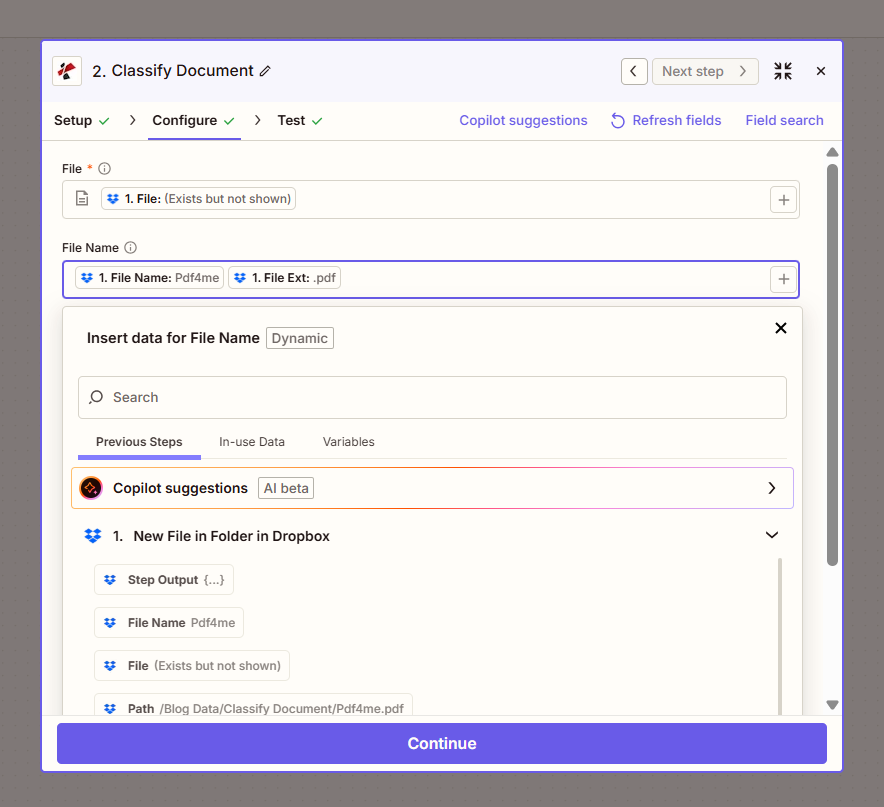
アクションパネルの設定:ファイルは必須、ファイル名はオプションで、トリガーのファイル名と拡張子から生成されます
パラメータ
必須 Zapier UI: ファイル。ファイル名は省略可能です。
| パラメータ | 必須 | その機能 | 例 |
|---|---|---|---|
| File | Required | The PDF file to classify. Map from your trigger (for example File from New File in Folder) or a previous step. | 1. File |
| File Name | Optional | Name of the PDF for identification in the response. Typically built from the trigger's File Name plus File Ext. | document.pdf |
pdf4me_請求書) 正規表現を選択するか、 JavaScript、次のようなパターンを入力します。 請求書(。*)テストする前に「変更を保存」をクリックしてください。 Zapier。出力
| 分野 | タイプ | 内容物 |
|---|---|---|
Class Names | Text | Names of the classes the document matches, as text (for example `Class1, Class2`). |
traceId | Text | Trace ID of the request, when PDF4me returns one. Give it to PDF4me support when reporting a problem. |
ドキュメント分類の設定方法 Zapier?
- の上 pdf4me.com、 開ける 文書を分類する クラスを追加します (クラス名と正規表現または JavaScript パターン)をクリックして、 変更を保存。
- Zap に追加 PDF4me アクションアプリとして選択 文書を分類する。
- 接続 PDF4me アカウントを作成するか、既存の接続を選択してください。
- 地図 ファイル トリガーまたは前のステップから。必要に応じてマッピングします。 ファイル名。
- ステップをテストして確認します クラス名 期待どおりのクラスを返します。
- 使用 クラス名 で フィルター または パス Zapを分岐させる手順、または ファイルのアップロード 出力を文書の種類ごとに命名する。
機械学習分類器の代わりにルールベース分類を使用すべきなのはどのような場合ですか?
文書の種類が、一貫したフレーズ、ヘッダー、またはIDパターン(請求書番号の形式、固定の契約タイトル、既知のフォームコードなど)で識別でき、トレーニングなしで即座に結果が必要な場合は、「文書の分類」を選択してください。カテゴリが曖昧な場合、コンテンツの表現が大きく異なる場合、または既にラベル付けされたデータセットをトレーニングに使用できる場合は、Google Cloud Natural LanguageやAmazon Comprehendなどの機械学習分類器を選択してください。
典型的な構成
ワークフローの例Common Zapier patterns using Classify Document.
- フォルダー内の新しいファイル トリガー (Dropbox、Google Drive、 SharePoint)新しい PDF。
- ドキュメントを分類し、ファイルとファイル名をマッピングして、クラス名を返します。
- パスのステップはクラス名に基づいて分岐します。請求書は一方の方向へ、契約書はもう一方の方向へ進みます。
- ファイルのアップロード機能は、各部門をそれぞれ専用のフォルダ(会計/請求書、法務/契約書など)に保存します。
- フォルダ内の新しいファイル トリガーは、受信時に起動します PDF。
- Classify Documentは、ドキュメントのクラス名を返します。
- 「パス」ステップでは、「クラス名」が「請求書」の場合は請求書テンプレートを使用して「ドキュメントの解析」を実行し、「クラス名」が「領収書」の場合は領収書テンプレートを使用して「ドキュメントの解析」を実行します。
- 各パスは、抽出されたフィールドをそれぞれ対応する下流ステップにマッピングします。
- フォルダ内の新しいファイル トリガーは、受信時に起動します PDF。
- Classify Documentは、ドキュメントのクラス名を返します。
- ファイルのアップロードには、トリガーからの元のファイルを使用し、「ファイル名の指定」を「クラス名」にアンダースコアと元のファイル名を追加した値に設定します。
実践的なヒント
チートシート
| 分野 | 価値 |
|---|---|
| Action | Classify Document |
| Classes defined at | pdf4me.com Classify Document dashboard |
| File | Required, from trigger or previous step |
| File Name | Optional |
| Output | Trace Id, Class Names |
| Unmatched result | Empty/unmatched Class Names, not an error |
| Credits | 1 credit per classification run |
よくある質問
関連アクション
業界におけるユースケースとアプリケーション
- Accounts Payable & Finance
- Legal & Professional Services
- General Document Management
- 請求書のルーティング請求書をクラス別(例:「invoice」に一致する正規表現)にAPワークフローにルーティングする
- 領収書処理式パターンを使用して経費管理のための領収書を識別する
- 文書の分類分類ルールを使用して、財務書類を種類別に整理します。
- 契約識別: 正規表現を使用して契約を分類します (例:
contract(.*)契約管理のため - 文書ルーティングクラス名に基づいて、適切な法務チームに文書を振り分ける
- ケースファイル管理: ケース関連文書をカスタム式で分類する
- 混合フォルダの仕分け: 1つのフォルダにある様々な種類のPDFファイル(請求書、領収書、フォームなど)を種類別のフォルダに分類する
- 型による解析: パス内のクラス名を使用して、ドキュメントの種類ごとに異なる Parse Document テンプレートを実行します。
- 検索用に名前を変更する検索やファイル整理を容易にするため、ファイル名にクラスをプレフィックスとして追加します。