スプリット PDF スイス製 QR で Zapier
SwissQRコードで分割 は Zapier アクション PDF4me バッチをスキャンする PDF スイス向け QR 請求書のコードを抽出し、検出されたコードごとに個別の文書に分割します。仕入先請求書、顧客の公共料金請求書、またはスキャンされた支払伝票が1つの大きな文書にまとめて届いたときに、この機能をトリガーします。 PDF それは自動的に分離する必要がある。
関連ブログ記事
この機能に関するブログ記事はまだありません。近日公開予定です。
その間、PDF4me ブログを閲覧して、あらゆるプラットフォームのチュートリアルやワークフローをご覧ください。
ブログをご覧ください →
このアクションが何をするか
PDF4me、SwissQRコードによる分割 スキャン PDF スイス向け QR 請求書のコードと各段階での文書の分割を個別のファイルに行います QR コードの位置は、支払伝票ページの前でも後でも、お好みで選択できます。仕入先からの一括スキャンされた請求書、複数顧客の公共料金請求書、および1つの大きなバッチとして届く月次明細書など。 PDF 自動的に個別のドキュメントに分割されます。レンダリングを設定します。 DPI 信頼できる QR スキャン品質に関係なく検出、オプションで同じ連続ページを結合 QR コード、およびすべての出力ファイルを単一のファイルで受信します ZIP 下流での取り扱いを容易にするため Zapier。
認証 API リクエスト
毎 PDF4me アクション Zapier 接続が必要 アカウント. お使いの PDF4me API アクションを初めて追加する際に使用するキーです。
見逃してはならない重要な事実
分割位置はどのドキュメントが QR ページ
SwissQR以前 新しいドキュメントを開始する QR ページが切り替わると、支払伝票は次のファイルの1ページ目になります。 SwissQRの後 現在のドキュメントを閉じます QR ページ、支払伝票は前の請求書の最後のページです。スイスの請求書バッチのほとんどは、 後 以来 QR 伝票は、各請求書セクションの最終ページです。
DPI 検出精度を制御します。開始値は150です。
有効な値は100、150、200、250です。150の場合 DPI この動作は、印刷のきれいなスイス製を確実に検出します QR 標準的なオフィス用スキャナーからのコード。低品質のスキャン、わずかに傾いたページ、または小さな文字の場合は 200 を使用してください。 QR コード。200でもコードが見つからない場合にのみ250に増やします。 DPI 大量バッチ処理時の処理時間を大幅に増加させる PDFs.
バッチ処理には「Return as Zip」を使用してください PDF多数の請求書
分割するとき PDF 請求書が20件または200件の場合、このアクションは請求書ごとに1つの出力ファイルを生成します。 Zipファイルとして返送 True は、分割されたすべてのドキュメントを単一のドキュメントにまとめます。 ZIP1 つの出力バンドル Zapier 可変長配列の代わりに。 ZIP その後、一括でDropboxやGoogle Driveにアップロードして一括取得することも、後続の手順で個別に抽出することもできます。
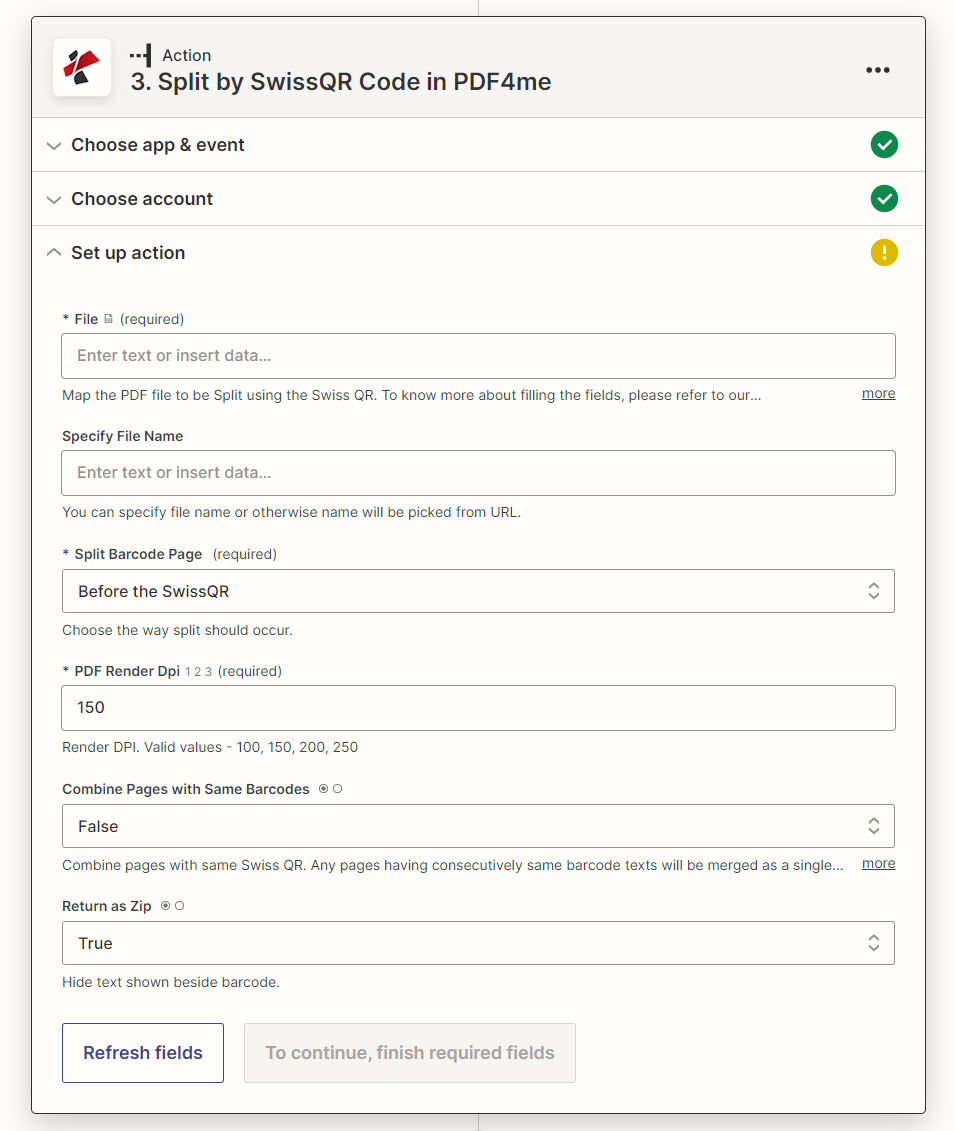
地図 ファイル トリガーまたはダウンロード手順から、 QR ページ、セット DPI、そして有効にする ZIP バッチ出力。
パラメータ
必須: ファイル、 分割バーコードページ、 そして PDF 与える DPIその他のパラメータはすべてオプションであり、適切なデフォルト値が設定されています。
| パラメータ | 必須 | その機能 | 例 |
|---|---|---|---|
| File | Optional | The PDF to split. Map the binary file output from your Zap trigger or a prior download step. Hint: "Map the PDF file to be Split using the Swiss QR." | PDF file from trigger |
| Specify File Name | Optional | Output filename for the ZIP or individual split files. If left empty, the name is picked from the source file or URL. Hint: "You can specify file name or otherwise name will be picked from URL." | swiss_invoices_split |
| Split Barcode Page | Required | Where to divide the document relative to the Swiss QR page. Options: Before the SwissQR (QR page starts the next document) or After the SwissQR (QR page closes the current document). Hint: "Choose the way split should occur.". Defaults to Before the SwissQR. | After the SwissQR |
| PDF Render DPI | Required | Resolution used to render PDF pages for QR code scanning. Valid values: 100, 150, 200, 250. Higher DPI improves detection on low-quality scans but increases processing time. Hint: "Render DPI. Valid values - 100, 150, 200, 250.". Defaults to 150. | 150 |
| Combine Pages with Same Barcodes | Optional | When True, consecutive pages sharing the same Swiss QR code are merged into one output document. Set True for multi-page invoices where each page repeats the payment QR. Hint: "Combine pages with same Swiss QR.". Defaults to No. | False |
| Return as Zip | Optional | When True, all split documents are packaged into a single ZIP file for easy downstream handling. Recommended for batch PDFs with many invoices. Defaults to Yes. | True |
| File URL (Either provide File or File URL) | Optional | Link to the PDF to split, as an alternative to File. Map a file URL from a previous step. | |
出力にはどのようなフィールドが含まれますか?
| 分野 | タイプ | 内容物 |
|---|---|---|
jobId | Text | ID of the PDF4me job that processed the request. |
traceId | Text | Trace ID of the request, when PDF4me returns one. Give it to PDF4me support when reporting a problem. |
SwissQRコードによる分割の設定方法 Zapier?
- Zapで、クリックします + 新しいアクションを追加して検索する PDF4me。
- 選択 SwissQRコードで分割 PDF4me イベントとして。
- 接続 PDF4me アカウントを使用して API 鍵。
- 地図 ファイル へ PDF トリガーまたはダウンロード手順からバイナリを取得します。
- セット 分割バーコードページ: 選ぶ SwissQRの後 支払伝票が各セクションを閉じるタイプの請求書の場合。
- 入力 PDFレンダリングDPI: で始める
150; 増加200もし QR コードが欠落している。 - セット 同じバーコードを持つページを結合する に
True複数ページの請求書の場合、False1ページ用。 - セット Zipファイルとして返送 に
True複数の請求書を含むバッチ処理の場合。 - クリック テストアクション 分割結果を確認するには、Zap を公開します。
ワークフローの例
ワークフローの例Common Zapier workflow patterns using Split by Swiss QR.
ベンダーバッチ PDF → スイスで分割 QR → 個別の請求書をアップロード SharePoint
- ベンダーがバッチをメールで送信します PDF 30枚の請求書が含まれており、それぞれスイスの QR 支払伝票。
- Gmail はベンダーアドレスからの新しいメールで Zap をトリガーします PDF 添付ファイル。
- SwissQRコードで分割 各バッチを分割します QR ページ(SwissQRの後) DPI 150、Zip として返します。True。
- フォーマッターステップは、 ZIP バンドル。
- 各請求書 PDF アップロード先 SharePoint 確認と支払いのための「買掛金/入金」ライブラリ。
毎月の公共料金請求処理 → 分割 → 各顧客に請求書をメールで送信
- 請求システムが統合顧客を削除すると、月末にスケジュールされたZapがトリガーされます。 PDF Dropboxに保存します。
- Dropbox は Zap をトリガーし、 PDF バイナリ。
- SwissQRコードで分割 各顧客の請求書を個別に処理します(同じバーコードを持つページを結合する True、ZIPファイルとして返す True)。
- フォーマッタステップと、分割された各ファイルに対するイテレータループ。
- Gmailは各請求書を個別にメールで送信します PDF Airtableの顧客検索から一致する顧客のメールアドレスに QR 参照番号。
スキャンした受信トレイのバッチ → 分割 → Google スプレッドシートにログを記録 → ドライブにアーカイブ
- 多機能プリンターがスイスの請求書をスキャンし、1日分のバッチとしてまとめて出力します。 PDF そしてそれをGoogleドライブに保存します。
- Googleドライブは、「スキャン済み受信トレイ」フォルダに新しいファイルが追加された際に、Zapをトリガーします。
- SwissQRコードで分割 毎日のバッチを各 QR スリップ DPI MFPスキャンでの確実な検出には200が必要です。
- 分割された各文書は、タイムスタンプをファイル名の接頭辞として、「処理済み請求書」というドライブフォルダにアップロードされます。
- Googleスプレッドシートのステップでは、監査証跡のために、ファイル名、分割数、処理日を含むログ行を追加します。
よくある質問
関連アクション
スイスのQRコードを読み取る
スイスの通貨でエンコードされた支払いデータを抽出します QR 請求書、 IBAN参照、金額、債権者の詳細、 PDF または、文書を分割せずに画像を表示する。
スイスQR紙幣を作成する
スイスを生成する QR 請求書の請求欄 PDFこれは、スイスの支払伝票に準拠した請求書を発行するための対応措置です。
PDFをバーコードで分割
スプリット PDFs どのバーコードタイプでも、 Code128、 QR Code、 DataMatrix一般的なバーコード区切り記号を使用する、スイス国外の文書バッチの場合。