Zapierを使用してWordのテキストを画像に置き換える
Wordでテキストを画像に置き換える は Zapier アクション PDF4me Word文書内のテキストプレースホルダーを検出し、指定した画像に置き換えます。Wordを開かずに、契約書、提案書、レポートなどのテンプレートに署名、ロゴ、グラフなどを自動的に挿入できます。出力は、次のZapステップで使用できる新しい.docxファイルです。
このアクションが何をするか
PDF4meWordでテキストを画像に置き換える Word 文書内で、大文字と小文字を区別する正確なテキスト文字列を検索し、一致するすべてのインスタンスを Zap にマッピングした画像に置き換えます。どのページが影響を受けるかは、 ページ そして 最初のページをスキップする、オプションで設定 画像の幅 そして 画像の高さ 挿入した画像のサイズを調整します。一般的な用途としては、契約書テンプレートに署名を挿入したり、ブランドロゴ入りの手紙にロゴを挿入したり、配布前のレポートにグラフを挿入したりすることが挙げられます。
関連ブログ記事
この機能に関するブログ記事はまだありません。近日公開予定です。
その間、PDF4me ブログを閲覧して、あらゆるプラットフォームのチュートリアルやワークフローをご覧ください。
ブログをご覧ください →
認証方法 API リクエスト?
アクセスするには PDF4me ウェブ APIすべてのリクエストには、適切な認証情報を含める必要があります。認証は安全な通信を保証し、あなたが正規のユーザーであることを証明します。
見逃してはならない重要な事実
Zapierのフィールド名は、基となるものとは異なります。 API
Zapエディタはフィールドにラベルを付ける
Wordファイル、 Wordファイル名、 検索テキスト、 そして 画像ファイルこれらのラベルに基づいて地図を作成してください。参照されている名前に基づいて作成しないでください。 PDF4meの将軍 API ドキュメント。最初のページをスキップし、ページを一緒に操作します
最初のページをスキップする は、 ページ設定 ページ に 全て と 最初のページをスキップする Trueに設定しても1ページ目は除外されます。1ページ目が表紙の場合に便利です。検索テキストは完全に一致する必要があります
マッチングは大文字と小文字を区別し、正確な文字列を探します。
{SIGNATURE} 一致しません サイン または {Signature}そのため、文書は変更されずに返されます。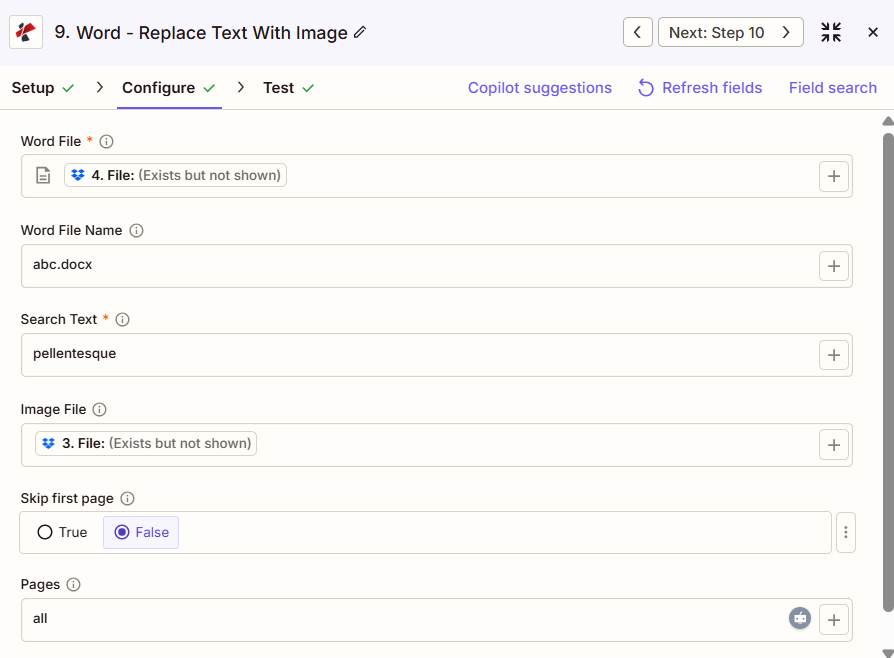
Word アクション パネルの「テキストを画像に置き換える」:Word ファイル、テキストの検索、画像ファイル、最初のページをスキップ、ページ
パラメータ
必須 Zapier UI: ワードファイルと検索テキスト。ワードファイル名、画像ファイル、最初のページをスキップ、ページ数、画像の幅、画像の高さはオプションですが、マッピングされた画像ファイルがない場合、アクションは挿入するものがありません。
| パラメータ | 必須 | その機能 | 例 |
|---|---|---|---|
| Word File | Required | The Word document to process, mapped from a previous Zap step. | [Word File] |
| Word File Name | Conditional | Filename with extension for the document being processed. Used for output naming. | abc.docx |
| Search Text | Required | Exact, case-sensitive placeholder text to find. Every matching instance is replaced. | {COMPANY_LOGO} |
| Image File | Conditional | The replacement image, mapped from a previous step. No asterisk in the Zapier UI, but required for the action to insert anything. | [Logo File] |
| Skip First Page | Conditional | True/False toggle. True excludes page one from the replacement even if Pages is set to all. Default False. | False |
| Pages | Conditional | Which pages to search. Accepts all, first, last, or a comma-separated list of page numbers. | all |
| Image Width | Conditional | Width of the inserted image in millimeters, up to 500. Leave blank to use the image's original width. | 50 |
| Image Height | Conditional | Height of the inserted image in millimeters, up to 500. Leave blank to use the image's original height. | 30 |
出力にはどのようなフィールドが含まれますか?
| 分野 | タイプ | 内容物 |
|---|---|---|
File | URL | Direct URL to the processed Word document with the image inserted. |
File Name | String | The filename without extension. |
Full File Name | String | Complete filename including the .docx extension. |
File Extension | String | File extension of the returned document, .docx. |
Job ID | String | Unique job identifier for tracking this run. |
Trace ID | String | Trace identifier useful when contacting support about a specific request. |
典型的な構成
ワークフローの例Common Zapier workflow patterns using Replace Text With Image In Word.
署名済みの契約書に署名を挿入する
- 承認または電子署名ステップで契約書のWordテンプレートが準備完了となり、
{SIGNATURE}プレースホルダーが内部にあります。 - PDF4me Word で画像にテキストを置換すると、検索テキストが次の設定で実行されます。
{SIGNATURE}画像ファイルは署名者の保存された署名画像にマッピングされ、ページはすべてに設定されます。 - 完成した契約書は、メール送信やストレージへのアップロードなど、次のZapステップに送信されます。
生成されたドキュメントにロゴを付ける
- テンプレートから新しい Word 文書が生成されます。
{COMPANY_LOGO}プレースホルダー。 - 検索テキストはプレースホルダーテキストに設定され、画像ファイルには正しいブランドロゴがマッピングされます。「最初のページをスキップ」はFalseのままにして、ロゴが1ページ目にも表示されるようにします。
- ブランドロゴ入りの文書は、配布または保管の段階に進みます。
スケジュールされたレポートにグラフを挿入する
- レポートデータの更新後にスケジュールされたトリガーが実行され、グラフ生成ステップによってグラフ画像が生成されます。
- Word でテキストを画像に置き換えると、
{CHART_1}生成されたグラフ画像のプレースホルダー。ページを介して特定のページをターゲットにします。 - 完成した報告書は、関係者へ自動的にメールで送信されます。
実践的なヒント
Search Text is case-sensitive
A placeholder like {SIGNATURE} will not match {Signature} or signature. Copy the exact text straight from the template document to avoid silent mismatches.
Image File has no asterisk but is still needed
The Zapier UI does not mark Image File required, but the action has no image to insert without it. Always map a real image file.
Skip First Page is independent of Pages
Setting Pages to all does not override Skip First Page. Set both explicitly if the first page is a cover page that should stay untouched.
Pages accepts words or numbers
Use all, first, last, or a comma-separated list such as 1,2,3 to target exact pages instead of the whole document.
Leave Image Width/Height blank for original size
Both fields are optional and capped at 500mm. Omit them to insert the image at its native dimensions instead of forcing a resize.
チートシート
| 分野 | 価値 |
|---|---|
| Action | Replace Text With Image In Word |
| Word File | [mapped from previous step] |
| Word File Name | contract_template.docx |
| Search Text | {SIGNATURE} |
| Image File | [mapped from previous step] |
| Skip First Page | False |
| Pages | all |
| Image Width | 50 |
| Image Height | 30 |
よくある質問
関連アクション
テキストを置換
プレースホルダーを画像ではなく新しいテキストに置き換える必要がある場合は、こちらを使用してください。
Word文書に透かしを追加する
ロゴやラベルを特定のプレースホルダーを置き換えるのではなく、すべてのページにスタンプする別の画像挿入オプション。
Word文書にヘッダーとフッターを追加する
文書本文内のインラインプレースホルダーを置き換えるのではなく、ヘッダー/フッター領域にロゴやテキストを挿入します。
他のプラットフォームでの同じタスク
Wordでテキストを画像に置き換える
と同じ操作 Make モジュール、クラウドストレージをトリガーとするビジュアルシナリオ。
n8nでWordのテキストを画像に置き換える
自己ホスト型またはクラウド型のノードとして同じ置換を構成する n8n ワークフロー。
Power AutomateでWord内のテキストを画像に置き換える
Microsoft 365 流れ SharePoint、 Outlook、Teamsトリガー、および高度なページフィルタリングパラメーター。
Word REST API でテキストを画像に置き換える
生 PDF4me エンドポイント。カスタムバックエンドコードやPostmanテスト用。
業界におけるユースケースとアプリケーション
- Legal & Professional Services
- Human Resources
- Corporate Communications
- Marketing & Sales
- 契約書への署名契約書に署名画像を挿入する
- 手紙のテンプレート法的文書に署名を追加する
- 契約処理契約書への署名挿入を自動化する
- 文書認証: 確認画像を挿入
- 内定通知書オファーレターにマネージャーの署名を追加する
- 従業員ハンドブック: 会社のロゴと写真を挿入してください
- 証明書修了証明書に署名を追加する
- 政策文書: ロゴ挿入済みのブランド文書
- レターヘッド: レターテンプレートにロゴを挿入する
- 提案提案書にブランディング要素を追加する
- 報告書レポートテンプレートにチャートやグラフを挿入する
- プレゼンテーションプレゼンテーションデータを画像付きのWord形式に変換する
- 提案販売提案書に製品画像を挿入する
- 事例研究: ケーススタディテンプレートにクライアントのロゴを追加する
- パンフレット: 製品写真をパンフレットテンプレートに挿入する
- プレゼンテーションWordプレゼンテーションに動的な画像を追加する