ロック解除 Excel で Zapier
PDF4me ロック解除 Excel は Zapier パスワード保護を解除するアクション Excel ファイル暗号化、ワークブック構造ロック、ワークシートコンテンツロックという3つの保護レイヤーすべてにわたるファイルのロックを、1つのステップで解除できます。保護されたテンプレートの編集、アーカイブされたファイルのロック解除、スプレッドシートデータのマージ前のパスワード解除などに使用できます。ロック解除されたファイルは、次のZapステップで使用できます。
このアクションが何をするか
保護された Excel 前の Zap ステップで作成したワークブックを復元し、指定したパスワードによる保護レイヤー(ファイル暗号化の「開く時のセキュリティ保護パスワード」、シート構造の「ワークブック保護パスワード」、セル内容の「ワークシート保護パスワード」)をそれぞれ解除します。複数のパスワードが指定されている場合は、特定のフィールドに対して完全一致を求めるのではなく、各レイヤーに対して論理的な順序で試行します。「ワークシート名」または「ワークシートインデックス」で特定のシートを指定するか、両方を空欄にしてワークブック全体のロックを解除します。
認証 API リクエスト
アクセスするには PDF4me ウェブ API を通して Zapierすべてのリクエストには適切な認証情報を含める必要があります。認証により安全な通信が保証され、承認されたユーザーとしての身元が検証され、シームレスな統合が可能になります。 Zapier ワークフローと PDF4meの Excel ロック解除サービス。
見逃してはならない重要な事実
:::ヒント:前の手順でマップファイルとファイル名を取得してください + 隣のボタン ファイル そして ファイル名 以前の Zap ステップからマッピングします。 ファイルURL そして ファイル名全体 以前の PDF4me Excel セキュアなどのアクション Excel。 :::
:::警告 ファイル: (存在しますが表示されません) ファイルフィールドに「ファイル: (存在しますが表示されません)」と表示され、エラーが発生した場合は、 ファイルの内容全体 代わりに。参照 Zapier & Power Automate ヒント詳細は :::
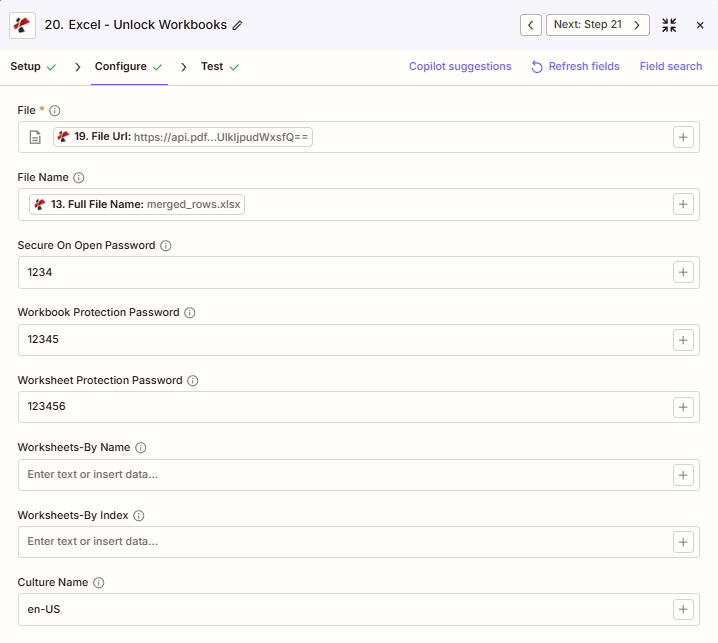
Unlockの主な機能は何ですか? Excel?
- 3層構造のロック解除: 開く時のセキュリティパスワード、ワークブック保護パスワード、ワークシート保護パスワード
- インテリジェントなパスワードフォールバック: 各レイヤーで指定されたパスワードを論理的な順序で試行します
- ワークシートのターゲット設定ワークシート - 名前順またはワークシート - インデックス順、すべて空欄のままにしてください
- 文化支援: 地域固有の処理のためのカルチャー名
パラメータ
ロック解除のパラメータ一覧 Excel アクション。パラメータ名は、 Zapier 構成 UI 上記のスクリーンショットに示されています。
- 地図 ファイル (Excel) そして ファイル名 前のステップから
- セット パスワードで開くと安全になります ファイルが暗号化されていて開けない場合
- セット ワークブック保護パスワード そして ワークシート保護パスワード これらのレイヤーが適用された場合
- オプションで設定可能 ワークシート - 名前別 または ワークシート - 索引別; すべてのシートを空欄のままにしてください
| パラメータ | 必須 | その機能 | 例 |
|---|---|---|---|
| File | Optional | Protected Excel file to unlock. Map from a previous step. Must provide full file content. | [19. File Url] |
| File Name | Optional | Excel filename, used for output file identification. | merged_rows.xlsx |
| Secure On Open Password | Optional | Password to open the encrypted file. Removes file-open encryption. | 1234 |
| Workbook Protection Password | Optional | Password for the workbook structure lock. Removes the sheet add/delete/rename restriction. | 12345 |
| Worksheet Protection Password | Optional | Password for the worksheet content lock. Removes the cell-editing restriction. | 123456 |
| Worksheets-By Name | Optional | Comma-separated worksheet names to target. Empty targets all worksheets. | Sheet1, Summary |
| Worksheets-By Index | Optional | Comma-separated 0-based worksheet positions to target. Empty targets all worksheets. | 0, 1, 2 |
| Culture Name | Optional | Locale used when processing region-specific number and date formats. Defaults to en-US. | en-US |
| File URL (Either provide File or File URL) | Optional | Link to the Excel file to unlock, as an alternative to File. Map a file URL from a previous step. | |
ファイルに実際に含まれているパスワードのみを提供してください。
その保護レイヤーが適用されていない場合は、パスワード欄を空欄のままにしてください。存在しないレイヤーに対して誤ったパスワードを入力しても効果はありません。この操作は、既に適用されていて一致する保護のみを削除します。
重要: のみ ファイル 必須です。ファイルが実際に持つ各保護レイヤーごとにパスワードを指定してください。複数の候補パスワードが指定された場合、アクションは論理的な順序で試行します。
ロック解除とは Excel 戻る?
の PDF4me ロック解除 Excel アクションはロック解除された Excel 後続の Zap ステップで使用するためのファイル。出力形式はすべて共通です。 PDF4me Excel アクション Zapier。
API ロック解除されたエンドポイントをダウンロードします Excel ファイル。これを次のステップのファイル入力にマッピングします。
api.pdf4me.com/Zapier/GetDocument?d=...代替ダウンロード URL パスにファイル名を含めて。
api.pdf4me.com/Zapier/GetAltDocument/.../merged_rows.xlsx| 分野 | タイプ | 内容物 |
|---|---|---|
jobId | Text | ID of the PDF4me job that processed the request. |
traceId | Text | Trace ID of the request, when PDF4me returns one. Give it to PDF4me support when reporting a problem. |
documentId | Text | ID PDF4me gives the resulting document. |
File Name | Text | Name of the resulting file, without extension. |
File Extension | Text | Extension of the resulting file, for example `.pdf`. |
Full File Name | Text | Name of the resulting file, with extension. |
File Url | Text | Download link of the resulting file. Map it into any later step that needs the file, for example an upload to Google Drive, Dropbox or OneDrive. |
Alternate File Url | Text | Alternative download link of the resulting file, with the file name at the end of the URL. |
File Size | Number | Size of the resulting file, as reported by PDF4me. |
- JSON
- Zap Integration
例 JSON 出力 (URL(表示形式のみ、リンクは機能しません):
{
"Job Id": "969f2da3-f10a-49bf-b084-6fc4759991ec",
"File Url": "api.pdf4me.com/Zapier/GetDocument?d=...",
"Alternate File Url": "api.pdf4me.com/Zapier/GetAltDocument/.../merged_rows.xlsx",
"File Name": "merged_rows",
"Full File Name": "merged_rows.xlsx",
"File Extension": ".xlsx",
"Document Id": "07386627-184a-44b2-a040-5ea2712a4bc5",
"File Size": 212764
}
使用 + 地図を作成する ファイルURL または 代替ファイルURL 次のステップへ、ドライブ、Dropbox、メール、または別の PDF4me Excel アクション(例:行の更新、セキュリティ保護) Excel)
この出力構造は、以下の間で共有されます。 Excelのロックを解除、 安全なExcel、 行を更新するその他 PDF4me Excel アクション Zapier. URLこれらは一時的なものです。期限が切れる前に次のステップで使用してください。
典型的な構成
ワークフローの例Common Zapier workflow patterns using Unlock Excel.
- 定期的なテンプレート更新の時期が近づくと、スケジュールされたトリガーが作動します。
- PDF4me ロック解除 Excel 保存されたテンプレートからファイルとファイル名をマッピングし、既知の「開くときに保護」パスワードと「ブックの保護」パスワードを提供します。すべてのシートのロックを解除するために、「名前によるワークシート」と「インデックスによるワークシート」は空のままになります。
- 「行の更新」は、現在の期間のデータを、編集可能になったテンプレートに挿入します。
- PDF4me 安全な Excel ファイルがライブラリに保存される前に、新しいパスワードで保護を再適用します。
- スケジュールされたトリガーにより、毎晩データ同期が実行されます。
- PDF4me ロック解除 Excel 保護されたマスターデータワークブックをマッピングします SharePointは、安全な保管庫からセキュアな「開く時のパスワード」を提供し、更新が必要な特定のシートに「名前によるワークシート」を設定します。
- 「行の更新」機能は、本番データベースからクエリされた新しいレコードを、ロックが解除されたシートに書き込みます。
- PDF4me 安全な Excel ファイルをアップロードする前に元の保護を再適用します SharePoint。
- ファイルが長期保存用アーカイブフォルダに移動されると、トリガーが作動します。
- PDF4me ロック解除 Excel 保護されたファイルをマッピングし、そのファイルに実際に含まれている3つのパスワードのうちいずれか1つを指定します。ワークシートのターゲットを空のままにしておくと、ワークブック全体がロック解除されます。
- ロック解除されたファイルはコールドストレージにアップロードされ、そこでアーカイブされたファイルはパスワード管理の手間をかけずにアクセスできます。
実践的なヒント
チートシート
| 分野 | 価値 |
|---|---|
| Action | Unlock Excel |
| File | [Mapped from previous step] |
| Secure On Open Password | 1234 |
| Workbook Protection Password | 12345 |
| Worksheet Protection Password | 123456 |
| Worksheets-By Name | (empty for all) |
| Culture Name | en-US |
よくある質問
関連アクション
他のプラットフォームでの同じタスク
業界におけるユースケースとアプリケーション
- Finance & Accounting
- Legal & Professional
- Human Resources
- Operations
- 予算テンプレートの更新: 保護された予算テンプレートのロックを解除して、年次更新とデータ更新を行う
- 財務モデルの修正: 前提条件の更新に関する財務モデルから保護を解除する
- アーカイブ準備: 長期保存前に四半期ごとの財務ファイルをロック解除する
- 統合に関する最新情報月次連結データ更新用のエンティティテンプレートのロックを解除する
- 監査ファイルへのアクセス: 翌年度の参照用にアーカイブされた監査ファイルのロックを解除する
- テンプレートの変更条項の更新や改訂のための法的文書テンプレートをアンロックする
- 事件ファイル編集: 追加分析エントリのためにケースファイルから保護を解除する
- 問題クローズアーカイブ: パスワードの負担なしにアーカイブ前にファイルロックを解除する
- ドキュメントアセンブリ: ドキュメントアセンブリ統合のために保護された前例ファイルのロックを解除します
- クライアントファイルの更新: 納品後の修正のためにクライアントの成果物をロック解除する
- 年次テンプレート更新: 年間報酬および福利厚生の更新に関する人事テンプレートを有効化する
- 従業員記録の編集承認されたデータ修正のために、人事ファイルから保護を解除する。
- 特典テンプレートの更新: 新しいプラン年度の設定のための福利厚生登録テンプレートをアンロックする
- アーカイブ準備: 人事アーカイブ保管前に、分離された従業員ファイルのロックを解除する
- ポリシーテンプレートの更新従業員ハンドブックのテンプレートをロック解除して、ポリシーを改訂する
- 制作スケジュール更新情報: 計画変更のために保護された生産スケジュールを解除する
- 在庫テンプレートの編集: 数式更新のための在庫テンプレートの保護を解除します
- 品質ダッシュボードの変更: メトリック定義の変更に関するQCダッシュボードのロックを解除する
- マスターデータ更新: 夜間データベース同期のために保護されたマスターデータファイルのロックを解除します
- 容量モデルの変更: 前提条件と制約条件の更新のための容量計画モデルのロックを解除します