パスワードで保護 Excel ファイル Zapier
安全な Excel は Zapier アクション PDF4me 3 つの独立したレベルのパスワード保護を適用します Excel ファイル:承認されたユーザーのみが開けるようにファイルを暗号化し、シートの変更を防止するためにワークブック構造をロックし、閲覧は可能だが編集を制限するためにワークシートレベルの保護を設定します。財務報告書、テンプレート、機密データを配布する前に、これらの機能を有効にしてください。
認証方法 API リクエスト?
アクセスするには PDF4me ウェブ API を通して Zapierすべてのリクエストには適切な認証情報を含める必要があります。認証により安全な通信が保証され、承認されたユーザーとしての身元が検証され、シームレスな統合が可能になります。 Zapier ワークフローと PDF4meの強力な Excel セキュリティサービス。
見逃してはならない重要な事実
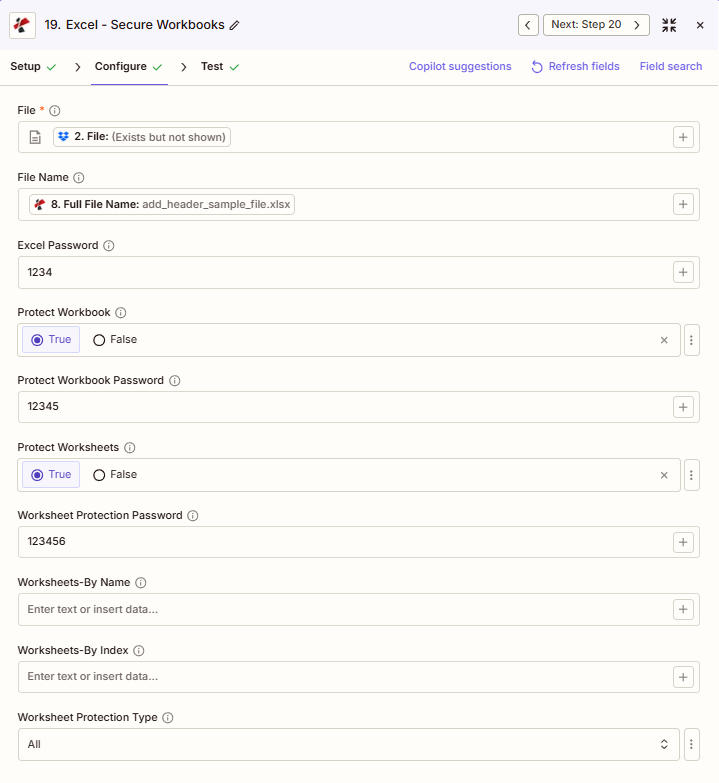
設定概要
スクリーンショットには、前のステップでマッピングされたファイルとファイル名が表示されています。 Excel パスワード「1234」、ワークブックの保護を「True」、ワークブックの保護パスワードを「12345」、ワークシートの保護を「True」、ワークシートの保護パスワードを「123456」、ワークシートを名前で指定、ワークシートをインデックスで指定は空欄、ワークシートの保護タイプを「すべて」に設定。
1234
真実
真実
全て
:::ヒント:前の手順でマップファイルとファイル名を取得してください + 隣のボタン ファイル そして ファイル名 以前の Zap ステップからマッピングします。 Excelファイルには完全なコンテンツを提供する必要があり、「存在するが表示されない」参照は認められません。 :::
:::警告 ファイル: (存在しますが表示されません) ファイルフィールドに「ファイル: (存在しますが表示されません)」と表示され、エラーが発生した場合は、 ファイルの内容全体 代わりに。参照 Zapier & Power Automate ヒント詳細は :::
パラメータ
Secure のパラメータの完全なリスト Excel アクション。パラメータ名は、 Zapier 構成 UI。
必須 Zapier UI: ファイルのみ。パスワードと保護設定はすべて任意ですが、操作を保護するためには、少なくとも1つの保護レベルを有効にしてください。
| パラメータ | 必須 | その機能 | 例 |
|---|---|---|---|
| File | Optional | Excel file content, mapped from a previous step using full file content. | [2. File from Step 2] |
| File Name | Optional | Filename with .xlsx or .xls extension, used for output naming. | add_header_sample_file.xlsx |
| Excel Password | Optional | File encryption password required to open the file. Also used as the fallback for Protect Workbook Password and Worksheet Protection Password if those are left empty. | 1234 |
| Protect Workbook | Optional | Boolean toggle to lock the workbook structure, preventing sheets from being added, deleted, or renamed. | True |
| Protect Workbook Password | Optional | Password required to unlock workbook structure protection. Falls back to Excel Password if left empty. | 12345 |
| Protect Worksheets | Optional | Boolean toggle to restrict editing on the targeted worksheets. | True |
| Worksheet Protection Password | Optional | Password required to unlock worksheet protection. Falls back to Excel Password if left empty. | 123456 |
| Worksheets-By Name | Optional | Comma-separated worksheet names to protect. Leave empty to protect every worksheet. | Sheet1,Summary |
| Worksheets-By Index | Optional | Comma-separated worksheet indexes to protect. Leave empty to protect every worksheet. | 0,2 |
| Worksheet Protection Type | Optional | What is restricted on protected worksheets: All, Contents, Objects, or Scenarios. Defaults to All. | All |
| File URL (Either provide File or File URL) | Optional | Link to the Excel file to protect, as an alternative to File. Map a file URL from a previous step. | |
| File Name | Optional | Name of the Excel file, including its extension (for example `report.xlsx`). | |
出力にはどのようなフィールドが含まれますか?
このアクションは保護された Excel ファイルとトラッキングメタデータ。この出力形状は、 PDF4me Excel アクション Zapier ファイルを返すもの。
| 分野 | タイプ | 内容物 |
|---|---|---|
jobId | Text | ID of the PDF4me job that processed the request. |
traceId | Text | Trace ID of the request, when PDF4me returns one. Give it to PDF4me support when reporting a problem. |
documentId | Text | ID PDF4me gives the resulting document. |
File Name | Text | Name of the resulting file, without extension. |
File Extension | Text | Extension of the resulting file, for example `.pdf`. |
Full File Name | Text | Name of the resulting file, with extension. |
File Url | Text | Download link of the resulting file. Map it into any later step that needs the file, for example an upload to Google Drive, Dropbox or OneDrive. |
Alternate File Url | Text | Alternative download link of the resulting file, with the file name at the end of the URL. |
File Size | Number | Size of the resulting file, as reported by PDF4me. |
典型的な構成
ワークフローの例Common Zapier workflow patterns using Secure Excel.
- Driveで月次財務報告書が確定すると、トリガーが作動します。
- 安全な Excel 実行 Excel ファイルを開く際の暗号化にパスワードが設定されており、さらに「ブックの保護」と「ワークシートの保護」が有効になっているため、構造とコンテンツが完全に保護されます。
- 保護されたレポートは制限付きの役員専用フォルダにアップロードされ、パスワードは別の安全なチャネルを通じて共有されます。
- 承認済みのテンプレートが共有テンプレートライブラリから取得され、Zapがトリガーされます。
- 安全な Excel 「ワークシートの保護」を「True」に設定し、「名前によるワークシート指定」で数式シートのみを対象とし、データ入力シートは編集可能な状態にして実行します。
- 保護されたテンプレートは、チームで使用できるよう共有ライブラリにアップロードされます。
- 週次パフォーマンスレポートの生成が完了し、Zapがトリガーされます。
- 安全な Excel 「ワークシートの保護」を「True」に設定し、「ワークシート保護パスワード」を空欄にしたまま実行し、単一の共有パスワードにフォールバックします。 Excel パスワード。
- レポートは、共有パスワードとともにチーム全体にメールで送信されます。
実践的なヒント
チートシート
| 分野 | 価値 |
|---|---|
| Action | Secure Excel |
| File | [mapped from previous step, full content] |
| File Name | add_header_sample_file.xlsx |
| Excel Password | 1234 |
| Protect Workbook / Password | True / 12345 |
| Protect Worksheets / Password | True / 123456 |
| Worksheet Protection Type | All |
よくある質問
関連アクション
他のプラットフォームでの同じタスク
業界におけるユースケースとアプリケーション
- Finance & Accounting
- Legal & Professional
- Human Resources
- Operations
- 給与ファイルの暗号化: 人事部門への配布前に、給与および報酬関連ファイルにファイル暗号化を適用する
- 財務テンプレート保護: 財務モデルテンプレート内の構造と数式シートを保護する
- 監査作業文書セキュリティ監査ファイルをアーカイブ保存する前にパスワードで暗号化する
- 予算テンプレート保護予算計算式シートをロックしつつ、部門データの入力は許可する。
- ボードパッケージの暗号化取締役会会議資料にファイル暗号化を適用して機密性を確保する
- クライアントファイル保護顧客案件ファイルを案件固有のパスワードで暗号化する
- テンプレート数式の保護法的テンプレート計算シートの改変を防止する
- 発見資料のセキュリティ財務資料にワークシート保護を適用して、読み取り専用で閲覧できるようにする
- 特権文書の暗号化弁護士・依頼者間の機密情報を含むExcelファイルを暗号化する
- 決済ワークシートの保護: 不正な変更を防止するために決済計算シートをロックします。
- 業績評価保護レビューテンプレートの参照シートと評価式を保護する
- 報酬ファイルの暗号化給与調査および報酬分析ファイルを暗号化する
- メリット テンプレート保護給付金計算シートを保護しつつ、登録データの入力を可能にする
- 従業員データセキュリティ人事記録と組織図にファイル暗号化を適用する
- 人員計画保護人員数モデルの計算式を保護しつつ、シナリオデータの入力も可能にする
- 生産スケジュール保護マスター生産スケジュールの数式を不正な変更から保護する
- 在庫テンプレートのセキュリティ在庫計算シートをロックしつつ、カウントデータの入力は許可する。
- 品質ダッシュボード保護: QCダッシュボードのチャートと計算シートを読み取り専用として保護する
- 機器ログの暗号化資産情報とコスト情報を含む保守ログを暗号化する
- 容量モデル保護需要データの更新を許可しつつ、容量計画の数式をロックする