ヘッダーとフッターを削除 Excel 使用 Zapier
ヘッダーとフッターを削除 Excel は Zapier アクション PDF4me ヘッダーとフッターのコンテンツをクリアします Excel ワークシートをセクションごとに編集できます。ヘッダーとフッターで左揃え、中央揃え、右揃えを個別に選択でき、1つのワークシートまたはワークブック全体に適用できます。また、再配布前に古いブランドロゴや下書きマークを削除するのにも役立ちます。
関連ブログ記事
この機能に関するブログ記事はまだありません。近日公開予定です。
その間、PDF4me ブログを閲覧して、あらゆるプラットフォームのチュートリアルやワークフローをご覧ください。
ブログをご覧ください →
認証方法 API リクエスト?
アクセスするには PDF4me ウェブ API を通して Zapierすべてのリクエストには適切な認証情報を含める必要があります。認証により安全な通信が保証され、承認されたユーザーとしての身元が検証され、シームレスな統合が可能になります。 Zapier ワークフローと PDF4meの強力な Excel フォーマットサービス。
見逃してはならない重要な事実
必要なのはファイルのみです
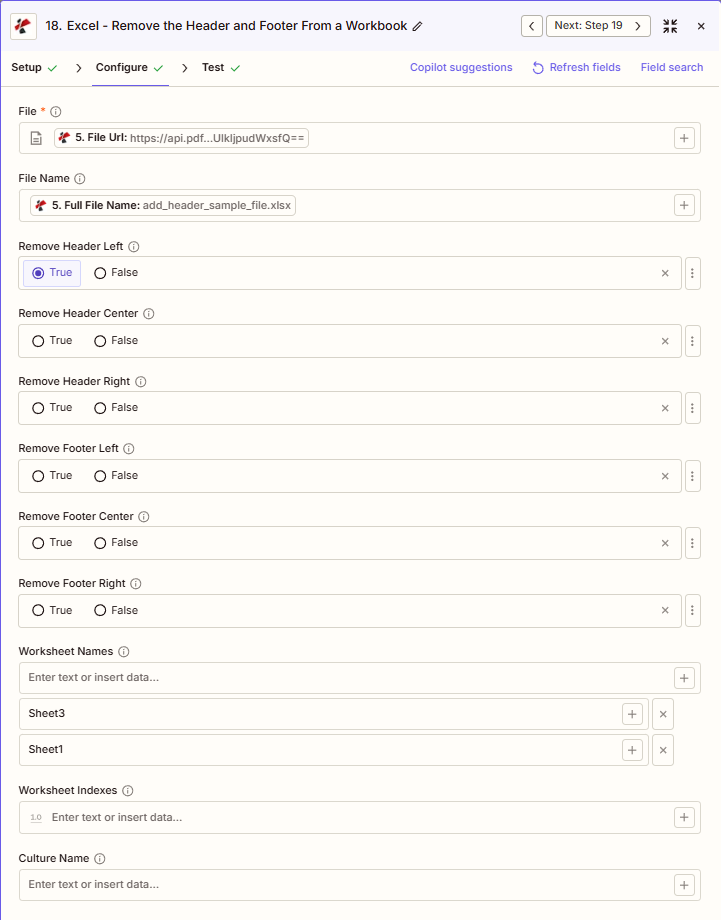
スクリーンショットは、File に唯一のアスタリスクが含まれていることを確認できます。 Zapier UIヘッダー/フッターの削除トグル、ファイル名、ワークシート名、ワークシートインデックス、およびカルチャ名はすべてオプションです。
6つの独立した真偽切り替えスイッチ
ヘッダーの左/中央/右の削除とフッターの左/中央/右の削除はそれぞれ独立した切り替えボタンなので、中央の「下書き」スタンプなどの特定のセクションを削除しつつ、フッター右側のページ番号はそのまま残しておくことができます。
ワークシートのターゲティングはオプトイン方式であり、オプトアウト方式ではありません。
すべてのシートを処理するには、「ワークシート名」と「ワークシートインデックス」を空欄のままにしてください。特定のシートに名前を付けると、処理されなかったシートのヘッダーとフッターがそのまま保持されます。
パラメータ
ヘッダーフッター削除アクションのパラメータ一覧。パラメータ名は、 Zapier 構成 UI。
必須 Zapier UI: ファイルのみ。ファイル名、6つのヘッダー/フッター切り替え機能、ワークシートのターゲット設定、およびカルチャ名はすべてオプションです。
| パラメータ | 必須 | その機能 | 例 |
|---|---|---|---|
| File | Optional | Excel file content, mapped from a previous step using full file content (not an "Exists but not shown" reference). | [5. File Url] |
| File Name | Optional | Filename with .xlsx or .xls extension, used for output naming. | add_header_sample_file.xlsx |
| Remove Header Left | Optional | Removes the left section of the header. | True |
| Remove Header Center | Optional | Removes the center section of the header. | False |
| Remove Header Right | Optional | Removes the right section of the header. | False |
| Remove Footer Left | Optional | Removes the left section of the footer. | False |
| Remove Footer Center | Optional | Removes the center section of the footer. | False |
| Remove Footer Right | Optional | Removes the right section of the footer. | False |
| Worksheet Names | Optional | Comma-separated sheet names to target. Sheets left out keep their headers/footers. Empty targets every sheet. | Sheet3, Sheet1 |
| Worksheet Indexes | Optional | Sheet positions to target instead of names. Empty targets every sheet. | [1.0] |
| Culture Name | Optional | Locale code used during processing. | en-US |
| File URL (Either provide File or File URL) | Optional | Link to the Excel workbook to remove the header and footer from, as an alternative to File. Map a file URL from a previous step. | |
出力にはどのようなフィールドが含まれますか?
このアクションは変更された Excel ファイルとトラッキングメタデータ。この出力形式はすべての共通です。 PDF4me Excel アクション Zapier。
| 分野 | タイプ | 内容物 |
|---|---|---|
jobId | Text | ID of the PDF4me job that processed the request. |
traceId | Text | Trace ID of the request, when PDF4me returns one. Give it to PDF4me support when reporting a problem. |
documentId | Text | ID PDF4me gives the resulting document. |
File Name | Text | Name of the resulting file, without extension. |
File Extension | Text | Extension of the resulting file, for example `.pdf`. |
Full File Name | Text | Name of the resulting file, with extension. |
File Url | Text | Download link of the resulting file. Map it into any later step that needs the file, for example an upload to Google Drive, Dropbox or OneDrive. |
Alternate File Url | Text | Alternative download link of the resulting file, with the file name at the end of the URL. |
File Size | Number | Size of the resulting file, as reported by PDF4me. |
典型的な構成
ワークフローの例Common Zapier workflow patterns using Remove Header Footer.
リブランディングの際に古いブランドを剥ぎ取る
- Googleドライブのステップでは、各 Excel テンプレートライブラリからテンプレートを1つずつ、ループアプリを使って順番に使用します。
- PDF4me ヘッダー/フッターの削除は、6 つの「ヘッダー/フッターの削除」トグルをすべて True に設定し、ワークシート名/インデックスを空のままにして実行することで、すべてのシートをクリーンアップします。
- クリーンアップされたファイルは、新しいヘッダー/フッターを適用するためのリブランディング用ステージングフォルダにアップロードされます。
下書きスタンプを外し、ページ番号はそのままにしておく。
- テンプレート管理ステップでは、中央ヘッダーに「DRAFT」のスタンプが付いたマスターテンプレートを取得します。
- Remove Header Footer は、Remove Header Center を True に設定し、その他のトグルをすべて False に設定した状態で実行されるため、フッターのページ番号はそのまま保持されます。
- 「ワークシート名」は、外部に配布される特定のシートに設定されます。
クライアントへの納品前に内部ワークブックを消去する
- プロジェクト管理ツールで成果物が最終版としてマークされると、ワークフローが開始されます。
- 「ヘッダーとフッターを削除」は、ヘッダー左とフッター中央(内部レビュー担当者名と下書き通知)をクリアしますが、フッター右(顧客向けコンテンツ)はそのまま残します。この操作は、顧客に表示されるワークシートのみに適用されます。
- 修正済みのワークブックはクライアントポータルにアップロードされます。
実践的なヒント
Map full file content, not a reference
If File shows "Exists but not shown", pick the mapping option that provides the full file content instead, or the action errors on that input.
Six toggles, six independent choices
Set only the sections you actually want cleared. Leaving Remove Footer Right false, for example, is how you preserve page numbers while clearing everything else.
Worksheet targeting is opt-in
Leave Worksheet Names and Worksheet Indexes empty to guarantee every sheet is processed. Naming a subset skips every sheet not named.
Worksheet Names is comma-separated
List sheet names exactly as they appear in the workbook, such as Sheet3, Sheet1. Typos in a sheet name silently skip that sheet.
Culture Name rarely needs to change
Leave Culture Name blank unless a downstream locale-specific formatting issue appears. It affects processing locale, not which sections get removed.
チートシート
| 分野 | 価値 |
|---|---|
| Action | Remove Header Footer |
| File | [mapped from previous step, full content] |
| File Name | add_header_sample_file.xlsx |
| Remove Header Left | True |
| Remove Header Center | False |
| Remove Header Right | False |
| Remove Footer Left | False |
| Remove Footer Center | False |
| Remove Footer Right | False |
| Worksheet Names | Sheet3, Sheet1 |
よくある質問
関連アクション
ヘッダーとフッターを追加する Excel
逆の操作として、クリーンアップ処理の後に、新しい標準化されたテキストヘッダーとフッターを適用するために使用します。
画像ヘッダーフッターを追加する Excel
古いブランドロゴを削除したら、新しいロゴ画像をヘッダーまたはフッターに挿入してください。
透かしを削除
もう一つのクリーンアップツールは、ヘッダーやフッターではなく、ワークシートの内容から「DRAFT」や「CONFIDENTIAL」の透かしを削除するものです。
他のプラットフォームでの同じタスク
ヘッダーとフッターを削除 Make
と同じ操作 Make モジュール、クラウドストレージをトリガーとするビジュアルシナリオ。
ヘッダーとフッターを削除 n8n
自己ホスト型またはクラウド型のノードと同じクリーンアップを設定します n8n ワークフロー。
ヘッダーとフッターを削除 Power Automate
Microsoft 365 流れ SharePoint、 Outlook、およびTeamsトリガー。
ヘッダーとフッターを削除 REST API
生 PDF4me エンドポイント。カスタムバックエンドコードやPostmanテスト用。
業界におけるユースケースとアプリケーション
- Corporate Rebranding
- Finance & Accounting
- Legal
- Operations
- テンプレートライブラリのクリーンアップすべてのExcelテンプレートのヘッダー/フッターから古い会社のロゴと名前を削除します。
- 合併統合M&Aによるリブランディングの際に、買収した企業のヘッダーをテンプレートから削除する
- ブランド刷新: フッターセクションから古いタグラインと連絡先情報を削除する
- テンプレートの標準化新しい標準ブランディングを適用する前に、一貫性のないヘッダー/フッターを修正してください。
- アーカイブ準備テンプレートがエバーグリーンライブラリに入る前に、時間指定ヘッダーを削除します。
- クォーターロールフォワード: 新しい四半期の予算テンプレートから、前の四半期のヘッダー/フッターを削除する
- クライアントレポートのサニタイズクライアントへの納品前に、内部レビュー担当者名と下書きフッターを削除してください。
- 監査ファイルのクリーンアップ最終監査ファイルを作成する前に、作業用紙のヘッダーを取り外してください。
- テンプレートの更新ローリング予測テンプレートから古い期間ヘッダーを削除する
- 統合クリーンアップ統合レポートテンプレートからエンティティ固有のフッターを削除する
- 書類作成準備裁判所に提出する前に、法的文書から内部審査のヘッダーを削除する
- クライアントへの納品物の整理: 顧客への配布前に弁護士の作業成果物フッターを削除してください
- テンプレートのクリーンアップ: 再利用のために、法的テンプレートからケース固有のヘッダーを削除します。
- 発見時のサニタイズ特権のない展示物から特権ヘッダーを削除する
- アーカイブ準備案件をアーカイブする前に、内部レビューのフッターを整理する
- レポートの標準化: 複数の場所で使用されているテンプレートから、サイト固有のフッターを削除します。
- テンプレート配布チーム展開前に、運用テンプレートからドラフトヘッダーをクリーンアップする
- クライアントダッシュボードのクリーンアップクライアントポータルにアップロードする前に、ダッシュボードから内部ヘッダーを削除します。
- アーカイブの標準化テンプレートが標準ライブラリに入る前に、日付固有のフッターを削除します。
- ベンダー納品物の整理ベンダーへの配布前に内部プロジェクトヘッダーを削除します