ワークシートを抽出する Excel 使用 Zapier
PDF4me ワークシートを抽出する Excel は Zapier 1 つ以上のワークシートをコピーするアクション Excel ワークブックを新しいものに Excel ファイル。ワークシートを名前、インデックスで選択するか、両方とも空欄にしてすべてのシートを抽出します。抽出されたワークブックのダウンロードリンクが返され、次の Zap ステップで使用できます。
このアクションが何をするか
取る Excel 前の Zap ステップのワークブックから、指定したワークシート (またはすべてのワークシート) を読み込み、それぞれを JSON 最初の行をヘッダーとして使用します。結果はワークシート名をキーとする単一の辞書になります。したがって、SummaryシートとSalesシートを含むワークブックは1つの辞書を返します。 JSON 両方のキーを持つオブジェクト。複数シートのレポートを APIスプレッドシートファイルではなく構造化データを必要とするデータベースや下流の自動化ステップ。
認証 API リクエスト
アクセスするには PDF4me ウェブ API を通して Zapierすべてのリクエストには適切な認証情報を含める必要があります。認証により安全な通信が保証され、承認されたユーザーとしての身元が検証され、シームレスな統合が可能になります。 Zapier ワークフローと PDF4meの Excel ワークシート抽出サービス。
見逃してはならない重要な事実
:::ヒント:前の手順でマップファイルとファイル名を取得してください + 隣のボタン ファイル そして ファイル名 以前の Zap ステップからマッピングするには、たとえば、 ファイル名全体 以前の PDF4me Excel 行動。 Excelファイルには完全なコンテンツを提供する必要があり、「存在するが表示されない」参照は認められません。 :::
:::警告 ファイル: (存在しますが表示されません) ファイルフィールドに「ファイル: (存在しますが表示されません)」と表示され、「ファイルが空です」エラーが発生する場合は、 ファイルの内容全体 代わりに。参照 Zapier & Power Automate ヒント詳細は :::
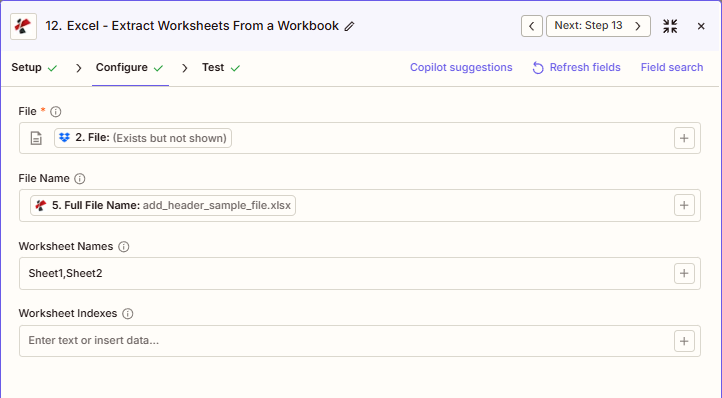
抽出ワークシートの主な機能は何ですか?
- ワークシートの抽出を完了する に JSON 自動ヘッダー検出機能付き
- 柔軟な選択ワークシート名、ワークシートインデックス、またはその両方(結合)で抽出します。
- 複数枚シートのサポート 複数のワークシートを一度に抽出します
- 辞書出力 ワークシート名でキー付けされているため、簡単にアクセスできます。
- 1ベースのインデックス ワークシートインデックス用
パラメータ
ワークシート抽出アクションのパラメーターの完全なリスト。パラメーター名は、 Zapier 構成 UI 上記のスクリーンショットに示されています。
- 地図 ファイル (Excel)トリガーまたは前のステップから
- オプションでマッピング ファイル名 (例:前の手順で取得したファイル名全体)
- 入力 ワークシート名 および/または ワークシート索引または、両方とも空欄にしてすべてのシートを抽出します。
| パラメータ | 必須 | その機能 | 例 |
|---|---|---|---|
| File | Required | Excel file to extract worksheets from. Map from a previous step. Must provide full file content. | [2. File from Step 2] |
| File Name | Optional | Excel filename, used for output file identification. | add_header_sample_file.xlsx |
| Worksheet Names | Optional | Comma-separated worksheet names to extract. Combines (union) with Worksheet Indexes if both are set. Empty with Indexes = all worksheets. | Sheet1, Sheet2 |
| Worksheet Indexes | Optional | Comma-separated 1-based worksheet positions to extract. 1 = first worksheet. Combines with Worksheet Names. | 1,3 |
| File URL (Either provide a File or File URL) | Optional | The Excel workbook to extract the worksheets from. Map a file from a previous step. Provide either File or File URL. Note: Zapier labels this field File URL, the same as the next field. | |
ワークブック内のすべてのワークシートを抽出します。
両方とも残しておく ワークシート名 そして ワークシート索引 空にして抽出する すべてのワークシート ワークブック内のデータを出力辞書に格納します。
重要: のみ ファイル が必要です。 + 各フィールドの横にあるボタンをクリックすると、前の手順からのデータがマッピングされます。ワークシートのインデックスは1から始まります(1=最初のワークシート)。
「ワークシートの抽出」機能は何を返しますか?
の PDF4me ワークシートを抽出する Excel アクションは新しいものを返します Excel 選択したワークシートのみを含むファイル(ダウンロードリンク付き)と、以下のファイルおよびジョブのメタデータ。
| 分野 | タイプ | 内容物 |
|---|---|---|
jobId | Text | ID of the PDF4me job that processed the request. |
traceId | Text | Trace ID of the request, when PDF4me returns one. Give it to PDF4me support when reporting a problem. |
documentId | Text | ID PDF4me gives the resulting document. |
File Name | Text | Name of the resulting file, without extension. |
File Extension | Text | Extension of the resulting file, for example `.pdf`. |
Full File Name | Text | Name of the resulting file, with extension. |
File Url | Text | Download link of the resulting file. Map it into any later step that needs the file, for example an upload to Google Drive, Dropbox or OneDrive. |
Alternate File Url | Text | Alternative download link of the resulting file, with the file name at the end of the URL. |
File Size | Number | Size of the resulting file, as reported by PDF4me. |
- JSON
- Zap Integration
例 JSON 応答:
{
"jobId": "9f1c2e7a-4b7d-4f2a-8c31-0d5b6e9a1f44",
"traceId": "4b7d2e18-9c3a-4f55-b0e2-7a1d8c6f3b02",
"documentId": "07386627-184a-44b2-a040-5ea2712a4bc5",
"File Name": "quarterly_report_sheets",
"File Extension": ".xlsx",
"Full File Name": "quarterly_report_sheets.xlsx",
"File Url": "https://api.pdf4me.com/Zapier/GetDocument/...",
"Alternate File Url": "https://api.pdf4me.com/Zapier/GetAltDocument/.../quarterly_report_sheets.xlsx",
"File Size": 18432
}
ファイルは ファイルURL は Excel 選択したワークシートのみを含むワークブック。ヘッダー、スタイル、数式はそのまま保持されます。
使用 + 地図を作成する ファイルURL または 代替ファイルURL 次のステップへ:Google Drive、Dropbox、OneDriveへのアップロード、メール添付ファイル、または別の PDF4me Excel アクション。
典型的な構成
ワークフローの例Common Zapier workflow patterns using Extract Worksheets.
- 統合レポートのワークブックがGoogleドライブのフォルダに保存されると、トリガーが作動します。
- PDF4me ワークシート抽出はファイルとファイル名をマッピングし、ワークシート名とワークシートインデックスを空のままにして、すべてのシートを1つとして抽出します。 JSON 辞書。
- 抽出したワークブックをダウンロードし、各宛先にルーティングするためのファイルURLを個別のステップでマッピングします。 API。
- フォーム送信トリガーは、クライアントが共有マスターワークブックからどのワークシートを必要としているかを把握します。
- PDF4me 「ワークシートの抽出」機能は、「ワークシート名」を要求されたシートリスト(例:「Q1、Q2」)に設定し、それらのシートのみが抽出されるようにします。
- 解読された JSON データは匿名化され、クライアントポータルに配信されるか、添付ファイルとしてメールで送信されます。
- 毎月末日に、スケジュールされたトリガーが実行されます。
- PDF4me ワークシートの抽出機能は、詳細シートをスキップして、サマリータブの既知の位置(例:「1,2」)にワークシートインデックスを設定します。
- 抽出された JSON 長期保存のために、データベースまたはBLOBストレージに書き込まれる。
実践的なヒント
チートシート
| 分野 | 価値 |
|---|---|
| Action | Extract Worksheets |
| File | [Mapped from previous step] |
| File Name | add_header_sample_file.xlsx |
| Worksheet Names | Sheet1, Sheet2 (optional) |
| Worksheet Indexes | 1,3 (optional, 1-based) |
| Output format | Excel file, returned as a download link |
よくある質問
関連アクション
他のプラットフォームでの同じタスク
業界におけるユースケースとアプリケーション
- IT & Integration
- Finance & Accounting
- Operations
- Education
- マルチAPIフィード異なるワークシートを異なるシステムAPIに自動的に抽出する
- データウェアハウスへのデータロード複数シートの財務ワークブックをデータウェアハウステーブルにロードする
- システム移行Excelワークブック全体をJSON形式に抽出し、クラウドシステムへ移行する。
- データバックアップ: 災害復旧のために、複数シートの運用ワークブックをJSON形式でアーカイブする
- ETLパイプライン: 複数ステップの変換パイプラインでワークシートを中間フォーマットとして抽出する
- 期間終了月次の損益計算書、貸借対照表、キャッシュフロー計算書を財務システムに抽出する
- 統合輸出連結ワークブックからエンティティレベルのワークシートを抽出し、GLに転記する
- 予算配分部門予算ワークシートを抽出し、それぞれのシステムに配布する
- 監査ファイルアーカイブ: 完全な監査ワークブックをJSON形式で抽出して、保持コンプライアンスに対応します。
- 経営報告: さまざまなステークホルダーシステム向けにエグゼクティブサマリーと詳細ワークシートを抽出する
- 複数拠点データ統合された運用ワークブックからサイト固有のワークシートを抽出する
- ダッシュボードフィード: 運用用ExcelからKPIワークシートを抽出し、BIダッシュボードAPIに渡す
- 在庫同期: 倉庫在庫ワークシートをWMSシステムに抽出する
- 生産報告生産ワークブックからシフトワークシートをMESシステムに抽出する
- 品質データ製品ラインごとに検査ワークシートをQMSプラットフォームに抽出する
- コースデータのエクスポート: 登録課ワークブックからSISにコース登録ワークシートを抽出する
- 成績分布学期ごとに成績ワークシートを抽出して学習管理システムに取り込む
- 学生記録: 州の教育システムへの報告用に生徒データワークシートを抽出する
- 財政援助: マスターワークブックから援助ワークシートを抽出して、財政援助プラットフォームに送る
- 評価データ分析プラットフォーム向けに科目別のテストスコアワークシートを抽出する