テキスト透かしを追加する Excel 使用 Zapier
PDF4me テキスト透かしを追加 は Zapier 「機密」や「下書き」などのWordArt透かしをスタンプするアクション Excel ワークシート。ファイルと透かしテキストのみが必須です。フォント、色、透明度、回転はすべてオプションのスタイル設定です。特定のシートまたはワークブック全体に適用し、新しいシートを返します。 Excel 次のZapステップ用のファイル。
このアクションが何をするか
取る Excel 前の Zap ステップからワークブックを取得し、選択したワークシート全体に透かしテキストを WordArt オーバーレイとしてレンダリングします。フォント、サイズ、太字/斜体、16 進数カラー、透明度 (0~100)、回転 (-360 ~ 360 度) を制御して、控えめなグレーの DRAFT マークから太字の斜めの CONFIDENTIAL スタンプまで、あらゆるものを設定できます。シート名またはインデックスで特定のシートをターゲットにするか、両方とも空欄にしてワークブック内のすべてのシートに透かしを入れることもできます。
認証 API リクエスト
アクセスするには PDF4me ウェブ API を通して Zapierすべてのリクエストには適切な認証情報を含める必要があります。認証により安全な通信が保証され、承認されたユーザーとしての身元が検証され、シームレスな統合が可能になります。 Zapier ワークフローと PDF4meの Excel 透かしサービス。
見逃してはならない重要な事実
:::ヒント:前の手順でマップファイルとファイル名を取得してください + 隣のボタン ファイル そして ファイル名 以前の Zap ステップからマッピングするには、たとえば、 Excel Googleドライブから。組み合わせることができます ファイル名 そして ファイル拡張子 前のステップから。 Excelファイルには完全なコンテンツを提供する必要があり、「存在するが表示されない」参照は認められません。 :::
:::警告 ファイル: (存在しますが表示されません) ファイルフィールドに「ファイル: (存在しますが表示されません)」と表示され、「ファイルが空です」エラーが発生する場合は、 ファイルの内容全体 代わりに。参照 Zapier & Power Automate ヒント詳細は :::
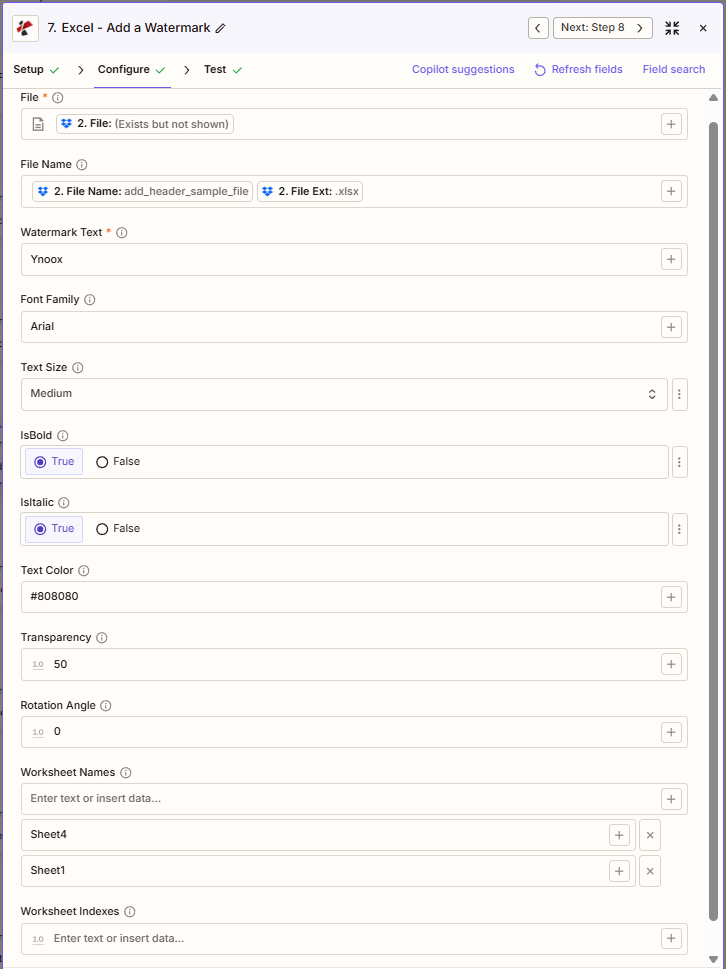
テキスト透かしを追加する機能の主な特徴は何ですか?
- ワードアートの透かし サイズプリセット付き(S、M、L、XL)
- フォントとスタイル カスタマイズ: フォントファミリー、太字、斜体
- 色と透明度 コントロール(16進数カラー、透明度0~100%)
- 回転 斜め配置の場合は-360度から360度まで
- ワークシートのターゲット設定 名前または索引、あるいはすべてのシートで検索
パラメータ
テキスト透かしの追加アクションのパラメーターの完全なリスト。パラメーター名は、 Zapier 構成 UI 上記のスクリーンショットに示されています。
- 地図 ファイル (Excelトリガーまたは前のステップから
- 入力 透かし文字 (例:「機密」、「草稿」)
- フォントファミリー、テキストサイズ、テキストカラー、太字、斜体など、必要に応じて設定できます。
- オプションで設定可能 透明性 (0-100) 回転角度 (例:対角線の場合は-45)
- 任意で指定 ワークシート名 または ワークシート索引 (または、すべてのシートを空欄のままにしてください)
| パラメータ | 必須 | その機能 | 例 |
|---|---|---|---|
| File | Optional | Excel file to watermark. Map from a previous step. Must provide full file content. | [2. File from Step 2] |
| File Name | Optional | Excel filename, used for output file identification. | add_header_sample_file.xlsx |
| Watermark Text | Required | Text to display as the WordArt watermark. | CONFIDENTIAL |
| Font Family | Optional | Font used for the watermark text. Defaults to Arial. | Arial |
| Text Size | Optional | Preset size: Small, Medium, Large, or Extra Large. Defaults to Medium. | Medium |
| IsBold | Optional | True applies bold weight to the watermark text. Defaults to Yes. | True |
| IsItalic | Optional | True applies italic style to the watermark text. Defaults to Yes. | False |
| Text Color | Optional | Hex code or named color for the watermark. Defaults to #808080. | #808080 |
| Transparency | Optional | Opacity from 0 (opaque) to 100 (fully transparent). Defaults to 50. | 50 |
| Rotation Angle | Optional | Rotation in degrees, from -360 to 360. Defaults to 0. | -45 |
| Worksheet Names | Optional | Comma-separated worksheet names to target. Combines with Worksheet Indexes if both are set. Empty with Indexes = all worksheets. | Sheet4, Sheet1 |
| Worksheet Indexes | Optional | Comma-separated 1-based worksheet positions to target. Combines with Worksheet Names. | [1, 4] |
| File URL (Either provide a File or File URL) | Optional | Link to the Excel workbook to add the watermark to, as an alternative to File. Map a file URL from a previous step. | |
すべてのワークシートに適用する
両方とも残しておく ワークシート名 そして ワークシート索引 透かしを適用するには空欄にしてください すべてのワークシート ワークブックに記載されています。
重要: のみ ファイル そして 透かし文字 必須です。 + 各フィールドの横にあるボタンを使用して、前のステップからのデータをマッピングします。ブール値は、 真実 または 間違い。
「テキスト透かしを追加」すると何が返されますか?
の PDF4me テキスト透かしを追加 アクションは変更されたものを返します Excel 後続の Zap ステップで使用するためのファイル。出力形式はすべて共通です。 PDF4me Excel アクション Zapier。
API 透かし入りのダウンロードエンドポイント Excel ファイル。これを次のステップのファイル入力にマッピングします。
api.pdf4me.com/Zapier/GetDocument?d=...代替ダウンロード URL パスにファイル名を含めて。
api.pdf4me.com/Zapier/GetAltDocument/.../add_header_sample_file.xlsx| 分野 | タイプ | 内容物 |
|---|---|---|
jobId | Text | ID of the PDF4me job that processed the request. |
traceId | Text | Trace ID of the request, when PDF4me returns one. Give it to PDF4me support when reporting a problem. |
documentId | Text | ID PDF4me gives the resulting document. |
File Name | Text | Name of the resulting file, without extension. |
File Extension | Text | Extension of the resulting file, for example `.pdf`. |
Full File Name | Text | Name of the resulting file, with extension. |
File Url | Text | Download link of the resulting file. Map it into any later step that needs the file, for example an upload to Google Drive, Dropbox or OneDrive. |
Alternate File Url | Text | Alternative download link of the resulting file, with the file name at the end of the URL. |
File Size | Number | Size of the resulting file, as reported by PDF4me. |
- JSON
- Zap Integration
例 JSON 出力 (URL(表示形式のみ、リンクは機能しません):
{
"Job Id": "969f2da3-f10a-49bf-b084-6fc4759991ec",
"File Url": "api.pdf4me.com/Zapier/GetDocument?d=...",
"Alternate File Url": "api.pdf4me.com/Zapier/GetAltDocument/.../add_header_sample_file.xlsx",
"File Name": "add_header_sample_file",
"File Extension": ".xlsx",
"Full File Name": "add_header_sample_file.xlsx",
"Document Id": "07386627-184a-44b2-a040-5ea2712a4bc5",
"File Size": 212764,
"Doc Text": ""
}
使用 + 地図を作成する ファイルURL または 代替ファイルURL 次のステップへ、ドライブ、Dropbox、メール、または別の PDF4me Excel アクション。
この出力構造は、以下の間で共有されます。 テキスト透かしを追加、 行を追加する、 テキストヘッダーとフッターを追加その他 PDF4me Excel アクション Zapier. URLこれらは一時的なものです。期限が切れる前に次のステップで使用してください。
典型的な構成
ワークフローの例Common Zapier workflow patterns using Add Text Watermark.
- アクセス制限付きストレージフォルダにワークブックがアップロードされると、トリガーが作動します。
- PDF4me 「テキスト透かしを追加」では、透かしテキストを「CONFIDENTIAL」に設定し、テキストの色を赤、回転角度を-45度に設定します。ワークシート名とワークシートインデックスは空欄のままにして、すべてのシートに透かしが入ります。
- 透かし入りのワークブックは、安全なストレージに保存されます。
- ワークブックがプロジェクトのドラフトフォルダに保存されると、トリガーが作動します。
- PDF4me 「テキスト透かしを追加」では、透かしテキストを「DRAFT」に設定し、テキストの色をグレーに、IsItalicをTrueに設定し、透明度を高くして、目立たない透かしを作成します。
- メール送信の手順により、マークされた下書きがレビューチームに送信されます。
- 成果物が外部配布用に最終版としてマークされたときに、トリガーが作動します。
- PDF4me 「テキスト透かしを追加」機能は、会社の著作権表示行に透かしテキストを設定します。テキストサイズは小さく、透明度も低く設定されているため、目立たないながらもはっきりと見えるマークになります。
- 保護されたワークブックは外部の受信者に送信されます。
実践的なヒント
チートシート
| 分野 | 価値 |
|---|---|
| Action | Add Text Watermark |
| File | [Mapped from previous step] |
| Watermark Text | CONFIDENTIAL |
| Font Family | Arial |
| Text Size | Medium |
| Text Color | #808080 |
| Transparency | 50 |
| Rotation Angle | -45 |
| Worksheet Names | Sheet4, Sheet1 (or empty for all) |
よくある質問
関連アクション
他のプラットフォームでの同じタスク
業界におけるユースケースとアプリケーション
- Finance & Accounting
- Legal & Professional
- Operations
- Human Resources
- 機密財務報告書四半期財務諸表に「機密」の透かしを入れる
- 予算案ワークブック暫定予算文書に透明度の高い「DRAFT」透かしを適用する
- 内部監査ファイル監査作業書類およびスケジュールに「内部使用のみ」の透かしを入れる
- 発表前の結果: 公開前に「[日付]まで公開禁止」という透かしが入った決算報告書
- 感度分析M&Aの財務モデルと評価スプレッドシートに斜めの透かしを入れる
- 法的文書の草案契約書テンプレートや契約書には、「下書き」を示す灰色の斜め透かしを入れる。
- 機密資料機密性の高い法律関連のスプレッドシートに「弁護士・依頼者間の秘匿特権」の透かしを入れる
- レビュー版パートナーレビュー用に配布する文書に「レビュー専用」の透かしを入れる
- 機密情報開示: 財務資料に「機密情報 - 開示資料」の透かしを入れる
- 決済ワークシート交渉用スプレッドシートに「機密和解」の透かしを入れる
- 制作スケジュール案: 予備的な生産計画には「PRELIMINARY」の斜めの透かしを入れる
- 内部運用指標パフォーマンスダッシュボードに「内部使用のみ」の透かしを適用する
- 品質管理ログ: 品質管理スプレッドシートにステータス透かし(「審査中」、「承認済み」)を挿入する
- メンテナンススケジュール承認状況表示付きの透かし入り機器保守計画
- キャパシティプランニング予備的な容量分析ワークブックに「予測案」の透かしを適用する
- 給与計算ワークシート給与および給与計算ファイルに「機密 - 人事部専用」の透かしを挿入する
- 業績評価案: 予備レビュー用スプレッドシートには「DRAFT」のグレーの透かしを入れる
- 報酬分析給与調査データに「極秘」の赤い透かしを入れる
- 組織再編計画組織図に「機密情報 - 配布禁止」の透かしを入れる
- メリット比較: 福利厚生コスト分析ワークブックに「内部計画」の透かしを挿入する